
This guide explains how to manually reset an Apple TV using the settings menu.
Why do I need to do this? When an Apple TV is set up correctly, it should automatically enter Conference Mode and display the naming convention School Name_# (e.g., ConroeHS_1). Like the image below. If your device does not enter Conference Mode or asks for an Apple ID during setup, it failed to enroll in JAMF School properly. You must wipe it and try again.
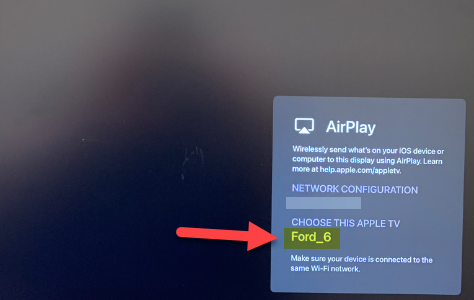
If your Apple TV is already on the main screen with the app icons, you can skip strictly to the Phase 2: Performing the Wipe section below.
Phase 1: Getting Through the Setup Screens
If you are stuck in the initial setup loop, follow these specific steps to bypass the menus and reach the settings.
-
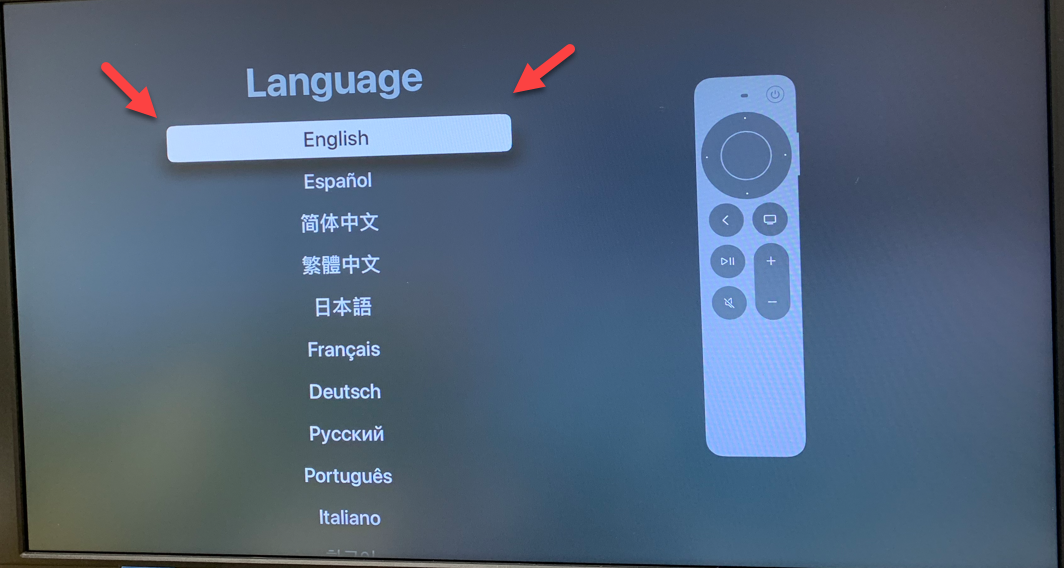
On the Language Screen, select English.
-
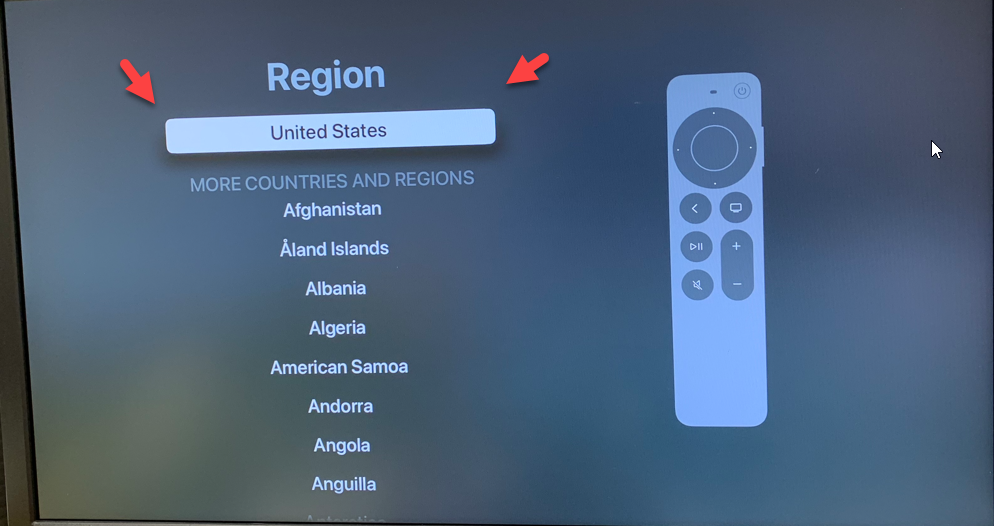
On the Region Screen, select United States.
-
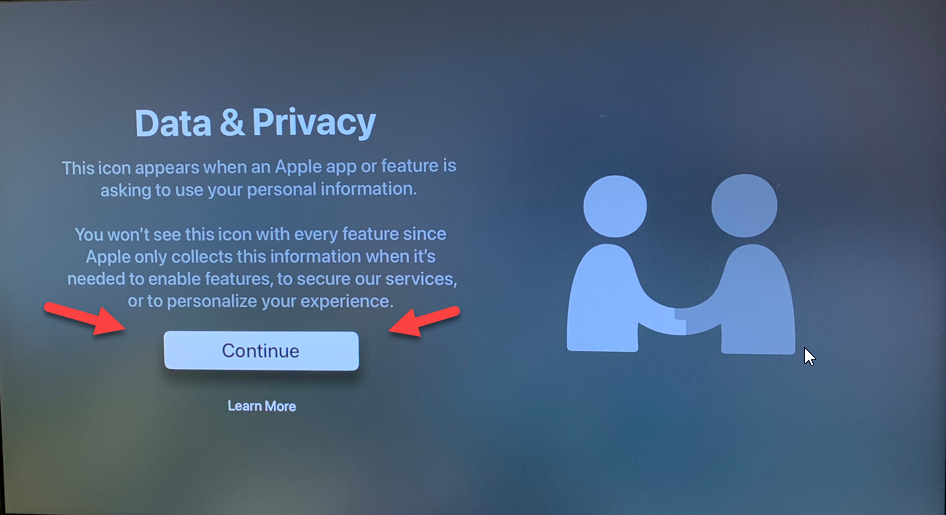
On the Data & Privacy Screen, select Continue.
-
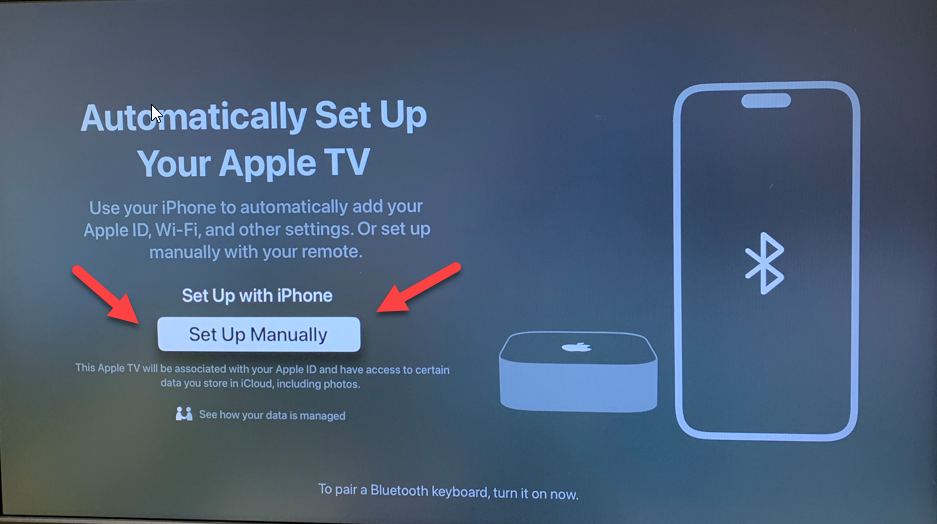
On the "Automatically Set Up Your Apple TV" Screen, select Set Up Manually.
-
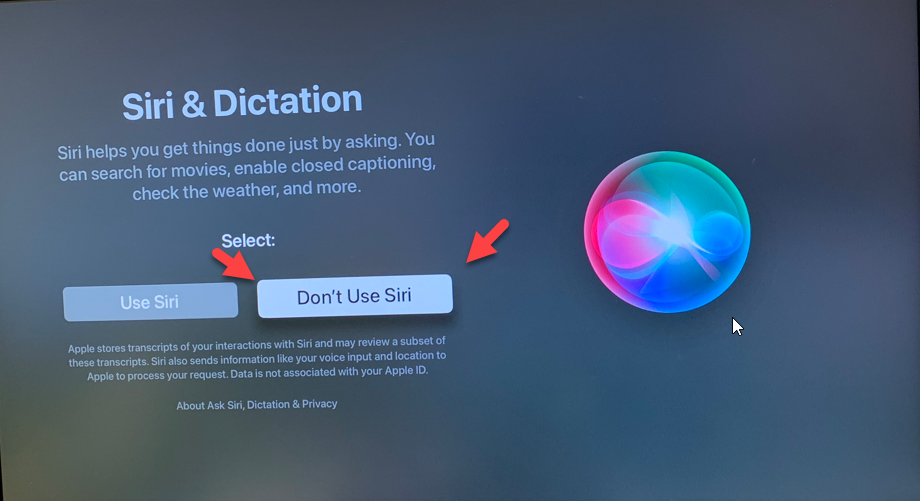
On the Siri & Dictation Screen, select Don’t Use Siri.
-
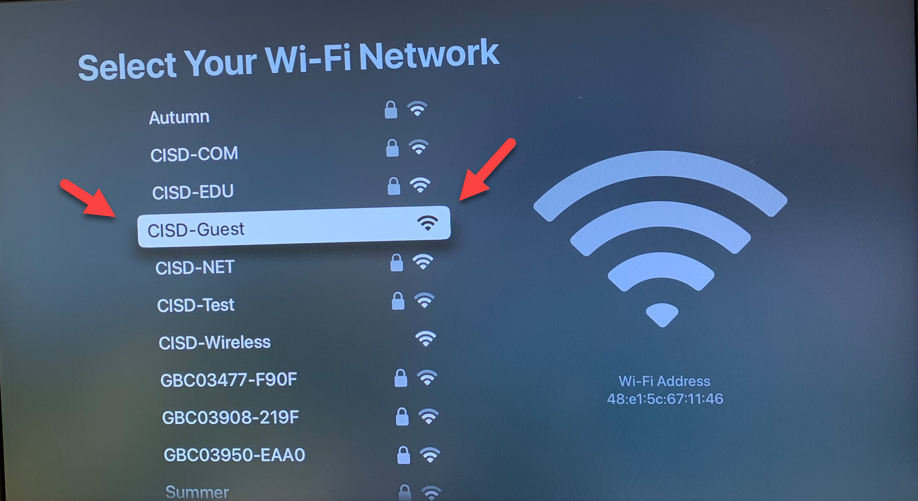
On the Wi-Fi Network Screen, select CISD-Guest.
-
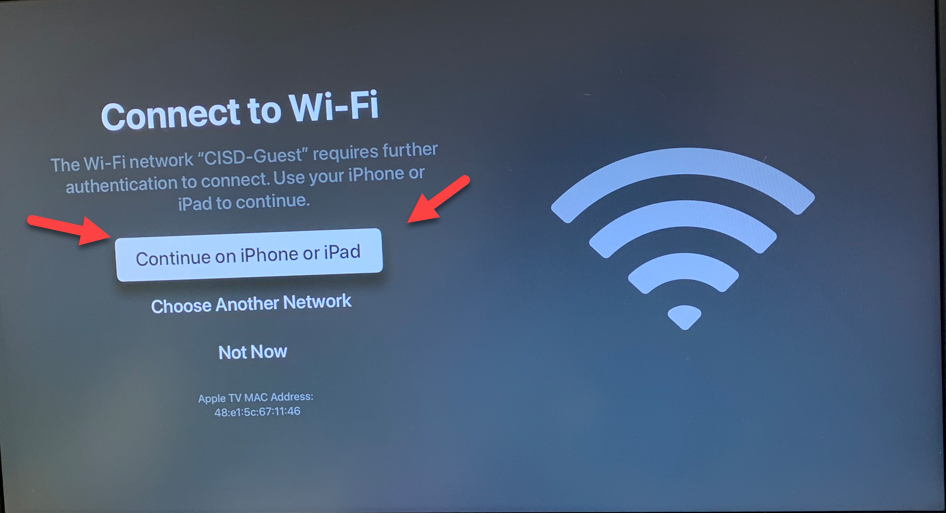
On the Connect to Wi-Fi Screen, select "Continue on iPhone or iPad."
-
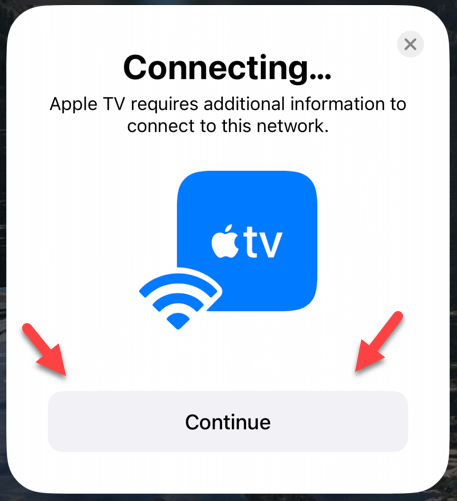
Look at your phone or iPad and tap Continue on the pop-up screen.
-
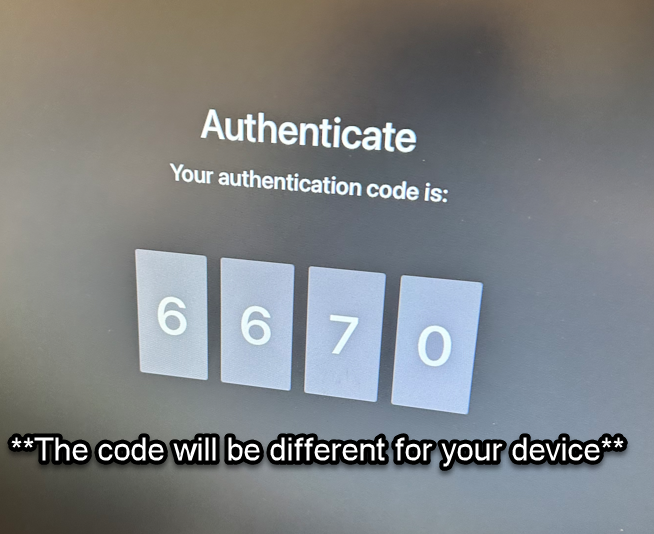
A 4-digit code will appear on the Apple TV screen.
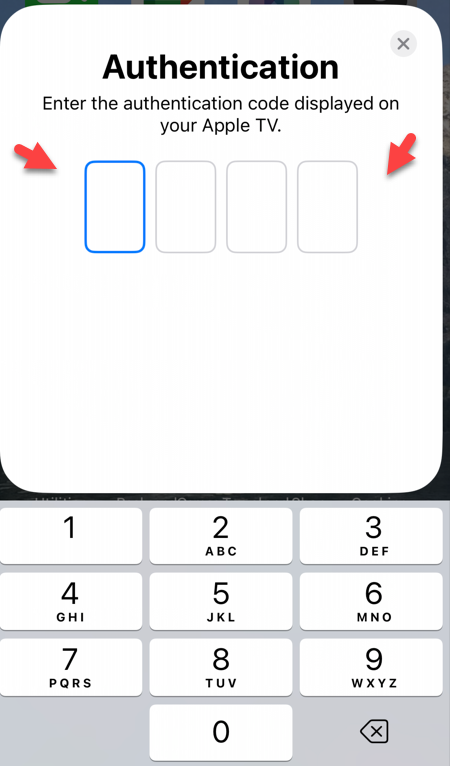
10. Enter the code displayed on your TV into the prompt on your iPhone or iPad.
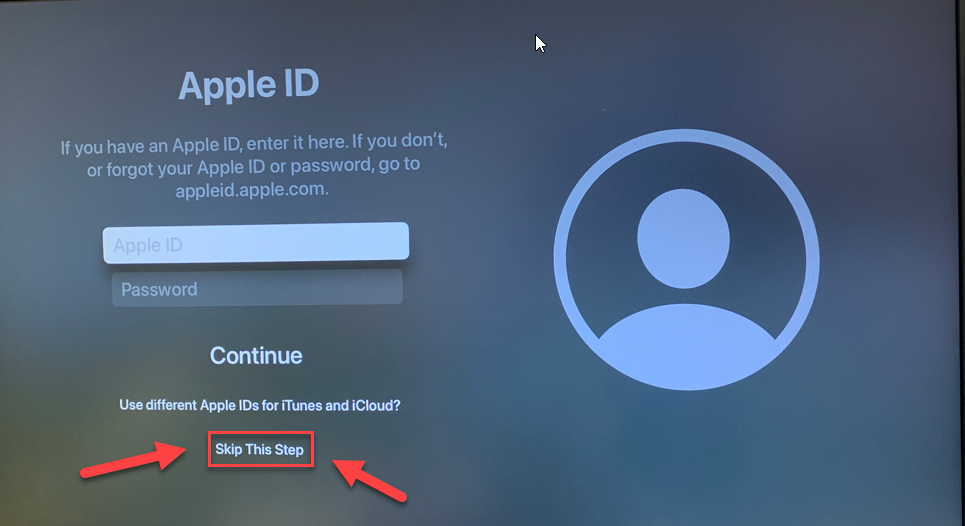
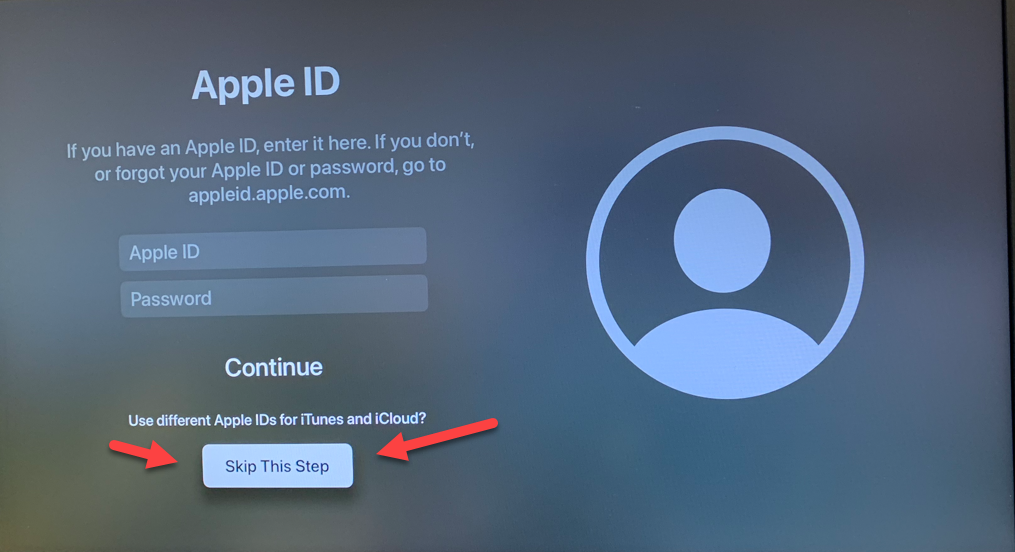
11. The Apple ID Screen will appear (if it’s asking for you to input your Apple ID indicated by the white bar, this indicates the JAMF enrollment failed). Select Skip This Step.
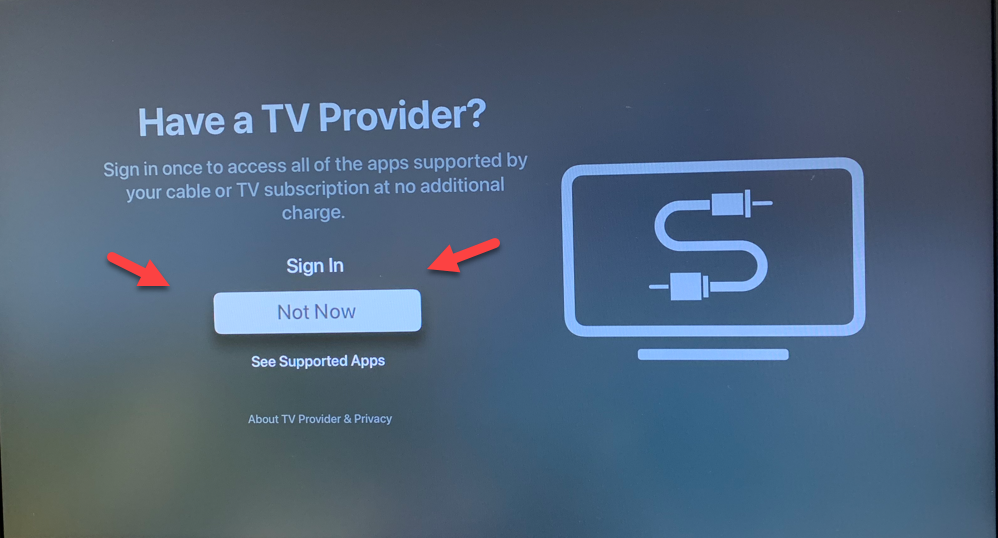
12. On the TV Provider Screen, select Not Now.
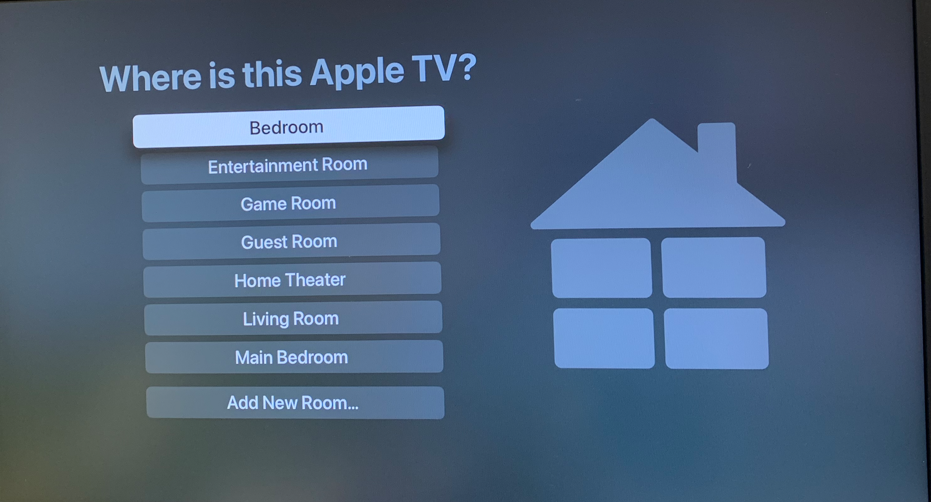
13. On the "Where is this Apple TV" screen, leave it on the default (Bedroom) and click to move on.
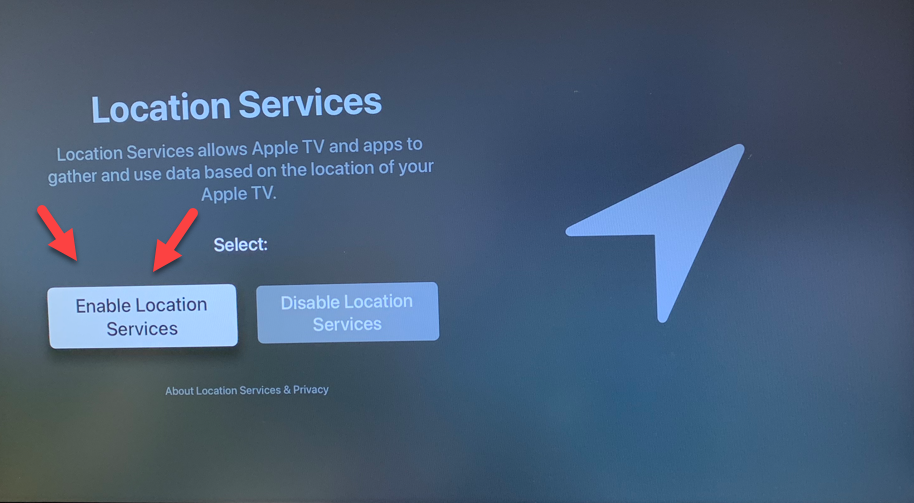
14. On the Location Services Screen, select Enable Location Services.
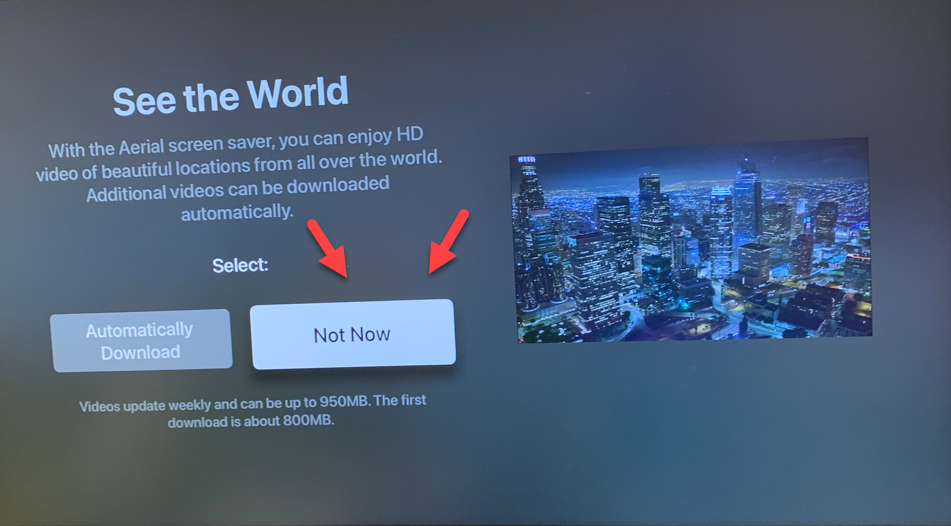
15. On the "See the World" Screen, select Not Now.
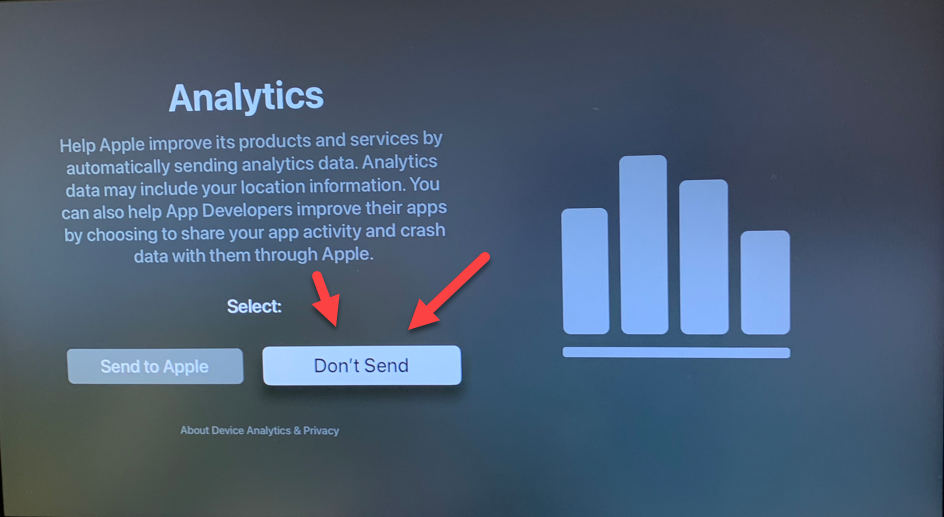
16. On the Analytics Screen, select Don’t Send.
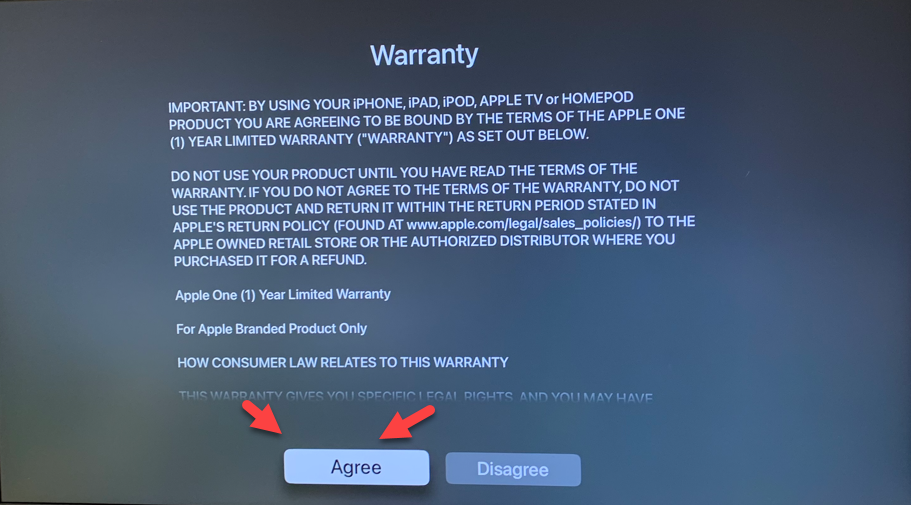
17. If a Warranty Screen appears, select Agree.
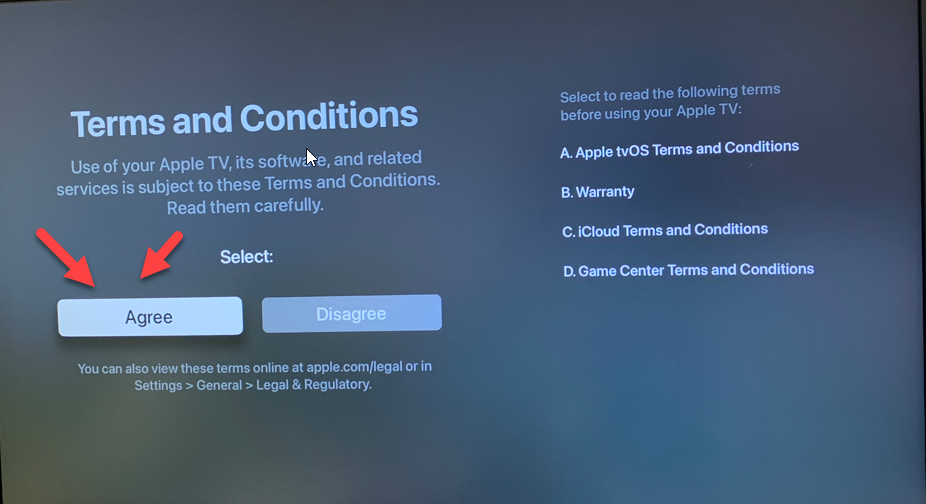
18. On the Terms and Conditions Screen, select Agree.
Phase 2: Performing the Wipe
Once you have bypassed the setup screens and are looking at the main menu (grid of apps), follow these steps to wipe the device.
-
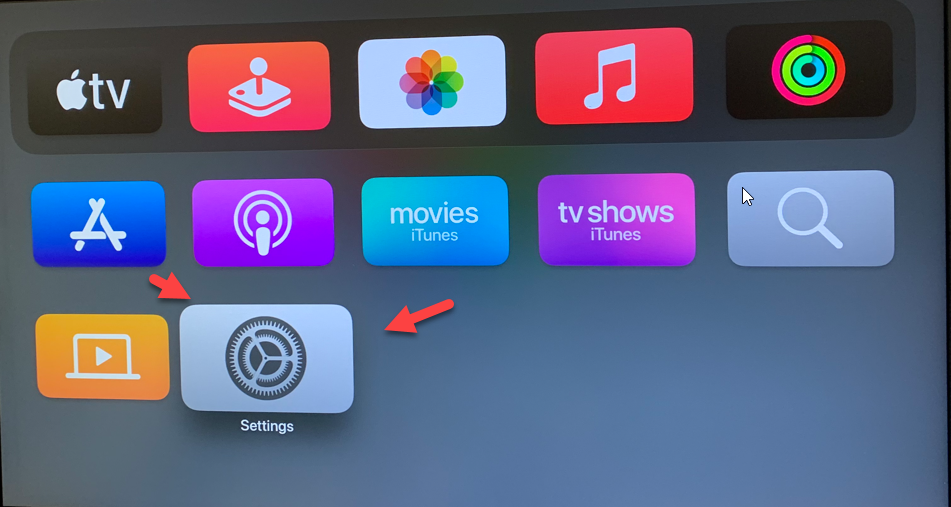
Scroll down the list of apps and select the Settings App (gear icon).
-
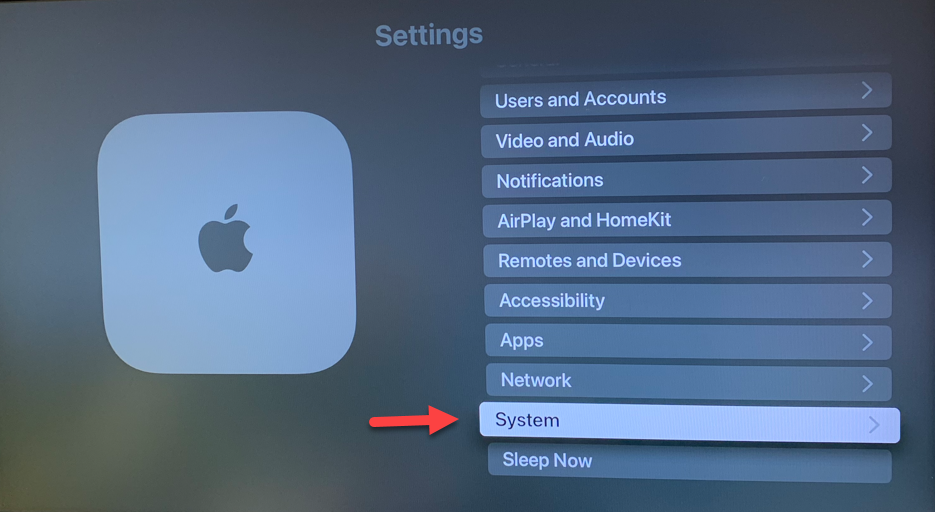
Scroll down the settings menu and select System.
-
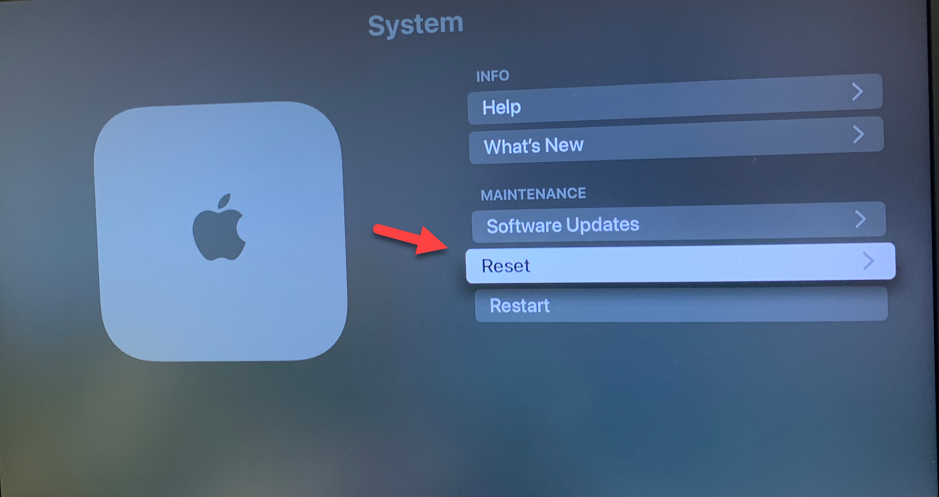
Select Reset.
-
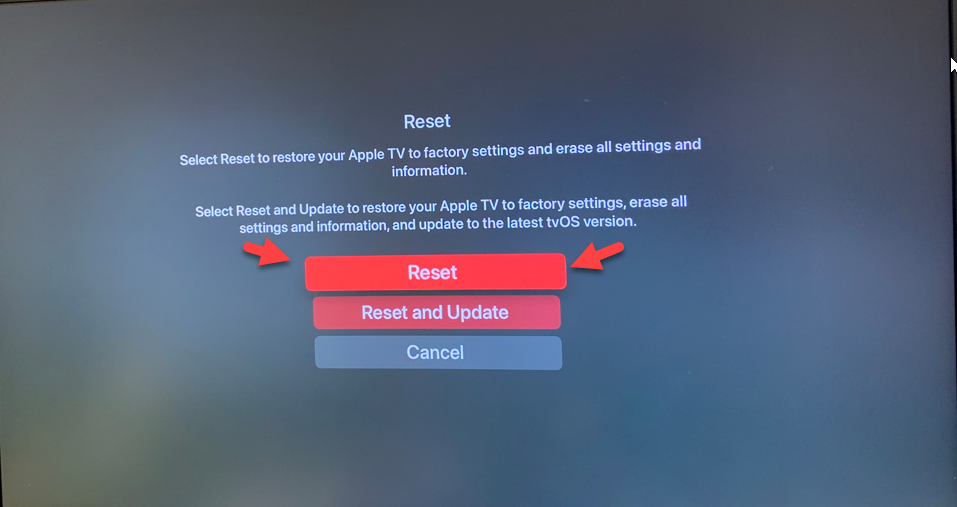
Select Reset again.
-
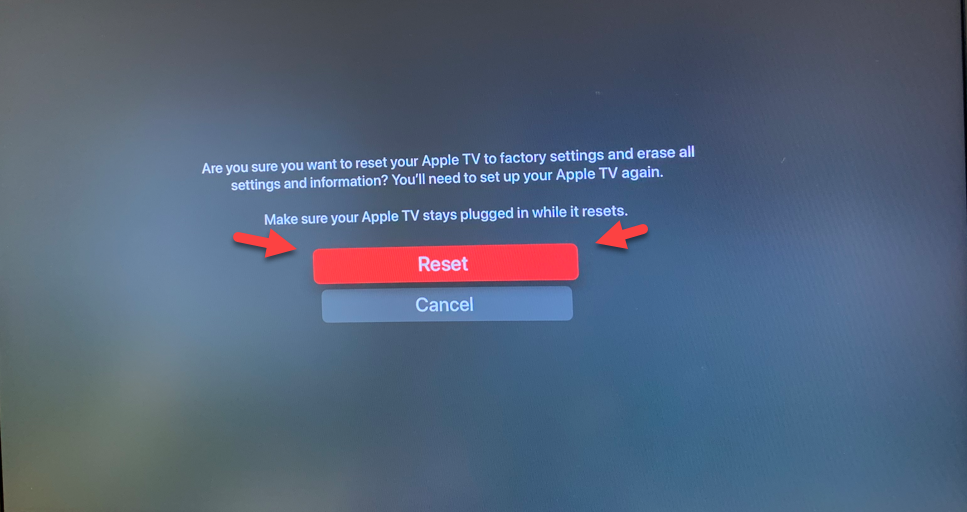
Select Reset one last time to confirm.
-
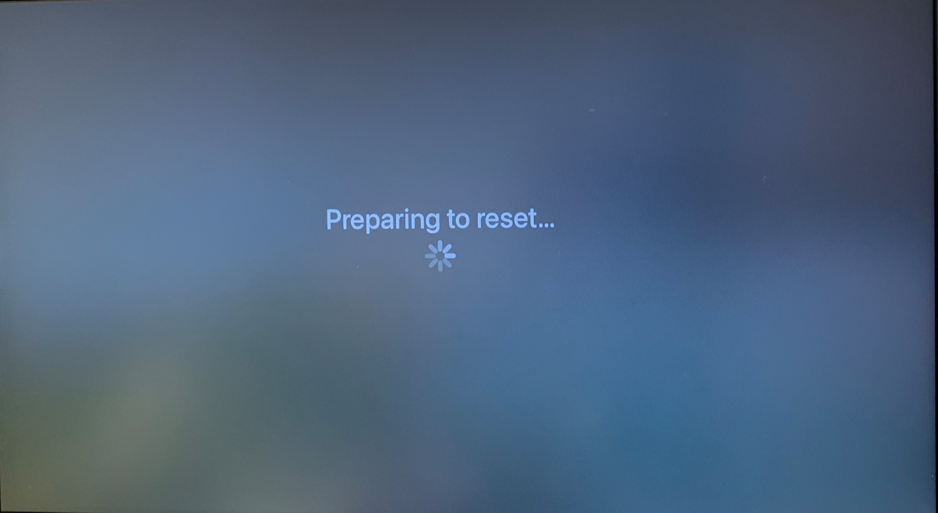
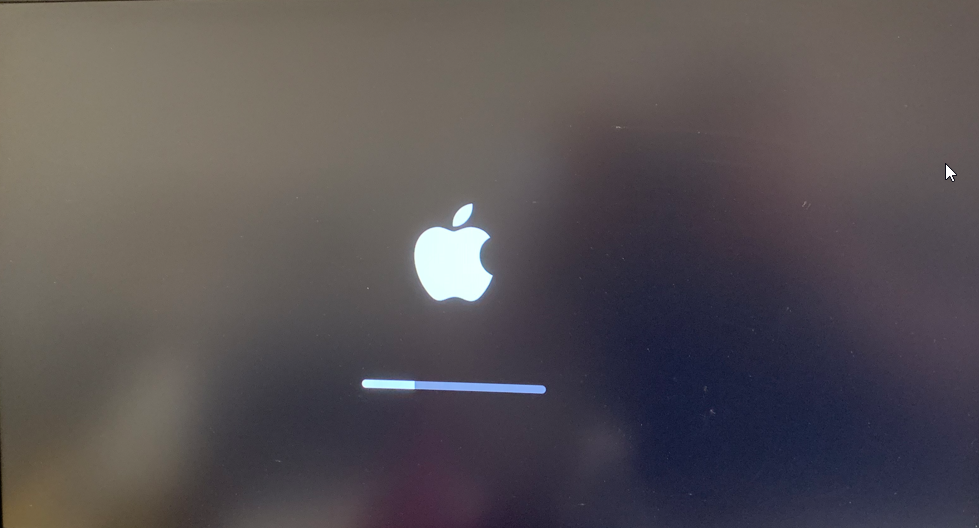
The Apple TV will wipe itself and restart to the "Hello" screen.

Next Steps
Once the Apple TV returns to the Hello screen, you must set it up again to ensure it captures the JAMF enrollment profile correctly.
-
Please refer to the Set Up Apple TV guide.
Need additional help? Click here for further assistance.