
Notebook is a Canvas feature that lets students highlight content, flag it as important or unclear, and keep personal notes organized in one place while working through course pages.
When Notebook is enabled at the account level, students see a Notebook link in Course Navigation and can begin creating notes directly from supported course pages.
What Notebook does
Notebook gives students an integrated note-taking space inside Canvas. Instead of switching to a separate app or keeping notes in multiple places, students can interact with page content as they read and revisit those notes later from a central Notebook page.
-
Highlight course page content while reading
-
Mark content as Important or Unclear
-
Add personal notes to marked content
-
Review saved notes from one Notebook page
-
Return directly to the original content from a saved notecard
How students use Notebook
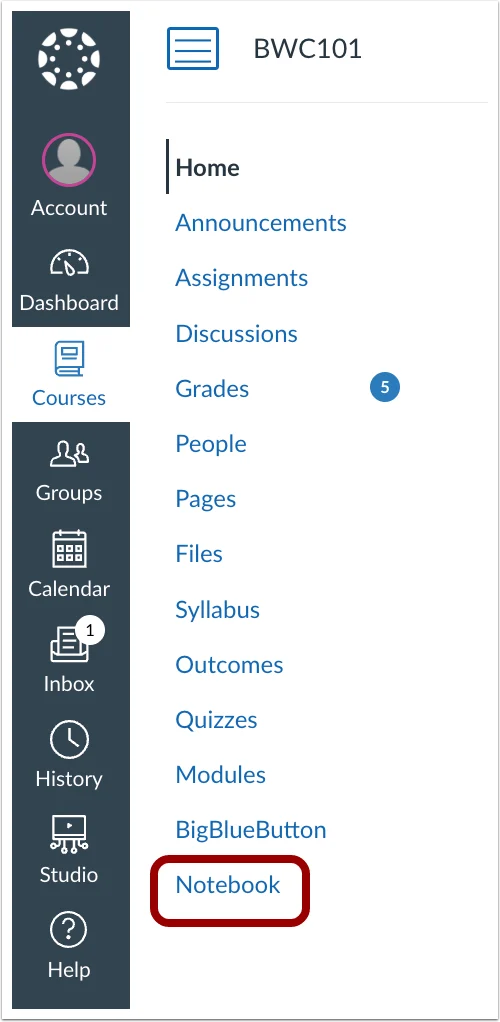
1. Open the Notebook area in a course
Students will see a Notebook link in the course navigation menu. This serves as the central location for reviewing saved notes and marked content.
2. Highlight content on a course page
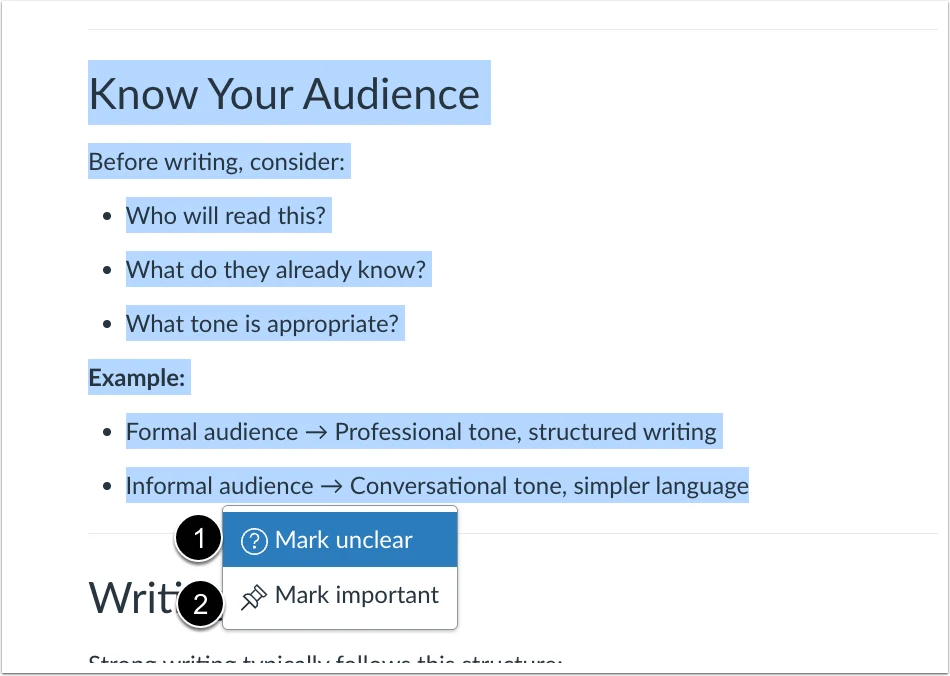
While viewing a page in Canvas, students can highlight text and categorize it as:
-
Important for key ideas or study points
-
Unclear for content they want to revisit or ask about later
3. Add a note in the Notebook tray
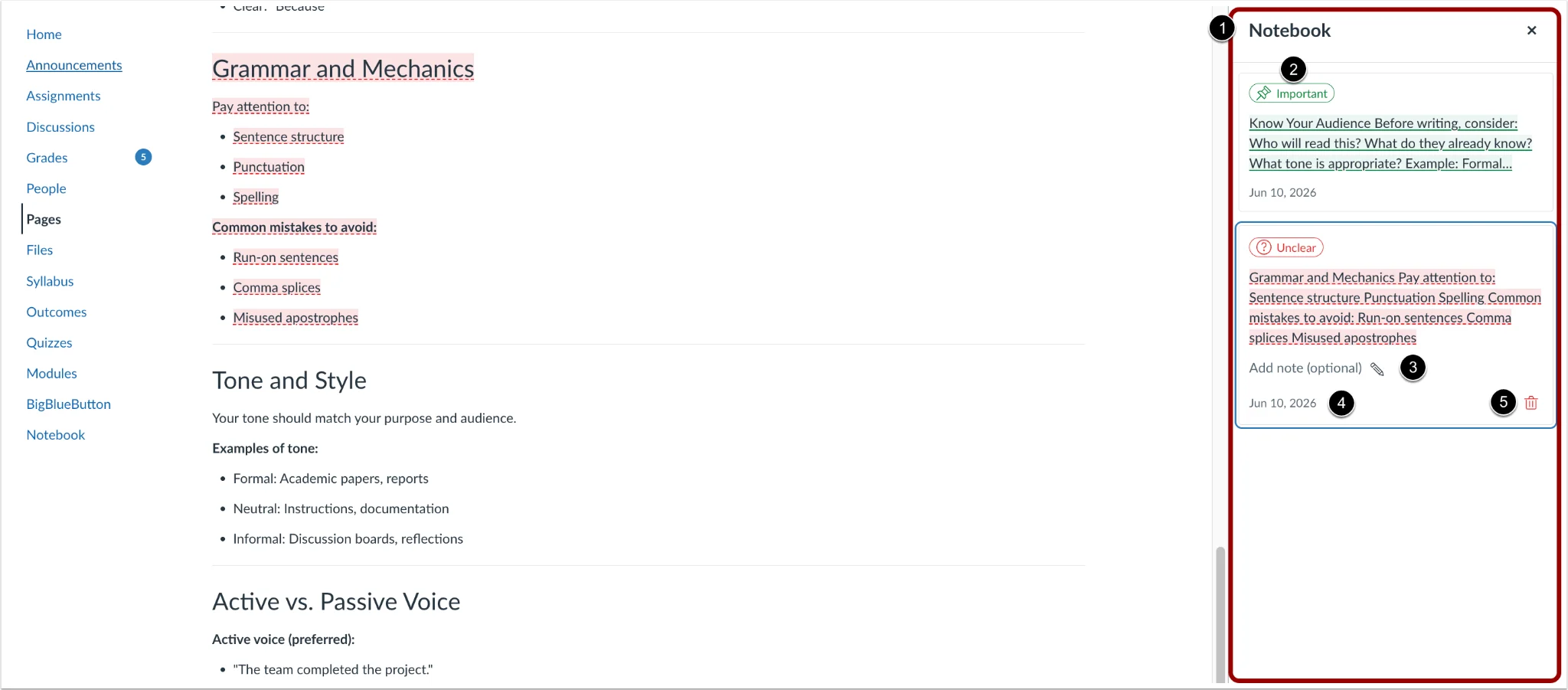
After content is marked, a Notebook tray opens so the student can manage the entry. In this tray, the student can:
-
See whether the selection was marked as Important or Unclear
-
Add a personal note
-
View the date the content was marked
-
Delete the note if it is no longer needed
4. Review notes from the Notebook page
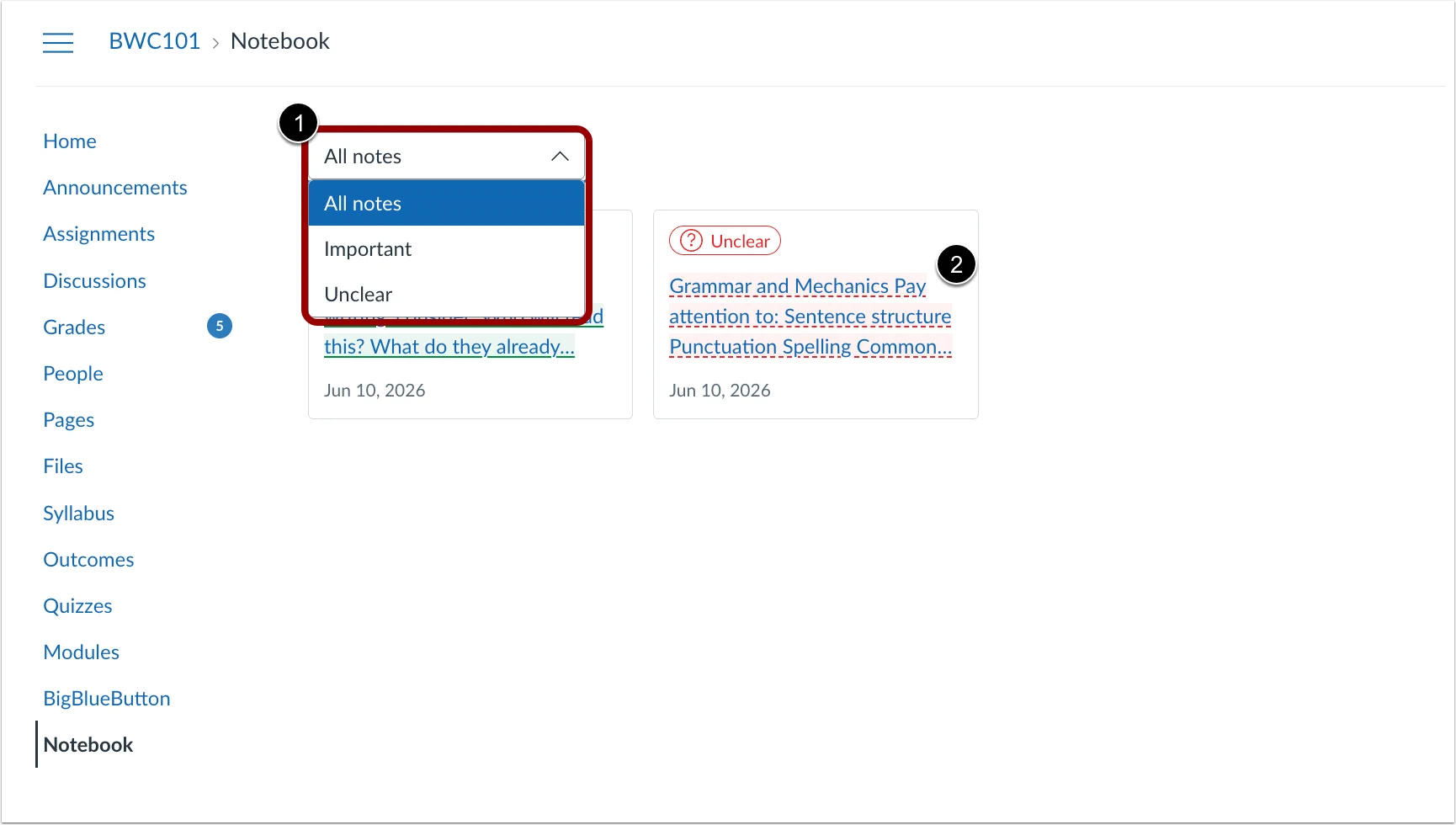
On the Notebook page, students can sort their saved notes and select a notecard to jump back to the original place in the course content where the note was created.
Demonstration video
Still have questions? Visit the Additional Help section for further assistance.