Welcome to the CarRiders User Guide
This guide will detail the roles and functionality of the CarRiders application. Work in Progress.
Parents can use the ViewIT meal cards with Car Riders!
Please make sure that if you are walking the lines to enter data to turn off Wifi on your phone and use your Cellular network before launching the application if you intend on walking further than the campus Wi-Fi range. This is to prevent interruptions in connectivity. If you need better WiFi coverage please attempt utilizing campus mobile hotspots.
Please contact Andrew Lake for your campus to be setup.
Flights Tab - Breakdown
Teemi Barcode Scanner the recommended barcode scanner for use with the Car Riders system. You may use any bluetooth barcode scanner but it may take longer to troubleshoot if there is an issue with scanning. This video will detail how to print the barcodes for your students for scanning with your barcode scanners.
Teemi Barcode Scanner - Troubleshooting
If you're using the scanner with an iOS (Apple) device please follow these steps. Make sure you configure the scanner to Do not Apply Enter for suffix. You can do this by going to Section 7 Common Function Barcodes in your Teemi Barcode Manual and scanning Enter Setup then Do not Apply Enter for suffix then Exit with Save.
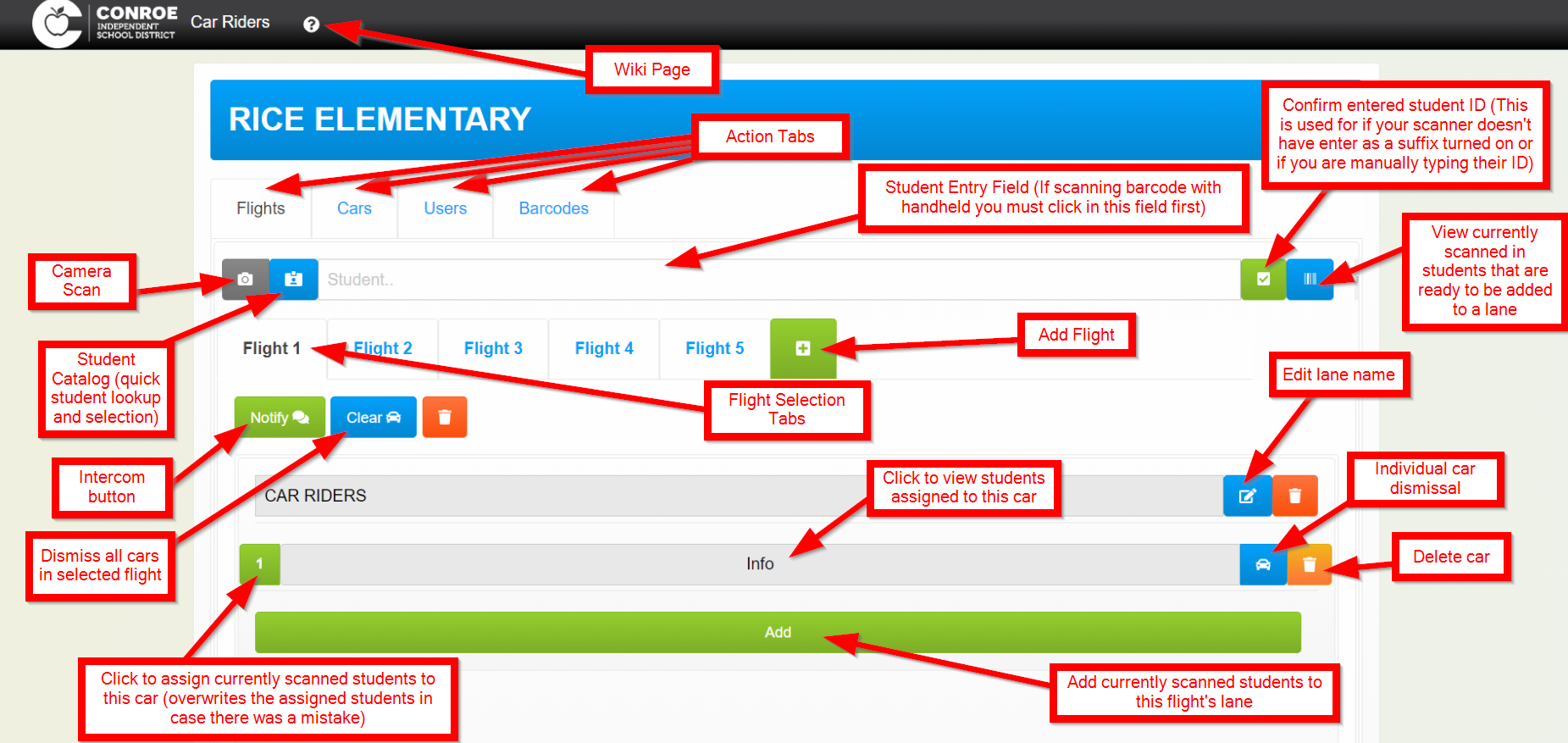
This will cause the scanner to read out the ID scanned in the text field selected and require you to click the green checkbox button to confirm the ID read. Once you've verified the students entered by clicking the blue barcode icon button to the right of the text field you can click the green "Add" button on the desired lane to add the car.
If you're still having trouble please scan Enter Setup then Factory Reset and repeat the previously mentioned setups for Do not Apply Enter for suffix.
Teemi Barcode Scanner - Bluetooth Connection
In order to connect to your scanner via bluetooth, please hold down the trigger button on your scanner until it beeps and LED on the top of the scanner blinks green. This puts the scanner into pairing mode. Once blinking find your scanner in the list of discoverable devices in your phone or tablet's bluetooth settings and click to connect to the device listed as CT10.. etc.
Admin Users
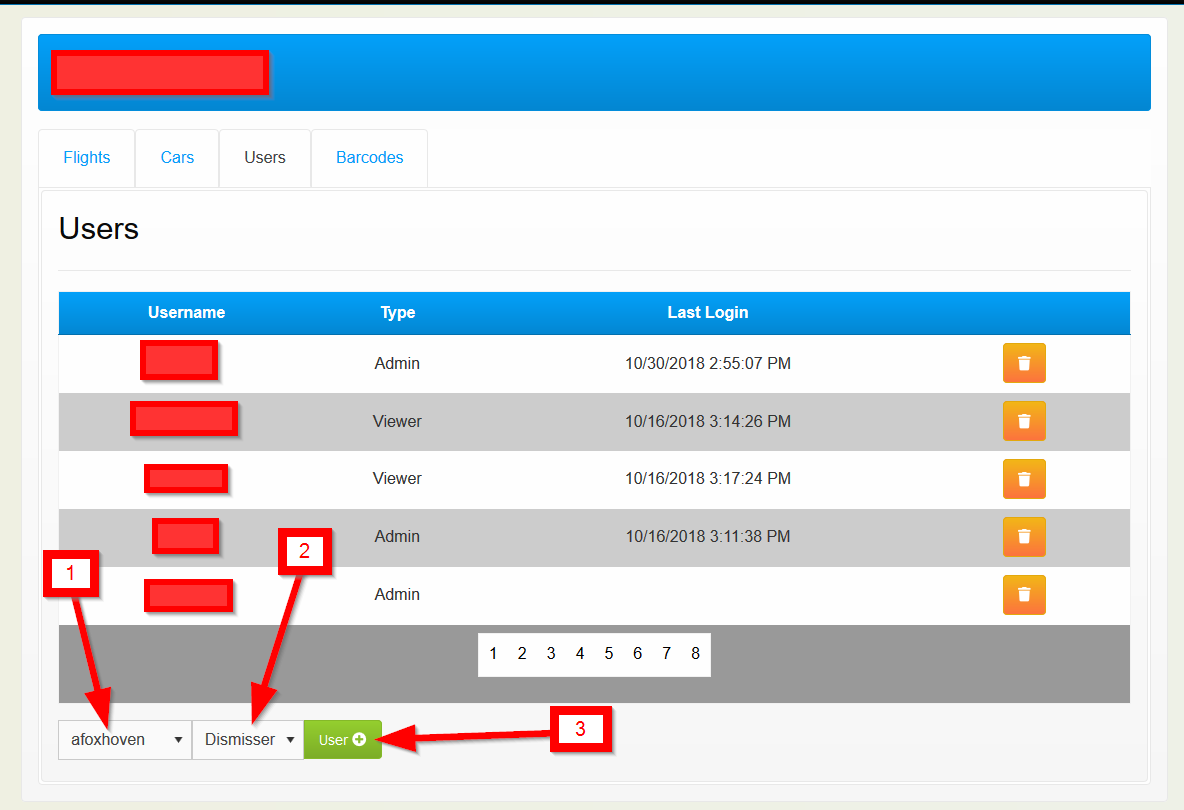
Adding/Removing Users - Users can be added via the Users page. 1 marks the drop down list of all the employee users at your campus to select from, 2 marks the user type for you to add 3 to click to confirm your selection of what user to add. There is no limit on the number of users you can enter for your campus, however, if you are adding users to view cars please utilize your campus Bushub page. Bushub will display both Buses and Cars.
Dismisser Users
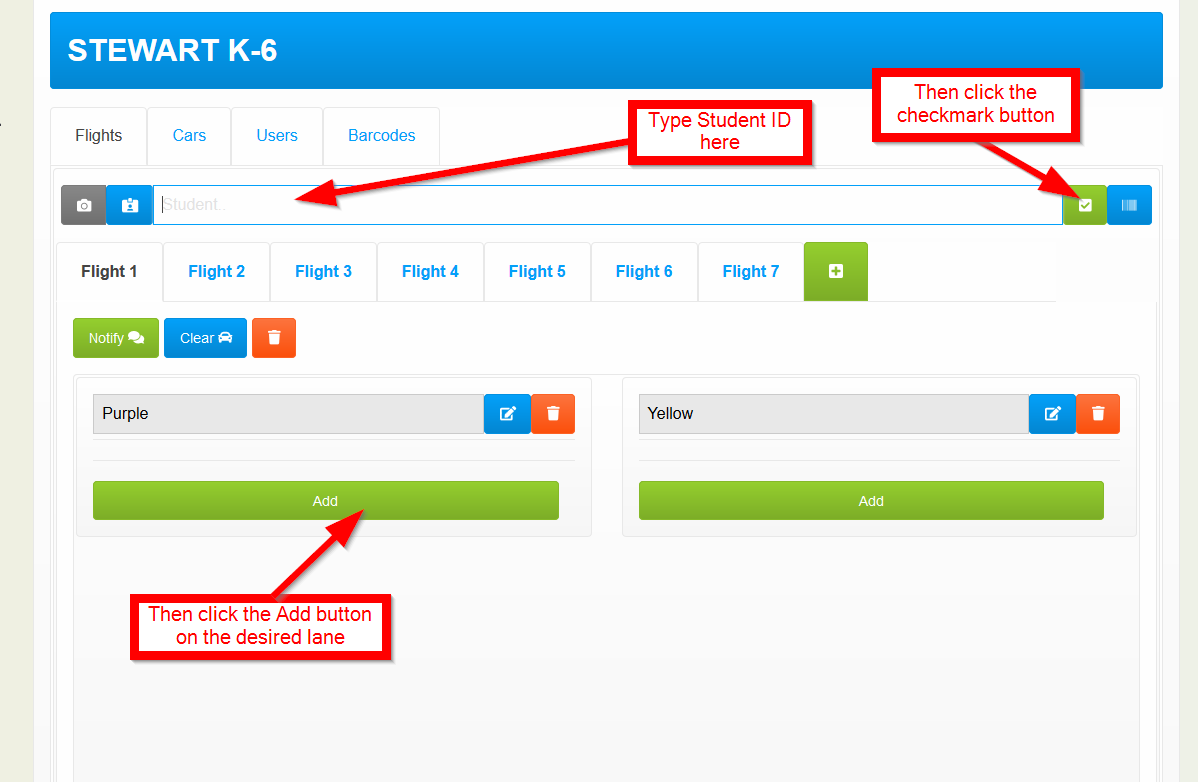
In regards to the Flights tab breakdown shown earlier, there are many buttons but only three or four will be used in day to day operation. First and foremost a dismisser will live on the Flights tab. Their main steps are to scan the barcodes a parent may present, click the green checkbox button to the right of the text field (if they don't have enter as a suffix turned on for their scanner) and the add button in the corresponding lane. Dismissers may want to confirm/view the scanned student(s) and can do so via clicking the blue barcode button to the right of the green checkbox button. This shows a popup button where they can delete students they may have accidentally scanned for the current car. Once a dismisser has scanned the count of cars their campus has chosen as their limit for the number of cars to each flight, they can click the next flight tab and continue scanning. As they scan cars will appear for users either on their campus Bushub view page or in the Cars tab. Dismissers can dismiss all cars in a flight or individual cars using the denoted buttons in the Flight tab breakdown image above.
If you'd prefer you can just call in names of students to a person inside to enter in from their computer.
Cars added will also appear on BusHub's viewpage. You can enter cars in multiple ways.
Manual Entry
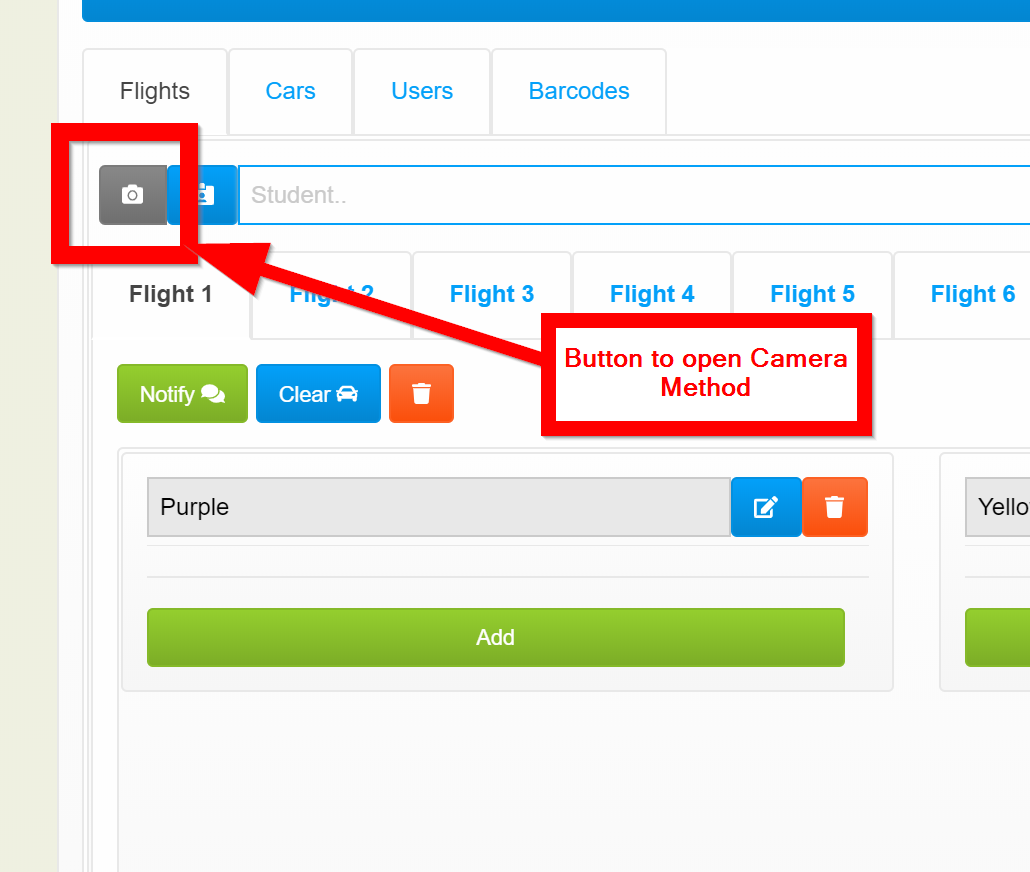
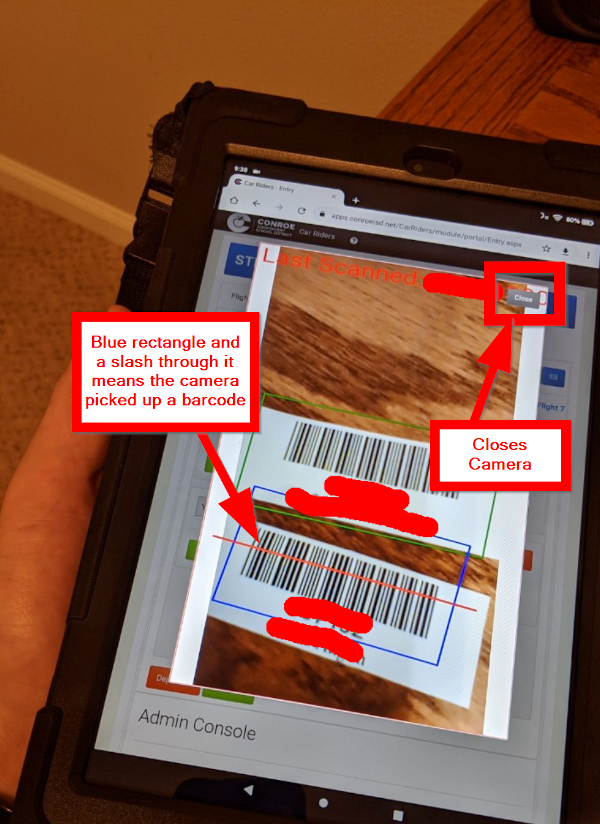
Camera Entry
Viewer Users
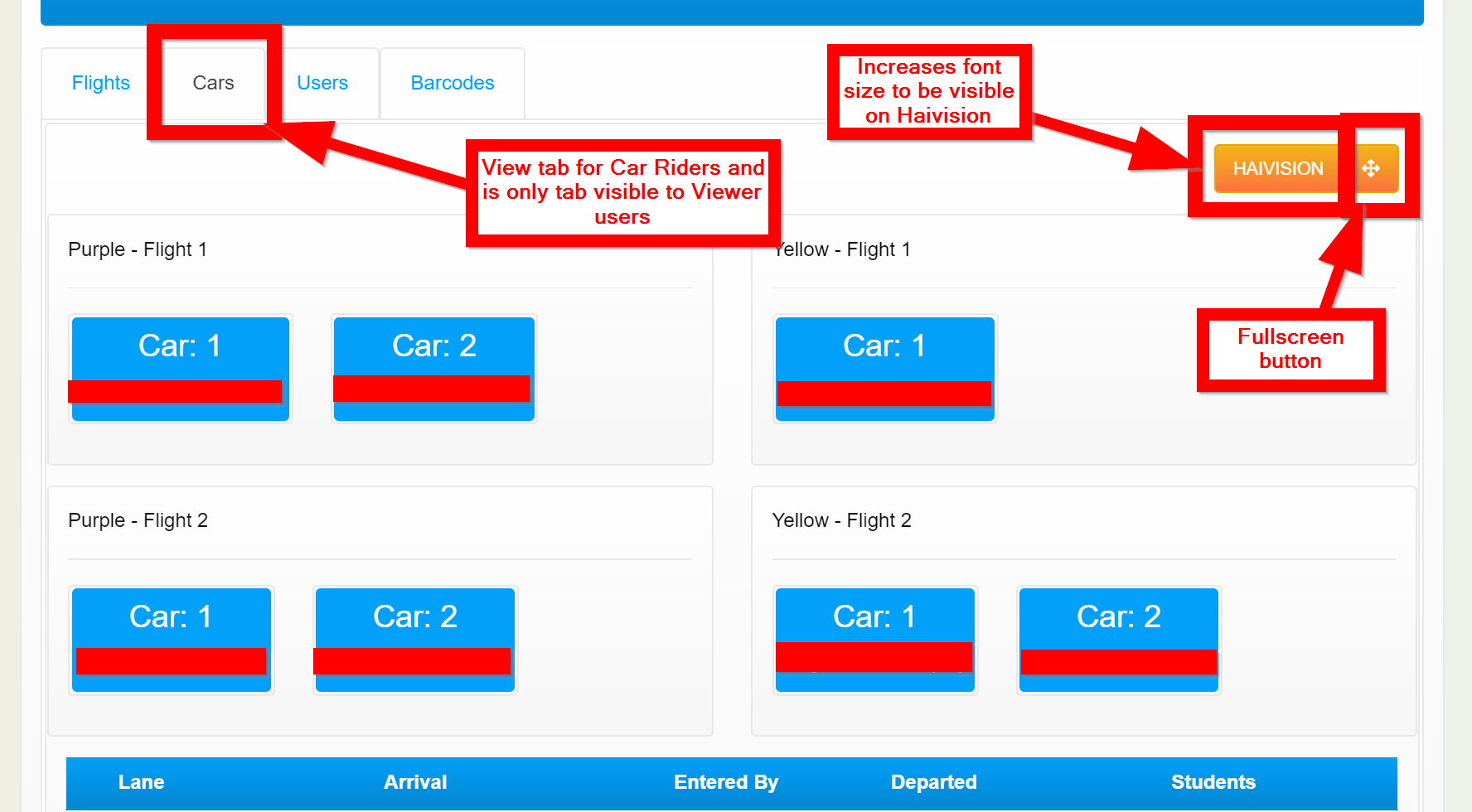
Please display Cars on Haivision server by navigating to Car Riders Cars tab or your campus Bushub view page in the server's browser. All user types can login (if they've been added to their campus's Car Rider setup) and view the Cars tab to see a list of cars that refreshes every 10 seconds. (Note: if you notice the screen not refreshing cars you may have lost internet connection.) The Haivision button increases the font size and expands the page to display better on a projected screen or on your campus Haivision stream. The button beside it will full-screen your browser for even better display.