
This guide explains how to completely remove a user profile from the Google Chrome browser.
Why is this important? Removing your profile is a critical step for protecting your data and account security, especially when using shared or public devices. It ensures that your browsing history, passwords, and bookmarks are no longer accessible on that specific computer.
Note: This action deletes the local data for this profile on this computer. It does not delete your Google Account or the data saved in your cloud storage (Google Drive, Gmail, etc.).
Steps to Remove a Profile
-
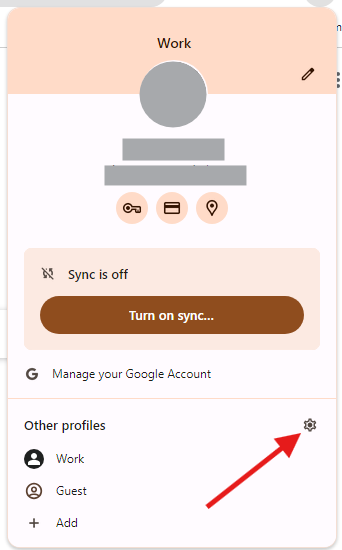
Open Google Chrome and click your Profile Picture (or initials) in the top right corner.

-
Click the Gear icon (Manage Profiles) in the pop-up window.
-
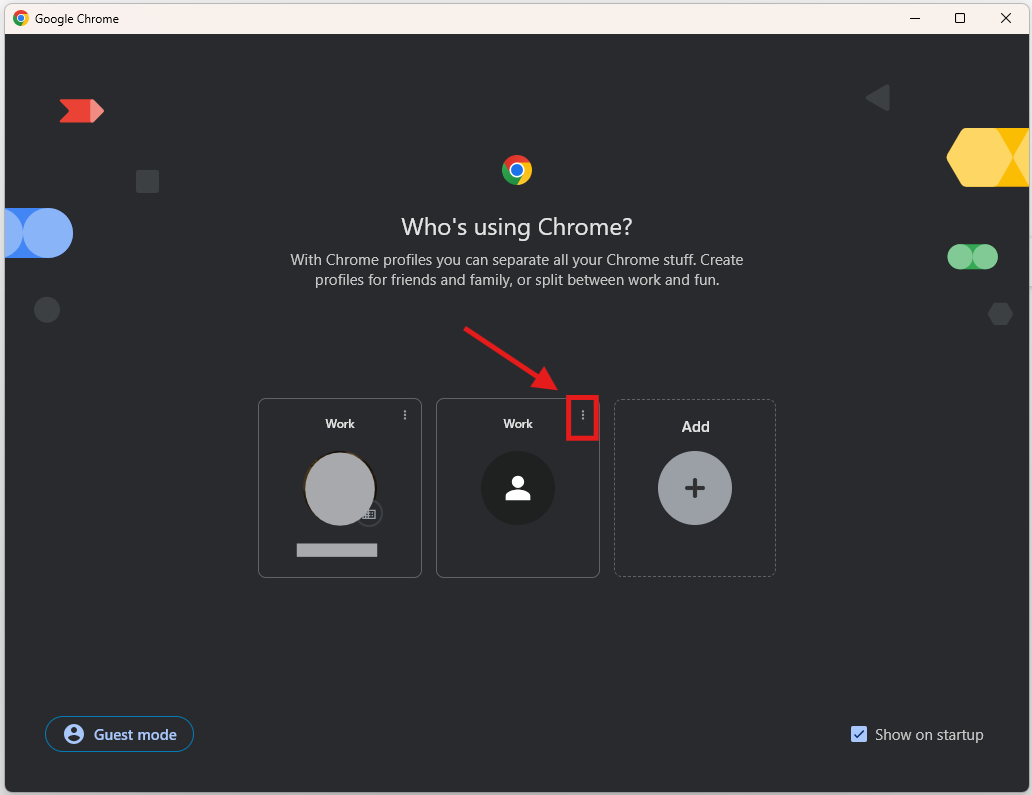
Locate the profile you want to remove and click the three vertical dots (kebab menu) on that specific profile card.
-
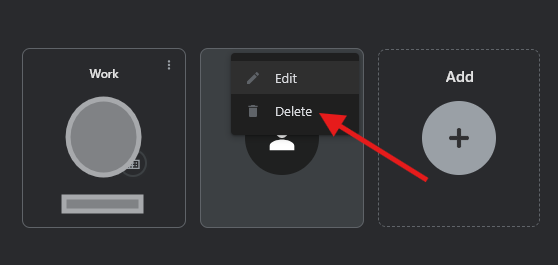
Select Delete from the menu.
-
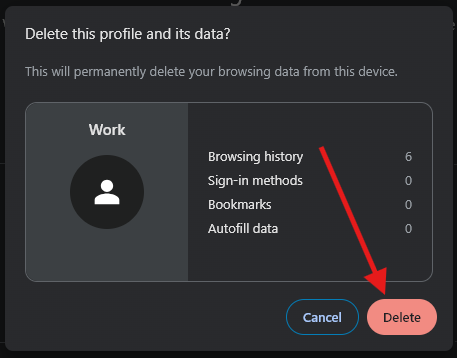
A confirmation screen will appear. Click Delete again to finalize the removal.
Need additional help? Click here for further assistance.