
If your Chromebook will not turn on, hold a charge, or appears unresponsive, please follow the diagnostic steps below. These procedures resolve the majority of power-related issues without requiring a help desk ticket.
Step 1: Check the Charging Status Light
Plug your AC adapter into the Chromebook and check the LED indicator light (usually located on the side near the charging port):
-
Orange/Amber: The device is charging. Allow it to charge for at least 30 minutes before turning it on.
-
White/Green: The battery is fully charged.
-
Blinking Light: This indicates a battery error or deep discharge. Leave the device plugged in for 45 minutes.
-
No Light: Ensure all cable connections (wall outlet, power brick, and laptop port) are secure. Try a different outlet or a known working charger if available.
Step 2: Perform a Hard Reset (EC Reset)
If the screen is black or frozen, a Hard Reset will reboot the system hardware without deleting your files. This is the most common fix for power issues.
-
Unplug any external devices (USB drives, mice, headphones).
-
Press and hold the Refresh key (top row of the keyboard).
-
While holding Refresh, tap the Power button once.
-
Release the Refresh key when the device starts up.
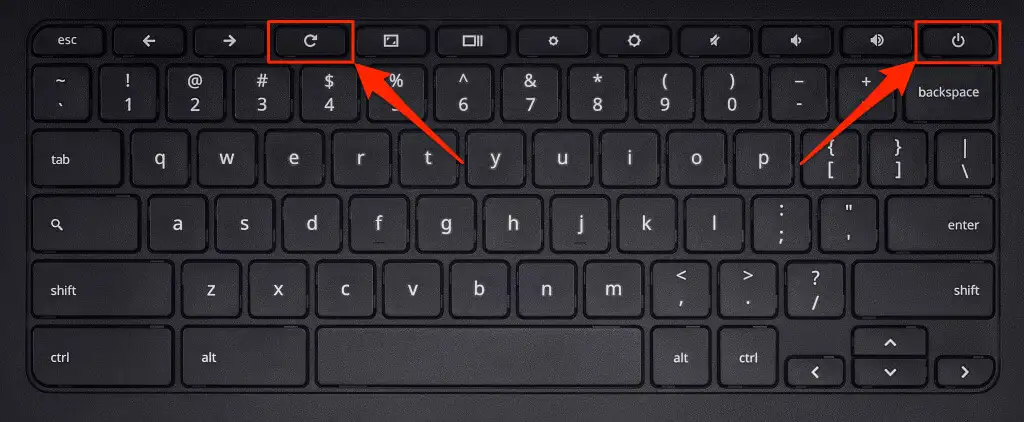
Note: On some HP models (like the G7), you may need to hold the Power button for 10 seconds to force a shutdown before attempting the combination above.
Step 3: Check for Port Obstructions
Visually inspect the USB-C charging port. Debris, dust, or broken headphone tips can prevent a solid connection.
-
If you see debris: Do not use metal tools to remove it. Use a can of compressed air if available.
-
If the port is physically damaged (bent/cracked): Do not plug in the charger. Proceed to Step 4.
Step 4: Requesting Support
If the device still does not power on after completing Steps 1-3, the hardware may require service.
-
Submit a Ticket: Open Incident IQ and select the issue category "Power > Won't power on".
-
Required Information: In the ticket description, please confirm that you have already attempted a Hard Reset.
Need additional help? Click here for further assistance.