
The Report A Student Absence app allows the attendance and PEIMS office to efficiently manage parent-submitted absences. This guide specifically covers how to navigate the reporting dashboard, filter absence data, and export your reports for PEIMS.
This app is strictly for full-day absences. Partial Day Absences will be handled in person when the student signs in or out of school at the front office.
Accessing the App
-
Log in to your SSO dashboard.
-
Search for the Report A Student Absence app and open it.
-
Note: The very first screen that opens is for the manual entry of an absence. Your office staff can use this screen to manually input absences when receiving phone calls, emails, or written messages.
-
-
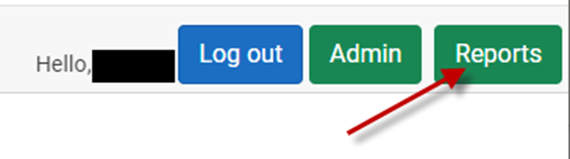
To view parent submissions, click on Reports in the main menu.
-
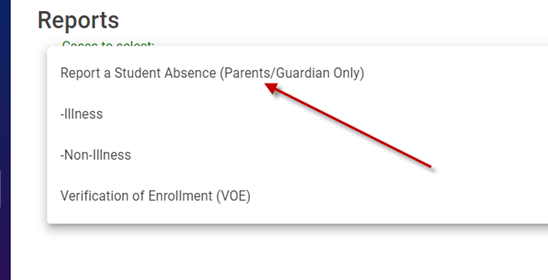
Use the drop-down menu to select the Case or Program you want to manage: Report a Student Absence.
Understanding Your Dashboard Contents
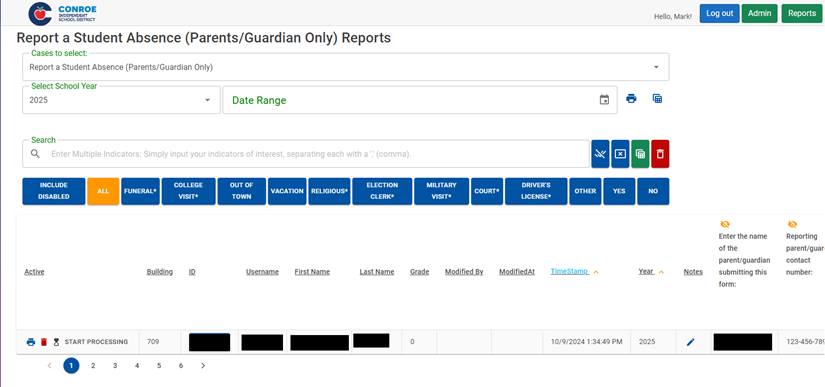
Once you are on the Reports page, you will see a dashboard that contains several useful tools and areas:
-
Program (Case Select): Displays the current program you are managing.
-
Select School Year: Ensure you are looking at the correct academic year (keep in mind the year we are in at the end of the school year).
-
Date Range: Use this to filter the data for your reports.
-
Search: Use this search bar to pull specific data and run customized reports.
-
Blue Buttons: Click these for a quick shortcut to pull specific types of absences only.
-
Processing Area: This is the main list of all the student absence records that currently need to be managed.
Action Buttons for Individual Records:
-
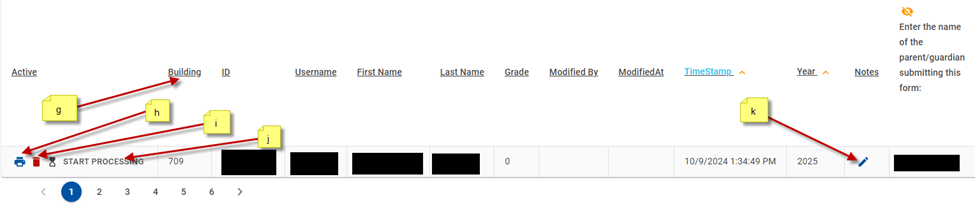
Column Headings (g):
-
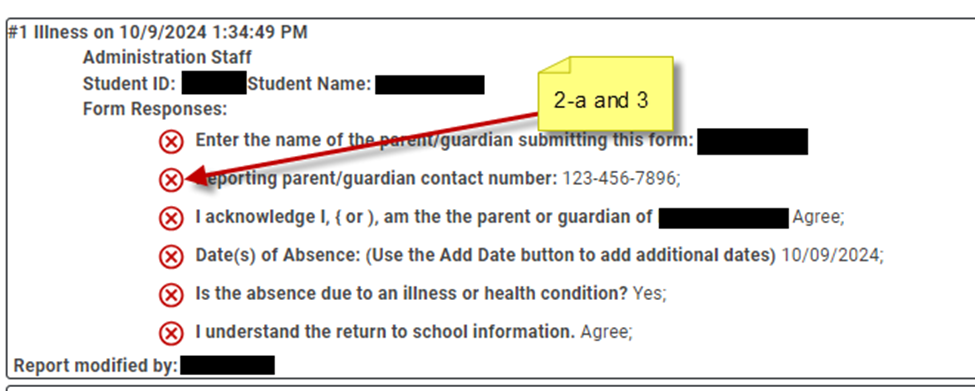
Print (h): Print an individual student's record.
-
Delete (i): Remove the record.
-
Start Processing Button (j): This button helps manage workflow. Multiple staff members can be in the program at the same time, but once one person clicks this button to work on a record, it locks so another person cannot edit it simultaneously.
-
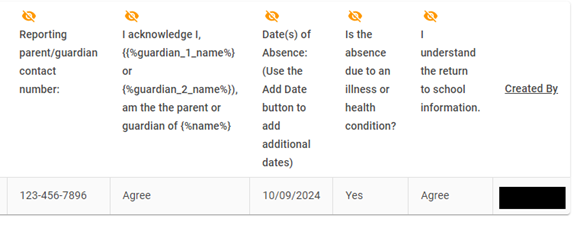
Note (k): Enter any relevant internal notes regarding the absence.
Processing an Absence Record
To process a parent's submission and enter it into the system, follow these steps:
-
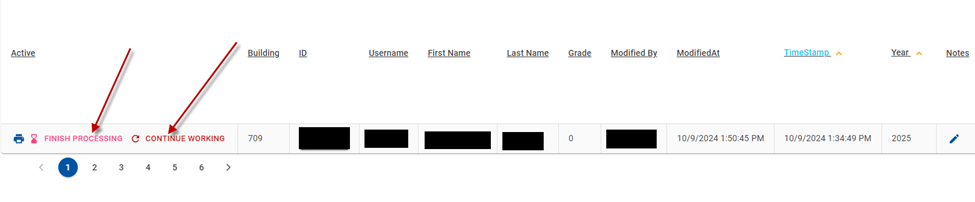
Click the Start Processing button next to the record. This notifies any other users that you are actively working on this specific file.
-
Enter the absence information into eSchool and make any internal notes in the app as appropriate.
-
Need to pause? If you need to stop working on this record, click the Continue Working button. This releases the record back to the general list so it can be dealt with later or by another staff member.
-
-
Once you are completely finished entering the data into eSchool, click Finish Processing. The record will be automatically archived (but remains easily retrievable if you need it later).
4. Running & Exporting Reports
-
You can run reports in several different ways depending on what information you need:
-
By a specific date or date range.
-
By a specific type of absence.
-
By an individual student.
-
By any combination of date, type, and individual.
-
-
How to Export Your Report: Once you have filtered the information you want, you can receive your report in three ways:
-
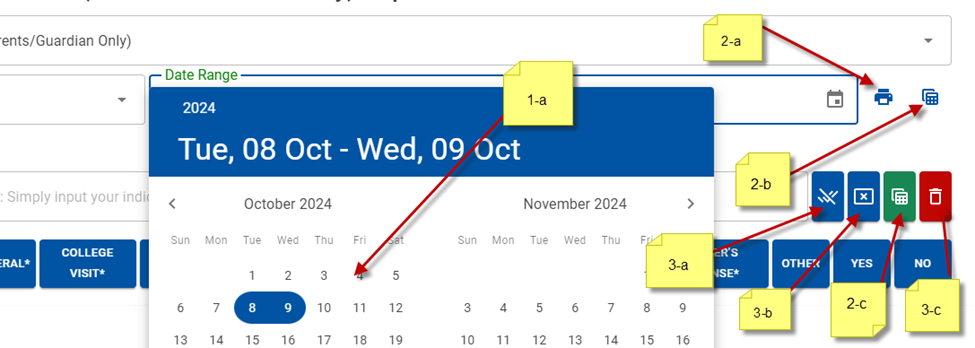
Generic Report: Click the Print button located next to the date range.
-
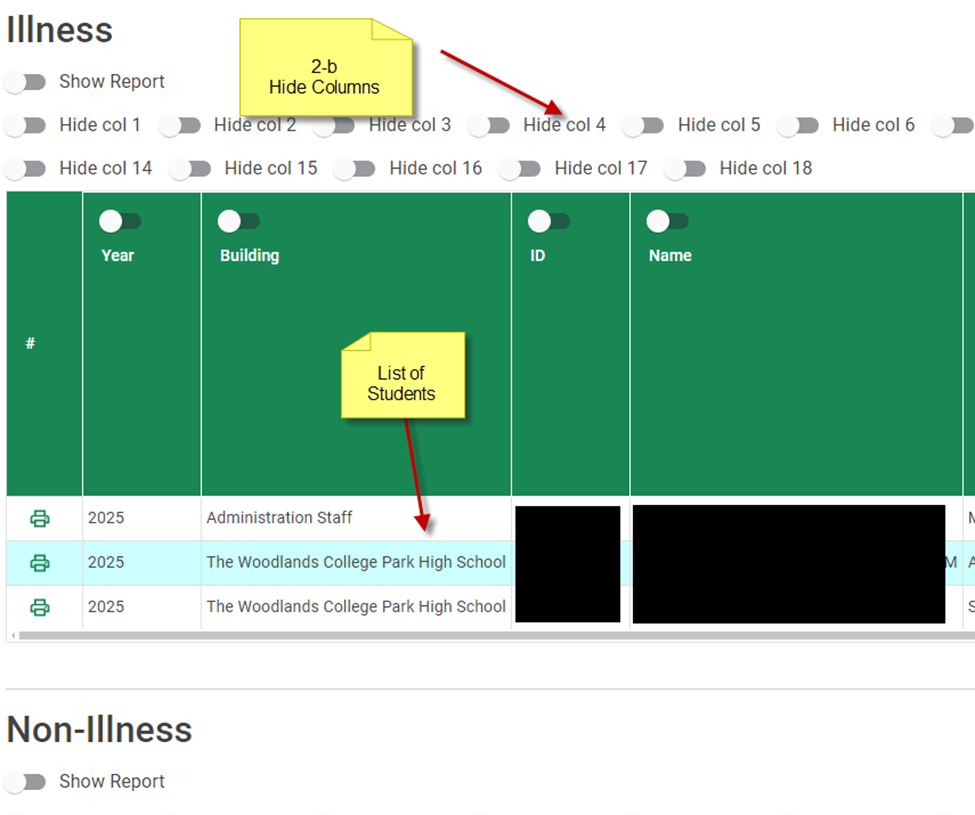
Table Report: Click the Table icon located next to the print button (it will click and turn green), and then press the Print button.
-
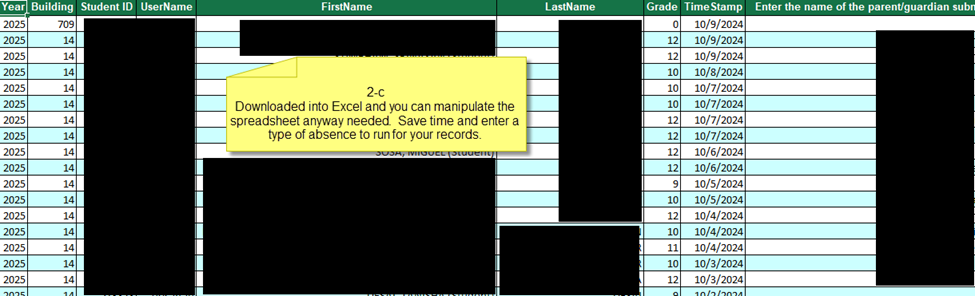
Export to Excel: Click this option to download a spreadsheet. (Best option for PEIMS Reports)
-
-
Additional Reporting Tools:
-
Archive Button: Allows you to pull up records that have already been processed.
-
View Deleted Reports: Allows you to recapture and view past reports.
-
Delete: Permanently deletes a report.
-
Need additional help? Click here for further assistance.