
This guide explains how to configure an iPad after it has been erased or factory reset. Please follow the steps below based on the software version (iOS) of the device.
After setup, please keep the iPad turned on and plugged into power for at least one hour to allow apps and configuration profiles to download.
Steps for iPads with iOS 17 or Higher
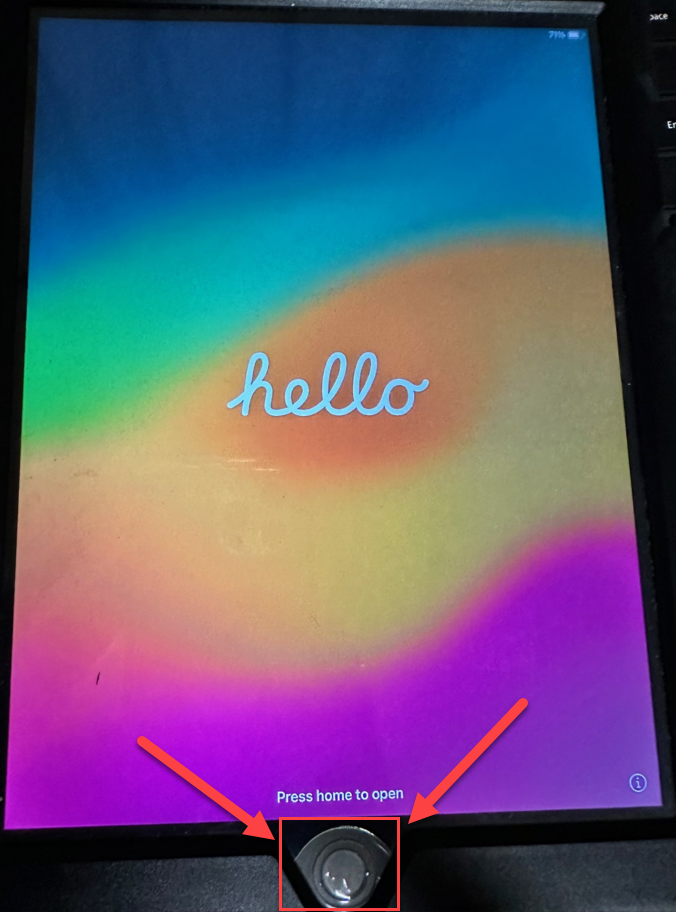
1. Start Setup
Press the Home Button to begin.
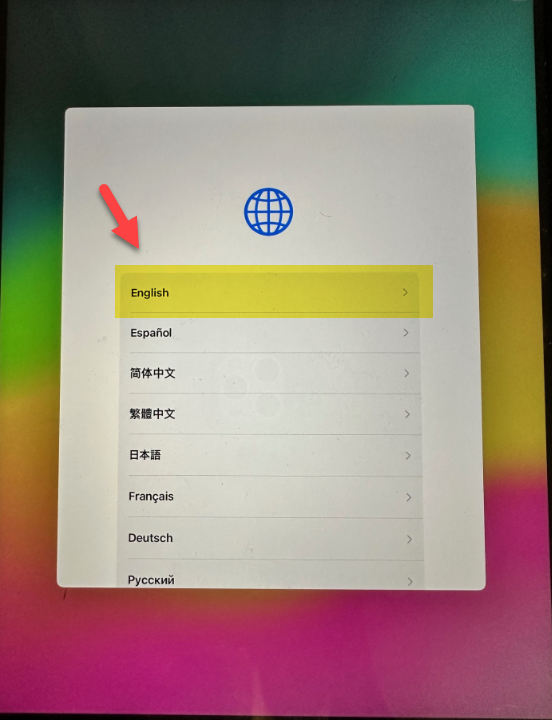
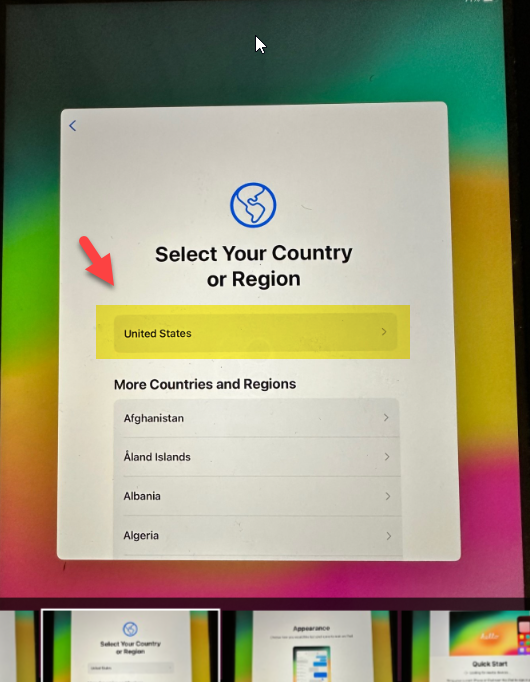
2. Select Language and Region
-
Select English.
-
Select United States.
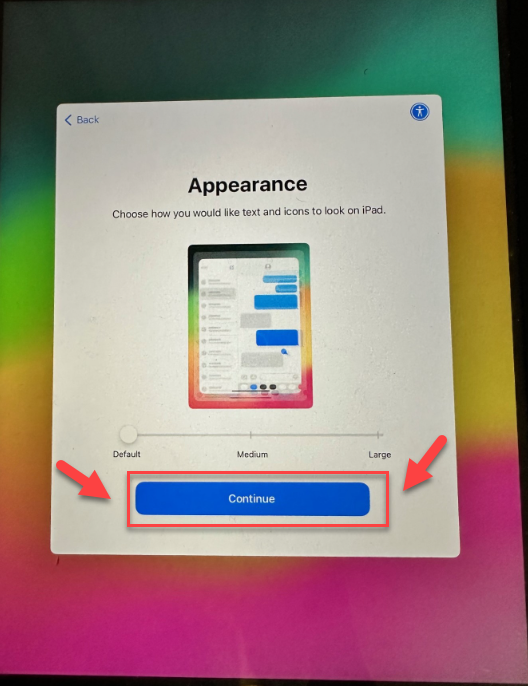
3. Select Setup Method
-
Select Continue.
-
Select Set Up Without Another Device.
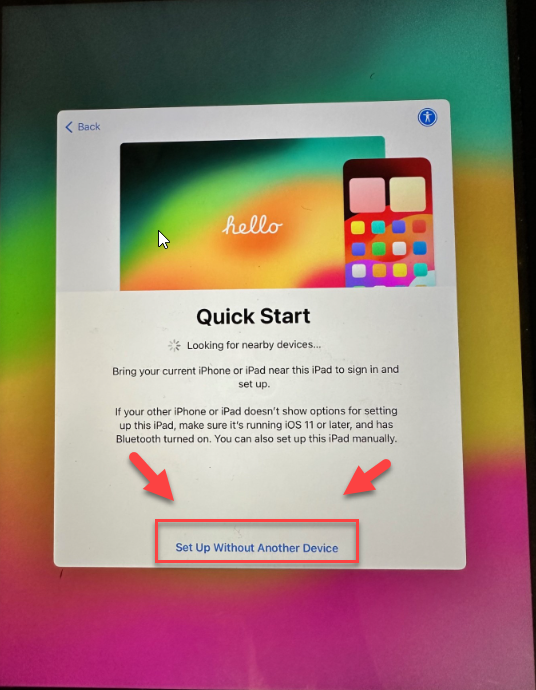
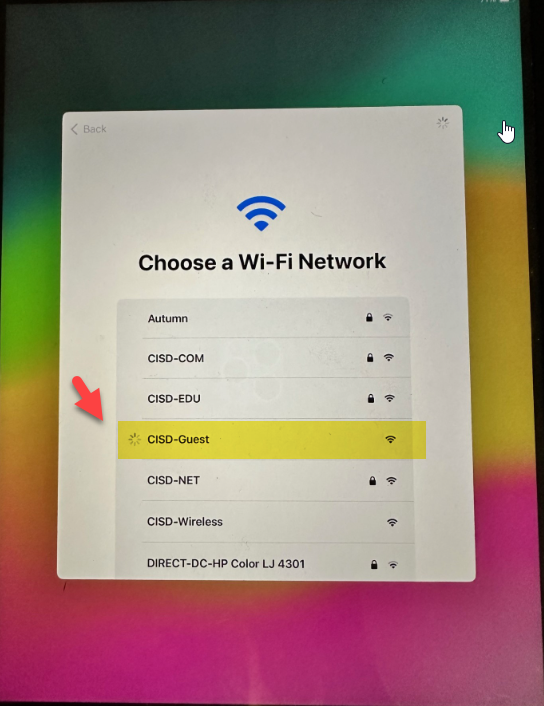
4. Connect to Wi-Fi
Select the CISD-Guest Wi-Fi network.
The iPad will run through a configuration process that can take quite a few minutes.
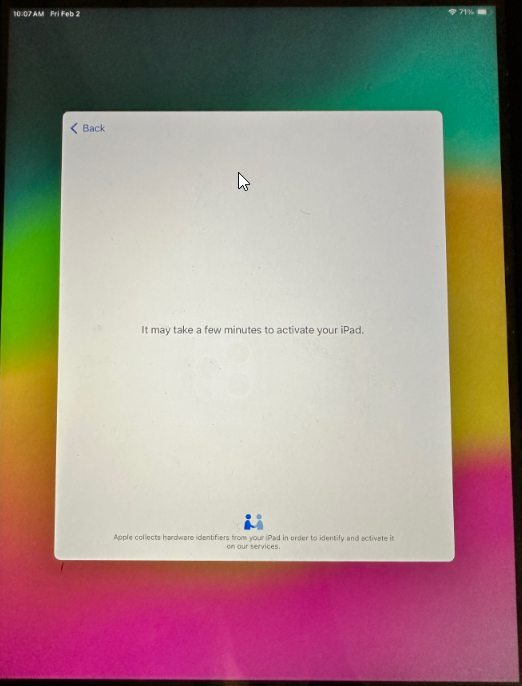
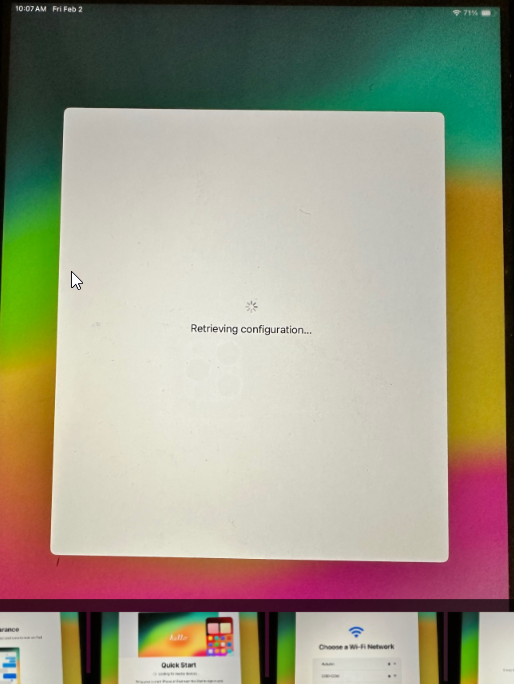
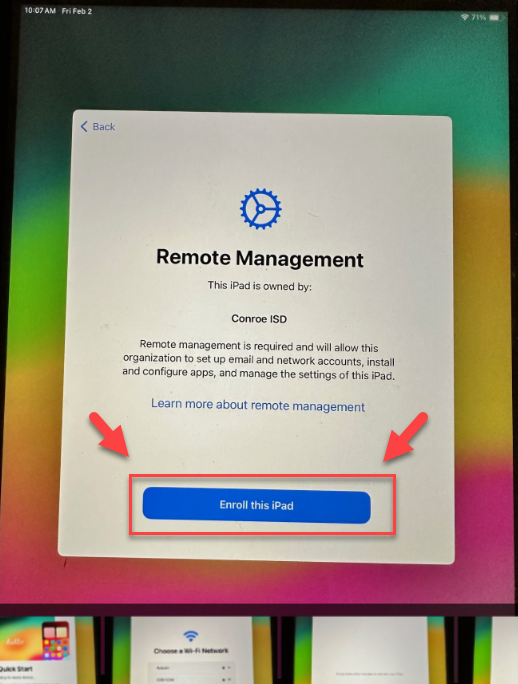
5. Enroll the Device
When the Remote Management screen appears, select Enroll this iPad.
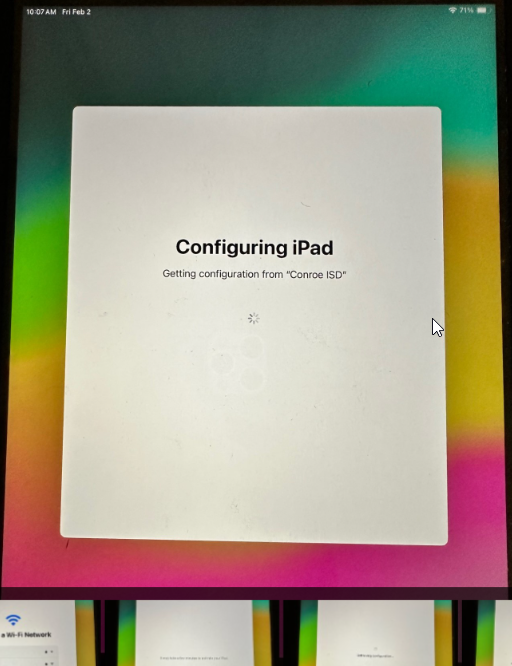
The iPad will run again through a configuration process that can take quite a few minutes.
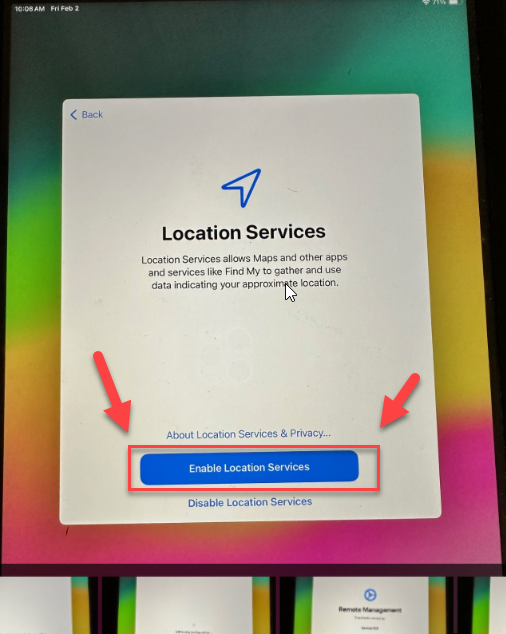
6. Enable Location
When the Location Services screen appears, select Enable Location Services.
Steps for iPads with iOS 16.5 or Lower
1. Start Setup
Press the Home Button to begin.
2. Select Language and Region
-
Select English.
-
Select United States.
3. Select Setup Method
Select Setup Manually.
4. Connect to Wi-Fi
-
Select the CISD-Guest Wi-Fi network.
-
Select Accept.
-
Select Done.
-
Select Next in the top corner.
5. Enable Location
If prompted, select Enable Location Services.
Final Configuration (All iPads)
The following steps apply to all iPads regardless of the iOS version.
1. Wait for Enrollment
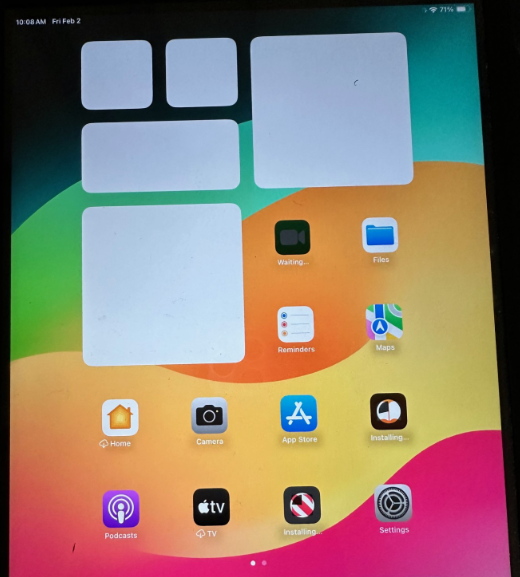
The iPad screen will initially show the default background while the enrollment process happens. Eventually, the background will change to the JAMF School background.
2. Keep the Device Powered On
Please leave the iPad turned on and plugged into power. It will continue to download apps and configurations from JAMF for approximately one hour.
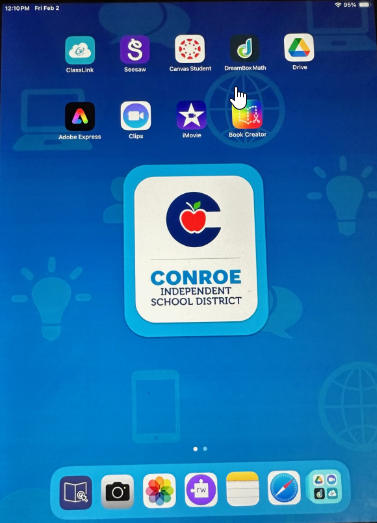
SPED Wallpaper will look like this
3. Set Up JAMF School Student App
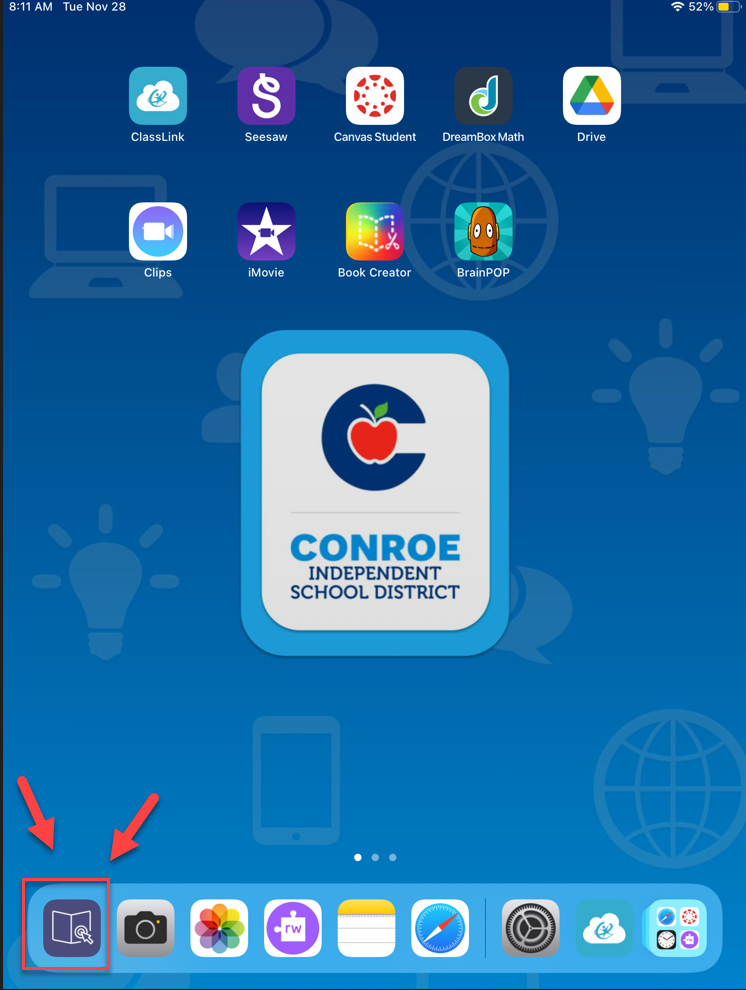
Once the iPad is ready, you will need to configure the student app. Please refer to the guide: Setup the JAMF School Student App.
Need additional help? Click here for further assistance.