
This guide explains how to ensure your district iPad is correctly connected to the CISD-EDU network. These steps are particularly useful after wiping and setting up an iPad to verify the device has switched to the correct network.
District iPads should automatically switch from CISD-Guest to CISD-EDU. Toggling the Wi-Fi forces the device to re-check for the correct profile.
Verifying the Connection
1. Open Settings
Select the Settings icon on the iPad.
2. Refresh the Wi-Fi Connection
-
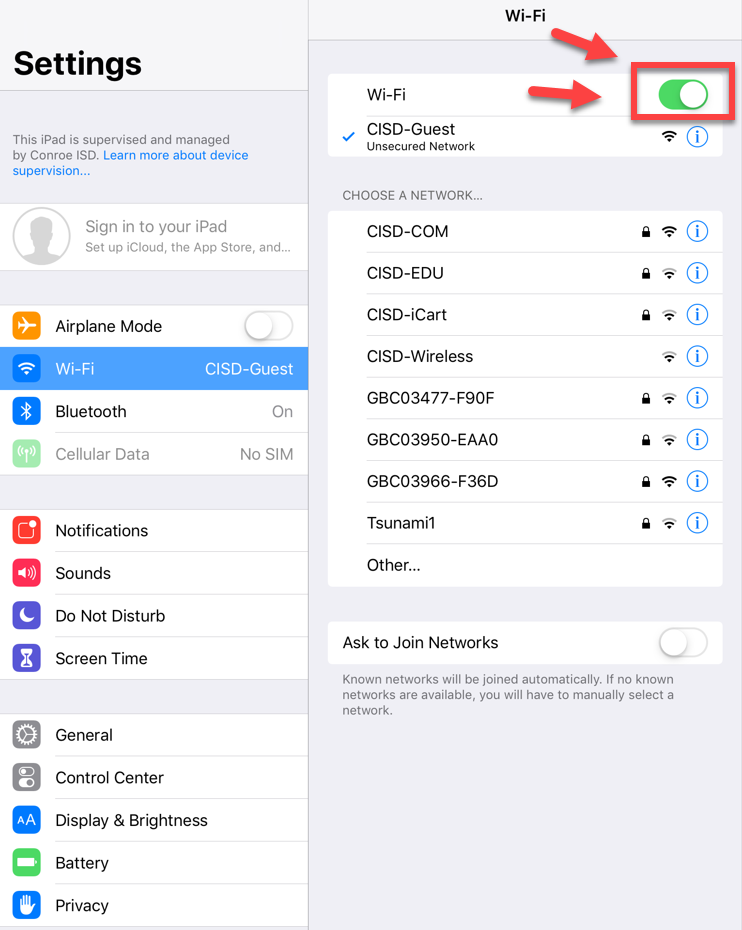
Select Wi-Fi.
-
Use the Toggle Switch to turn Wi-Fi Off.
-
Wait a moment, then turn Wi-Fi back On.
3. Confirm Connection
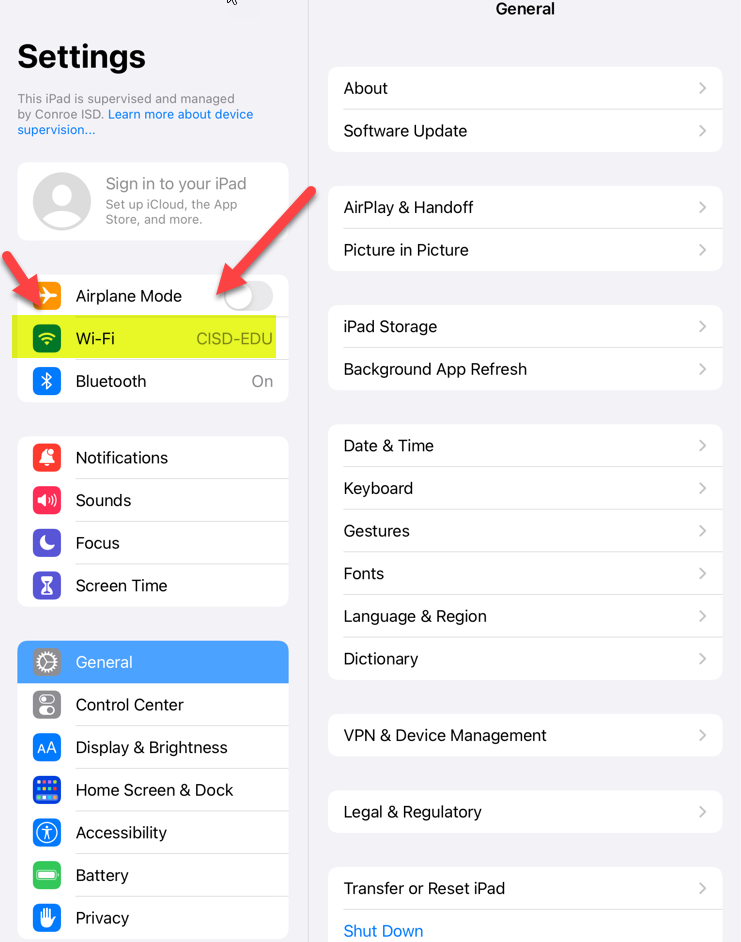
Wait a few minutes. The iPad should automatically switch over to CISD-EDU.
Troubleshooting
If the iPad does not automatically switch to CISD-EDU:
-
Try Troubleshooting Tips: Please refer to the iPad Switching to CISD-EDU WIFI Troubleshooting Tips guide.
-
Report the Issue: If the steps above do not resolve the issue, please complete the iPad App and JAMF School Issues Form in Eduphoria.
-
Submit a Incident IQ Ticket: Please submit a ticket in Incident IQ to have this device looked over.
Need additional help? Click here for further assistance.