
This guide provides solutions for iPads that are not connecting to the CISD-EDU network or fail to install apps due to connectivity issues.
If these troubleshooting steps do not resolve the issue, you will need to wipe the device. Please refer to the How to Wipe an iPad guide.
Fixing CISD-EDU Password Prompts
If your iPad asks for a password when trying to connect to CISD-EDU, the device may be missing the required network profile. Please follow these steps to download the profile.
1. Open Settings
Select the Settings icon on the iPad.
2. Connect to Guest Wi-Fi
-
Select Wi-Fi.
-
Select CISD-Guest.
-
Select Accept.
-
Wait a few moments for the connection to establish, then select Done in the top right corner.
3. Check for Automatic Switch
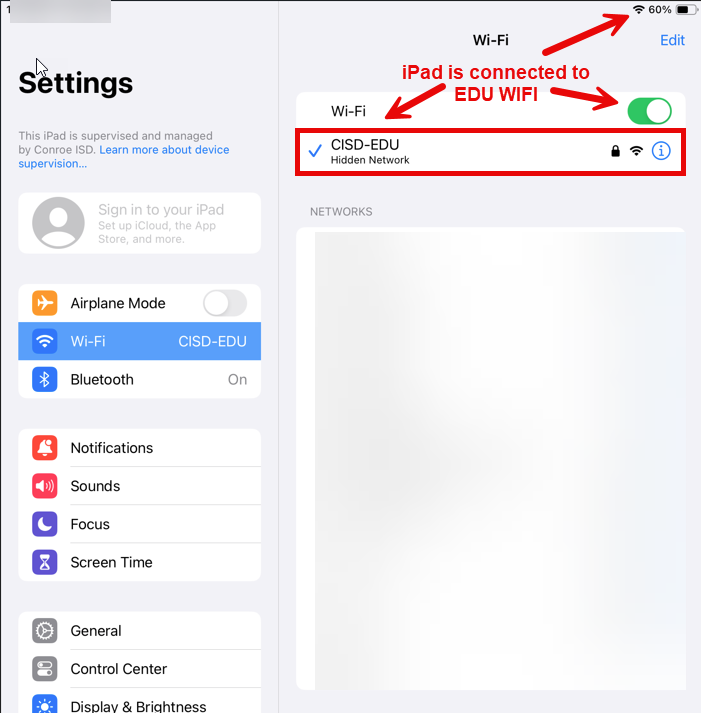
Observe the Wi-Fi settings screen. The iPad should automatically switch from CISD-Guest to CISD-EDU.
4. Toggle Wi-Fi (If Needed)
If the iPad does not switch automatically:
-
Tap the green Wi-Fi Toggle button to turn Wi-Fi Off.
-
Wait one minute.
-
Tap the toggle again to turn Wi-Fi On.
5. Manually Select Network (If Needed)
If the iPad still does not switch:
-
Manually select CISD-EDU from the list.
-
If you are still prompted for a password, the profile load failed. You must wipe the device. Please refer to the How to Wipe an iPad guide.
Fixing Stuck App Downloads
If an app is stuck installing or the iPad stops communicating with the server, it may be due to a weak Wi-Fi connection.
1. Toggle Wi-Fi Off and On
-
Go to Settings.
-
Select Wi-Fi.
-
Use the Toggle Switch to turn the Wi-Fi Off.
-
Wait a moment, then turn the Wi-Fi back On.
2. Verify Connection
The iPad should reconnect to CISD-EDU. Check the app icon on the home screen; it should resume installing.
3. Next Steps
If the app still does not install, please wipe the device. Refer to the How to Wipe an iPad guide.
Need additional help? Click here for further assistance.