
This guide addresses common issues with accessing Dreambox on student iPads, specifically focusing on app installation failures and login problems with ClassLink QuickCards.
Dreambox requires the specific app to be installed on the iPad to work with ClassLink. If the app is missing, the login process will fail. You must use Classlink to access Dreambox in the students SSO.
Prerequisite: Verify App Installation
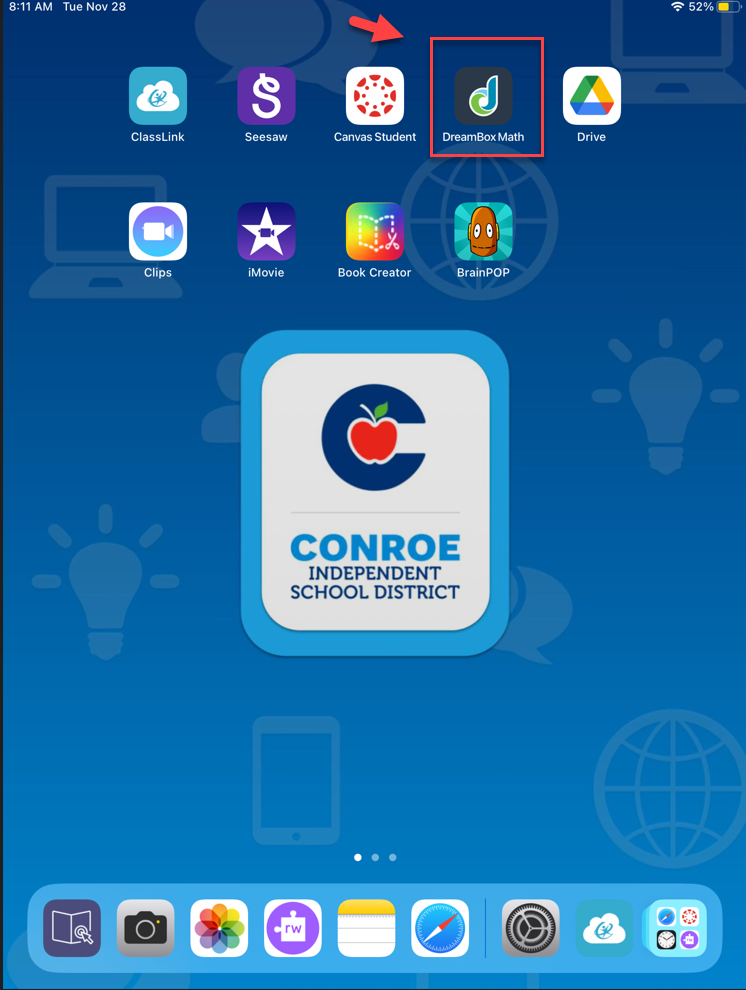
The Dreambox app is a high-priority download and should automatically appear on the main iPad layout.
-
Check the Home Screen: Look for the Dreambox icon on the main screen.
-
Missing App? If the icon is not present or it’s not loading, the download failed. This is the likely cause of login issues. Please proceed to the Re-installing the App section.
The Correct Way to Log In
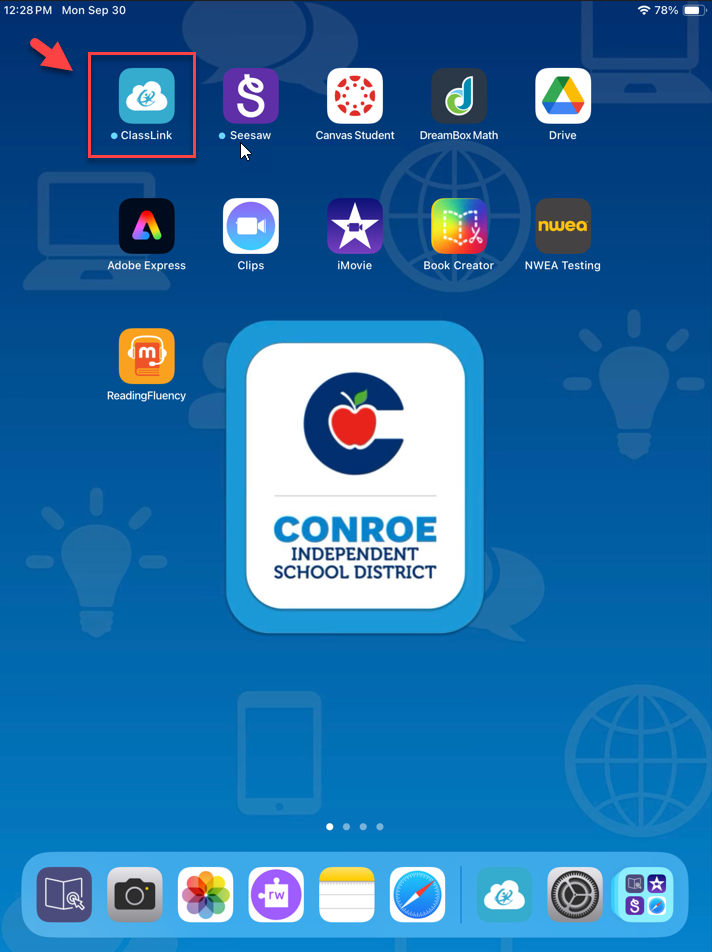
To access Dreambox, students must use the ClassLink app.
-
Open ClassLink: Tap the ClassLink app icon.
-
Scan QuickCard: Use the student's QuickCard to log in to their Single Sign-On (SSO).
-
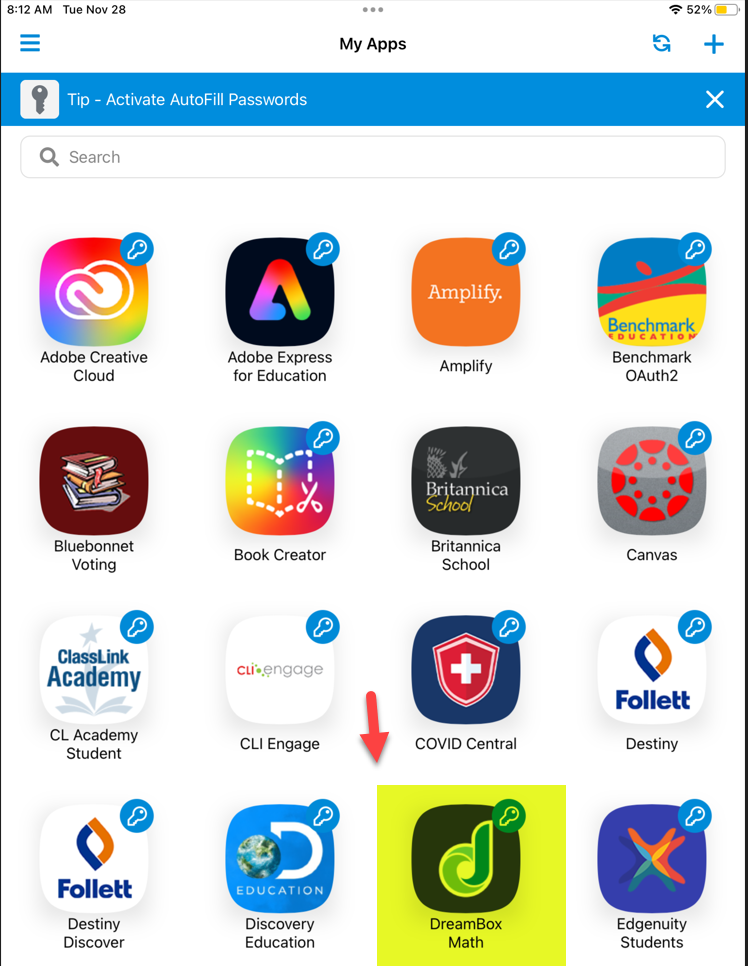
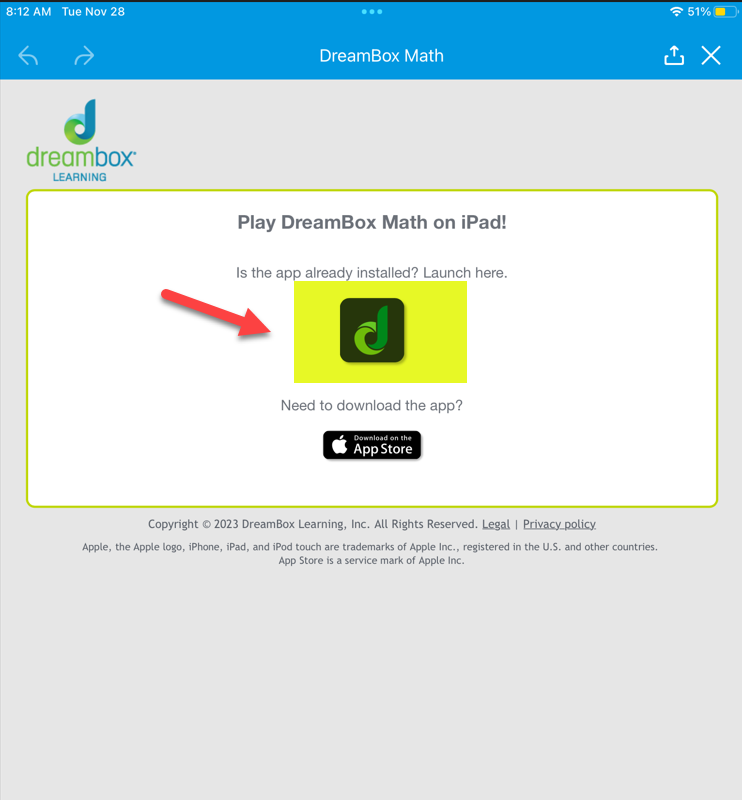
Launch Dreambox: Once inside the SSO, tap the Dreambox icon.
-
Success: The app should launch and log the student in automatically.
Troubleshooting: Delete and Re-install Dreambox
If the app appears on the iPad but ClassLink/QuickCards are not working, the app installation may be corrupted. Follow these steps to delete and re-install it.
1. Delete the App
-
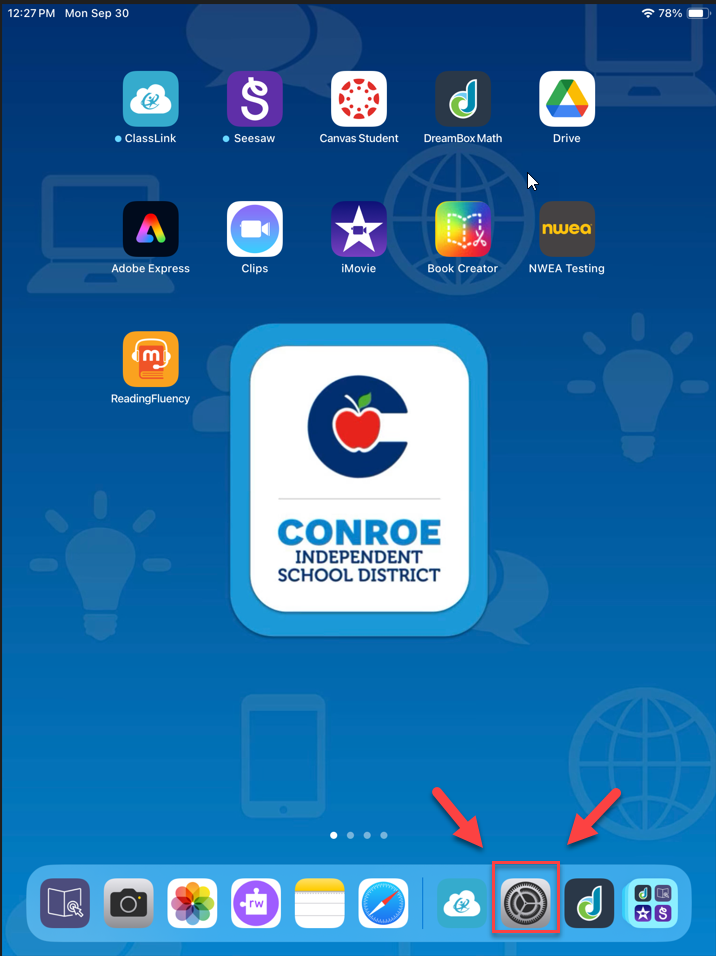
Go to Settings.
-
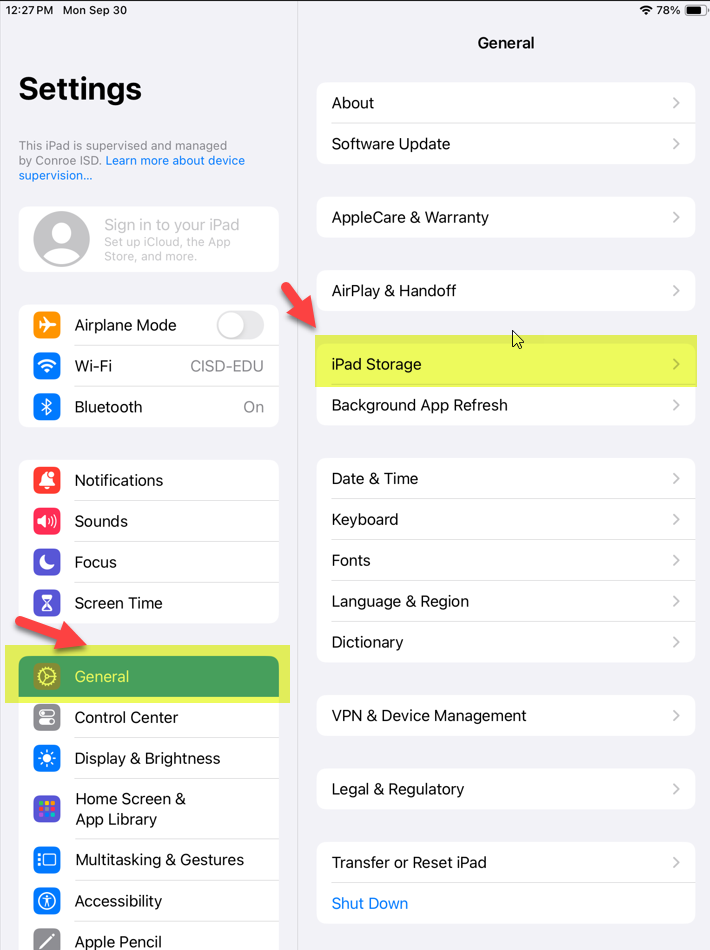
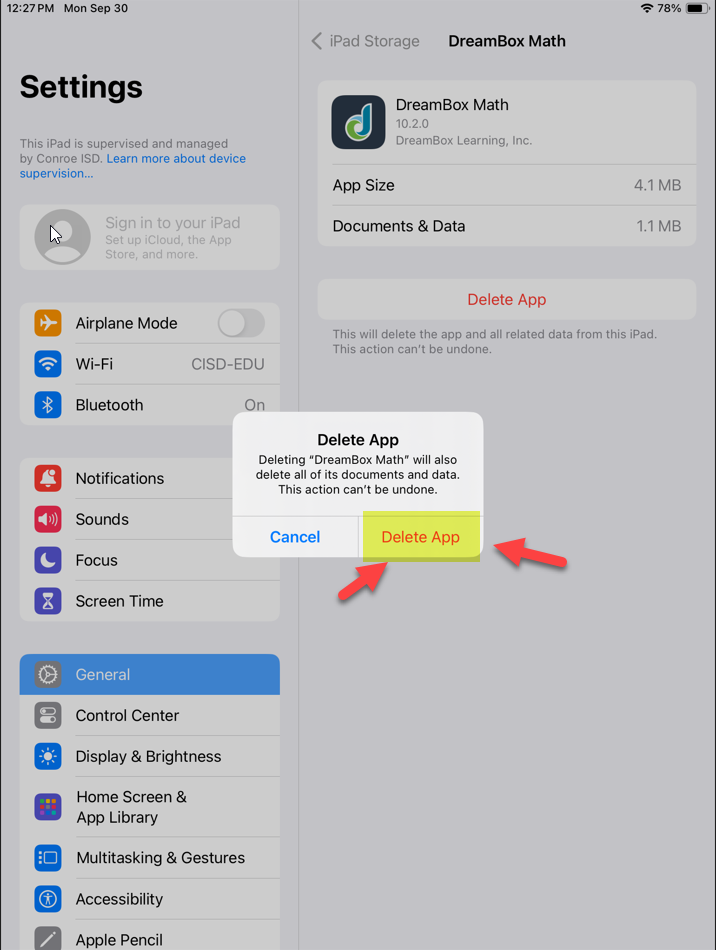
Select General, then iPad Storage.
-
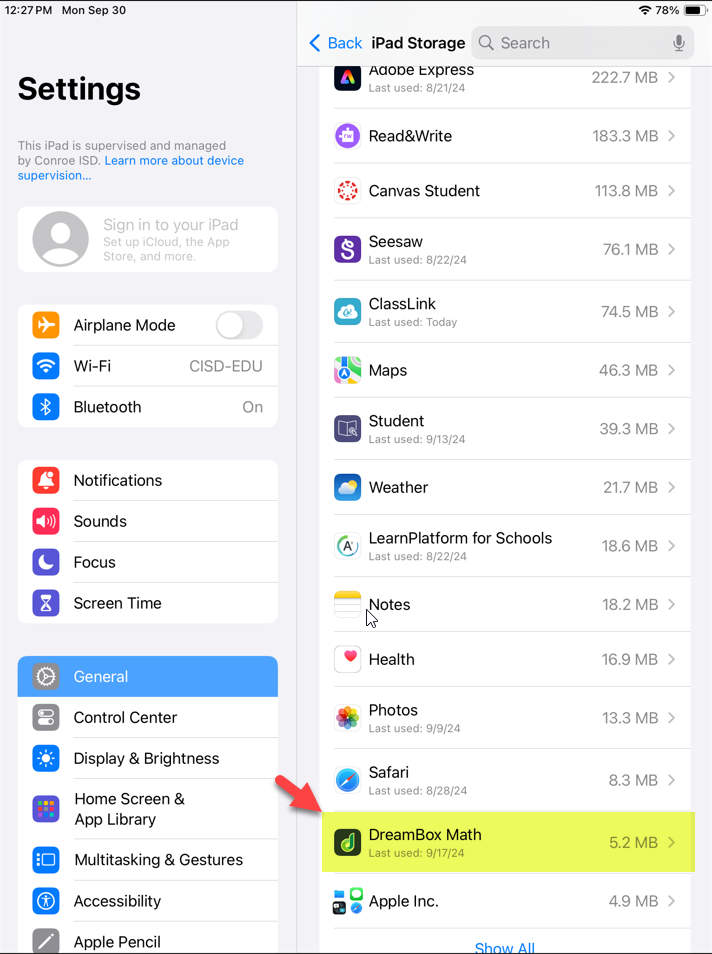
Find and select the Dreambox app from the list.
-
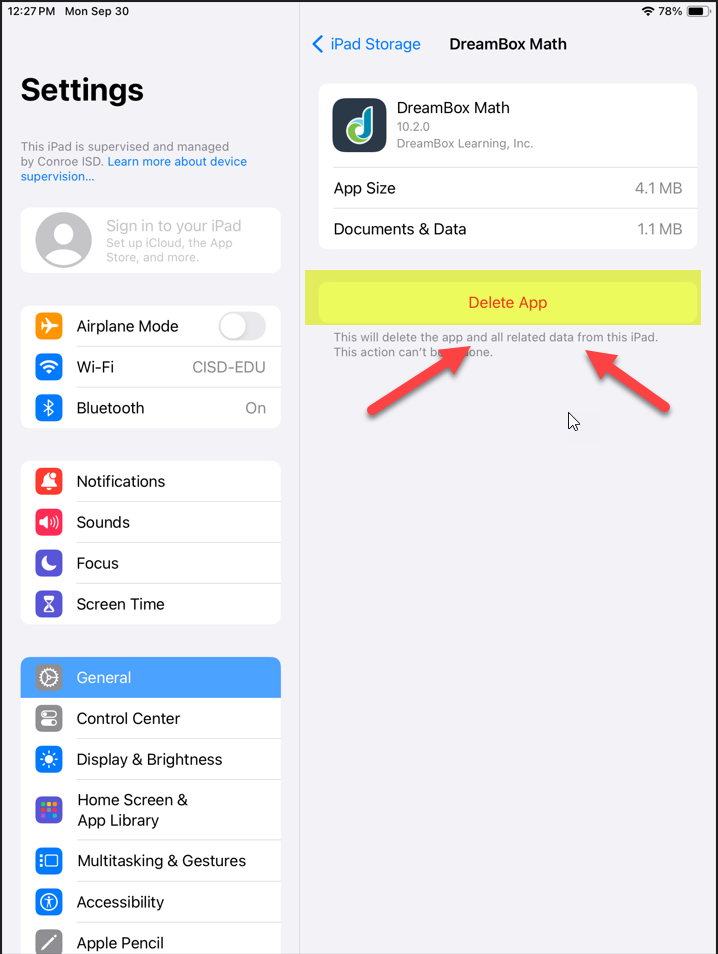
Select Delete App.
-
Select Delete App again to confirm.
2. Re-install the App
-
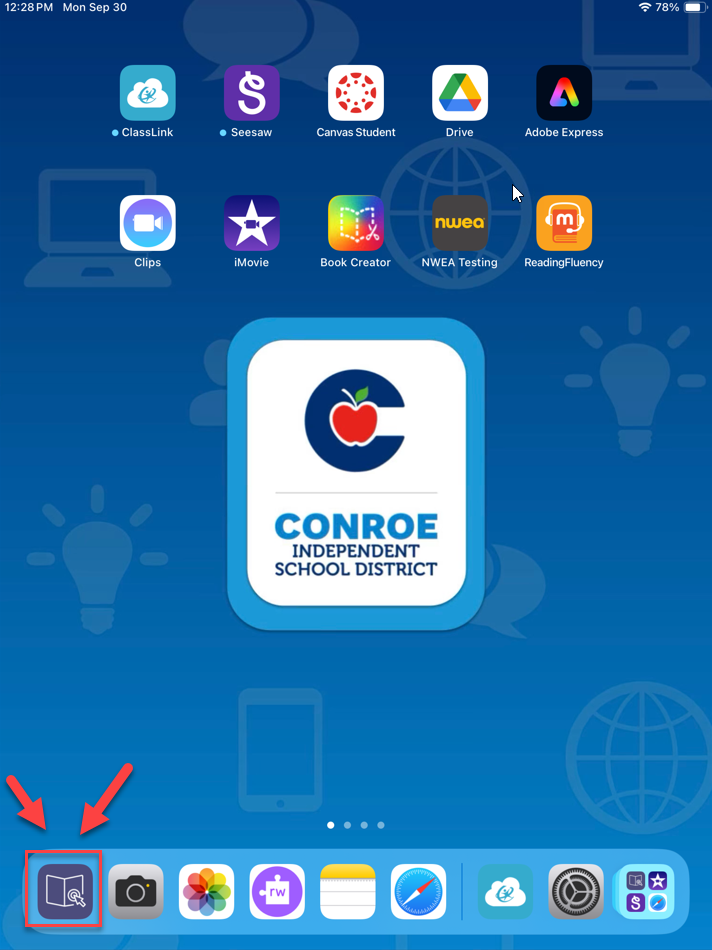
Wait for the icon to disappear from the home screen. Open the JAMF School Student app.
-
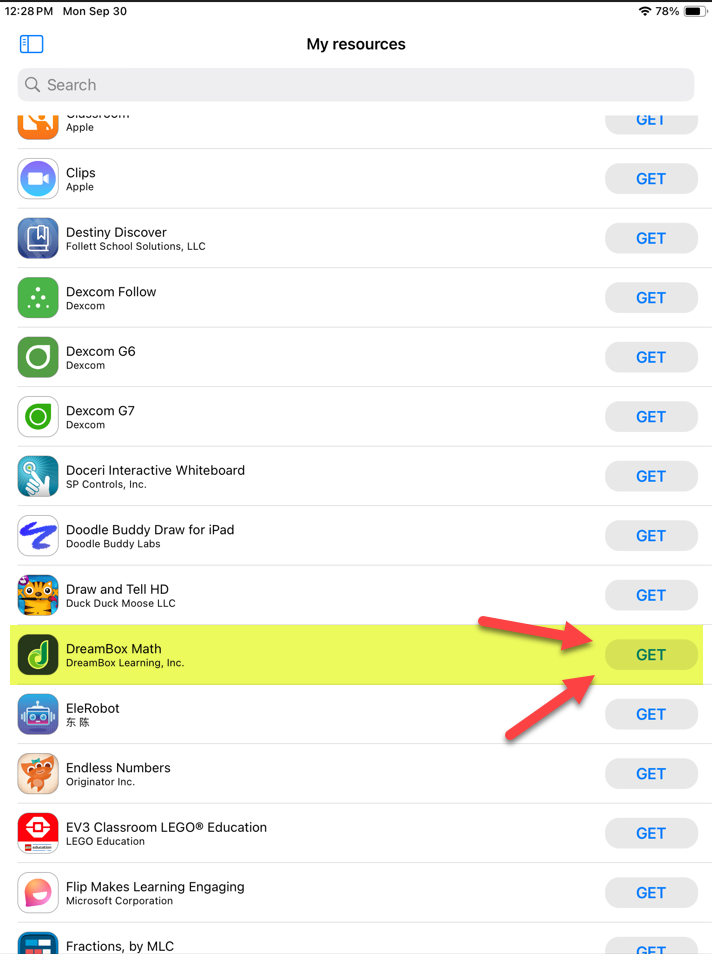
Scroll to find Dreambox and tap Get to re-install it.
3. Test the Login
Once re-installed, attempt to log in again using the ClassLink app and QuickCard.
Advanced Troubleshooting
Step 1: Re-install ClassLink
If re-installing Dreambox did not fix the issue, repeat the "Delete and Re-install" process for the ClassLink app.
Step 2: Request Remote Fix
If the issue persists, submit a request for remote assistance.
-
Go to Eduphoria Formspace.
-
Complete the iPad App and JAMF School Issues Form.
Step 3: Wipe the Device
If remote assistance fails or if you prefer a fresh start, you must wipe the device.
-
Option A (Self-Service): Follow the How to Wipe an iPad and How to Setup an iPad guides.
-
Option B (Repair): Submit a Incident IQ ticket and send the iPad in for repair.
-
Note: Only do this after attempting the Eduphoria form first.
-
Need additional help? Click here for further assistance.