
The Process Settings section in Laserfiche Forms contains administrative and global configurations that govern how your process behaves, who can access or edit it, how errors are presented to end-users, and how variables are tracked.
Access these options by navigating to Settings section on the left side pane.
⚙️ Settings Overview
|
Setting |
Purpose |
Key Capabilities |
|---|---|---|
|
Variable Management |
Central repository of all variables in the process. |
Rename, delete, and view variable usage across forms and diagram steps. |
|
Access Rights |
Security permissions for process design and execution. |
Control who can design, initiate, view, or administer process instances. |
|
Process Options |
General configuration and instance behavior. |
Custom instance naming, submission settings, draft retention, and file upload limits. |
|
Process Error Messages |
User-facing messaging during failure scenarios. |
Customize alerts displayed when users encounter submission or process errors. |
|
Process Test Rules |
Simulation and testing configurations. |
Set up mock user assignments and bypass live integrations during test mode. |
🗂️ 1. Variable Management
The Variable Management window provides a complete inventory of every variable created within your forms, business process diagram, and integration steps.
📌 Key Functions:
|
Function |
Details |
|---|---|
|
View References: |
Click on any variable to view every location where it is referenced (e.g., Form A, User Task 2, Save to Repository Task, Field Rules). |
|
Safe Variable Renaming: |
Changing a variable name here updates it globally across all forms, conditions, and process steps, preventing broken references. |
|
Delete Unused Variables: |
Clean up orphaned or unused variables that remain after deleting form fields. If you have old variables used as a token later on, those will not be deleted within the form. |
💡 Pro-Tip: Always use Variable Management to rename or clean up variables rather than manually modifying fields across multiple forms.
🔐 2. Access Rights
Manage user permissions for both the Design Phase and Execution Phase of the process.
👥 Permission Levels:
|
Role |
Responsibilities / Details |
|---|---|
|
Process Administrator |
Process Administrators can modify the current process. |
|
Business Manager |
Business Managers can view instances and generate reports for this process. |
|
Submitter |
Submitters can only start this process within Laserfiche Forms. |
🛠️ 3. Process Options
Process Options define global operational behavior for all instances generated by the process.
🔧 Key Settings to Configure:
|
Setting |
Details |
|---|---|
|
Link: |
You can modify the link name. The link will always start with forms(lfweb).conroeisd.net/Forms/ forms prefix: Internal Forms lfweb prefix: Extrernal Forms |
|
Instance Name: |
By Default it should be: {/dataset/_bp_process_name} {/dataset/_instance_id}: {/dataset/_initiator_displayname} which would look something like “Form Name 367363: John P. Doe”. In most cases, it would be better to change this name as this is what an approve will see with the task. So think, what would be the best things to see at a glance for my approvers? |
|
Summary Details: |
Select the variables you want to show in the inbox for the tasks in the process. |
|
Process Notification: |
Select a person to get an email when something suspends or terminates within the process. Usually, set to the Laserfiche admin (Trey J. Wolf) |
 4. Process Error Messages
When an error occurs during execution (e.g., network disconnects, unavailable repository connections, or invalid inputs), Laserfiche Forms displays a system alert. This menu allows you to replace default technical errors with clear, user-friendly instructions.
📝 Example Custom Message: "Your request could not be submitted due to a temporary network issue. Please save your draft and try again in a few minutes, or contact the IT Helpdesk if the problem persists."
🧪 5. Process Test Rules
Process Test Rules enable safe testing of complex workflows before publishing the process.
By default you will have it setup as so
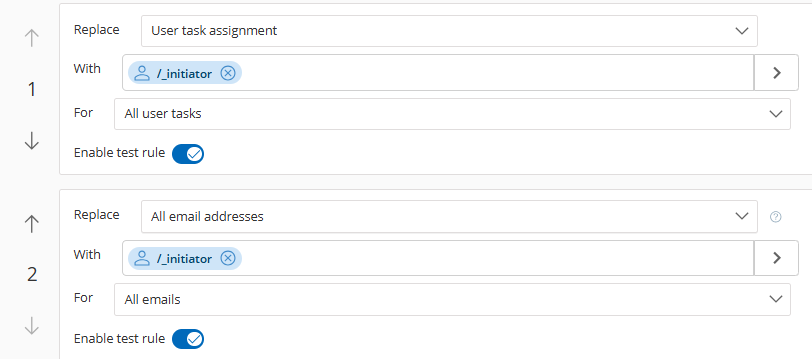
You can change these settings to assign different users or email addresses or even add in new test rules. These default ones will get you most of the way there 95% of the time.