
This guide explains how to grant a Long-Term Substitute or a covering teacher full permissions in Eduphoria. This process allows the substitute to act as the "Teacher of Record," giving them the ability to score constructed responses (like essays), view student rosters, and analyze student data.
If a regular teacher requests this access to cover a vacancy, they will temporarily lose access to their own student roster. Eduphoria 'swaps' their view to the covered class until this access is manually revoked.
Steps to Submit the Access Request
Use the instructions below to request access for a substitute to grade and teach.
-
Open Formspace
-
Log in to Eduphoria.
-
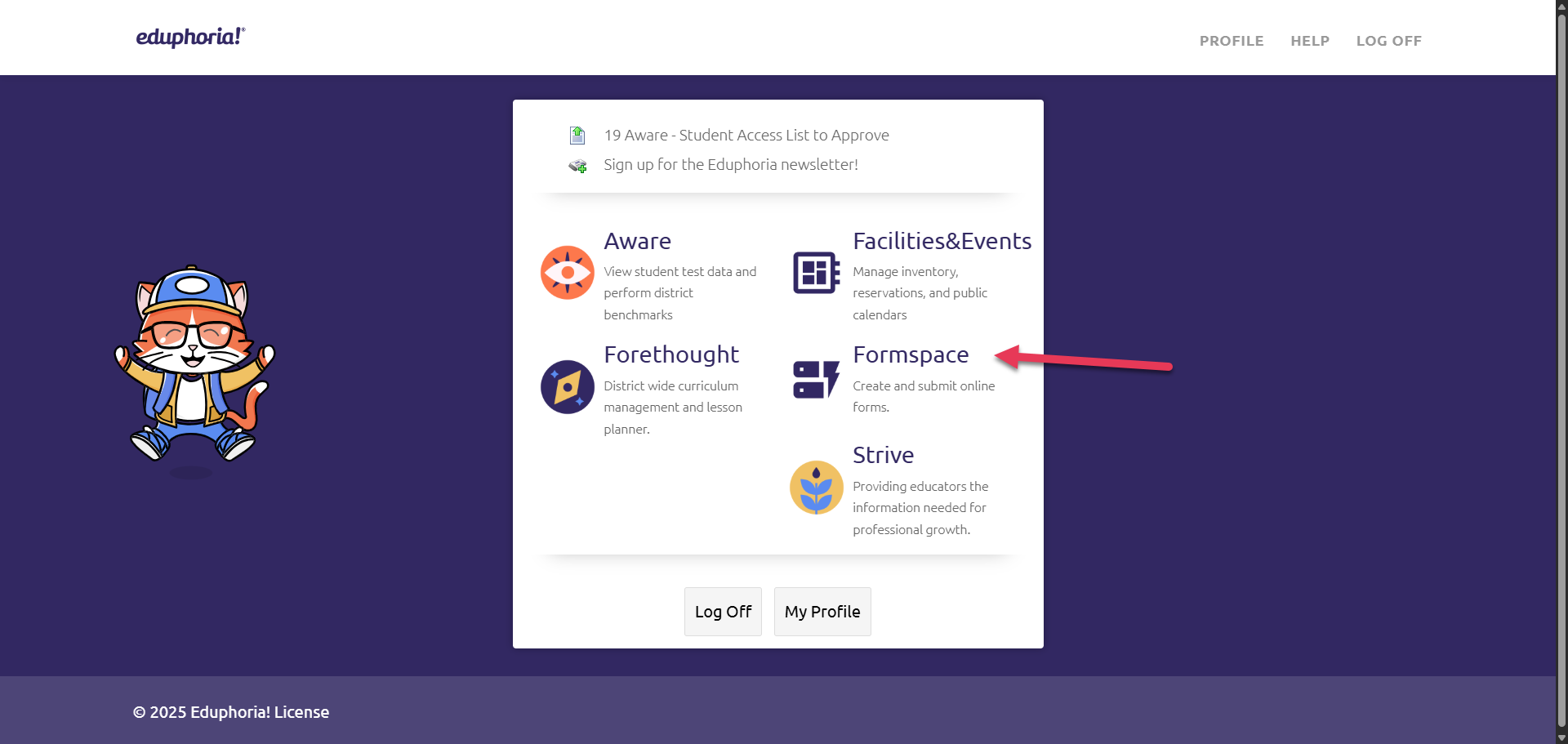
Click the Formspace icon.
-
-
Locate the Form.
-
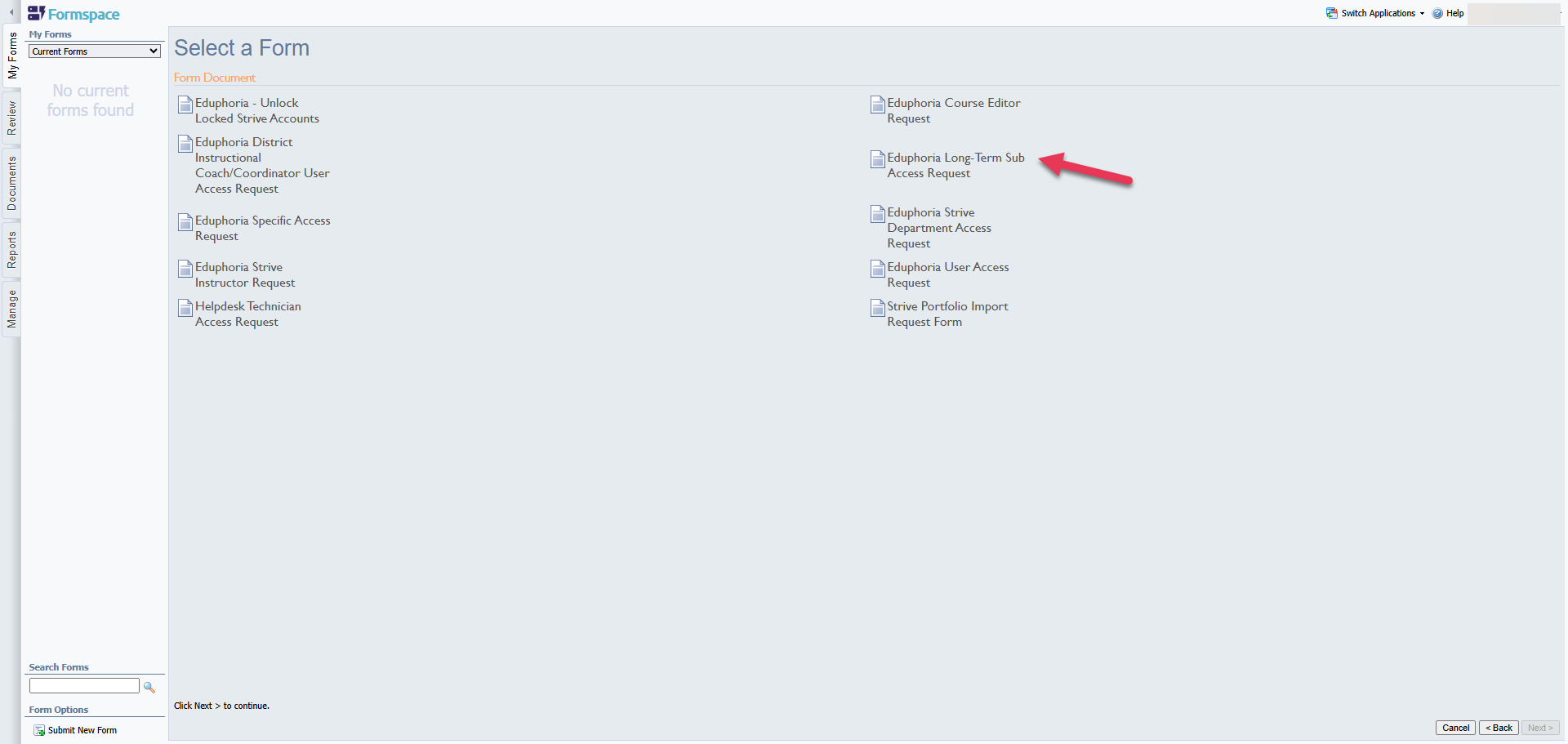
Click Submit New Form in the bottom left corner.
-
Select the category: Eduphoria Access Request.
-
Click on the form titled: Eduphoria - Long-Term Sub Access Request.
-
-
Select the Access Type
You must complete every box accurately. If the information is incorrect, the form will be denied.
-
Type of Access: (Crucial Step)
-
Select Grant to START the access (Start of assignment).
-
Select Revoke to END the access (End of assignment).
-
There is no separate "Revoke" form. You use this same form for both actions.
-
Enter Coverage Details
Select the Campus where the coverage is taking place. Enter the Teacher Information for the staff member being covered.
-
Enter Substitute Information
Enter the following details for the substitute:
-
Name: Full legal name.
-
Employee ID: The 6-digit Conroe Independent School District (CISD) ID number.
-
Email: Their district email address.
Note: If you do not have this information, please ask your Principal or Secretary for assistance.
-
Enter Teacher Information
-
Enter the information of the teacher who is being covered (the "Teacher of Record").
-
-
Submit the Form
-
Click Submit Form.
-
What happens next?
-
The form is automatically routed to the Campus Principal for approval.
-
Once approved, the Application Support Team processes the request.
-
Important Things to Know
The Substitute Cannot See "Aware"
Sometimes a substitute will be granted access but still cannot see the Aware icon to view grades. This happens if their profile is not "checked in" to your specific school.
The Fix: The substitute must log in, click My Profile in Eduphoria, and check the box next to the campus where they are currently working.
View the Guides here for step-by-step instructions: Eduphoria Profile
The "eSchool Mirror" Rule (Why students might disappear)
This access acts like a mirror. The substitute sees exactly what the original teacher sees in the official schedule (eSchool).
-
If the class is empty: If the students are moved to a different teacher in the official schedule (e.g., the original teacher resigned and the class was split up), the substitute will see an empty list. They can only see students who are still rostered to the original teacher.
You Must Remember to Revoke Access
This system is manual.The system does not know if a teacher resigns or if a substitute leaves early.
We strongly recommend that as soon as the assignment ends, you return to Formspace, submit this form again, and select Revoke. If you do not, the substitute will continue to have access to that teacher's Eduphoria indefinitely.
Can't View Campus-Wide Test Data Anymore?
If you normally have access to view test data for the whole school (like Instructional Coaches, Principals, or Counselors) and you take a sub assignment, your screen will change.
-
The Problem: The system defaults to showing you only the specific class you are covering. It looks like you lost your campus permissions.
-
The Reality: You still have your campus-wide access; you just need to switch your view.
How to switch back to Campus Data:
-
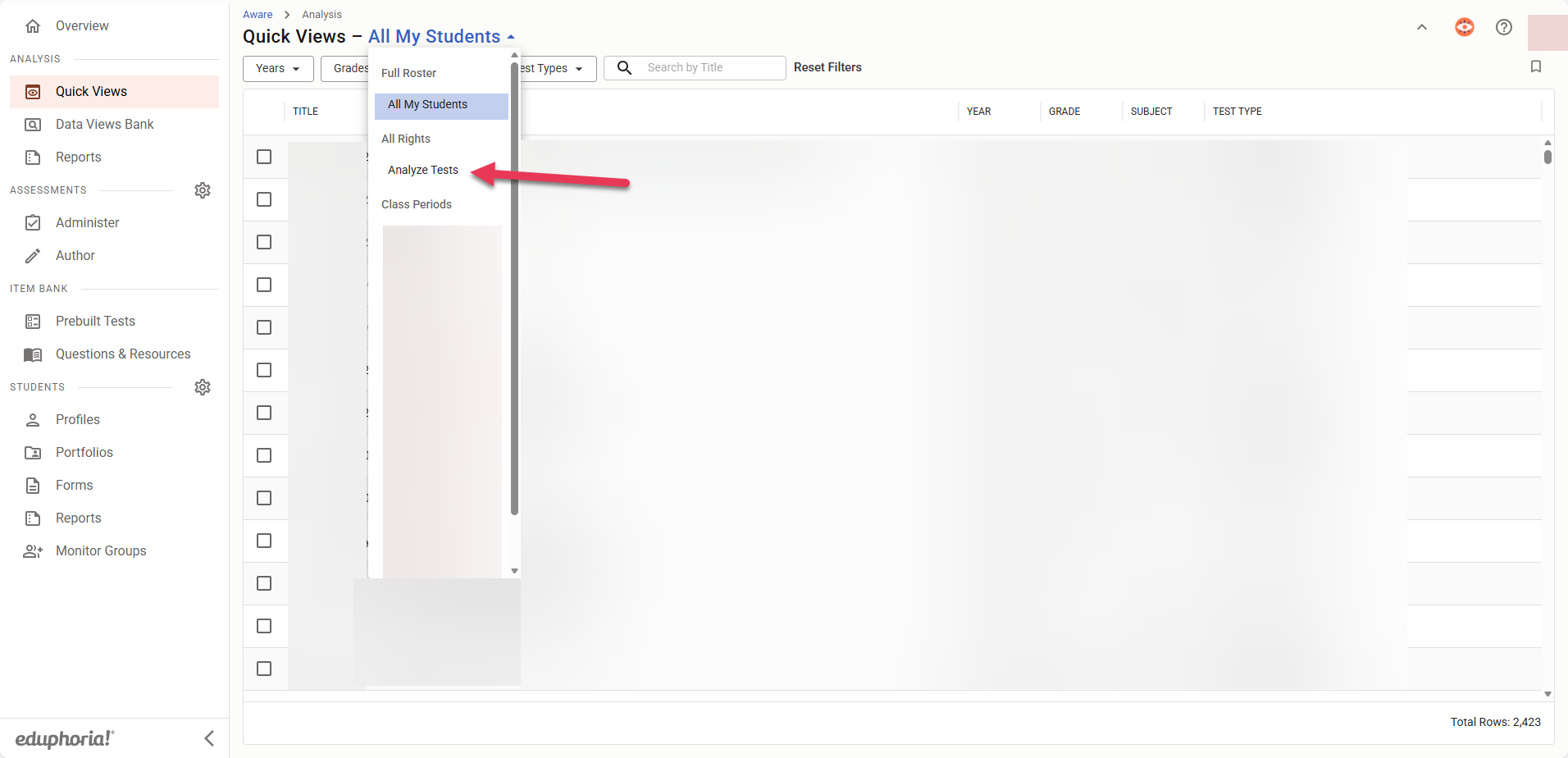
Go to Quick Views.
-
Click the drop-down menu - All My Students
-
Look for the section labeled All Rights.
-
Select Analyze Tests. This will return you to your normal campus-level view.
The "Teacher Swap" (Why your own students disappeared)
If you are a regular teacher covering for a colleague:
-
You will see: The roster of the teacher you are covering.
-
You will NOT see: Your own rostered students.
-
The Fix: Once your assignment is over and the access is Revoked by submitting the form to “Revoke” the access, your own students will reappear again.
Still have questions? Visit the Additional Help section for further assistance.