
This guide explains how to locate, view, and print In-School Suspension (ISS) assignments using the Reports feature in View-It.
Steps to Run the ISS Report
1. Open the Reports Menu
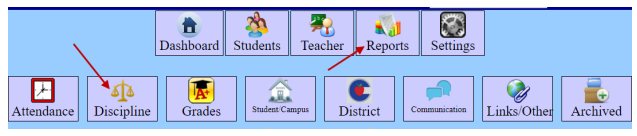
From the main dashboard, select Reports.
2. Select Discipline
Choose the Discipline category.
3. Open Process Incidents
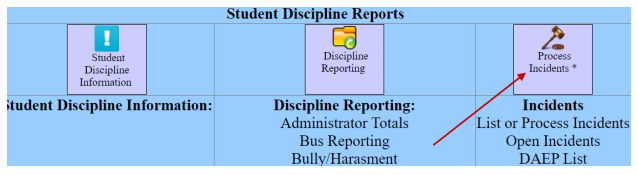
Select the option for Process Incidents.
4. Configure and Run the Report
-
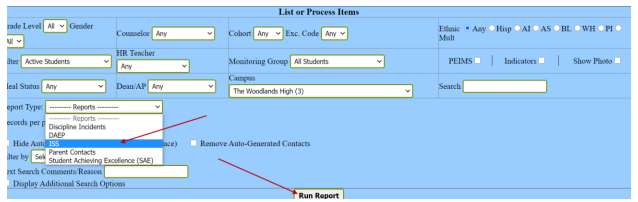
Find the Report Type menu and select ISS.
-
Select Run Report
5. View and Print
The assignments will appear on the screen.
-
To view the details, review the list on your screen.
-
To create a hard copy, select Print.

Need additional help? Click here for further assistance.