
This guide explains how to locate and run the Consequence Attendance report in View-It. This report is used to track attendance for students assigned to In-School Suspension (ISS) or Detention.
Steps to Access the Report
1. Open the Reports Menu
From the main menu, select Reports.

2. Select Discipline
Choose the Discipline category

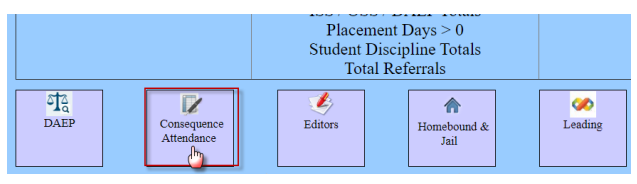
3. Select Consequence Attendance
Locate the Consequence Attendance link. This is usually found under the three large icons.
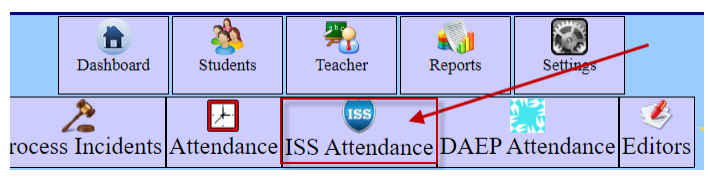
4. Select ISS Attendance
Select ISS Attendance from the list.
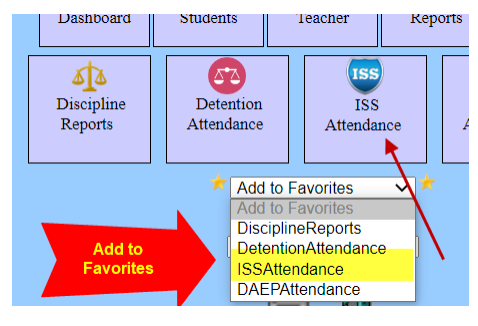
5. Add to Favorites (Optional)
We recommend selecting Add to Favorites at this stage. This will add a shortcut to your View-It homepage so you can find this report quickly in the future.
Steps to Run the Report
1. Open the Report Configuration
Select the ISS Attendance link.
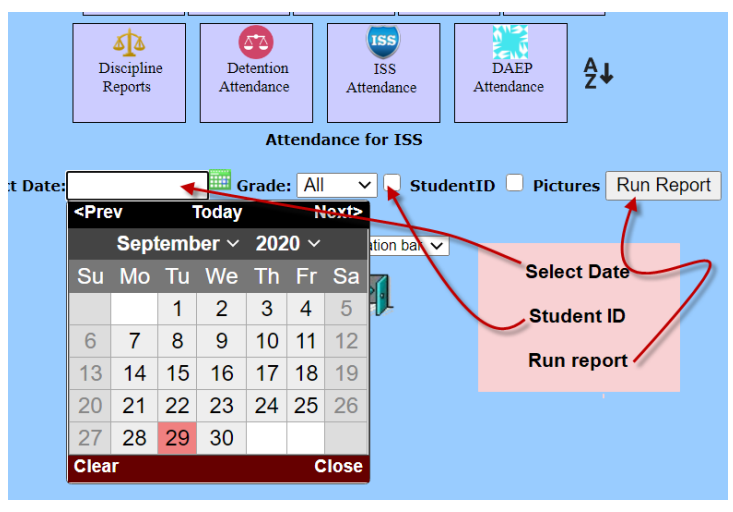
2. Enter Report Details
-
Select the Date.
-
Select or enter the Student ID.
3. Generate the Report
Select Run Report.
Need additional help? Click here for further assistance.