
Follow this guide to learn how to verify and update an asset using the Incident IQ Mobile App.
If you scan an asset in your room that is not yet in Incident IQ, please reach out to your Campus Tech.
Need to install or log in to the Incident IQ app first? See How to Install and Login to the Incident IQ Mobile App
-
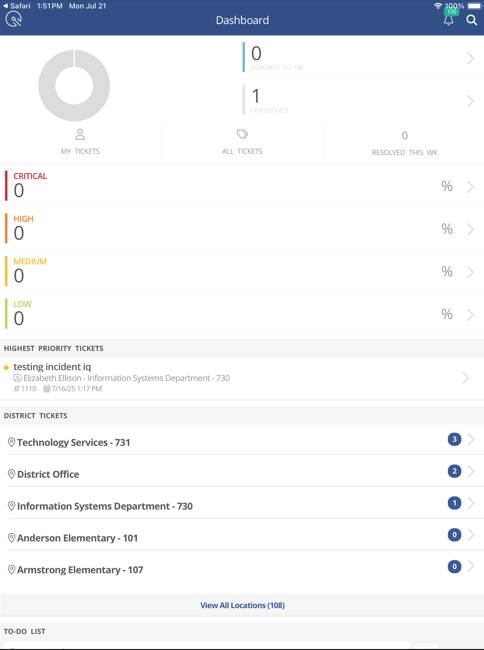
Log in to the Incident IQ Mobile App.
-
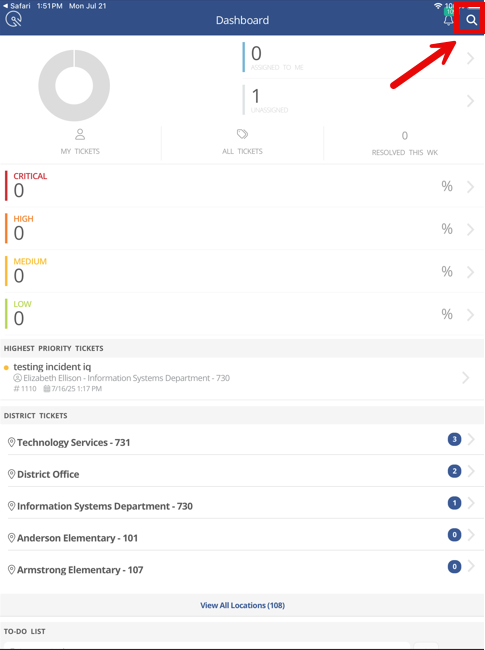
Tap the search icon in the top right corner.
-
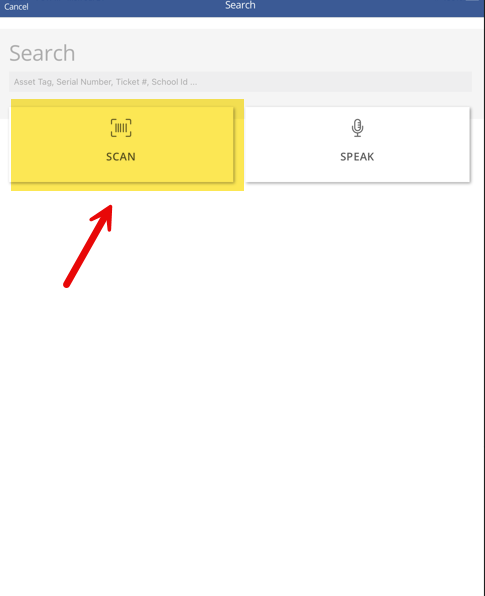
This will pull up the Search Field in the Incident IQ Mobile App. Click on Scan.
-
The Search Field allows you to search, scan, or speak to find an asset. We are going to focus on the Scan feature.
-
-
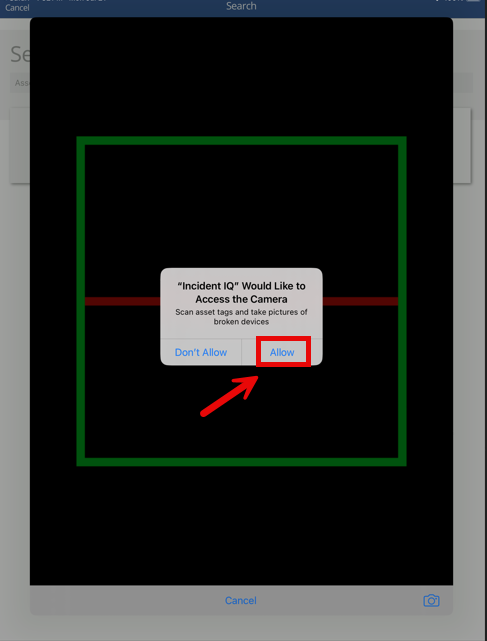
If prompted, tap Allow to give the app permission to use your device's camera.
-
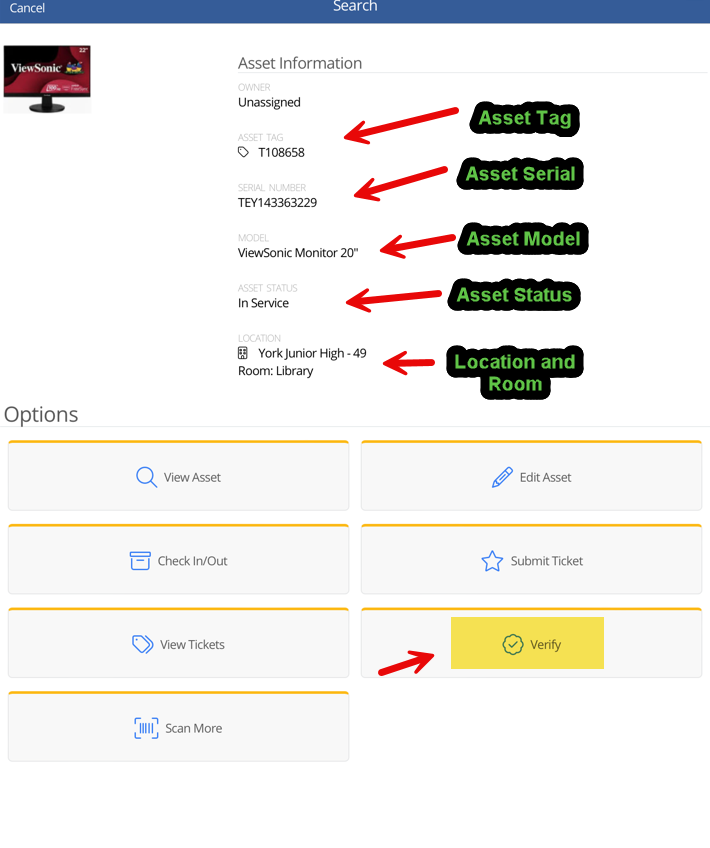
Scan the Asset that you want to audit. This will pull up the Asset Info Screen. Tap Verify.
-
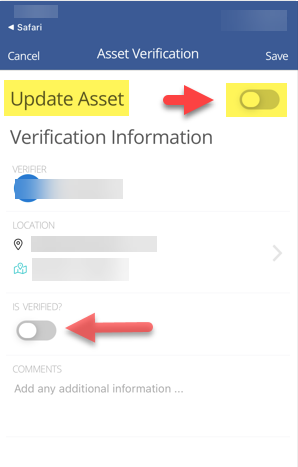
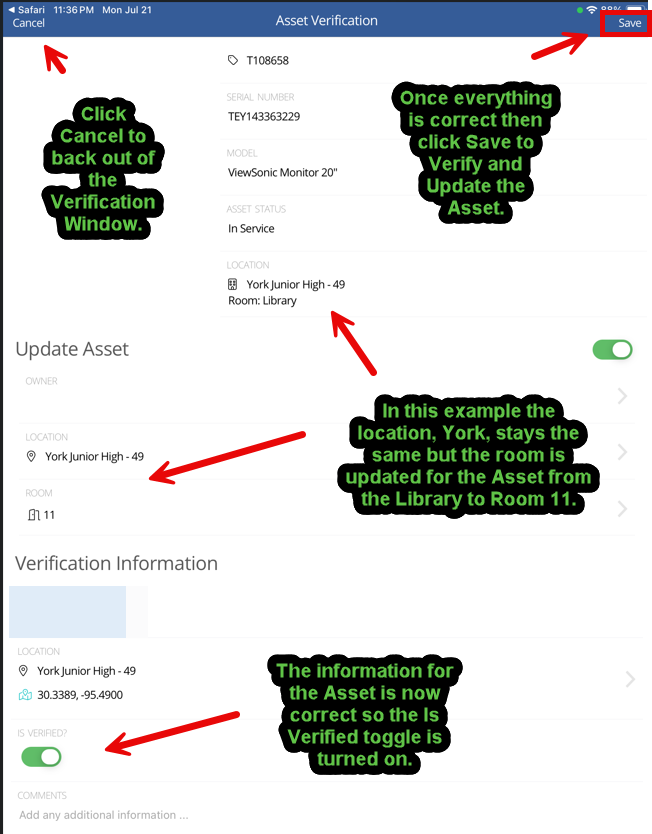
This will pull up the Asset’s Verification window.
-
If the room and location are correct: Toggle on Is Verified and tap Save.
-
If the room or location needs to be corrected: Toggle on Update Asset, update the Location, Room, or both, then toggle on Is Verified and tap Save.
-
To back out without saving, tap Cancel.
-
You have successfully verified an asset. Repeat this process for each remaining asset in your room to complete your audit.
If you find assets in your room that are not yet in Incident IQ for you to verify then please reach out to your Campus Tech.
Still have questions? Visit the Additional Help section for further assistance.