
Welcome to the 2026–2027 Incident IQ updates guide, designed to explain system changes and how to use the updated workflows for the new school year. These updates were implemented based on user feedback to streamline ticketing and make tech support faster and easier for everyone across the district. Thank you for your support as we roll out these improvements.
For All Users:
Generic Device Category Requests Will No Longer Be Processed
This change applies to campus locations only. Generic device categories for Chromebooks, laptops, iPads, Printers, Copiers, Scanners, TVs, and desktops will remain visible when submitting a ticket; however, requests submitted using these general categories will not be accepted.
When a generic device request is submitted, the ticket will be denied, and you will receive a denial reason explaining that requests must be submitted directly on the specific asset needing assistance. Submitting a ticket on the correct asset ensures the request is routed to the appropriate support team, allows technicians to quickly identify the device, and maintains an accurate service history for the asset.
To submit a hardware or device request, you must first claim your physical room in Incident IQ. Once your room is claimed, your available assets will appear under My Assets. You can also favorite frequently used devices so they are easier to locate when submitting future requests.
If the asset you need is not listed under My Assets, please contact your Campus Technology Staff. They can assist with having the asset added or updated in Incident IQ. If you are unsure who that is, your Campus Administration can provide the appropriate contact information.
Please review the resources below for assistance:
-
How to Claim Your Room in Incident IQ (Includes steps for clearing old rooms from your profile)
-
Campus Technology Contacts: How to Request Assets be Added to IIQ
Department Ticketing, Location Updates & On-Behalf Requests:
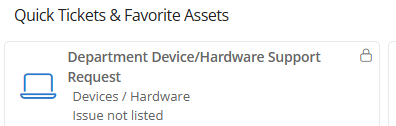
Department staff frequently work across multiple buildings, move between campuses, or work for one department while physically housed in another building. These tools ensure ticket notifications and physical support travel to the correct location every time.
Use the specialized Quick Ticket on your dashboard to submit department device/hardware requests, update ticket locations on the fly, or log tickets on behalf of other staff members.
Security/Building Access Category Consolidation:
Previous items such as projectors, district radios, cafeteria/gym audio, and broadcasting have been moved into Devices & Hardware. Keeping security items in a separate area created confusion about where to go for help, so most security options have been consolidated directly into Devices & Hardware so everything lives in one spot. BrightSign, Haivision, and Marquee options will eventually be transitioned out of this category as well.
Expanded Access for Campus Audits
Beginning with the 2026–2027 school year, all staff members will have access to complete the Beginning-of-Year (BOY) and End-of-Year (EOY) audits for their assigned rooms in Incident IQ.
For Users with Agent Access (Useful Reading for All Staff)
Asset & Room Requests (For Users with Agent Access)
This workflow is for Campus Technology Contacts, Network Techs, Repair Techs, and other staff members with Agent-level permissions to create a standardized, trackable way to update district inventory and rooms.
To submit requests, use the Quick Ticket features on your dashboard or look under the User Accounts/Access Requests category to request room additions, updates, or new assets in the system.
Updated Escalated to Level 2 Support Status:
The status previously named Escalated to District Network Tech is now Escalated to Level 2 Support. It’s important to make sure the ticket is categorized correctly first, because choosing the correct category routes your ticket to the right level 2 support agent automatically.
“Asset Awaiting Drop-off” status implementation:
This is a new status used by District Network Techs when waiting for equipment to be brought to the drop off location at your campuses. Selecting this status reassigns the ticket to the Campus Technology Contact and emails the requester (or the "On Behalf Of" user) to bring their equipment to the campus drop-off location. If the device is not dropped off, the system automatically closes the ticket after the standard waiting period like the “Waiting on Requestor” status.
Automated Asset Status Tracking
We are excited to announce a new automation to streamline how we track equipment repairs. To ensure our asset inventory remains accurate without manual updates, we have implemented the following status triggers:
-
Sent for Repair: As soon as a ticket with the asset attached is updated with the status of Delivered to Repair, the asset status will automatically update to In Repair.
-
Returned to Campus: Once a ticket is marked with the status of Delivered to Campus, the asset status will automatically transition back to In Service.
This change reduces manual data entry and provides real-time visibility into which devices are available for use.
Still have questions? Visit the Additional Help section for further assistance.