
This guide explains how to favorite your frequently used technology assets in Incident IQ. Favoriting your assets allows you to access them quickly from your dashboard, making it much faster and easier to submit support tickets for your equipment.
For staff members who are not teachers and do not have rostered students or courses assigned to them in the master schedule, please follow the steps below to favorite your assets after you have successfully claimed your room.
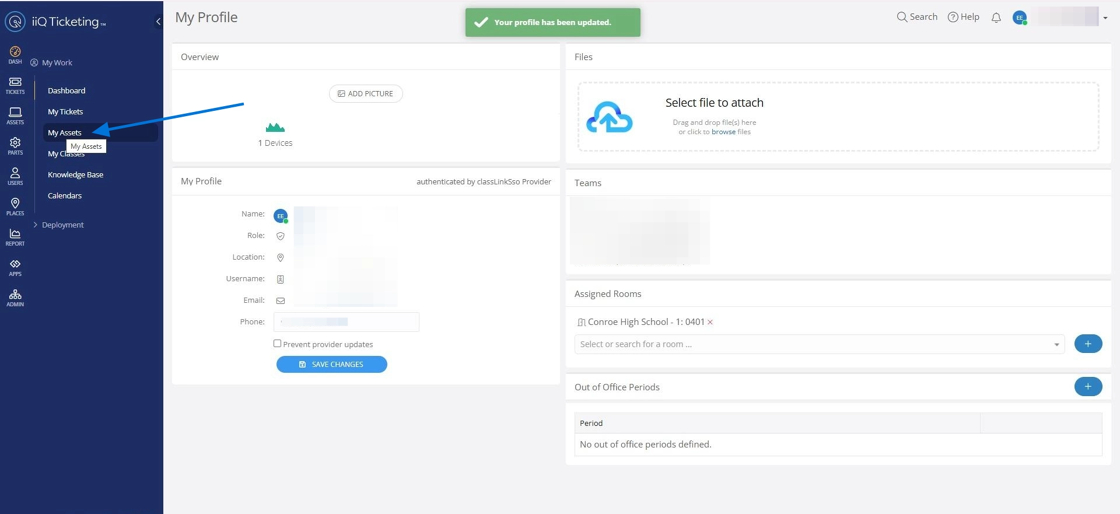
1. Navigate to My Assets
Select My Assets from the left-side navigation menu.
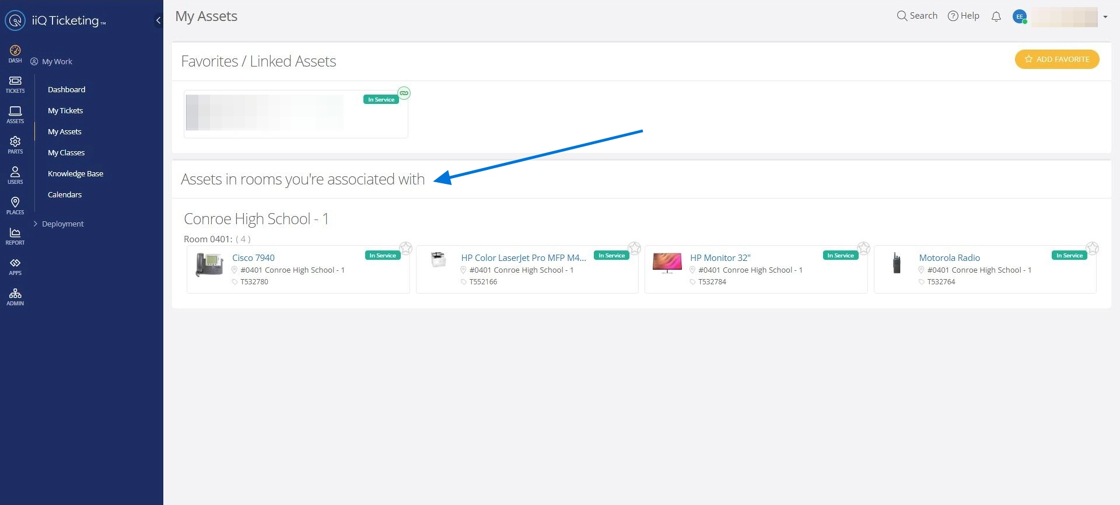
2. View Associated Assets
Look for the section titled "Assets in rooms you're associated with." This list displays all devices currently assigned to your claimed room or office.
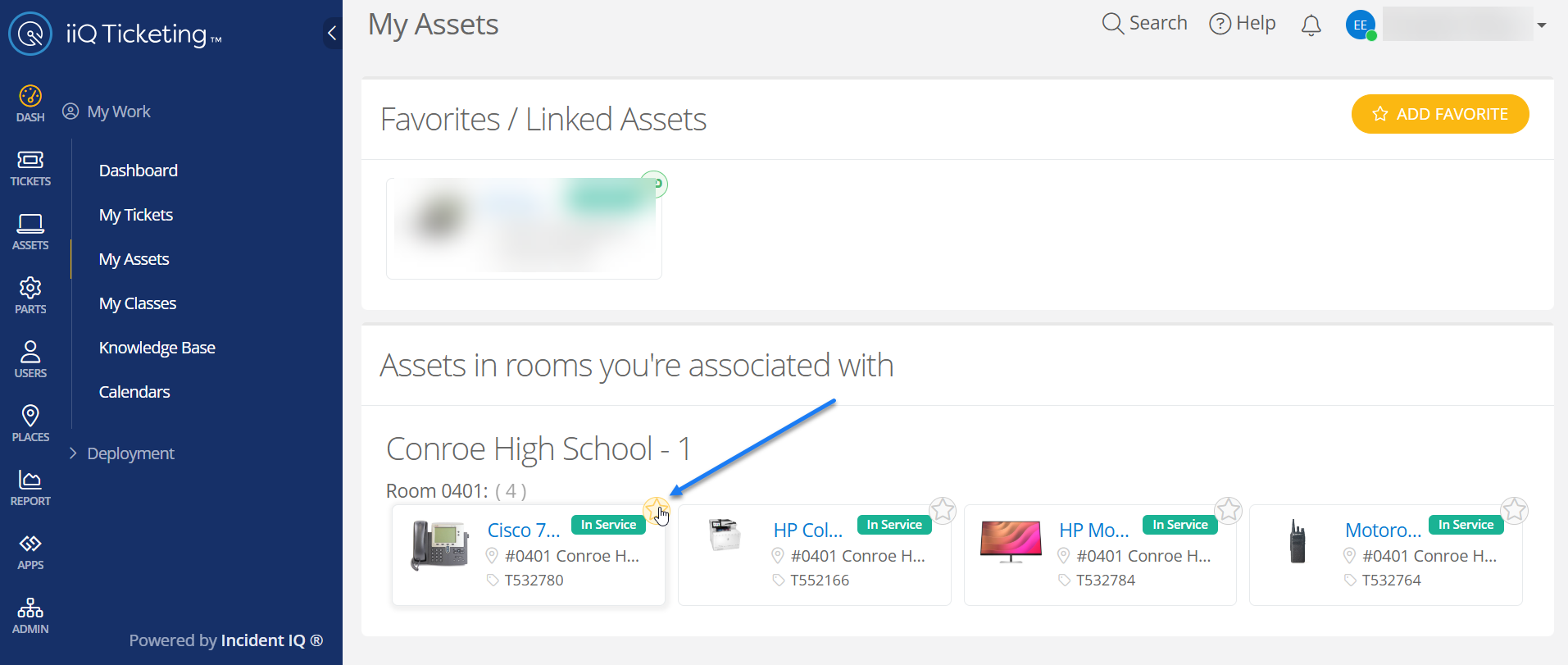
3. Favorite Frequently Used Items
To make ticket submission faster, you can "favorite" items you use often. Select the Star icon next to an asset to mark it as a favorite. These items will appear in the favorites section of your dashboard for quick access.
Still have questions? Visit the Additional Help section for further assistance.