
This guide explains how district department staff members submit support tickets for hardware and devices in Incident IQ. Following this specific workflow ensures that your support request is routed to the correct technician and that our inventory system remains accurate.
Please Note: Department Workflow Only This process is strictly for district department-based staff. Campus-based staff utilize a separate room-claiming and asset-based ticketing workflow. You can find more information here: How to Submit a Ticket: Campus Hardware & Devices
Critical Requirement: Accurate Details Required Please be highly specific when entering your device details. Vague descriptions or missing information could result in your support ticket being denied and returned to you for correction. Our technicians cannot process your request without this data.
Steps to Submit Your Request
1. Start Your Request
-
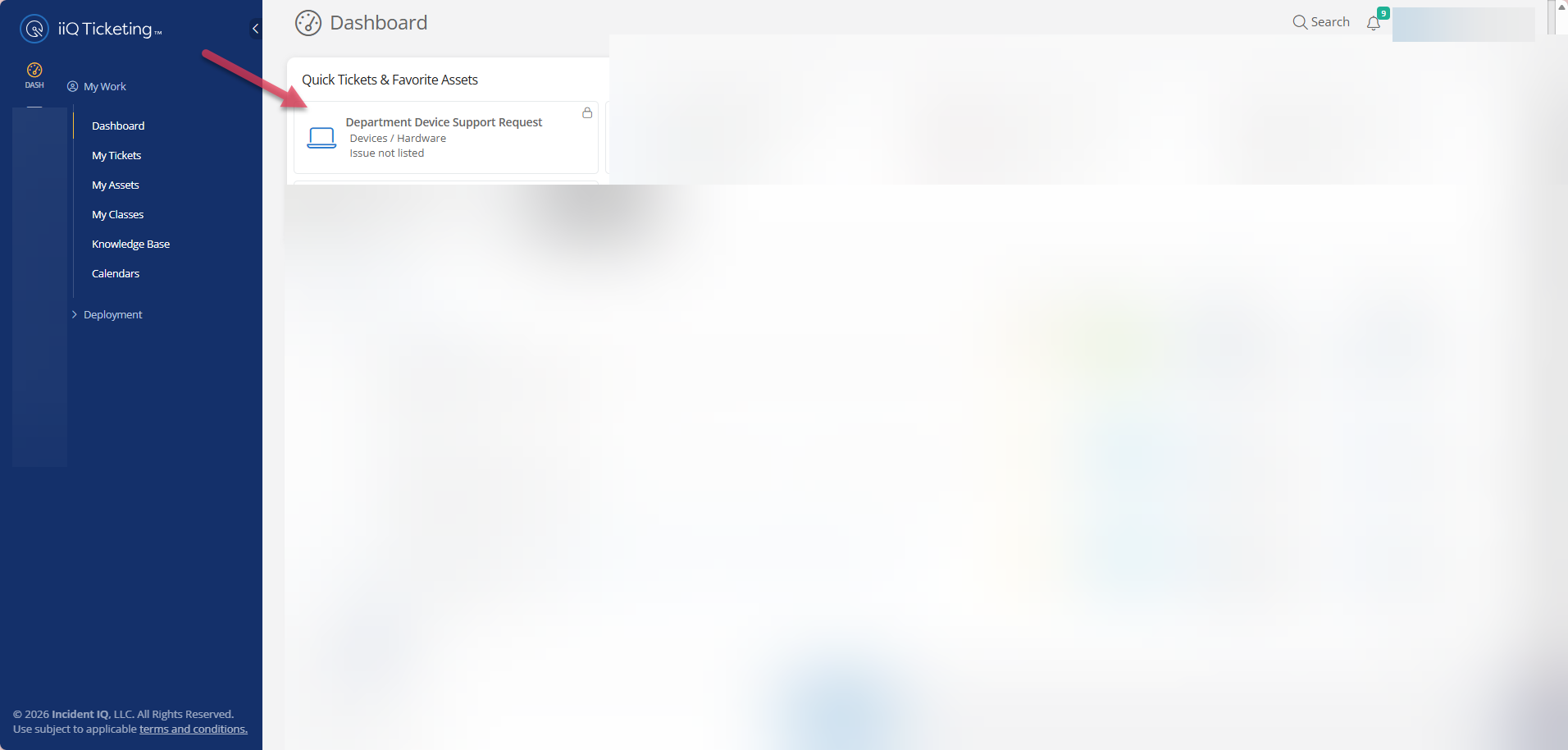
Log into Incident IQ. From your main Dashboard, locate and click the option for Department Device Support Request.
2. Describe the Issue
-
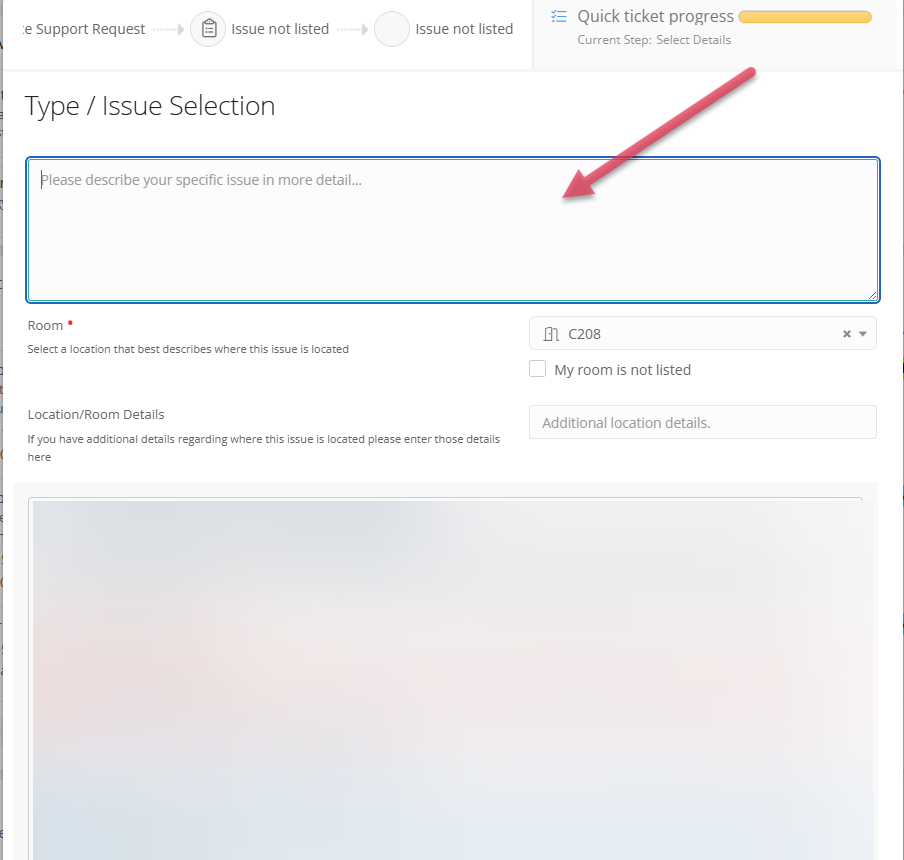
In the description field, provide a clear, detailed explanation of the problem you are experiencing with the device.
3. Provide Specific Device Information
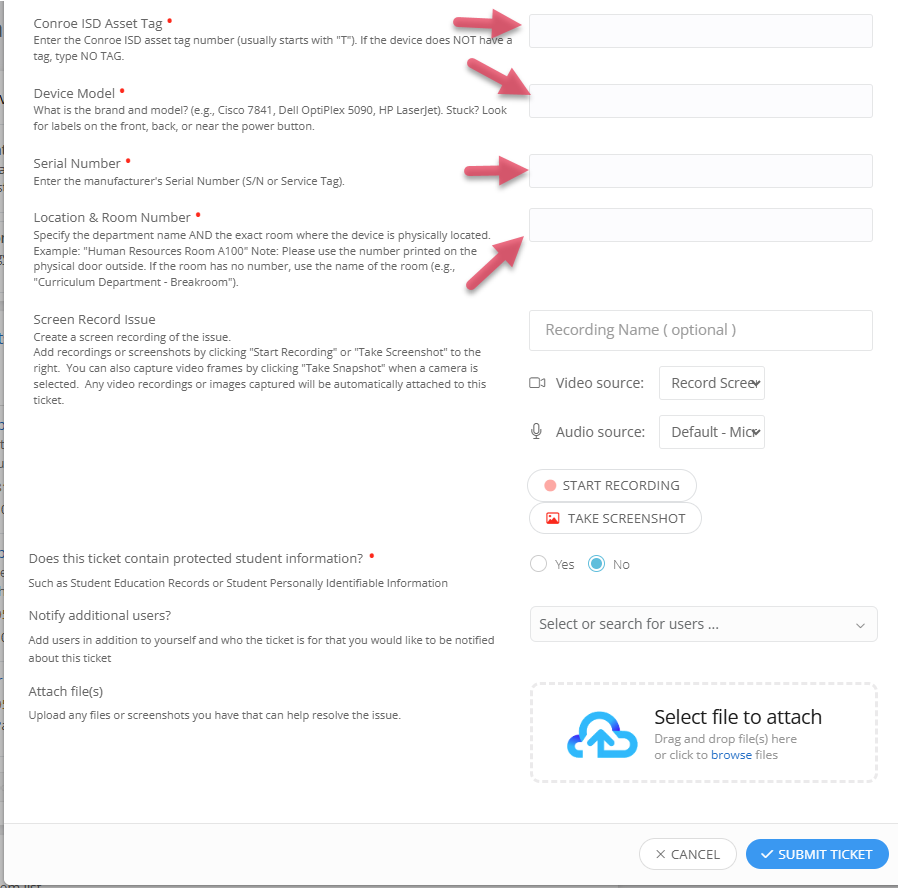
Because department assets are being tracked, you are required to provide precise hardware details. Please locate the physical device and input the following:
-
Conroe ISD Asset Tag: Enter the physical asset tag number found on the device.
-
Device Model (Be Specific): Enter the exact model of the device.
-
Example: Do not simply write "HP printer." Instead, specify the exact model, such as "HP LaserJet 5250."
-
-
Serial Number: Locate and enter the manufacturer's serial number printed on the hardware.
Tip for Locating Numbers: If you are having trouble finding the model number or serial number on the physical device, try a quick web search using your device's brand. For example, search: "How to find the serial number on a Cisco 7841" or "How to find the model number on an HP printer."
-
Location and Room Number:
-
Enter the Room Number First: We need the actual room number displayed on the outside of the door where the device is located. For example, enter Human Resources Room C100 rather than just "HR room."
-
If There Is No Room Number: If the physical space does not have a designated room number, provide a descriptive name for the area, such as HR Break Room.
-
4. Review and Submit
-
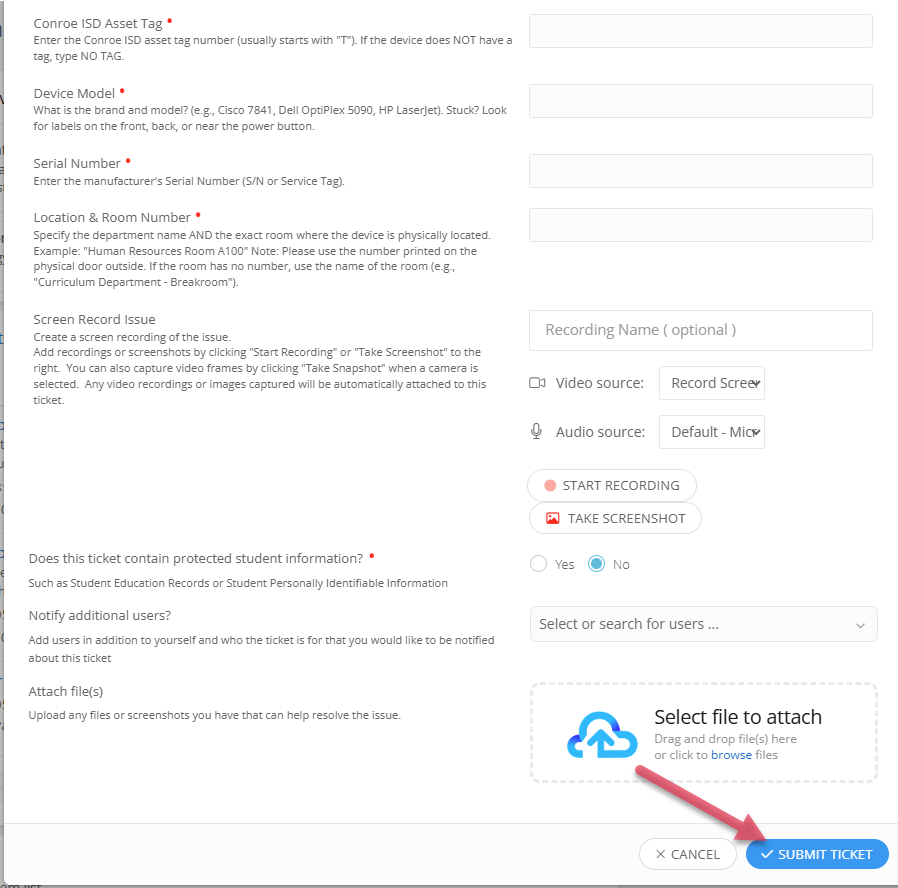
Double-check all of your entered hardware specs and location details, then click Submit Ticket.
What Happens Next? (Automatic Sub-Tickets)
Once you submit your ticket, the system will automatically generate a background "child" sub-ticket attached to your main request.
-
What is this for? This background ticket is routed to our inventory team so they can ensure this specific department device is properly registered and updated in the Incident IQ system.
-
What do you need to do? Nothing! No action is required on your part. Your primary ticket will get you the technical assistance you need, while the inventory team handles the data update in the background. If they have any specific questions about the device's physical details, they will follow up with you directly inside that sub-ticket.
Need to submit a software or digital request?
If you need assistance with software, applications, or other non-hardware issues, please continue to our next guide: How to Submit a Ticket: Non-Device / General Support
Still have questions? Visit the Additional Help section for further assistance.