
This guide explains how department users and staff members who have additional access and can submit tickets for other locations can change the request location in Incident IQ before submitting a ticket. Selecting the correct location helps ensure that the request is routed to the Technology Services staff assigned to assist that department, campus, or building.
Important: Always select the location where the issue is actually located or where assistance is needed. Certainstaff members are assigned to specific locations. If the default location is not corrected, the ticket may be sent to the wrong team and service may be delayed while the request is redirected.
Steps to Change the Request Location
-
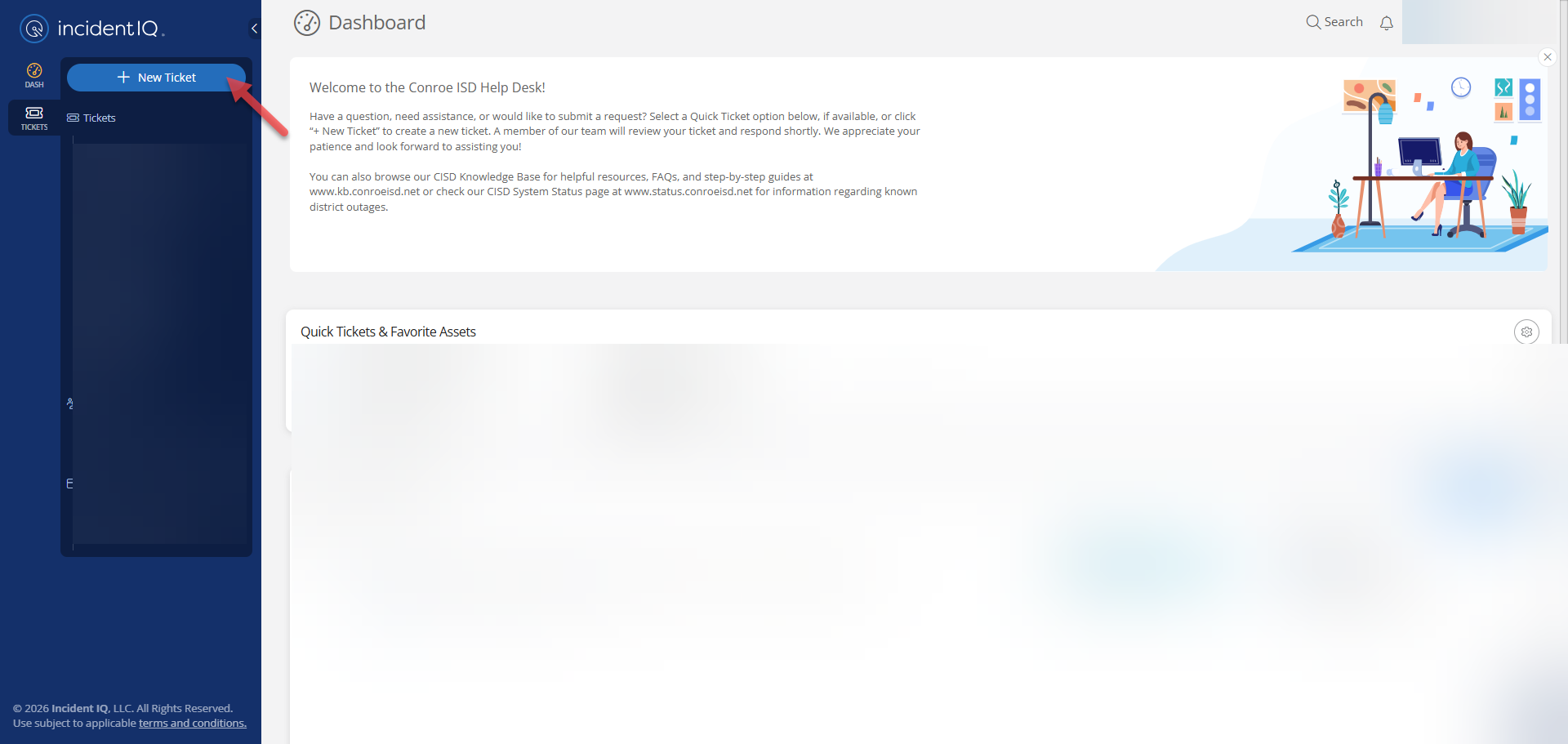
Start a new ticket.
-
Select + New Ticket from the left-hand menu.
-
-
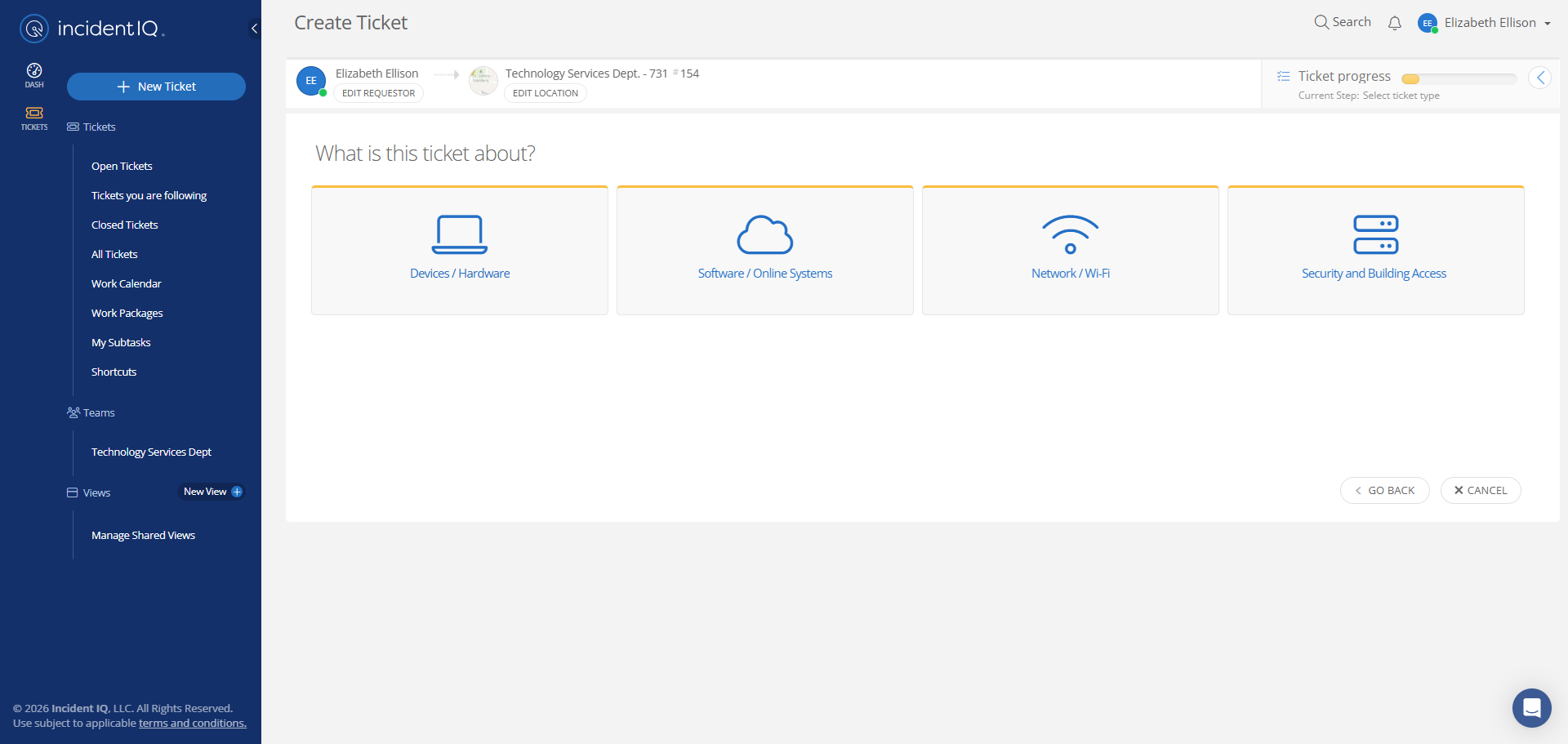
Locate your name and current location in the breadcrumb trail.
-
At the top of the ticket form, you will see your name followed by your current location in the breadcrumb trail.
-
Can't see the location in the breadcrumb trail?
If the location is not visible in the ticket path, the breadcrumb trail may be cut off. Place your mouse over the breadcrumb trail and slowly move it to the right to reveal the hidden portion. Once the location is visible, select Edit Location and follow the steps above.
-
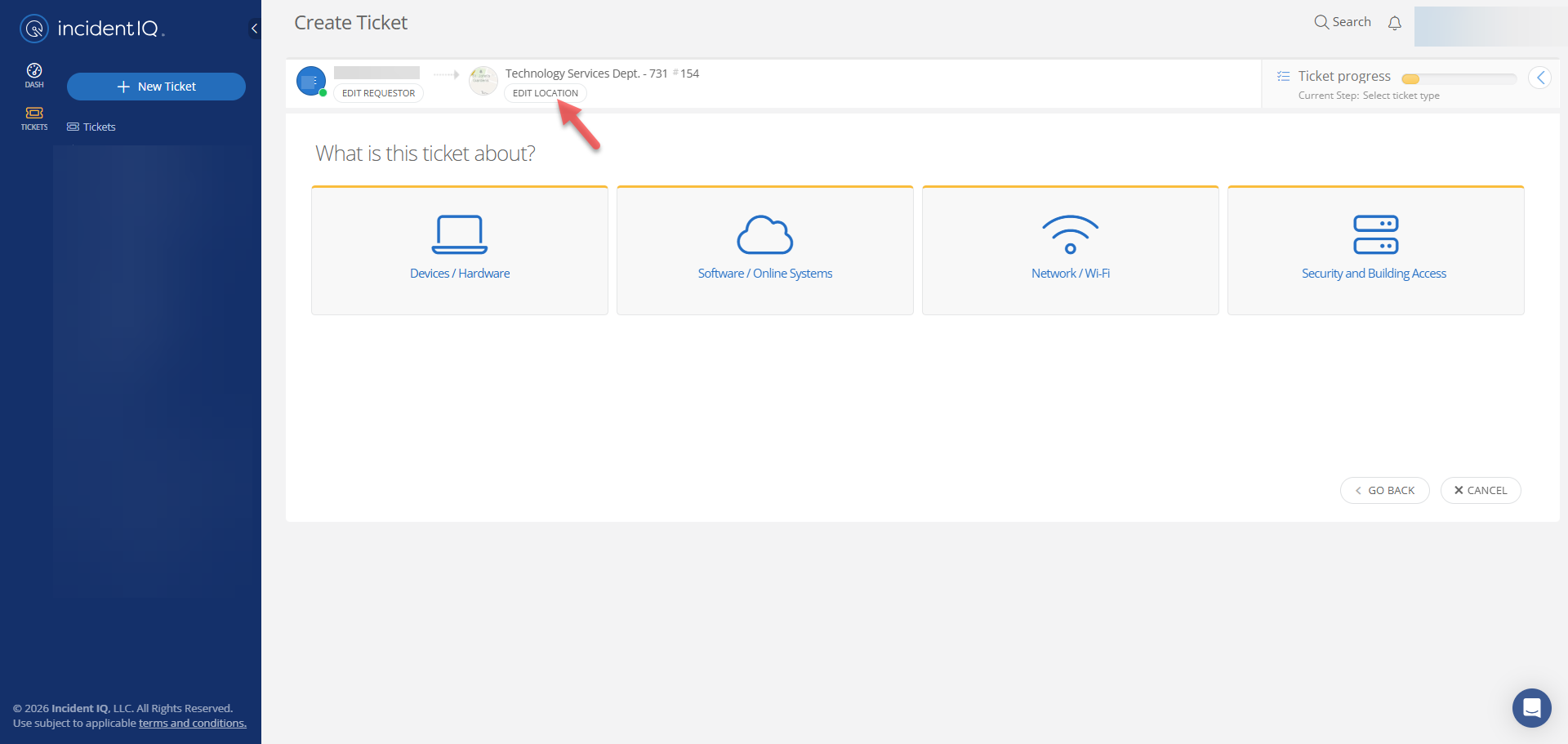
Select Edit Location.
-
Select the word Edit Location next to your current location in the breadcrumb trail.
-
-
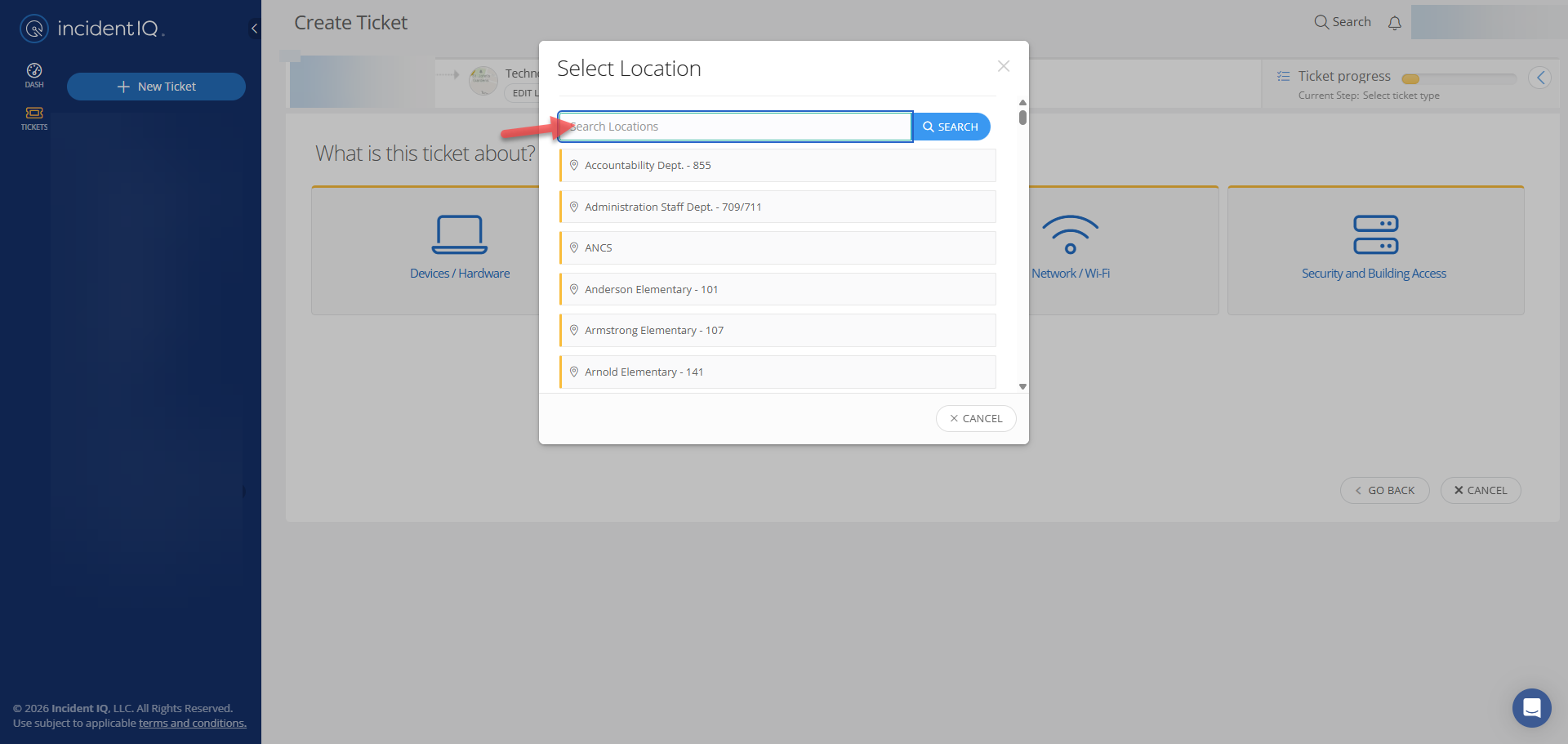
Search for the correct department or location.
-
-
Type the name of the department, campus, or building where you are actually working.
-
-
Choose the correct result.
-
-
Select the department, campus, or building from the search results that matches where the issue is located.
-
-
Verify the location has been updated.
-
-
Confirm that the updated location now appears in the breadcrumb trail at the top of the ticket before submitting.
-
-
Complete and submit the ticket.
-
-
Fill in all required fields and select Submit Ticket.
-
If You Cannot See the Location in the Ticket Path
If you are farther into the ticket and the location is no longer visible, the ticket path at the top of the screen may be showing only part of the breadcrumb trail.
-
Place your mouse over the breadcrumb trail at the top of the ticket form.
-
Hold down the mouse button while your pointer is over the breadcrumb trail.
-
Move the breadcrumb trail to the right to reveal the portion that is hidden.
-
Continue until you can see the location next to or below your name.
-
Select the location, choose Edit location, and follow the steps above to select the correct department or building.
Before submitting the ticket, verify that the updated location is visible and matches the place where the issue needs to be handled.
Still have questions? Visit the Additional Help section for further assistance.