
This guide explains how Campus Technology Contacts or some users with Agent access can request room additions, name changes, or room removals in Incident IQ. Keeping campus room databases accurate ensures assets are assigned to the correct physical spaces and support tickets are routed properly.
How to Submit the Request Form
Step 1: Navigate to the Request Form
-
Open Incident IQ from your SSO.
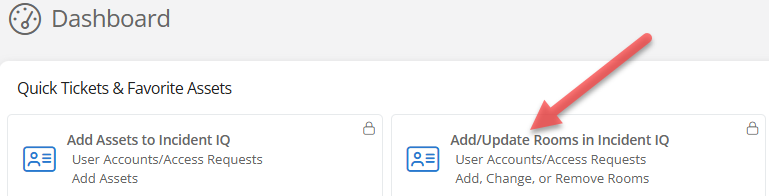
Some users can see this ticket option on your Incident IQ dashboard. Select Add/Update Rooms in Incident IQ.
-
Click the + New Ticket button in the top navigation bar.
-
Select User Accounts/Access Requests from the request categories.
-
Select Incident IQ Database Updates.
-
Choose Add, Change, or Remove Rooms.
Step 2: Select Your Request Type
On the form, locate the question "What type of change are you requesting for the room(s)?" and check all options that apply:
-
Add new room(s) — For adding new physical spaces to a campus.
-
Update / Change existing room details — For changing room numbers, functional types, or descriptions.
-
Remove / Decommission room(s) — For rooms no longer in use or needing deletion.
Step 3: Download and Open the Template
-
Locate the Room Excel Template Instructions & Color Guide box on the ticket page.
-
Click the blue Download the Master Room Template Here button.
-
Open the file in Microsoft Excel and click the yellow Enable Editing bar at the top.
Do not alter, rename, or delete the column headers. Modifying the header row will cause the automated database importer to fail.
Step 4: Fill Out the Master Template
The Excel template contains two tabs at the bottom:
Tab 1: Room Updates Template
Enter data starting on Row 2 (Row 1 is a placeholder example).
-
Column A — Room Number(Strictly Required):
-
Enter the identifier only (e.g.,
104,B12). -
DO NOT type words like "Room", "Office", or "Suite".
-
Unnumbered Rooms: If no number exists, enter the official name (e.g., Main Gym).
-
Column B — Room Type (Strictly Required):
-
MUST be chosen from the approved list on Tab 2.
-
-
Column C — Location (Strictly Required):
-
Enter the official campus name (e.g.,
Anderson Elementary).
-
-
Column D — Description (Optional):
-
Provide specific context (e.g.,
Principal's Office,Robotics Lab).
-
Tab 2: Approved Room Types
View this tab for valid designations (e.g., Classroom, Office, CTE Lab, Gym, Storage). Unapproved or misspelled types will cause validation failure.
Formatting Quick Reference
|
Column A: Room Number |
Column B: Room Type |
Column C: Location |
Column D: Description |
|---|---|---|---|
|
104 |
Office |
Anderson Elementary |
Principal's Office |
|
B12 |
Classroom |
Oak Ridge High School |
Science Lab 2 |
|
Main Gym |
Gym |
Conroe High School |
Main Competition Arena |
Step 5: Upload and Submit
-
Save your file in .xlsx format.
-
Return to the ticket page and drag your file into the Upload your completed Room Excel Template field.
-
Review your details and click Submit.
Review Process & Rejection Policy
Tickets with invalid or missing data will be placed ON HOLD.
Common reasons for a hold:
-
Adding prefixes like
"Room"or"Office"in Column A. -
Entering custom room types not listed on Tab 2.
-
Missing mandatory fields or invalid campus names.
3-Day Hold Rule:
If your ticket is placed on hold, you have 3 business days to upload a corrected template. If not corrected within this window, the ticket will automatically close, and a new request must be submitted
How to Upload a Corrected File if Your Ticket is Rejected
If your ticket is rejected because the uploaded file needs a correction, follow these steps to provide the updated version:
-
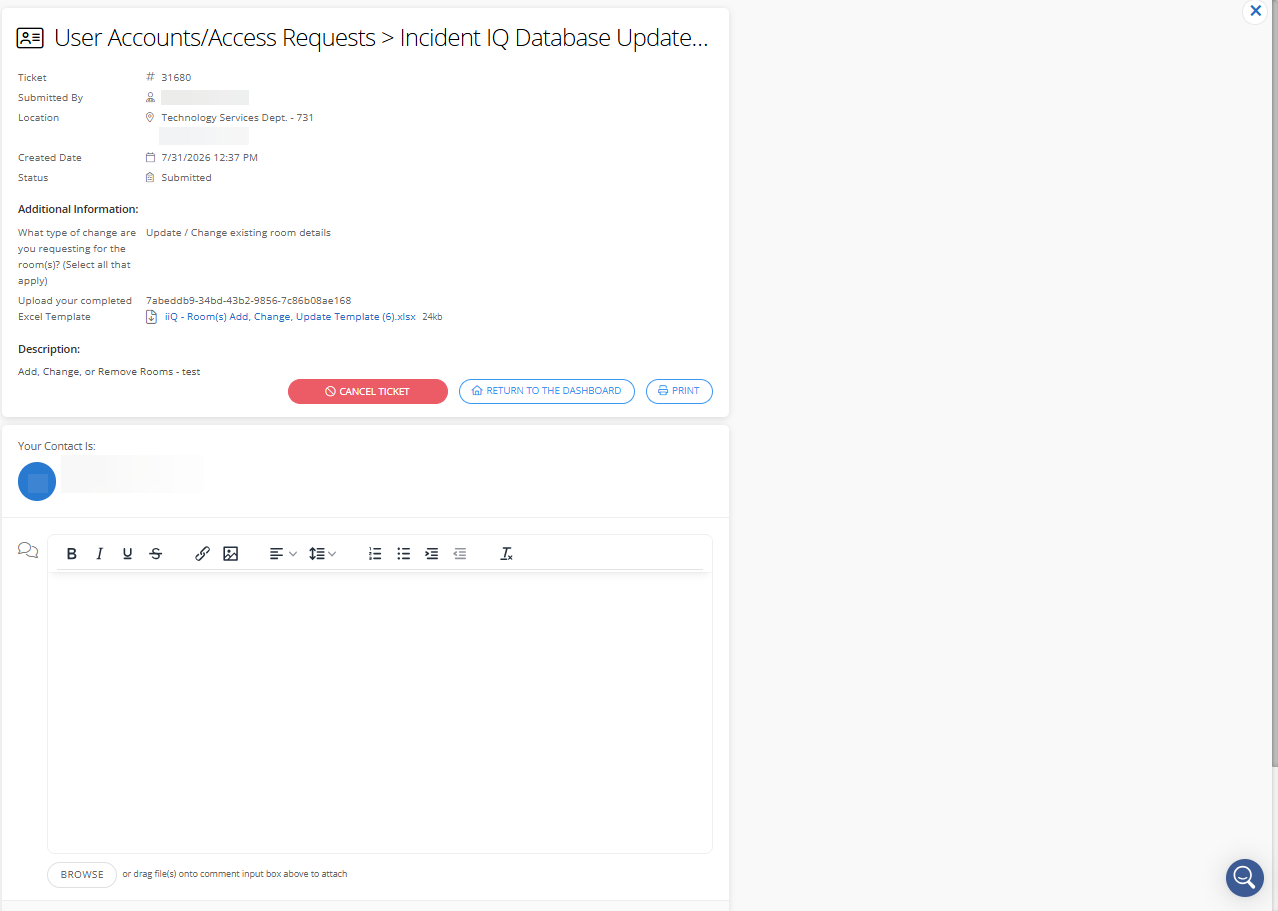
Open your ticket: Navigate to the existing ticket in Incident IQ.
-
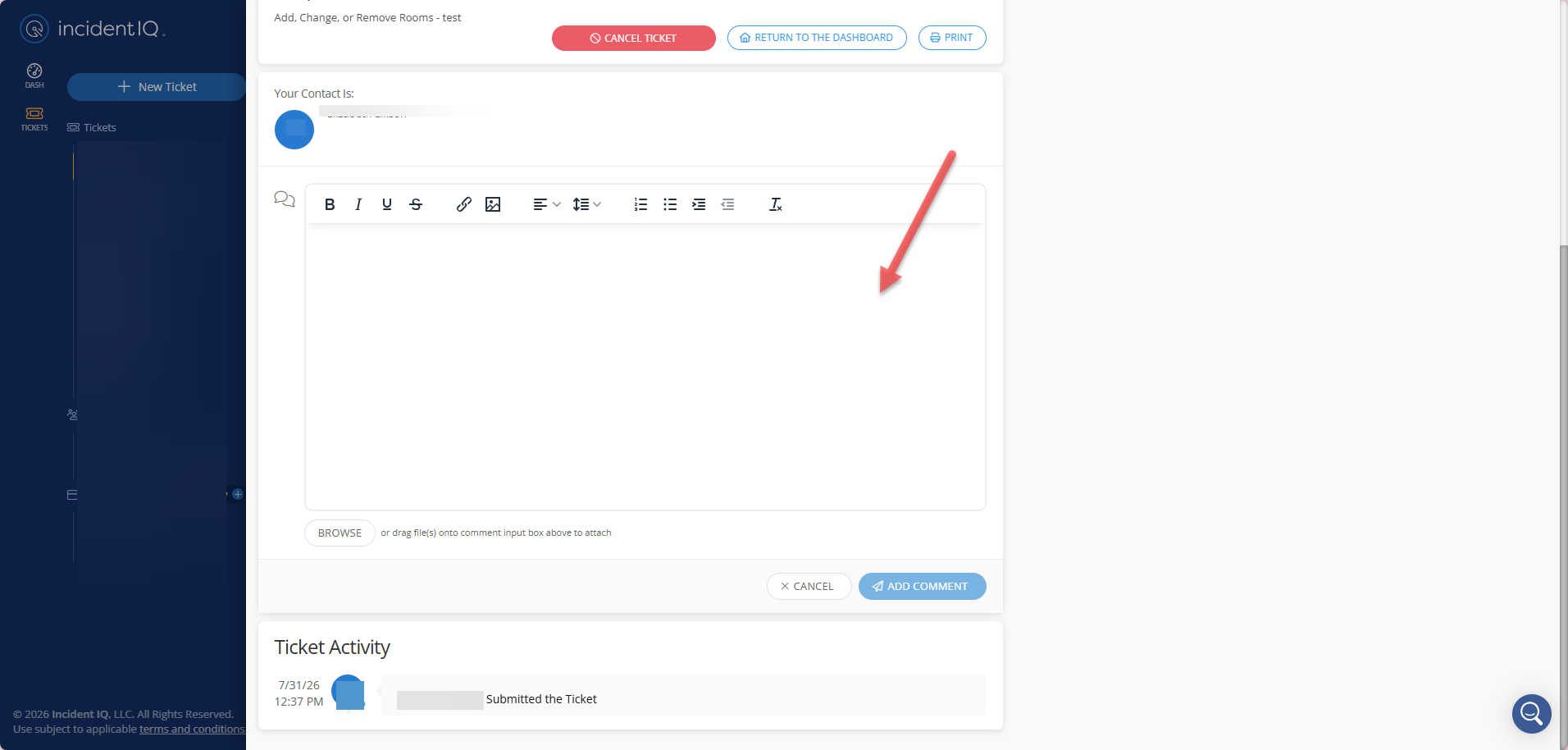
Locate the Comment Box: Find the comment section on the ticket screen.
-
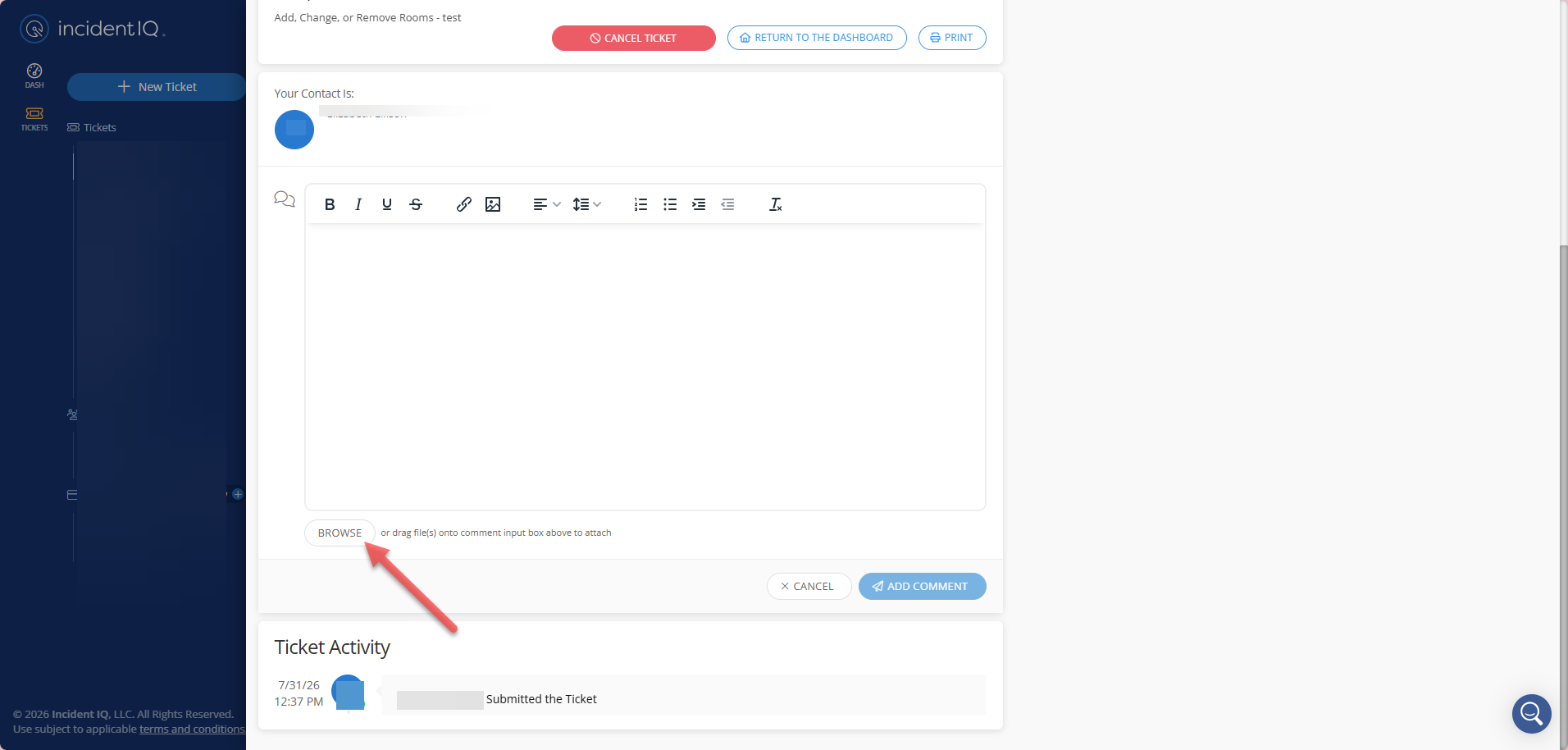
Select Browse: Click the Browse option located under the comment box to select and upload your corrected Excel file.
-
Add a Comment: You must type a brief note in the comment box (for example: "Uploaded corrected room file") and then select Add Comment.
The system will not allow you to upload the file if the comment box is left empty.
Need additional help? Click here for further assistance.