
This guide explains how users with Agent access, such as a Campus Technology Contact, can request unused asset tags in Incident IQ. Use this process when you have devices that do not have an asset tag and you do not have any unused tags available to place on them. Once you receive the asset tags, you can place them on the devices and then request that the devices be added to Incident IQ.
For instructions on how to request the devices be added to the Incident IQ system after it has been Asset Tagged, see How to Request Assets to Be Added
For instructions on how to reprint an asset tag for a device that is already in Incident IQ, see Reprinting Existing Asset Tags in Incident IQ
Steps to Request Asset Tags
1. Navigate to the Request Form
-
Log in to Incident IQ through your Single Sign-On (SSO) portal.
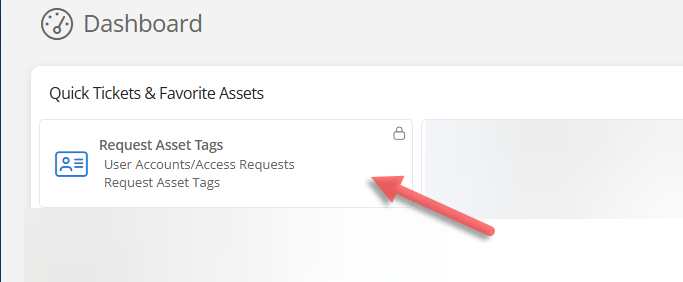
Some users can see this ticket option on the Incident IQ dashboard. Select Request Asset Tags.
-
Select + New Ticket.
-
Select the User Accounts/Access Request category.
-
Select Incident IQ Database Updates.
-
Select Request Asset Tags.
2. Complete the Required Asset Tag Request Questions
Complete the required questions on the request form:
-
Enter how many sheets of asset tags you are requesting.
-
Enter the name of the campus or department where the asset tags should be sent by interoffice mail.
-
Enter the room or office number. If there is not a room number, provide the room or office name.
-
Enter the full name of the person who will receive the asset tags.
After completing the required questions, click Submit ticket at the bottom of the form.
Asset tags are sent through interoffice mail after the request has been reviewed and processed. Please allow standard interoffice mail delivery time for the tags to arrive at the campus or department listed on the ticket.
Need additional help? Click here for further assistance.