
This guide explains how users with Agent access, such as Campus Technology Contacts, can submit a request to lock or unlock student devices in bulk within Incident IQ.
When to Use This Process
Use this bulk request process when you need to lock or unlock:
-
10 or more Chromebooks
-
5 or more iPads
For fewer than 10 Chromebooks, users with Agent access can lock or unlock the devices directly in Incident IQ. See How to Lock or Unlock a Chromebook in Incident IQ.
For fewer than 5 iPads, all staff can submit individual requests to lock or unlock an iPad in Incident IQ.
To submit an individual iPad request:
-
Log in to Incident IQ through the Single Sign-On (SSO) portal.
-
Locate the iPad under My Assets > Click the iPad that needs to be locked or unlocked > select + Submit Ticket.
-
If you’re missing the iPad under My Assets, ensure you’ve claimed your room in Incident IQ using these steps: How to Claim Your Room in Incident IQ
-
-
Select the Lost Mode & Device Locks category.
-
Select Request iPad to be Locked or Request iPad to be Unlocked
Steps to Submit a Bulk Lock or Unlock Request
1. Navigate to the Request Form
-
Log in to Incident IQ through the Single Sign-On (SSO) portal.
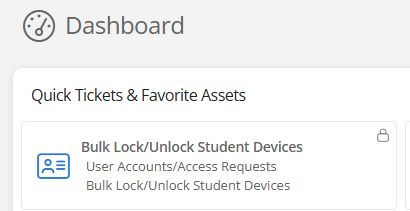
Some users can see this ticket option on the Incident IQ dashboard. Select Bulk Lock/Unlock Student Devices.
-
Select + New Ticket.
-
Select the User Accounts/Access Request category.
-
Select Incident IQ Database Updates.
-
Select Bulk Device Lock / Unlock Request.
2. Complete the Request Form
Complete the questions on the request form:
-
Device Type: Select the devices included in the request: iPads, Chromebooks, or Both iPads and Chromebooks.
-
Action Requested: Select whether the devices need to be Locked, Unlocked, or require Both Lock and Unlock actions.
-
Reason for Request: Explain why the devices need to be locked or unlocked.
-
Asset Tag Numbers to Lock: If devices need to be locked, enter or paste the asset tag numbers for those devices.
-
Asset Tag Numbers to Unlock: If devices need to be unlocked, enter or paste the asset tag numbers for those devices.
Enter asset tag numbers in the appropriate field. Use the lock field for devices that need to be locked and the unlock field for devices that need to be unlocked. Review the Asset Tag numbers carefully before submitting the request.
3. Submit the Ticket
-
Review the device type, requested action, reason, and asset tag numbers.
-
Select Submit Ticket at the bottom of the form.
Still have questions? Visit the Additional Help section for further assistance.