
Agents can use these steps to lock or unlock a Chromebook using the Incident IQ system. Users with Agent access can disable a Chromebook when it is lost or stolen and re-enable it when it is ready to return to service.
Important: Disabling a Chromebook prevents it from being used by others. Confirm that you selected the correct asset before completing the action.
How to Lock a Chromebook
-
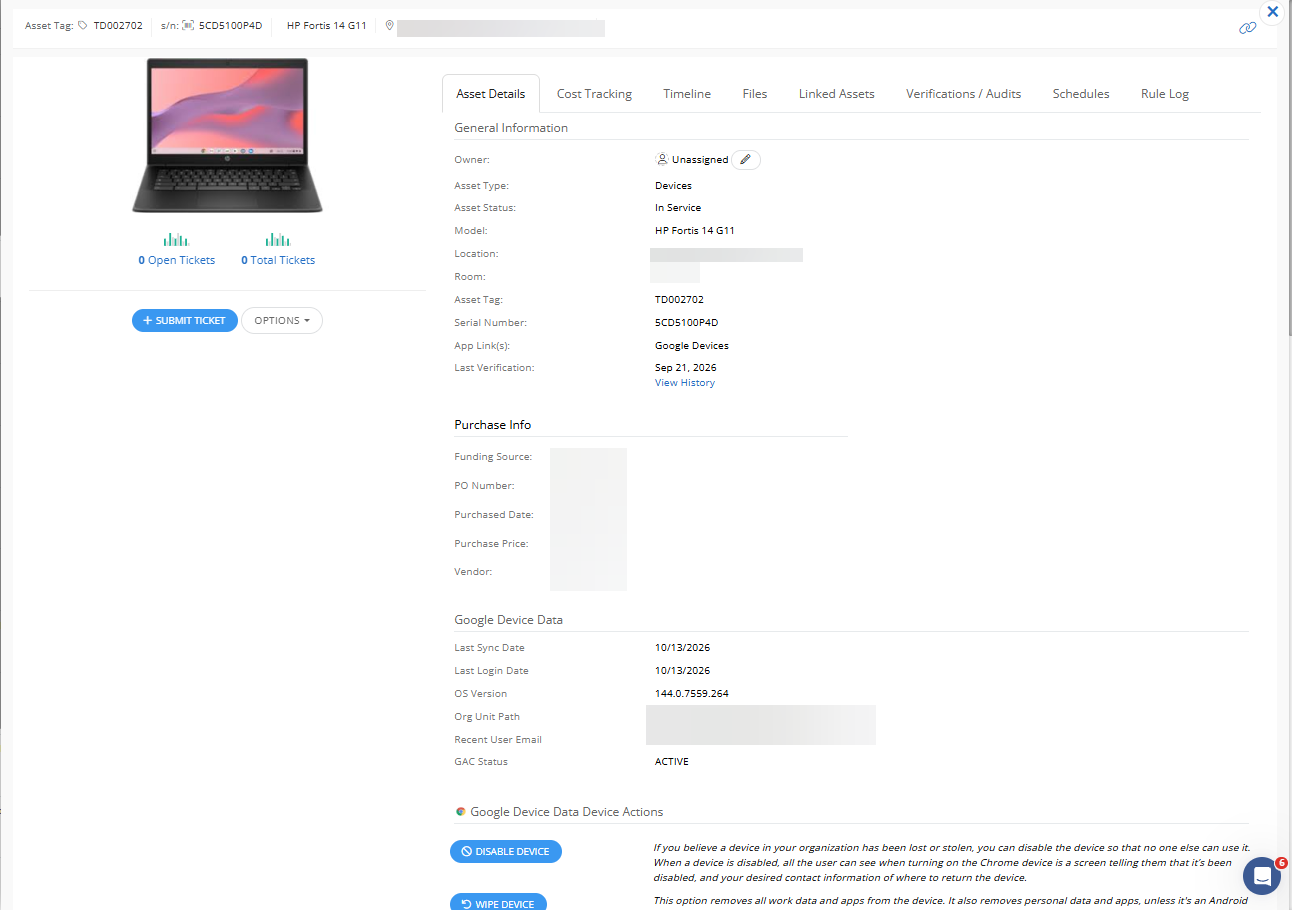
Log in to Incident IQ and open the Chromebook's Asset Details page.
-
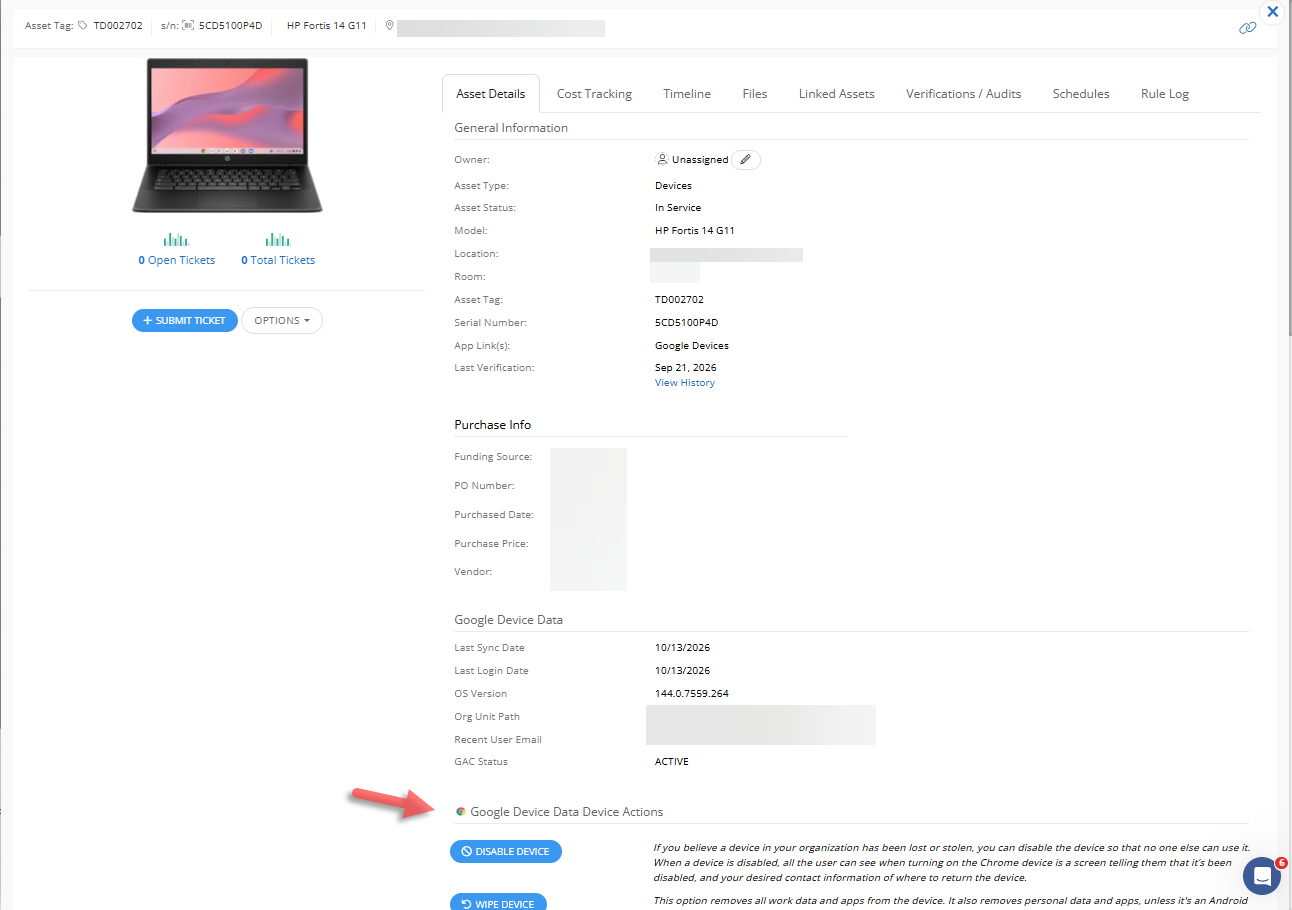
Scroll to the Google device data section and locate Device Actions.
-
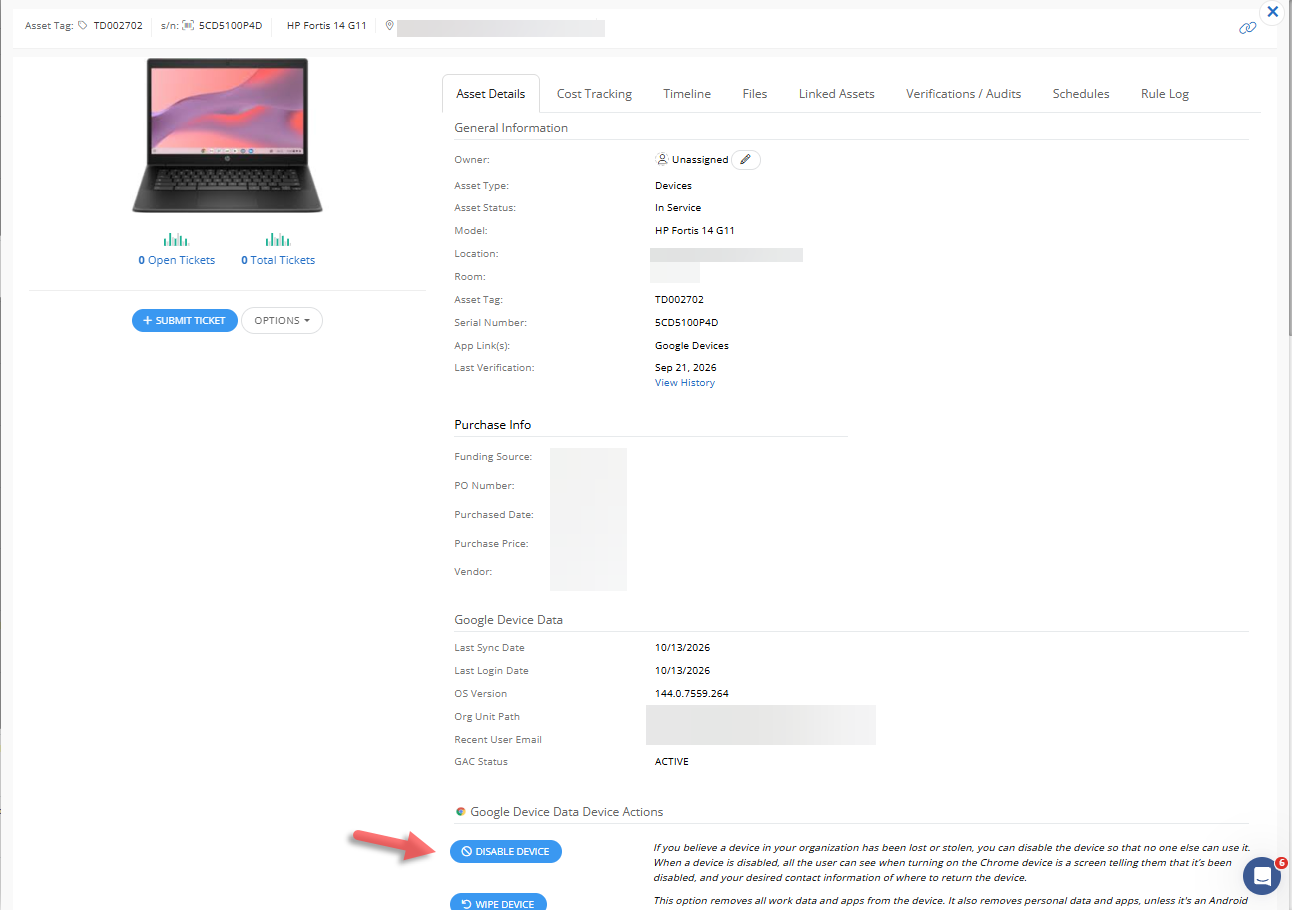
Click Disable device.
Please note: If the button says Disable Device, the Chromebook is currently unlocked. If the button says Re-enable Device, the Chromebook is currently locked.
-
Confirm the action. A green banner stating “Action disable device was successful” appears at the top of the page.
-
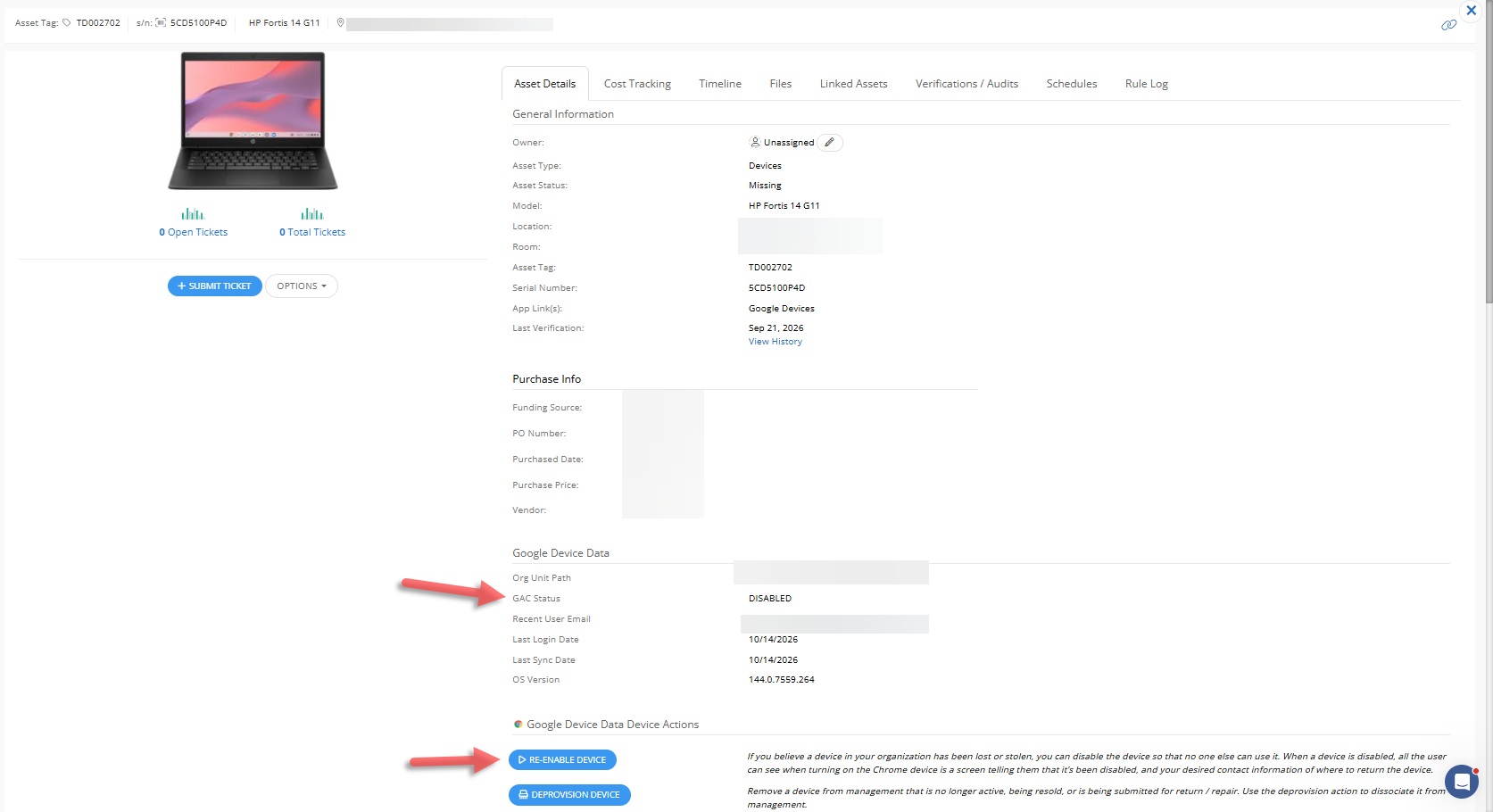
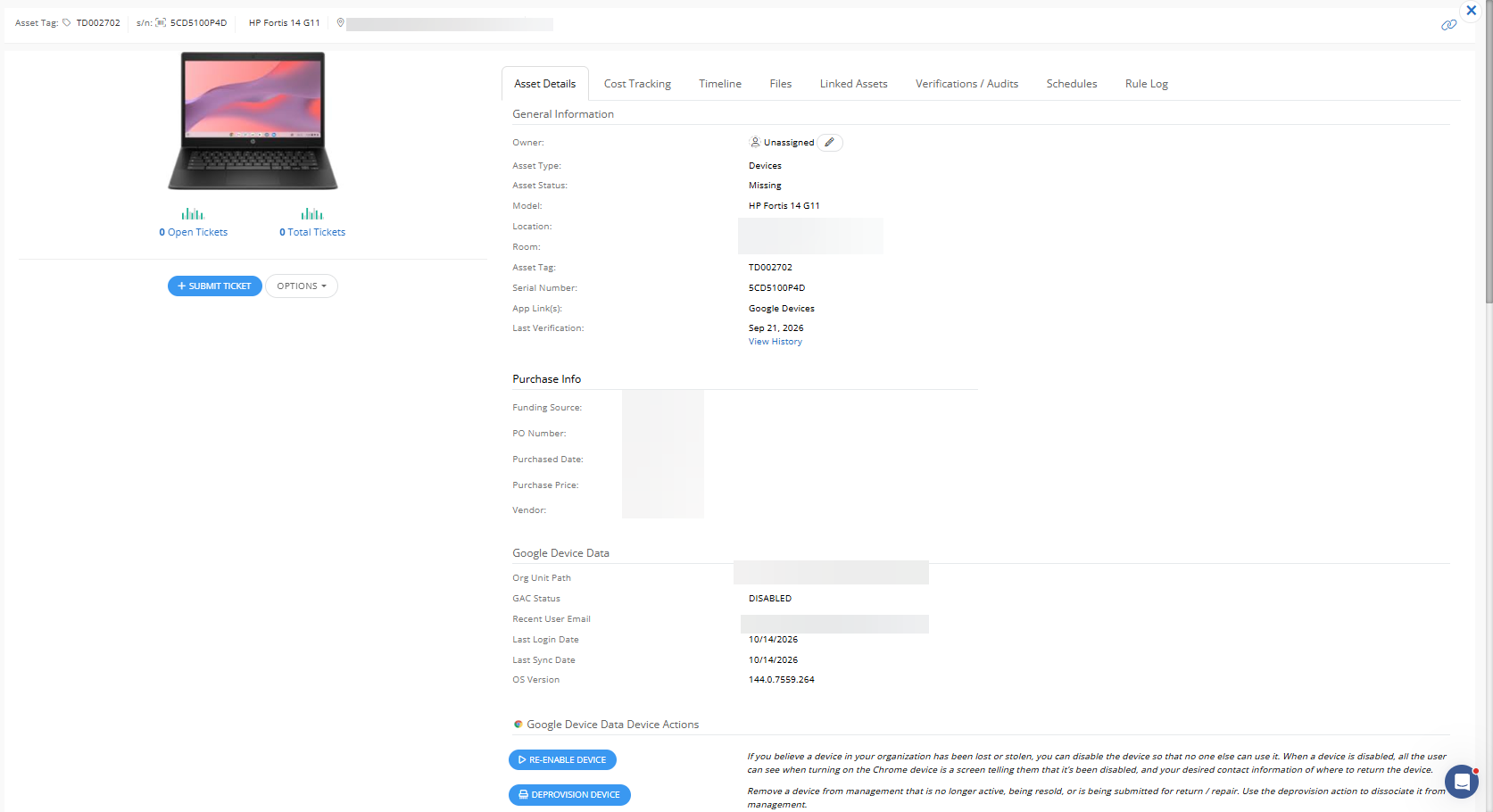
Refresh the page to verify the Chromebook is disabled. Under Google Device Data then GAC status, the status displays Disabled, and the action button changes to Re-enable device. The Asset Status will also update to “Missing”.
How to Unlock a Chromebook
-
Open the disabled Chromebook's Asset Details page in Incident IQ.
-
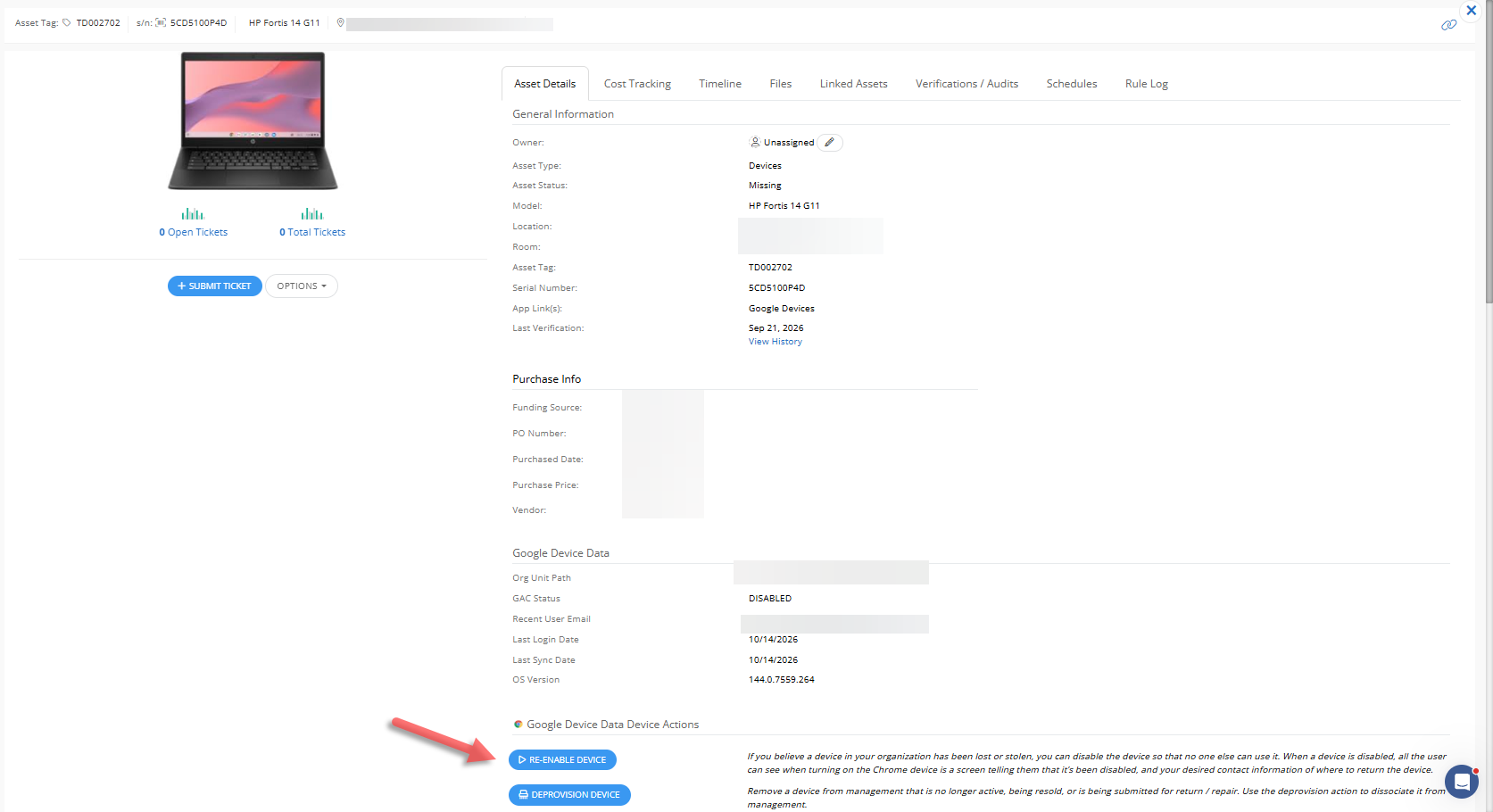
Scroll to Google device data and locate Device Actions.
-
Click Re-enable device.
-
When prompted, click Yes to confirm.
-
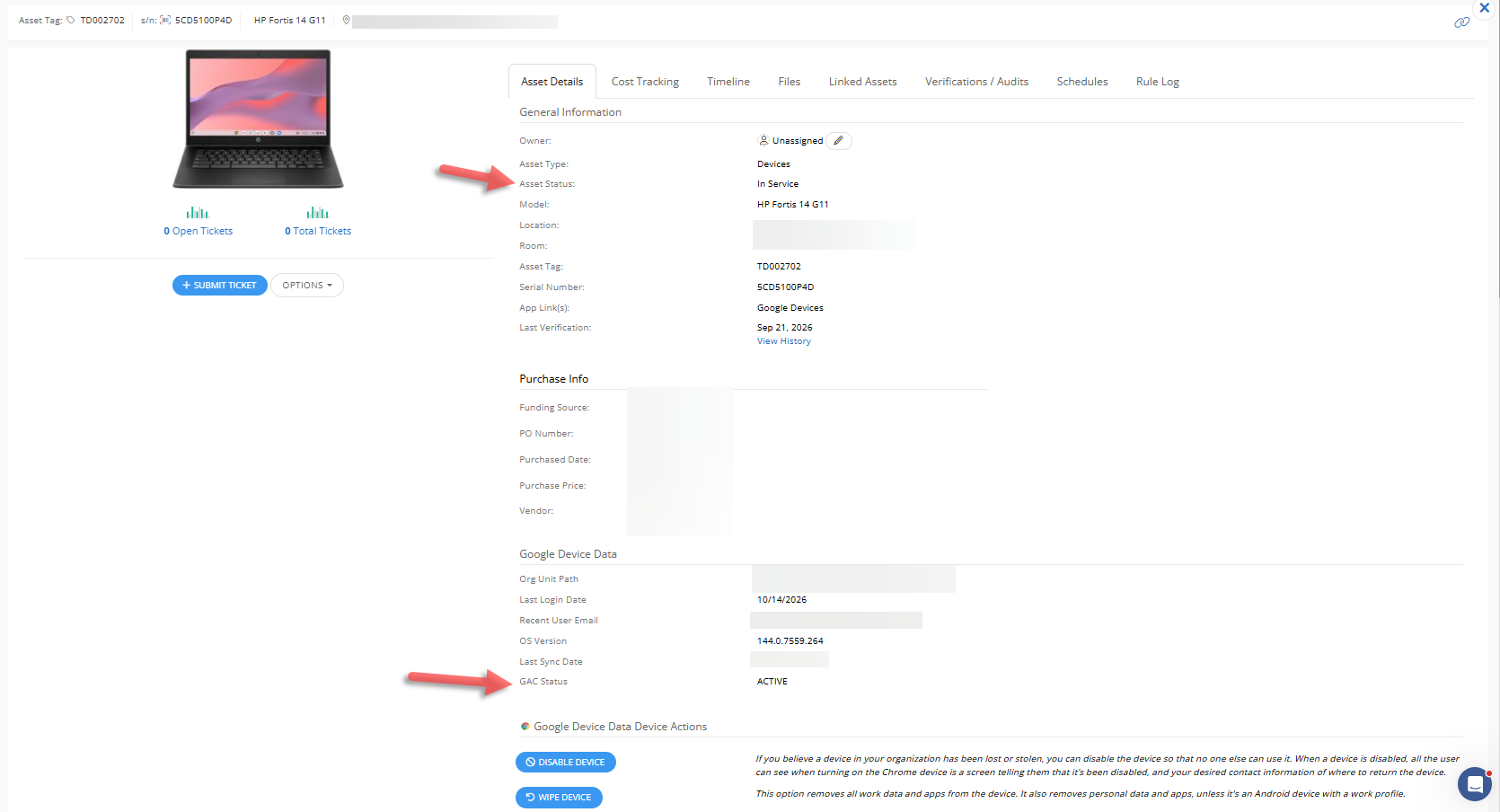
Refresh the page to verify the Chromebook is Active. Under Google Device Data then GAC status, the status displays Active, and the action button changes to Disable device. The Asset Status will also update to “In Service”.
Still have questions? Visit the Additional Help section for further assistance.