
Your Dell Device running Windows includes a software called Dell Command Update. This utility helps ensure you have easy access to critical software and hardware updates. Dell, and its hardware partners, regularly release firmware update to make sure it stays running well.
Make sure your device is connected to power, if using a laptop, it is imperative that it stays connected to your Dell Dock or Dell Power Cord
This process can take up to 45 minutes to complete and must finish before you can power off or disconnect your device. Your device may reboot multiple times during this process.
-
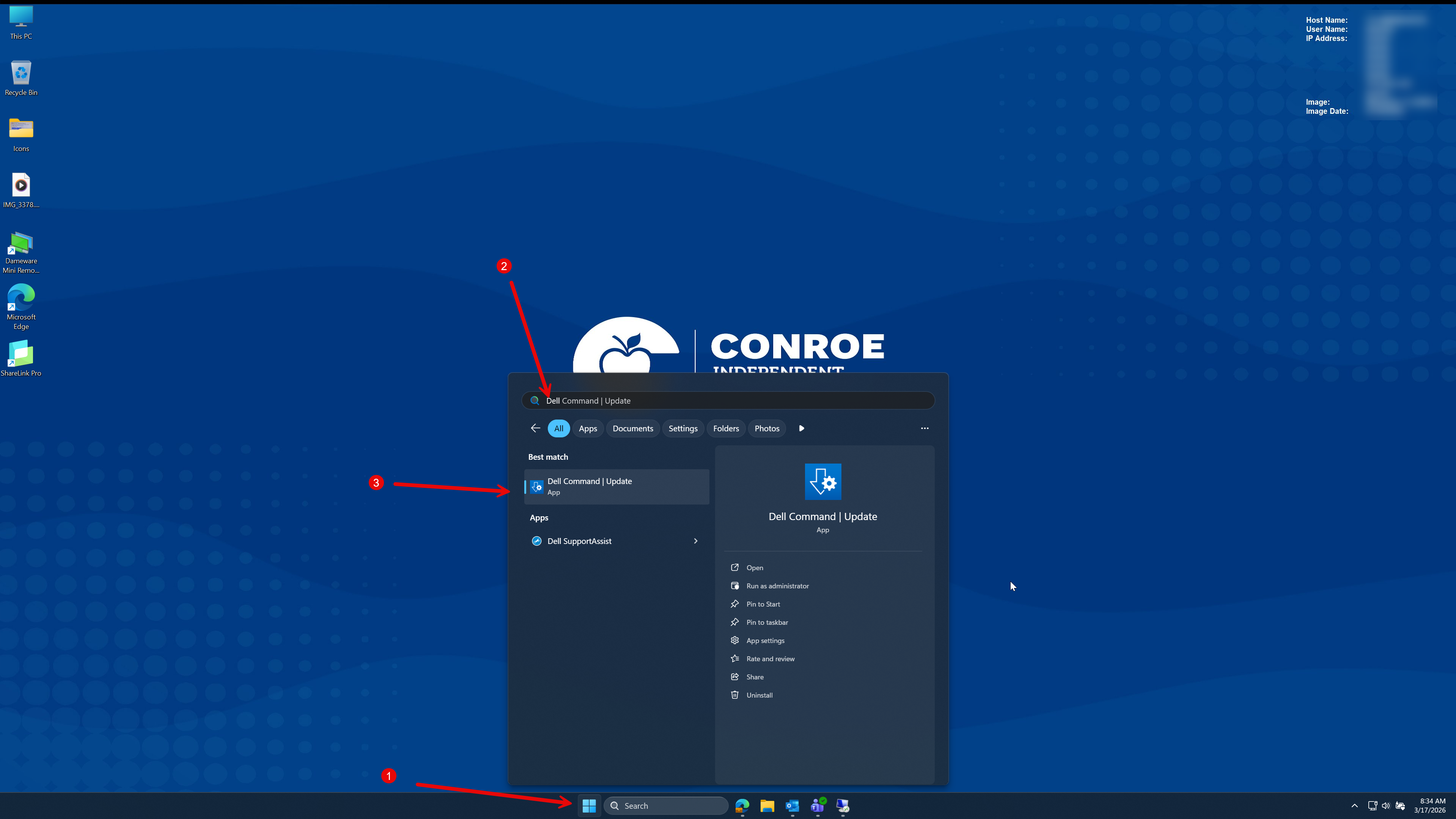
In order to update your system firmware, start by clicking Start, and typing “Dell Command”
-
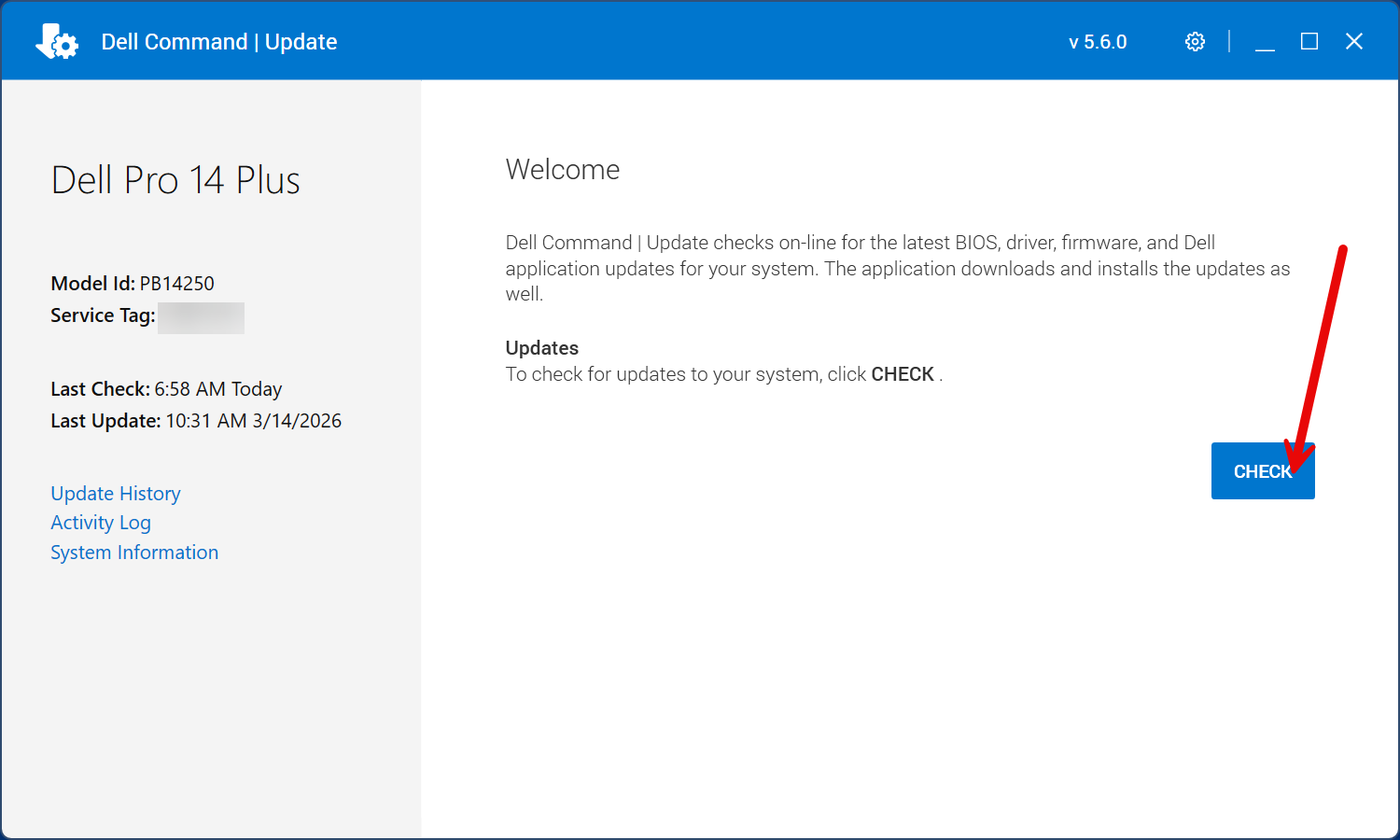
After the utility launches, click “Check”
-
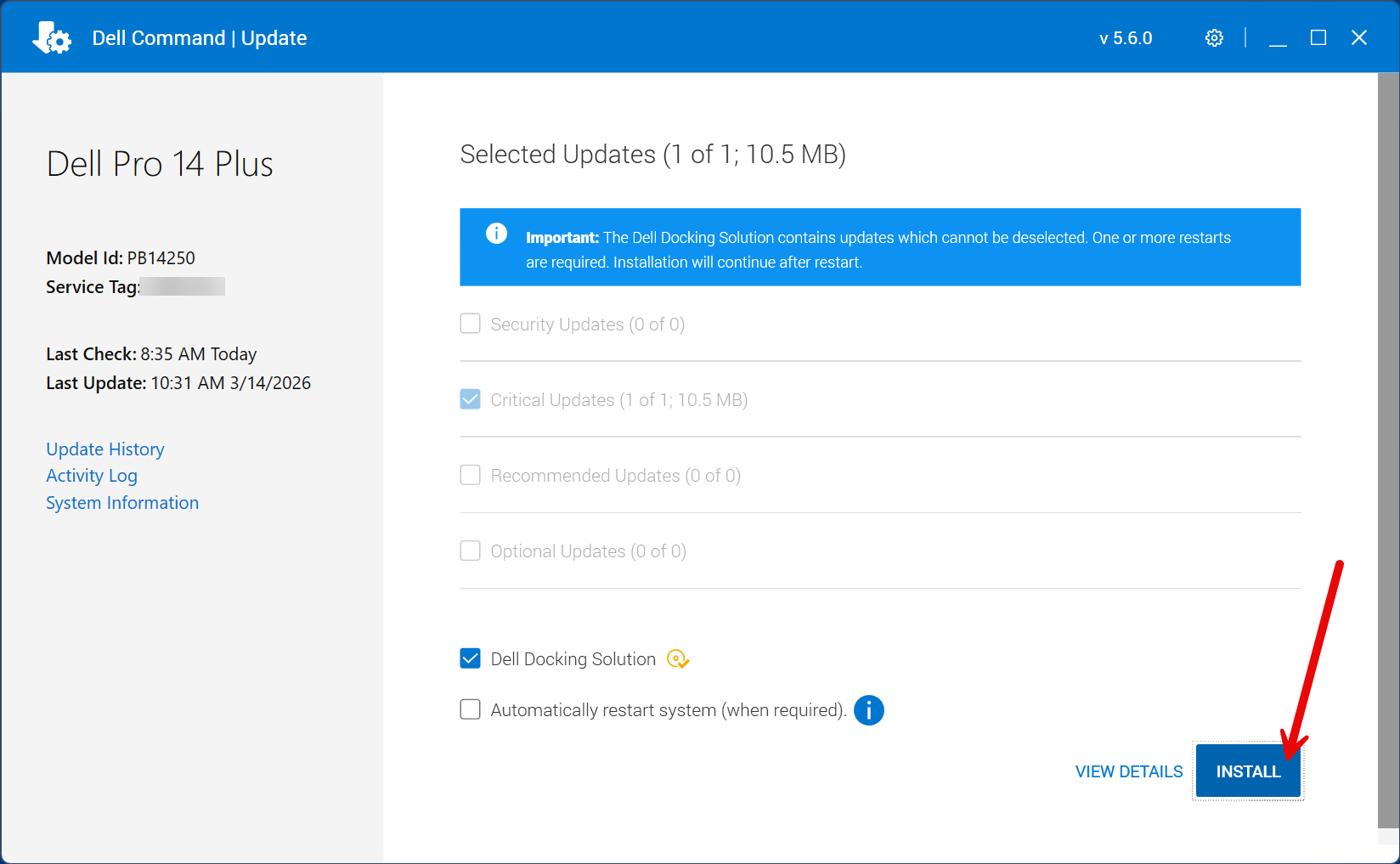
This may take several minutes to check all of your hardware. Once complete, you will receive a list of pending system updates. Review the list and click “Install”.
-
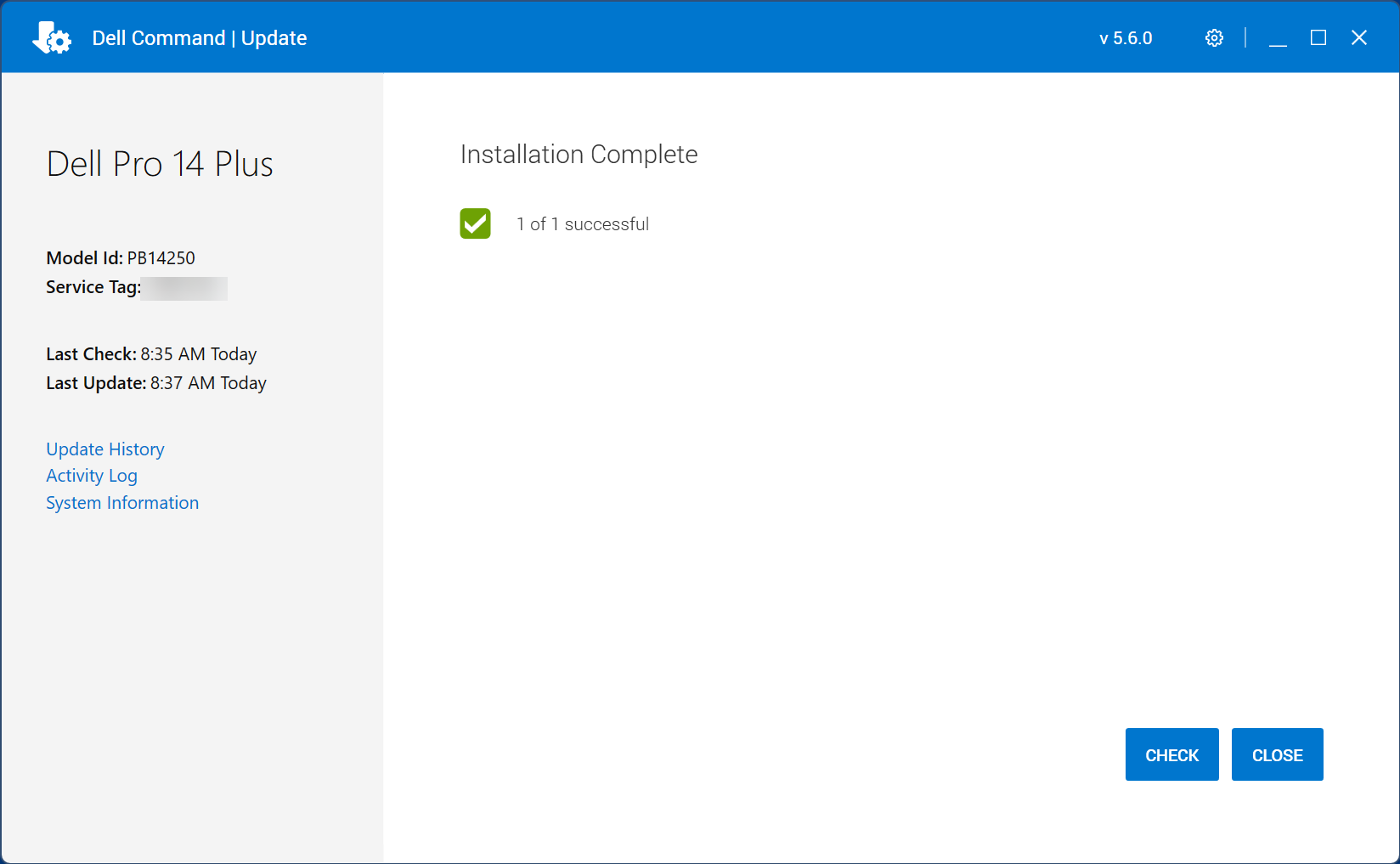
When finished, click close and reboot your device if it hasn’t done so already.
-
Depending on which updates were necessary, your device will reboot into a screen looking similar to this one. It is critical that you leave your device connected to power and do not attempt to restart or turn off the device, as it can cause permanent hardware damage requiring service.
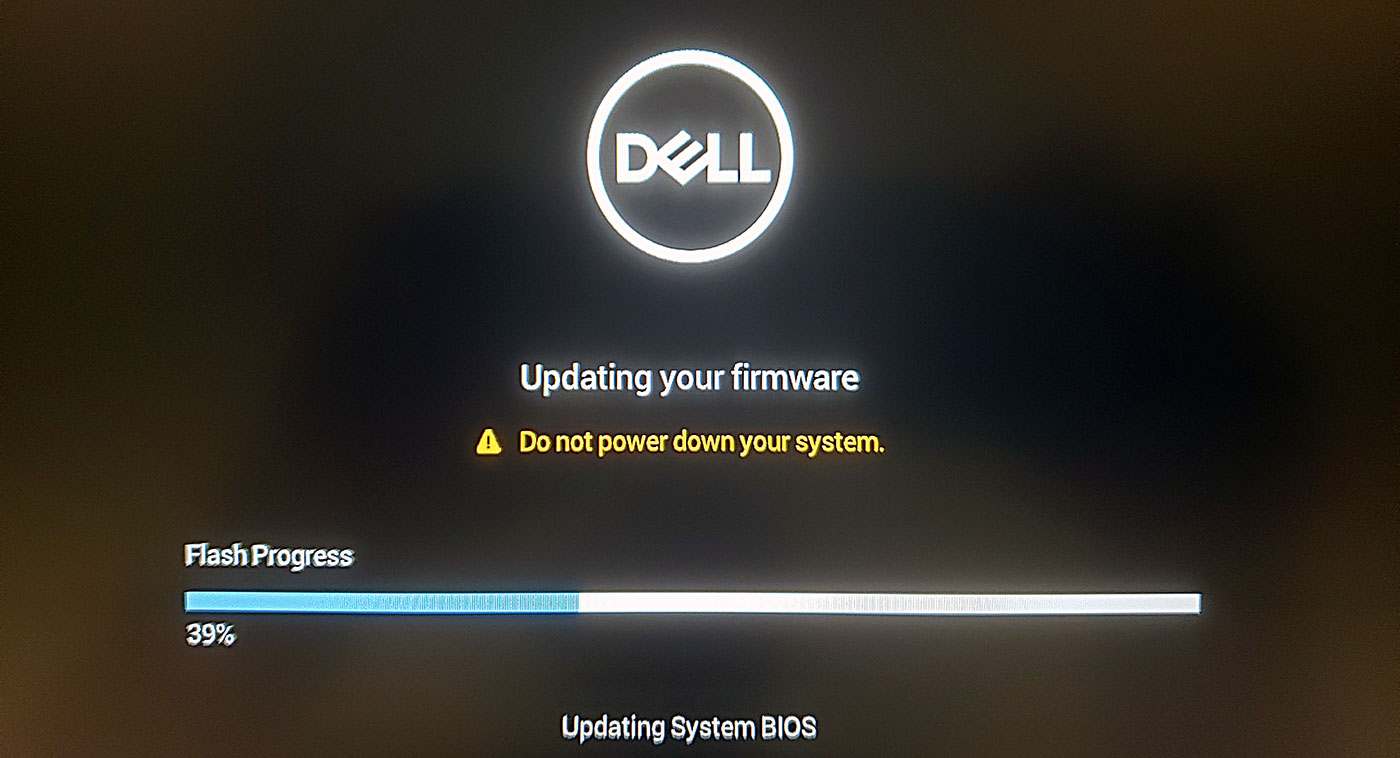
Your device will reboot several times during this step, when finished you should be returned back to your normal Windows Login.