
The asset tag (formerly known as TipWeb tag) is the official asset tracking label assigned by Conroe ISD. It is used to identify your specific device for inventory and technical support.
-
Format: The tag number typically starts with the letter "T".
-
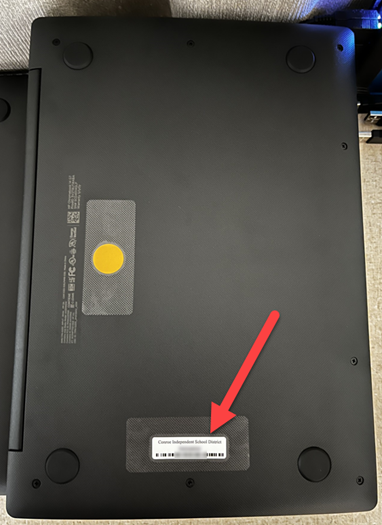
Look for: A white sticker featuring a barcode and the ID number.
Where to Find It
-
Turn your Chromebook over so the bottom is facing up.
-
Look for the white barcode sticker on the back casing.
-
The alphanumeric code starting with "T" is your TIPWeb tag.
Missing or Unreadable Tag? If your Chromebook does not have a sticker, or if it is too damaged to read, you cannot look up the previous tag number yourself. You must request a new one immediately.
Steps to Fix:
-
Submit a Ticket: Open Incident IQ from your SSO.
-
Action: Submit a request for the device and enter in the details box "New Asset Tag, previous tag is missing/not readable."
-
Required Info: You must provide the Serial Number of the Chromebook in the ticket description so the team can identify the device in the system. You can find the serial number by following these instructions here.
-
Support: You may also contact your Campus Tech to assist with printing a replacement.
Need additional help? Click here for further assistance.