
This guide explains how to check the current software version and manually update the Chrome Operating System (OS) on a Chromebook.
Check the Software Version
Please verify the current version before starting the update process.
1. View Version Details
On the sign-in page, please press Alt + V on the keyboard.
2. Verify the Version Number
Look at the top right corner of the screen. The OS version and serial number will display.
-
If the version is ChromeOS 144 or higher, no action is needed.
-
If the version is lower than ChromeOS 144, please proceed to the Install Updates section below.
Install Updates
Follow these steps to manually download and install the latest software.
1. Open the Menu
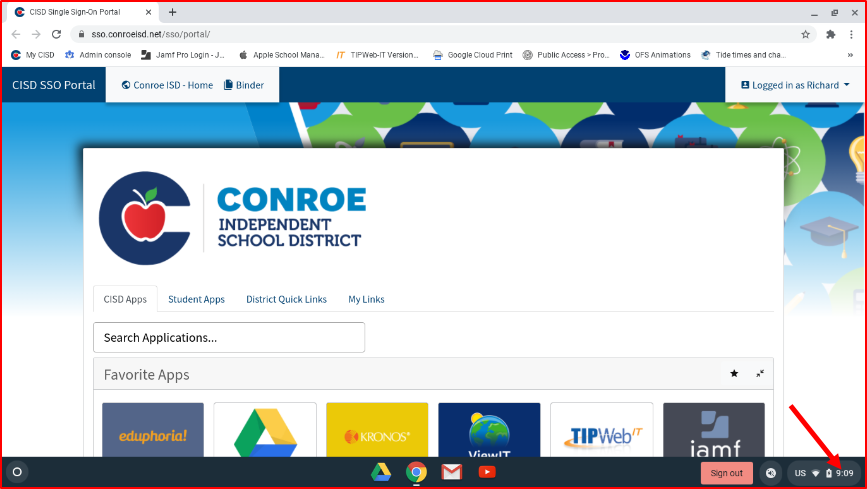
Sign in to the Chromebook and select the Time in the bottom corner of the screen.
2. Open Settings
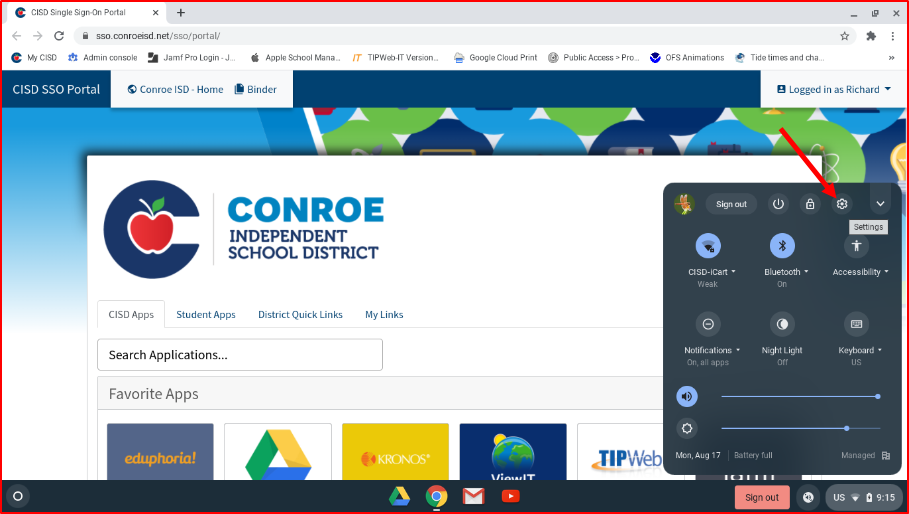
Select the Settings icon (gear icon).
3. Access About Chrome OS
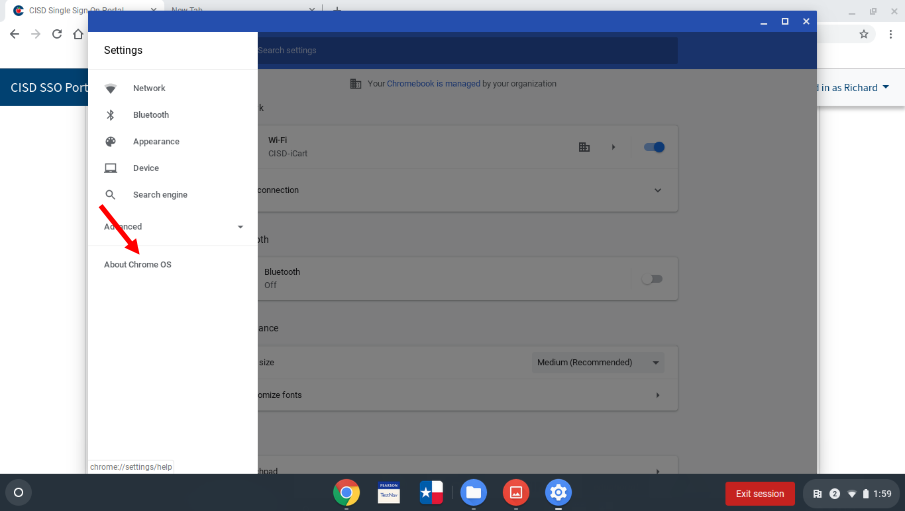
Select About Chrome OS from the menu.
4. Check for Updates
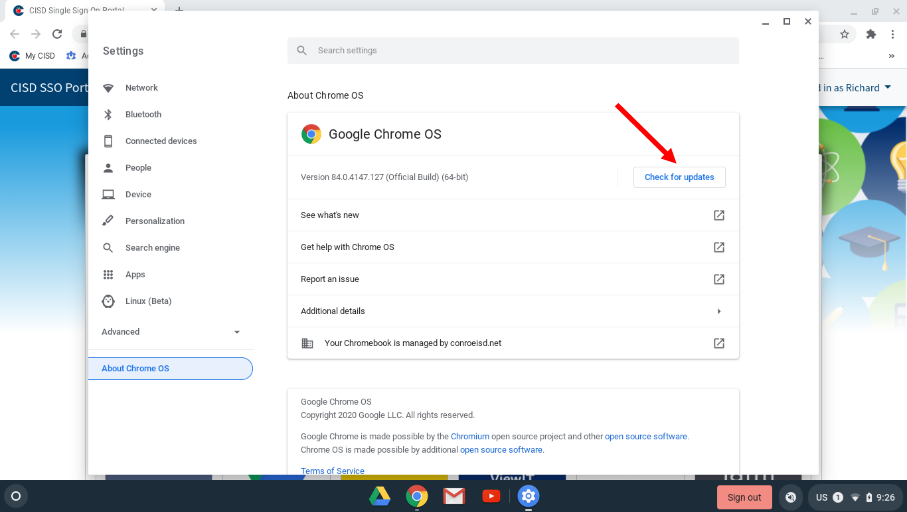
Select Check for updates.
5. Restart the Device
Wait for the Chromebook to download the update. Once complete, select Restart to finish the installation.
Need additional help? Click here for further assistance.