
Peer reviews can be assigned automatically by Canvas or manually paired by the instructor.
Automatic Peer Review Allocation
Here’s a video guide on how to automatically assign peer reviews for an assignment.
How do I automatically assign peer reviews for an assignment?
Note this is a Canvas LMS Instructure video; not all settings shown are enabled in our instance, so you may see options that our users do not have.
When you create a peer review assignment with automatic peer reviews, Canvas will assign peer reviews to students automatically once they have submitted their own assignment.
You can also tell Canvas to automatically assign peer reviews after an assignment due date has passed.
-
Execution: Canvas automatically assigns reviews based on student submissions on the specified Assign Reviews date or immediately after submission.
-
Processing Time: Canvas may take up to one hour to process automatic allocations.
-
Late Submissions: Students who fail to submit before the due date will not be automatically assigned a review and must be assigned manually.
Manual Peer Review Allocation
-
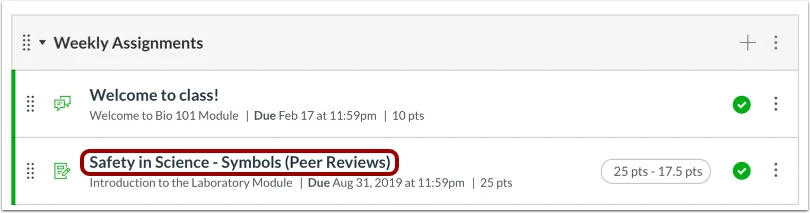
Go to Assignments and click the name of the peer review assignment.
-
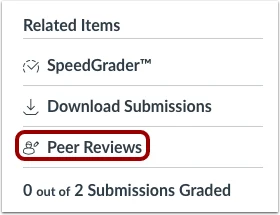
Under Related Items in the sidebar, click Peer Reviews.
-
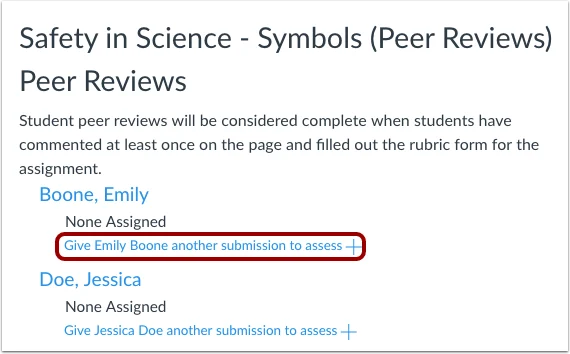
Locate the student who will perform the review.
-
Click + Add (or Give [Student Name] another submission to assess).
-
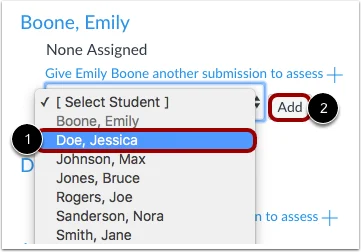
Select the peer to be reviewed from the drop-down menu and click Add.
Viewing Assigned Peers, Review Progress & Reminders
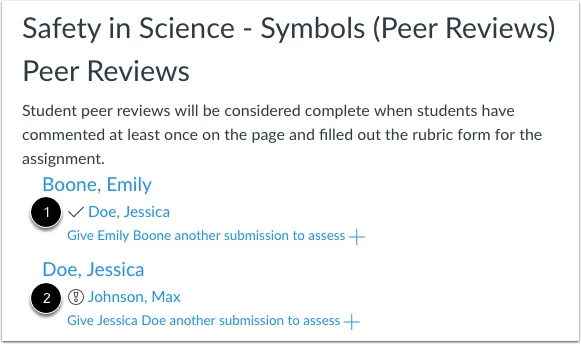
Assigned peer reviews appear underneath the student names.
-
Status Indicators:
-
Checkmark: The peer review is complete.
-
Warning Icon: The peer review is pending.
-
-
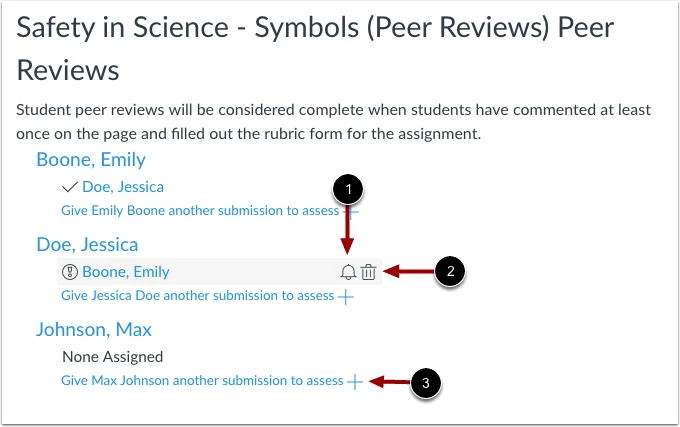
Send Reminder: Hover over an assigned review and click the Reminder (bell) icon to resend a notification.
-
Delete Allocation: Hover over an assigned review and click the Delete (trash can) icon to cancel an assignment.
Advanced Custom Allocation Rules (Advanced Feature)
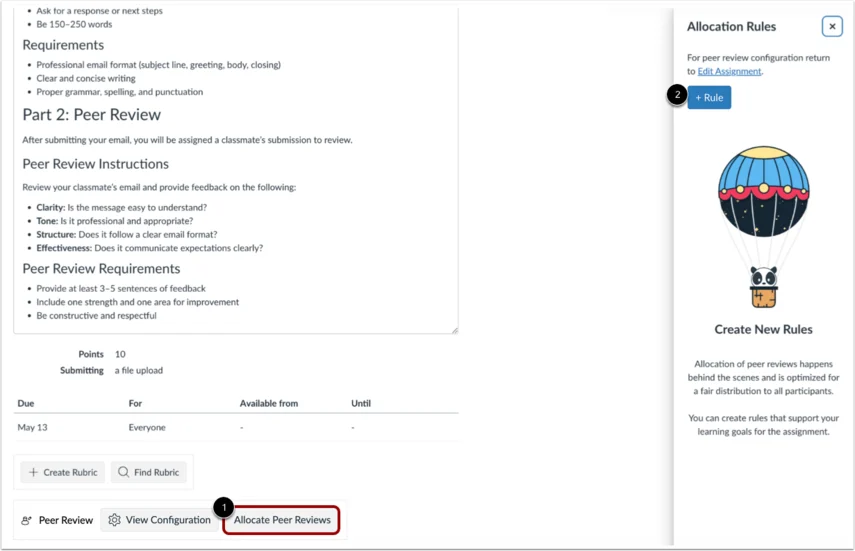
If using Peer Review Allocation & Grading, instructors can set custom rules via the Allocate Peer Reviews button:
-
Strict Rules: Enforces exact reviewer-recipient pairings. If the recipient has not submitted, no alternate review is assigned.
-
Flexible Rules: Prioritizes preferred pairings but assigns an alternate submission if the preferred submission is unavailable.
-
Reciprocal Rules: Directly pairs two students to review each other's work.
Use custom allocation rules when you need more control over how peer reviews are assigned. Rules are saved for the current assignment and are applied each time the Allocation Engine runs; they are not shared with other assignments.
Open the allocation rules
-
Open the peer review assignment from Assignments.
-
Click Allocate Peer Reviews.
-
Click Add Rule.
Create a reviewer rule
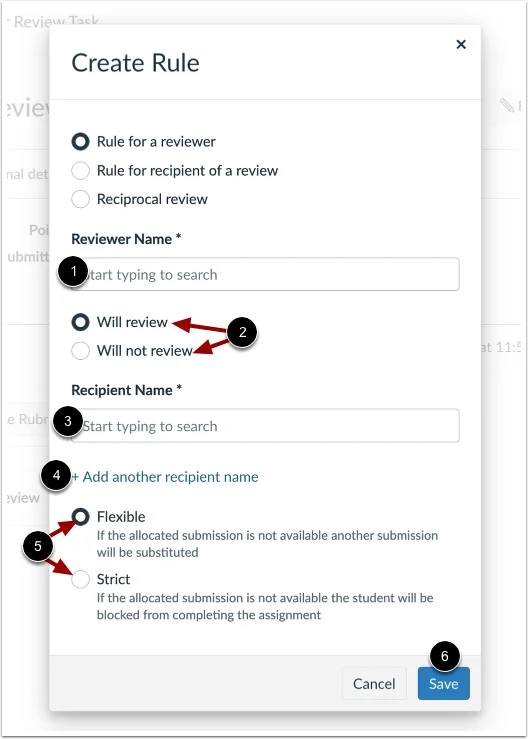
Use a reviewer rule to control which submissions a student reviews.
-
Enter the Reviewer Name.
-
Choose whether the reviewer will review or will not review the specified recipient or recipients.
-
Enter the Recipient Name. Click Add another recipient name to include more recipients.
-
Choose Strict or Flexible, then click Save.
Create a recipient rule
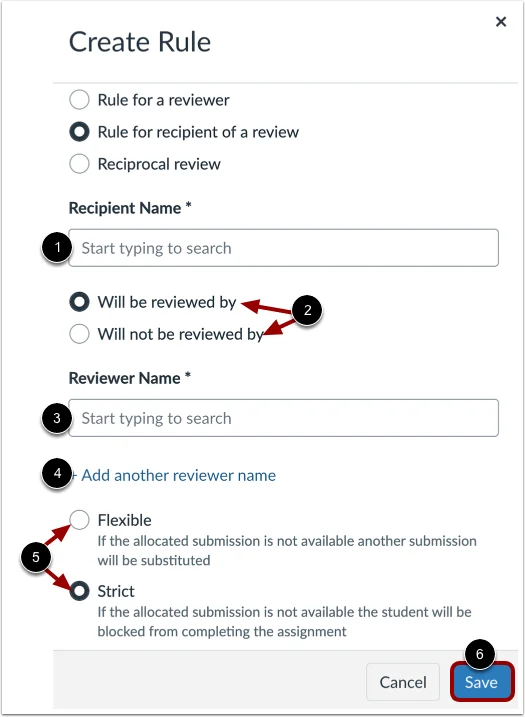
Use a recipient rule to control which students review a particular student’s submission.
-
Enter the Recipient Name.
-
Choose whether the recipient will be reviewed by or will not be reviewed by the specified reviewer or reviewers.
-
Enter the Reviewer Name. Click Add another reviewer name to include more reviewers.
-
Choose Strict or Flexible, then click Save.
Create a reciprocal review rule
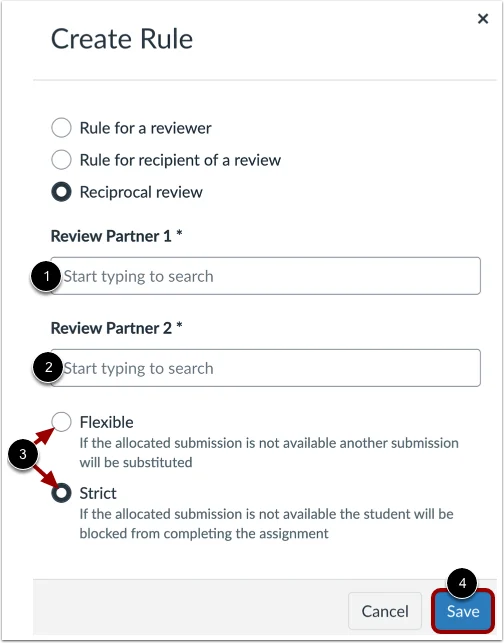
Use a reciprocal rule when two students should review each other’s work.
-
Enter the names of Review Partner 1 and Review Partner 2.
-
Choose Strict or Flexible.
-
Click Save.
Choose a rule type
-
Strict: Requires or prevents the specified pairing. If a required submission is unavailable, the reviewer is not assigned an alternate submission.
-
Flexible: Prioritizes the specified pairing but allows Canvas to assign another submission when the preferred one is unavailable.
Manage saved rules
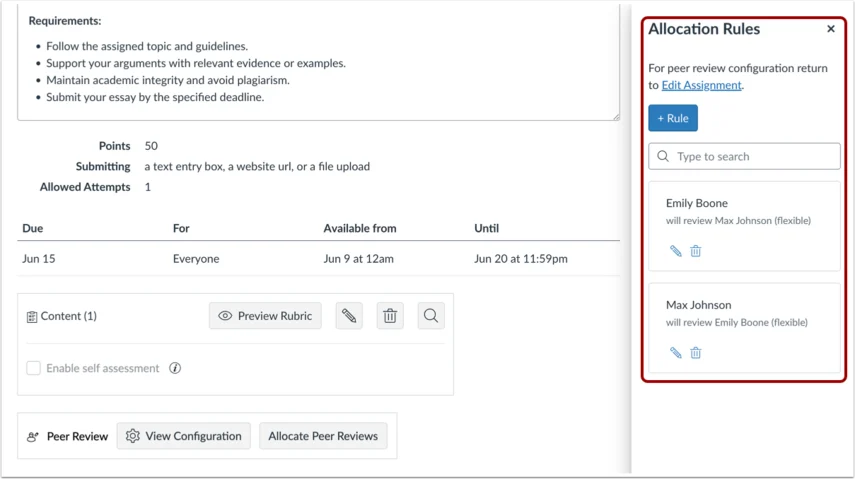
In the Allocation Rules tray, review your saved rules and edit or delete them as needed. You can add as many rules as necessary for the assignment. Automatic allocation does not require instructor action unless you want to apply custom pairing preferences or restrictions.
Still have questions? Visit the Additional Help section for further assistance.