
Use this guide to create a peer review assignment in Canvas and assign reviews either automatically or manually.
Peer reviews are available only for standard Online submission assignments. External Tool and Lucid submission types do not support peer reviews.
Instructions
Create a standard peer review assignment
Here’s a video guide on how to create a peer review assignment.
https://app.guidde.com/share/playbooks/7B1ArZUNYAcAa2rCyVRR3T
Note this is a Canvas LMS Instructure video; not all settings shown are enabled in our instance, so you may see options that our users do not have.
-
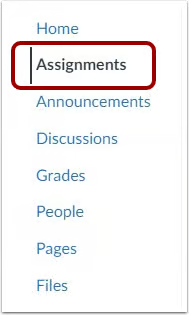
In Course Navigation, click Assignments.
-
Click + Assignment.

-
Enter the assignment name, description, and point value.
-
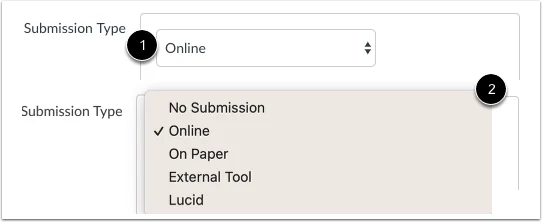
In Submission Type, select Online.
-
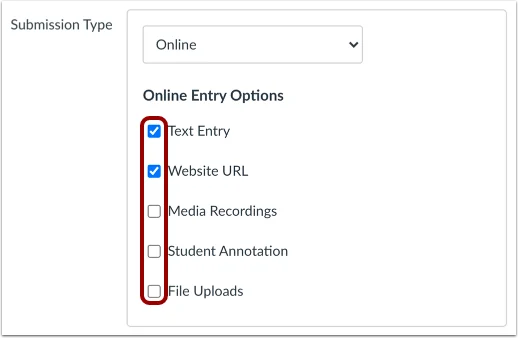
Select the allowed submission options, such as Text Entry or File Uploads. Note: The External Tool submission type does not support peer review assignments.
-
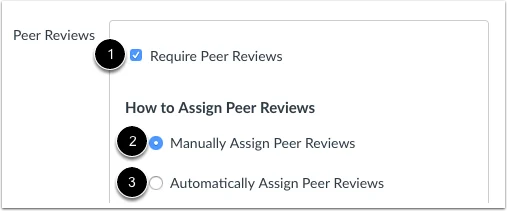
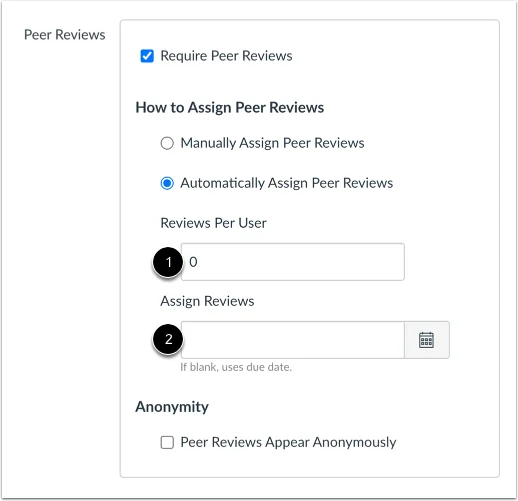
Select the Require Peer Reviews checkbox.
-
Choose how reviews will be assigned:
-
Manually Assign Peer Reviews: Canvas keeps manual assignment enabled by default, and the instructor assigns student reviewers after submissions are received.
-
Automatically Assign Peer Reviews: Canvas distributes reviews based on your settings.
If you choose automatic assignment, configure these fields:
-
Reviews Per User: Enter how many peer reviews each student must complete.
-
Assign Reviews Date: Enter the date and time Canvas should distribute the reviews. If this is left blank, Canvas uses the assignment due date.
-
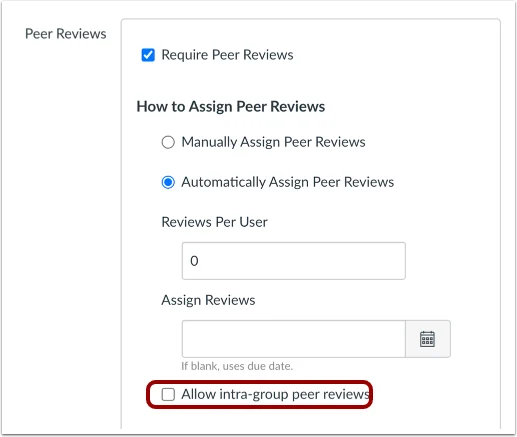
Optional: Configure group and anonymity settings.
-
Allow intra-group peer reviews: Use this for group assignments if students should review members of their own group.
-
Peer Reviews Appear Anonymously: Use this to hide reviewer and student names from each other.

-
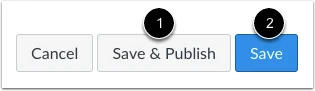
Click Save & Publish or Save.
Create a peer review assignment with enhanced allocation and grading
-
Create a new assignment and complete the standard setup through selecting Online as the submission type.
-
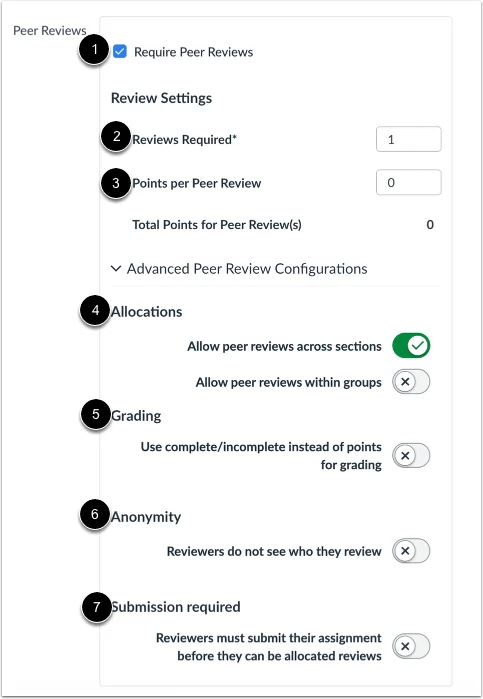
Under Require Peer Reviews, configure the available advanced settings.
-
Required Reviews: Enter the number of reviews each student must complete.
-
Points Per Peer Review: Assign points for each completed review, or choose Complete/Incomplete grading.
-
Advanced Configuration: Set options for cross-section reviews, intra-group review rules, and anonymity.
-
Submission Required: Enable this option if students must submit their own work before Canvas assigns reviews.
-
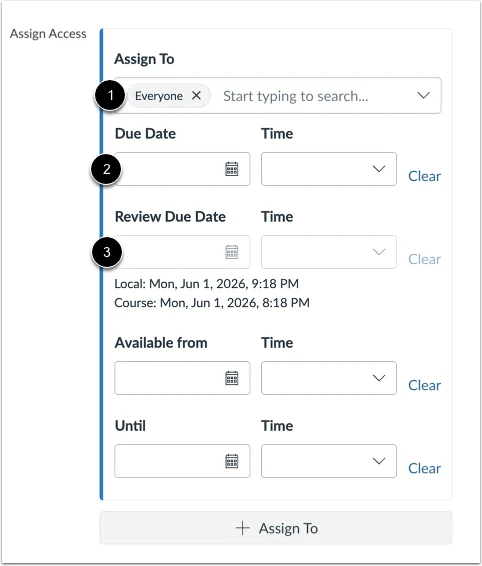
Set the assignment due date and, if available, the Peer Review Due Date.
-
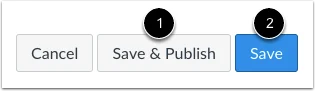
Click Save & Publish or Save.
Add a rubric for peer feedback
A rubric gives students clear criteria for evaluating peer work.
-
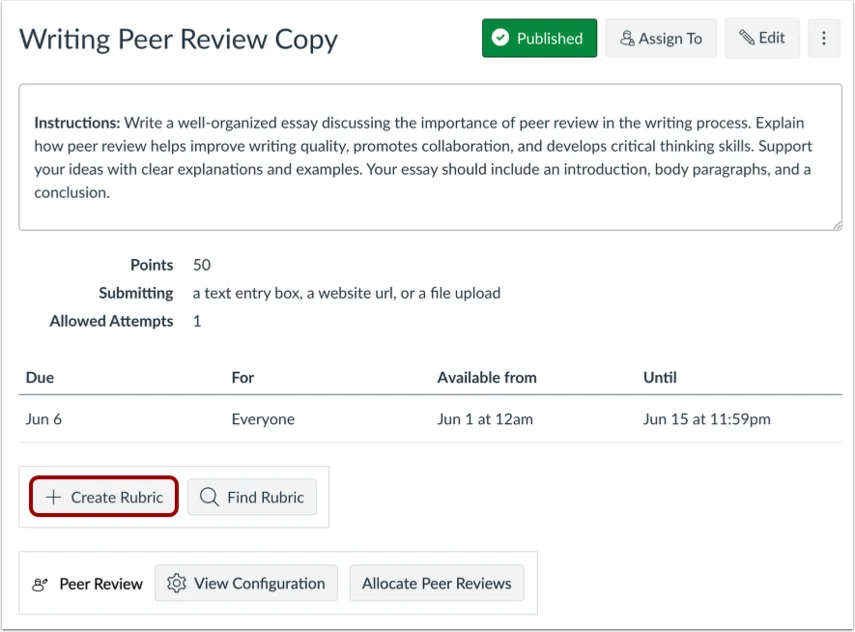
Open the published assignment.
-
Click + Rubric or Create Rubric.
-
Add the rubric criteria, ratings, point values, and descriptions.
-
Save the rubric.
Still have questions? Visit the Additional Help section for further assistance.