
Instructors can easily verify peer review completion, review student feedback comments, and evaluate peer rubric assessments.
Method 1: Viewing Reviews via the Peer Reviews Page
Here’s a video guide on how to view student peer review comments as an instructor.
https://app.guidde.com/share/playbooks/tSEJjp5vrVhxVd5vKiPfWx
Note this is a Canvas LMS Instructure video; not all settings shown are enabled in our instance, so you may see options that our users do not have.
-
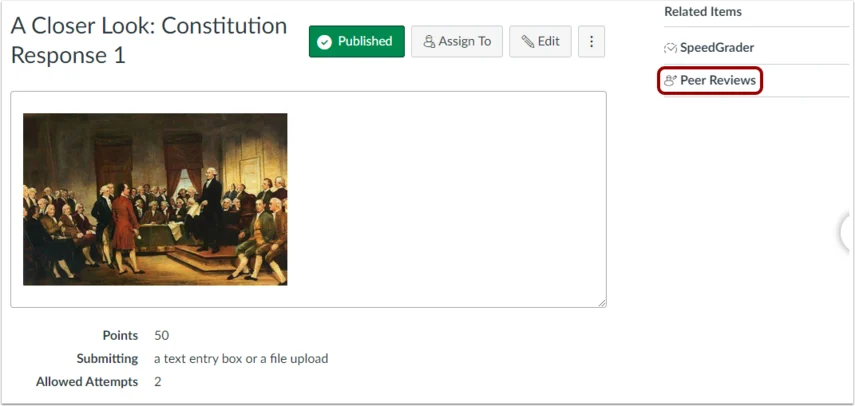
Go to Assignments and click the peer review assignment.

-
In the sidebar, click Peer Reviews.
-
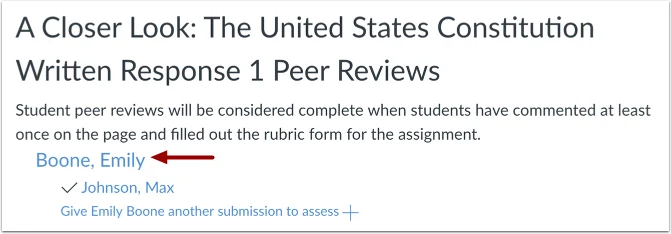
Click a student's name to view all peer feedback left on that student's submission.
-
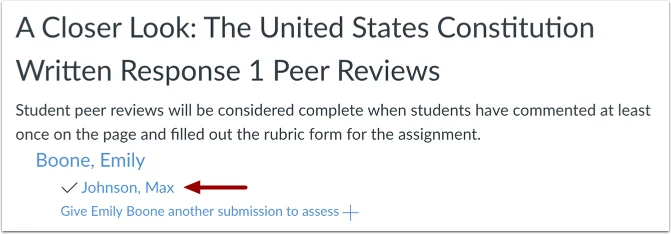
To view a single review submitted by a specific reviewer, click the reviewer's assigned name.
-
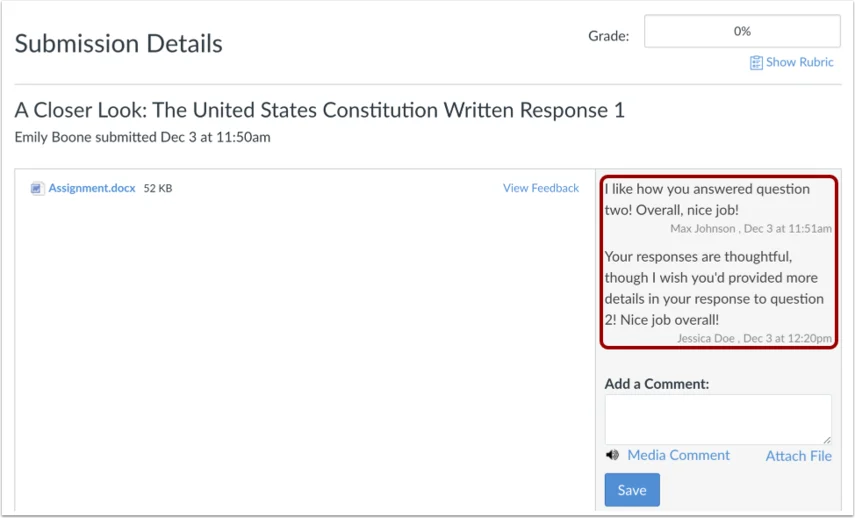
Timestamps and reviewer names appear with each comment.
-
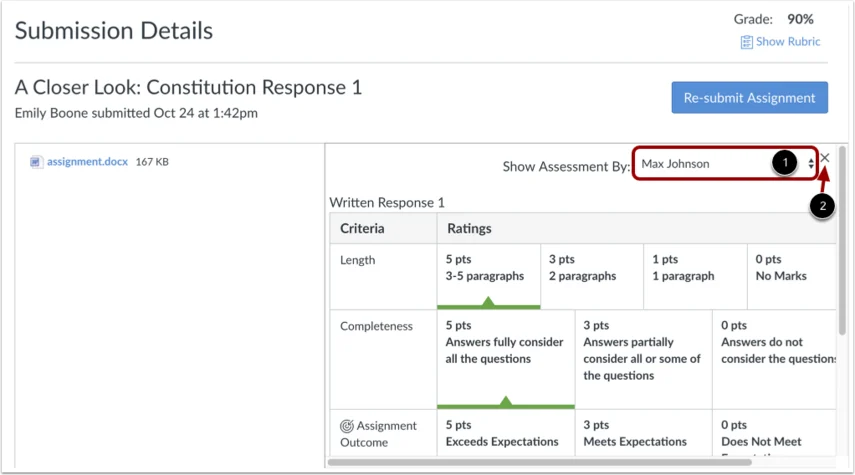
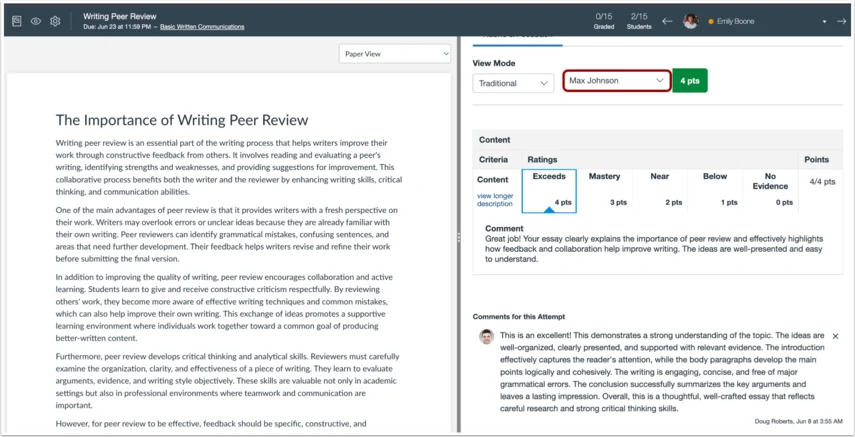
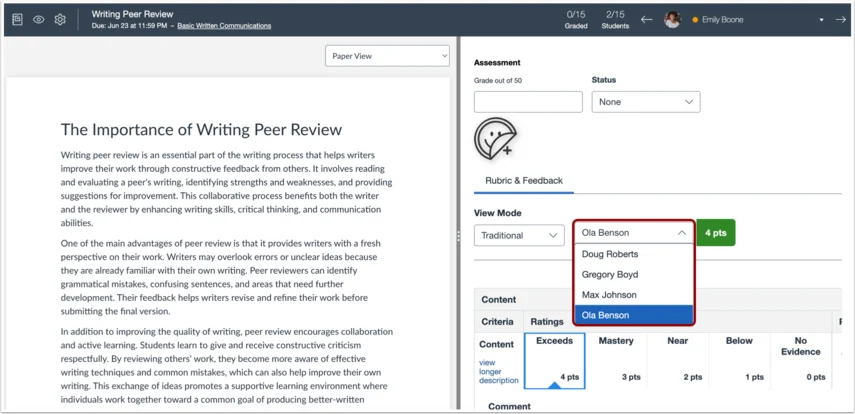
If a rubric was attached, click Show Assessment By to toggle between reviewer evaluations.
Method 2: Viewing Peer Reviews in SpeedGrader
-
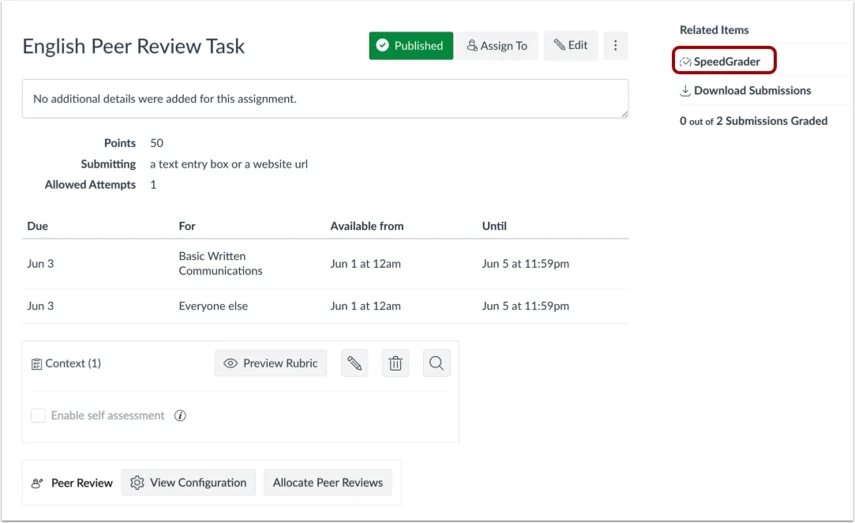
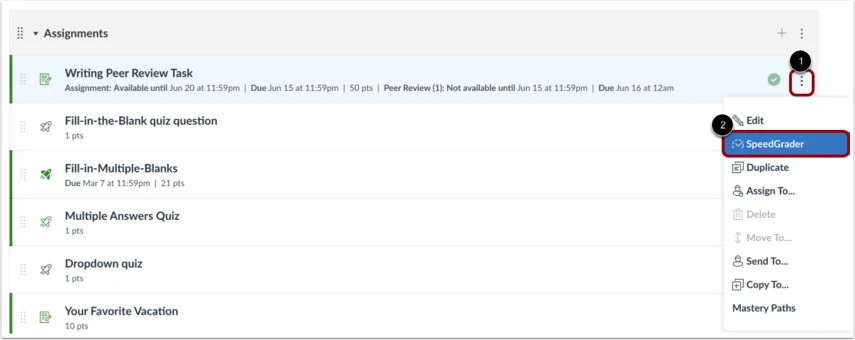
Open the peer review assignment and select SpeedGrader from the sidebar or the drop-down menu.
-
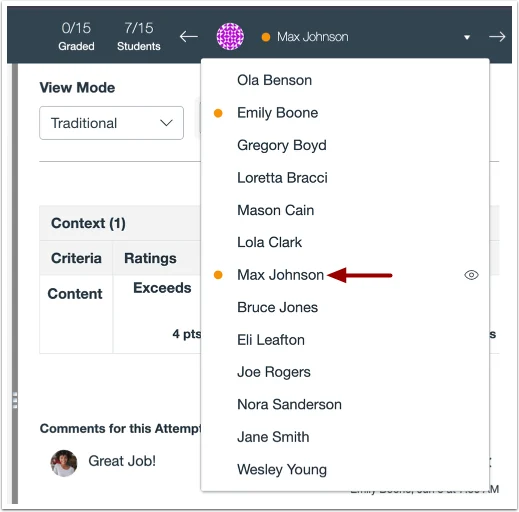
Select a student submission.
-
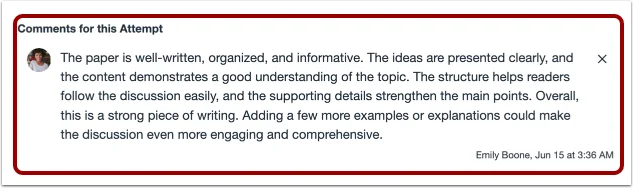
Peer feedback comments appear in the Comments for this Attempt sidebar section.
-
Click View Rubric to inspect peer rubric scores and feedback.
Method 3: Viewing Feedback by Reviewer (Grades Page)
-
Go to Grades in Course Navigation.
-
Locate the assignment column, click the options menu, and select SpeedGrader.
-
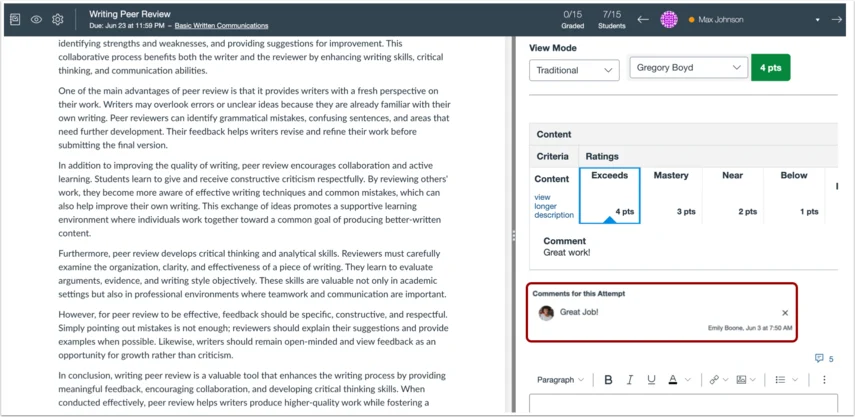
Select a student reviewer to inspect the feedback and rubric ratings they left on other students' submissions.
Awarding Grades for Peer Review Completion
Because standard Canvas peer reviews do not automatically generate gradebook points:
-
Manual Entry: Create a separate No Submission assignment in the Gradebook (e.g., "Peer Review Participation") and enter points manually.
Still have questions? Visit the Additional Help section for further assistance.