
Teachers can temporarily turn Student Supports on or off for an individual student on a specific assessment from the Online Test Proctoring window.
Caution: If a student support was added recently, it may not appear for the student and must be enabled manually once for the test using the instructions below.
Step-by-Step Instructions
-
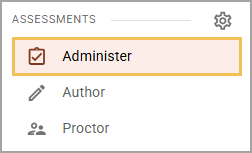
Select Administer from the Assessments section of the main menu.
-
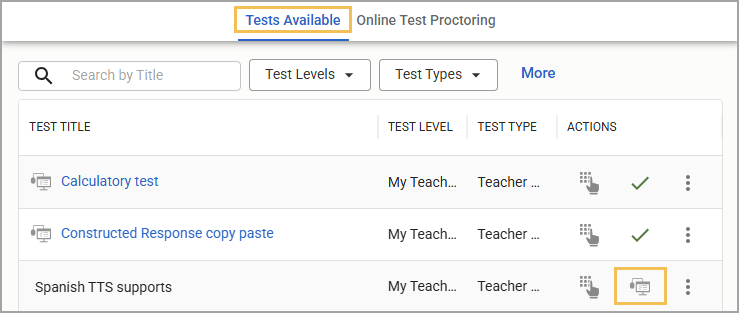
On the Tests Available tab, locate the test for which you want to enable supports and select the Online Test Proctoring icon in the test row. A checkmark appears to indicate that Online Test Proctoring is now enabled, and the title of the test becomes a blue link.
-
Click the name of the test to open it in the Online Test Proctoring tab.

-
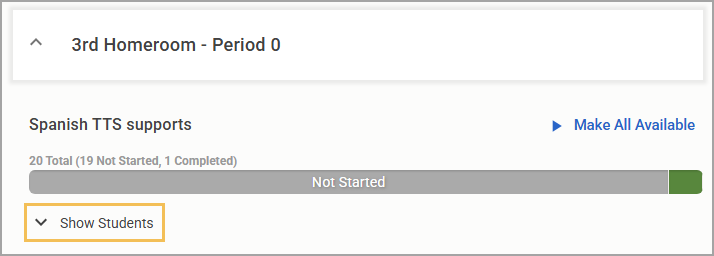
Locate the class you want to view, then click the Show Students drop-down button to expand the student list.
-
Select the Pencil icon under Supports to begin adding or editing supports.

-
When the window opens, toggle the appropriate supports on or off for the assessment, then select Save.
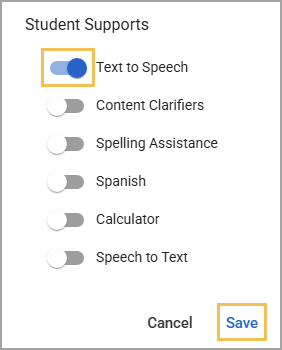
Caution: This action turns Student Supports on or off for the selected assessment only. It does not permanently turn the support on or off for the student. Administrators can permanently assign Student Supports to students.
Available Supports
|
Support |
Description |
|---|---|
|
Text-to-Speech |
Reads aloud questions, answer choices, and highlighted text to students. Students can adjust volume and speech rate. Questions in Spanish are read aloud by a native Spanish speaker. During assessment creation, teachers can choose whether the language is student-selected, English, or Spanish. |
|
Content Clarifiers |
Shows dotted underlines for words or content where a teacher has provided extra support, such as a definition, contextual note, image, or other clarification. Text-to-Speech also works for content clarifiers when both supports are enabled. The test status must be Pending before adding or editing content clarifiers. |
|
Spelling Assistance |
Enables the browser’s native spellcheck for constructed response and text entry items. Teachers can turn this on here for individual students or enable it during test creation for all students. |
|
Spanish Interface |
Translates Aware’s interface options into Spanish so Spanish-speaking students can navigate the online test. Teachers must create a Spanish version of the test because this support does not translate English test items automatically. |
|
Calculator |
Provides access to a calculator during testing. Options include a basic calculator, Desmos calculators, and Texas Instruments calculators. This can be enabled for an individual student here or for all students at the test level. |
|
Speech-to-Text |
Allows students to speak their responses and have the system convert speech to text in supported text boxes. This support is available only for constructed response items, including multipart questions. A user with the Manage Student Supports right must first assign the support to the student before a teacher can enable it during individual test administration. |
Questions and Answers
This section answers common questions about student supports during online testing.
Still have questions? Visit the Additional Help section for further assistance.