
This guide explains how to claim a specific room (such as a classroom, office, portable, library, cafeteria, gym, etc.) in Incident IQ. Claiming a room allows you to view and manage the technology assets assigned to that space. This is essential for accessing your inventory and submitting support tickets for your equipment.
For staff members who are not teachers and do not have rostered students or courses assigned to them in the master schedule:
Please follow the steps below to claim your room. Once you have completed the process, be sure to favorite your assets so they are easily accessible when submitting support tickets.
By following the linked instructions here: How to Favorite Your Assets
Instructions for Claiming a Room
1. Access Your Profile
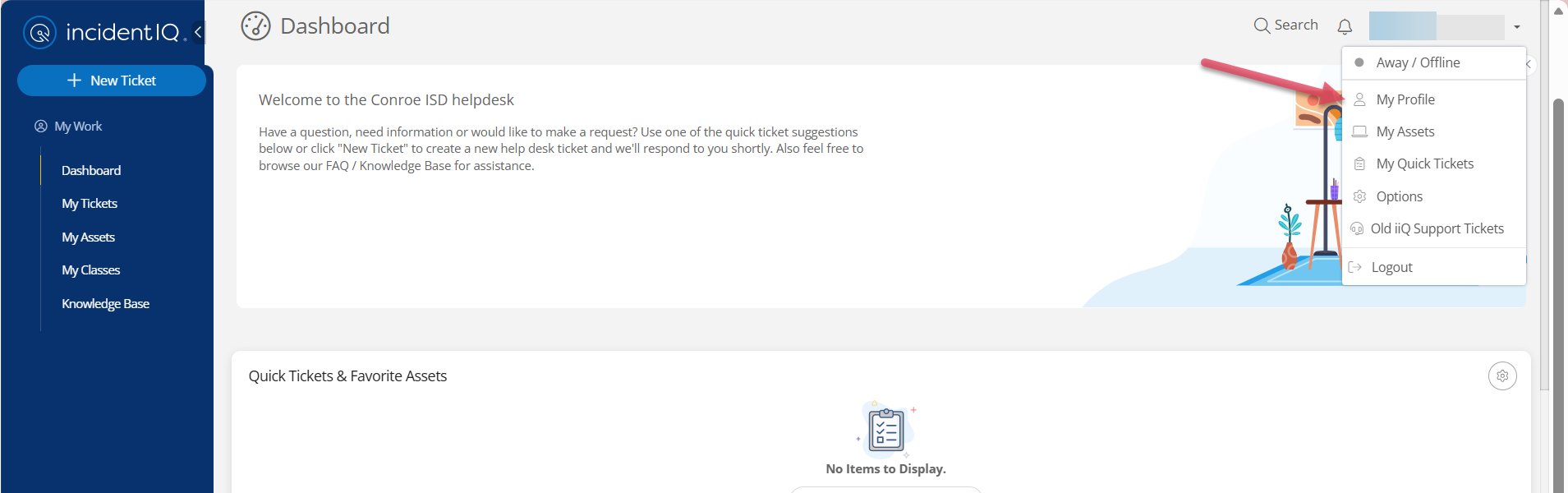
Open Incident IQ from your SSO. Select your Name in the top-right corner, then select My Profile from the drop-down menu.
2. Search for Your Room
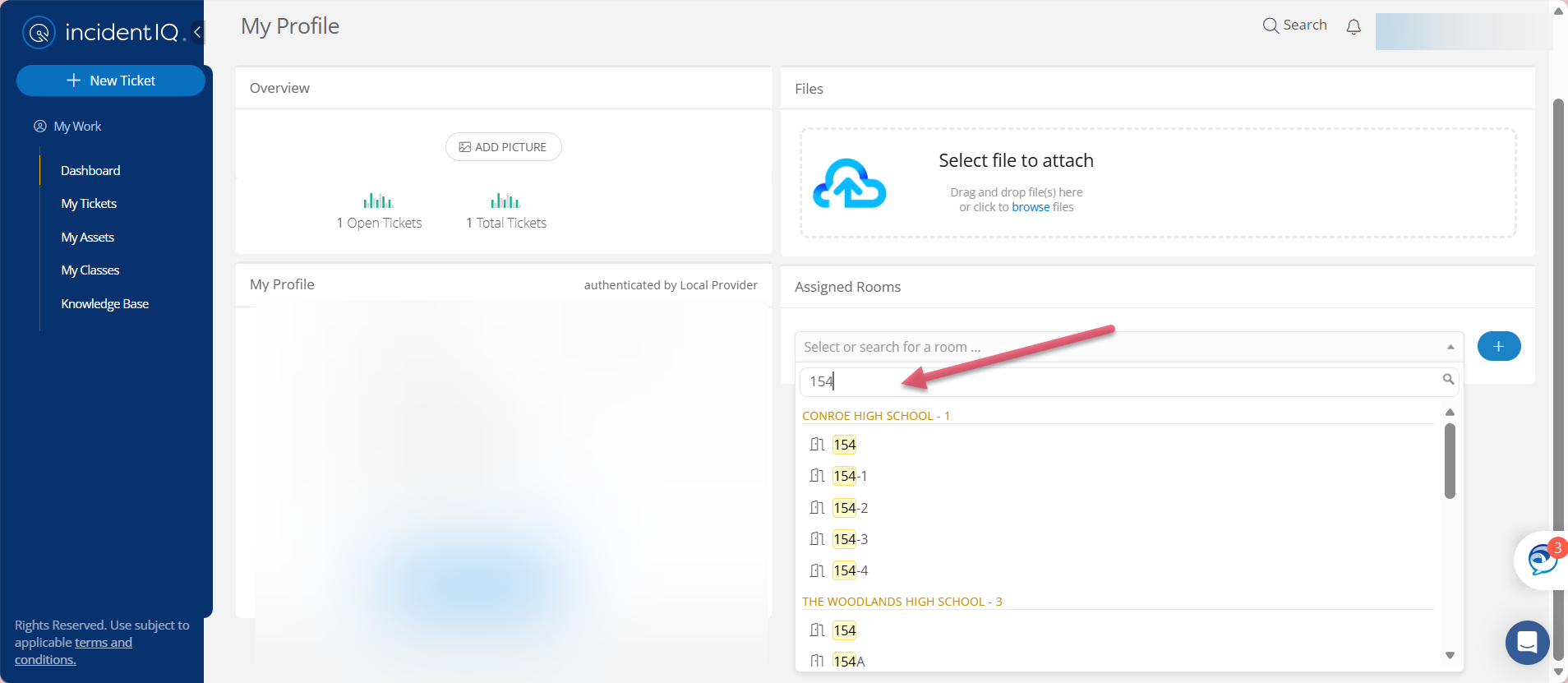
In the profile settings, use the drop-down menu to search for your location.
-
If you have a room number: Type the number (e.g., "154").
-
If you do not have a room number: Type the name of the room (e.g., "Cafeteria," "Gym," or "Library").
3. Add the Room
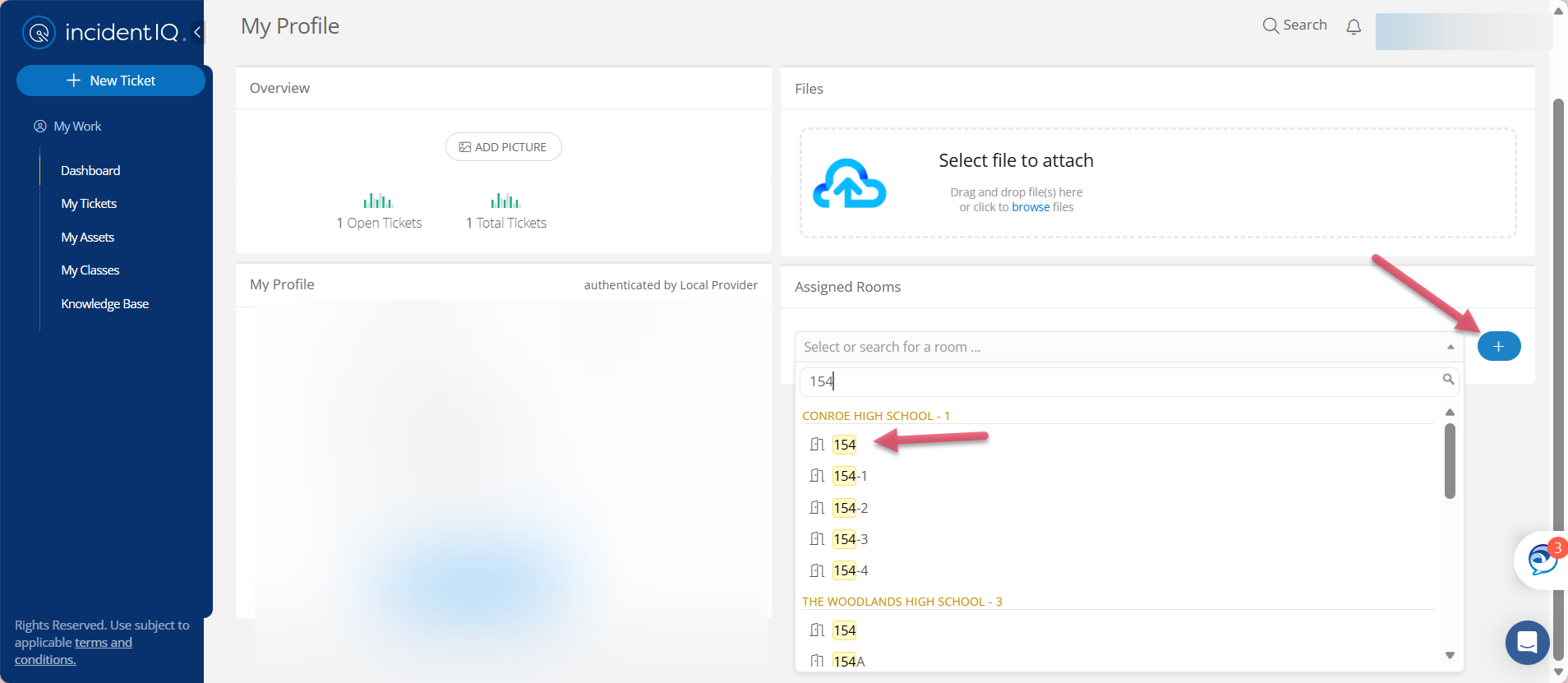
Select your room number from the list. Select the + (Plus) icon to save the location to your profile. The system will save this change automatically.
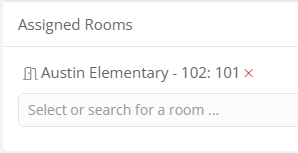
Once claimed, it will be displayed like this, showing the campus name, the building code, and the room number you’ve claimed—for example, Austin Elementary, building code 102, and room number 101.
Are you a non-teaching staff member without rostered students or courses assigned in the master schedule?
After completing the steps above and claiming your room/assets, please remember to favorite your assets. This will make them easier to find and select when submitting future support tickets. Follow these steps to learn how to favorite your assets: How to Favorite Your Assets
Are you a teacher with rostered students and assigned courses in the master schedule?
Your room/assets are automatically associated with your assigned courses. Continue to the next page to learn how to submit a ticket for your claimed room assets: How to Submit a Ticket on Campus Hardware and Devices (Claimed Room)
Still have questions? Visit the Additional Help section for further assistance.