
This guide explains the mandatory workflow for campus staff members to submit support tickets for hardware/devices in Incident IQ. Following this process ensures all campus devices are properly tracked and issues are routed to the right team for quick resolution.
Important Notice: Submitting a generic ticket for hardware is no longer an option. All device and hardware support requests must now be submitted directly through your claimed room's asset list.
This process applies strictly to campus-based staff. District departments will utilize a separate workflow.
Is your asset missing or not showing up?
Because generic hardware tickets are no longer accepted, you must have the asset visible in your list to report an issue. If a device is missing from your claimed room, please reach out directly to your campus technology staff member. Let them know which device is missing so they can officially request to get the asset added or reassigned to your room within Incident IQ. Once added, you can proceed with the steps below.
Here are the instructions on how a Campus Technology Staff member would request the item to be added:
This guide shows you how to view your assets in Incident IQ after you have claimed your room and how to submit a ticket for those assets. Following this workflow ensures that all devices in your room are properly tracked and any issues can be quickly reported.
Tip: Favoriting frequently used assets (like your PC, iPad, or phone) allows them to appear on your Dashboard, making ticket submission even faster.
Steps
1. View Your Room’s Assets
-
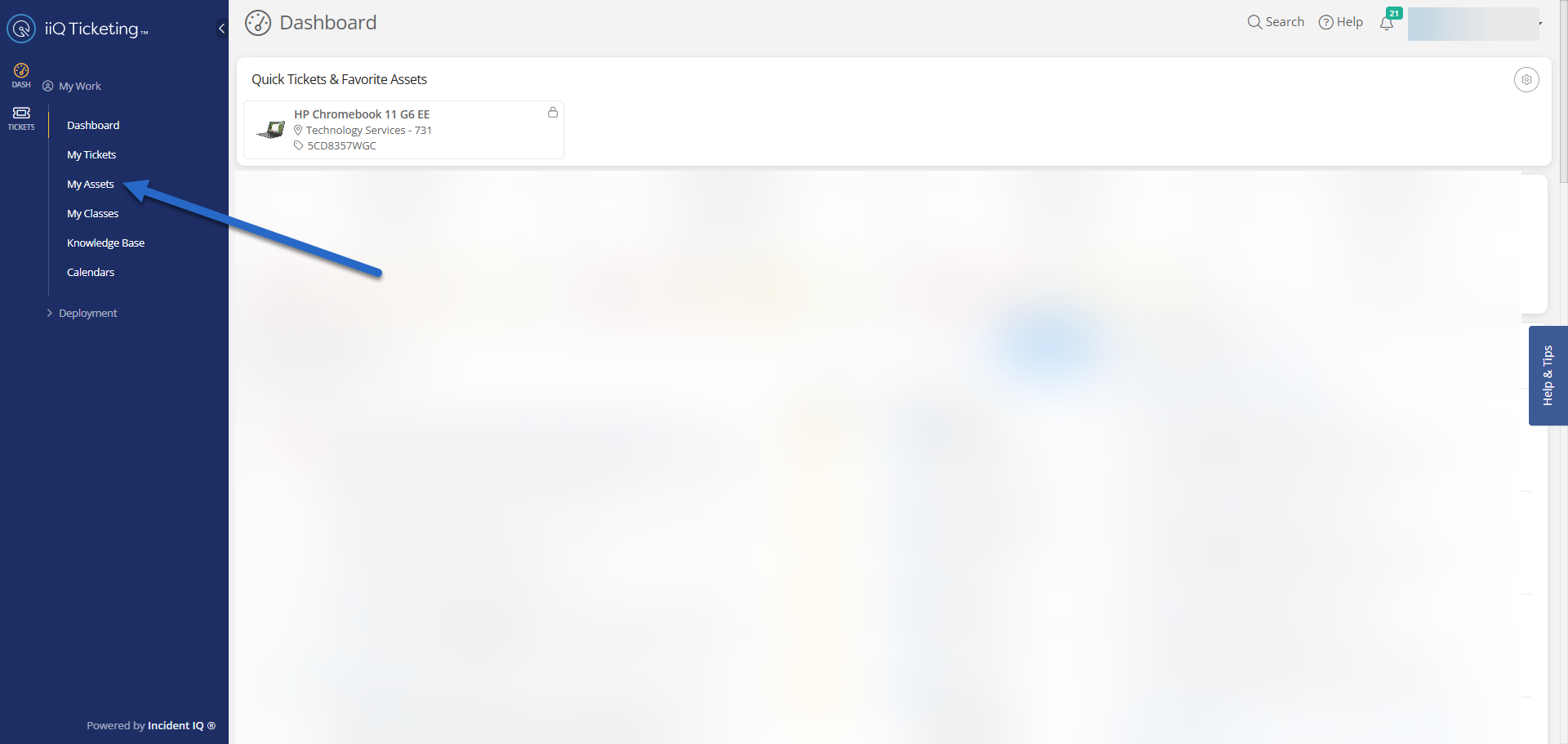
From the left-hand menu, click My Assets.
-
This will show all assets assigned to your claimed room.
2. Open Asset Details
-
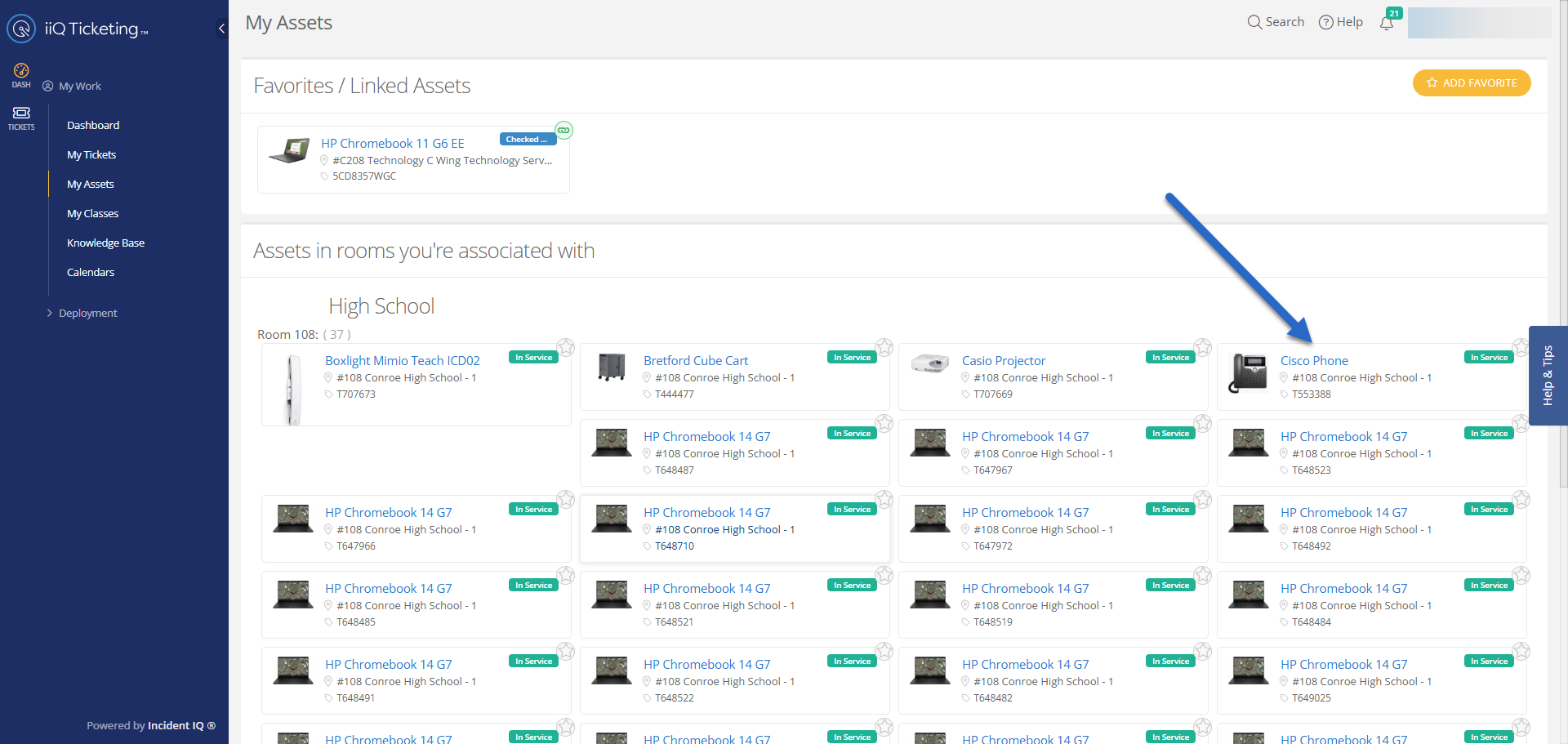
Click the name of the asset you want to submit a ticket for.
-
Example: a Cisco phone or Chromebook.
3. Submit a Ticket
-
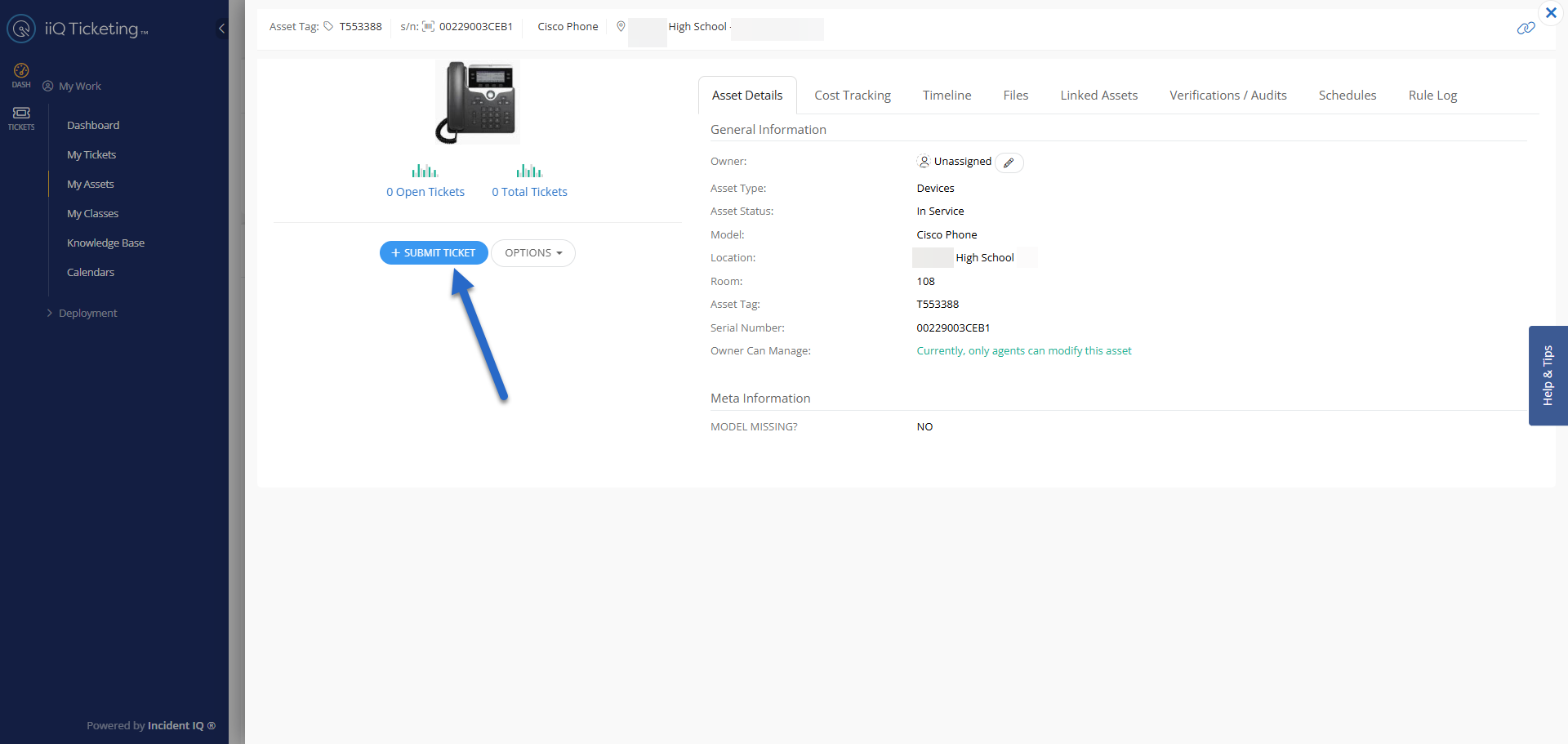
On the asset details page, click Submit Ticket.
4. Select the Issue Category
-
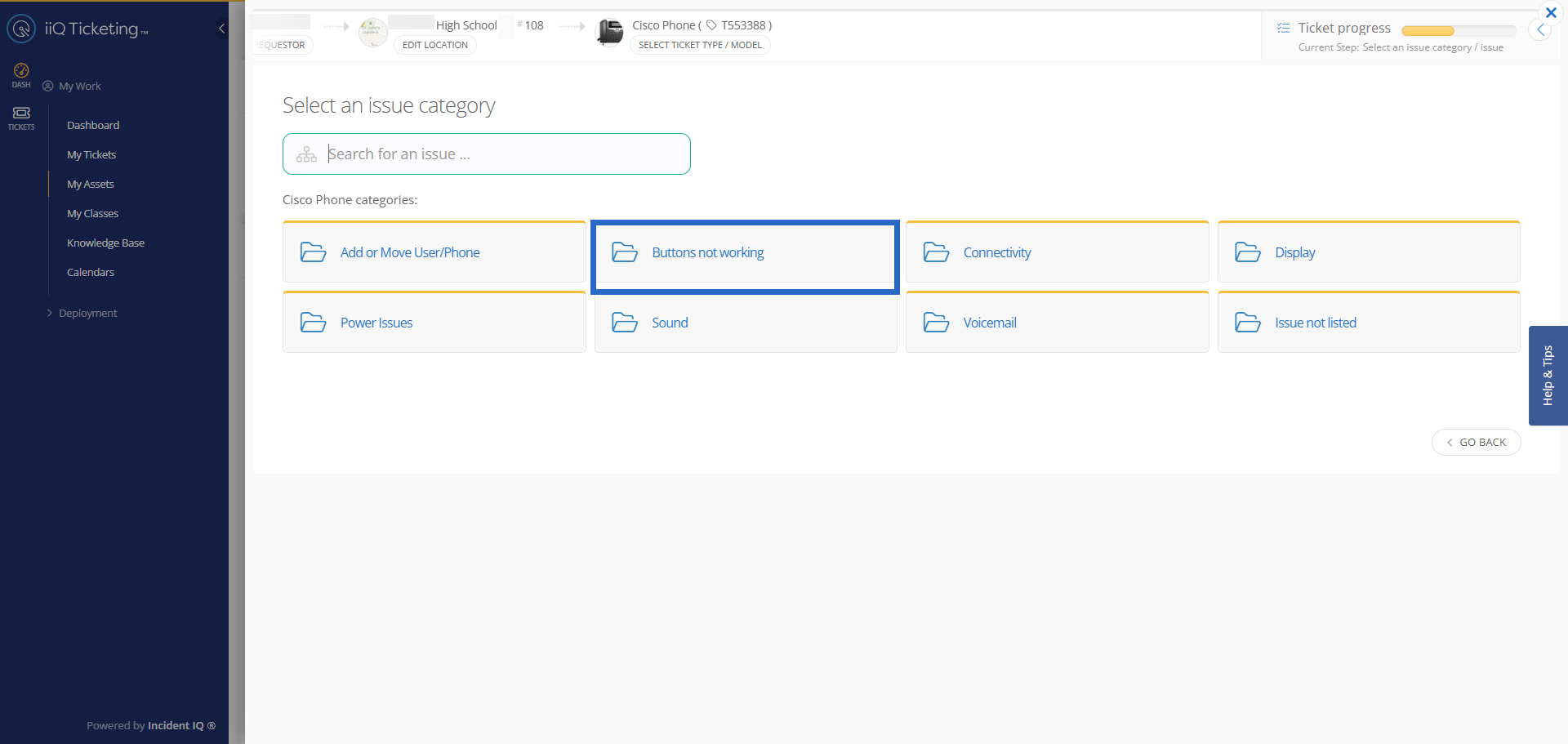
Choose the issue category that most closely matches the problem you are experiencing.
-
If no listed option applies, select Issue Not Listed option.
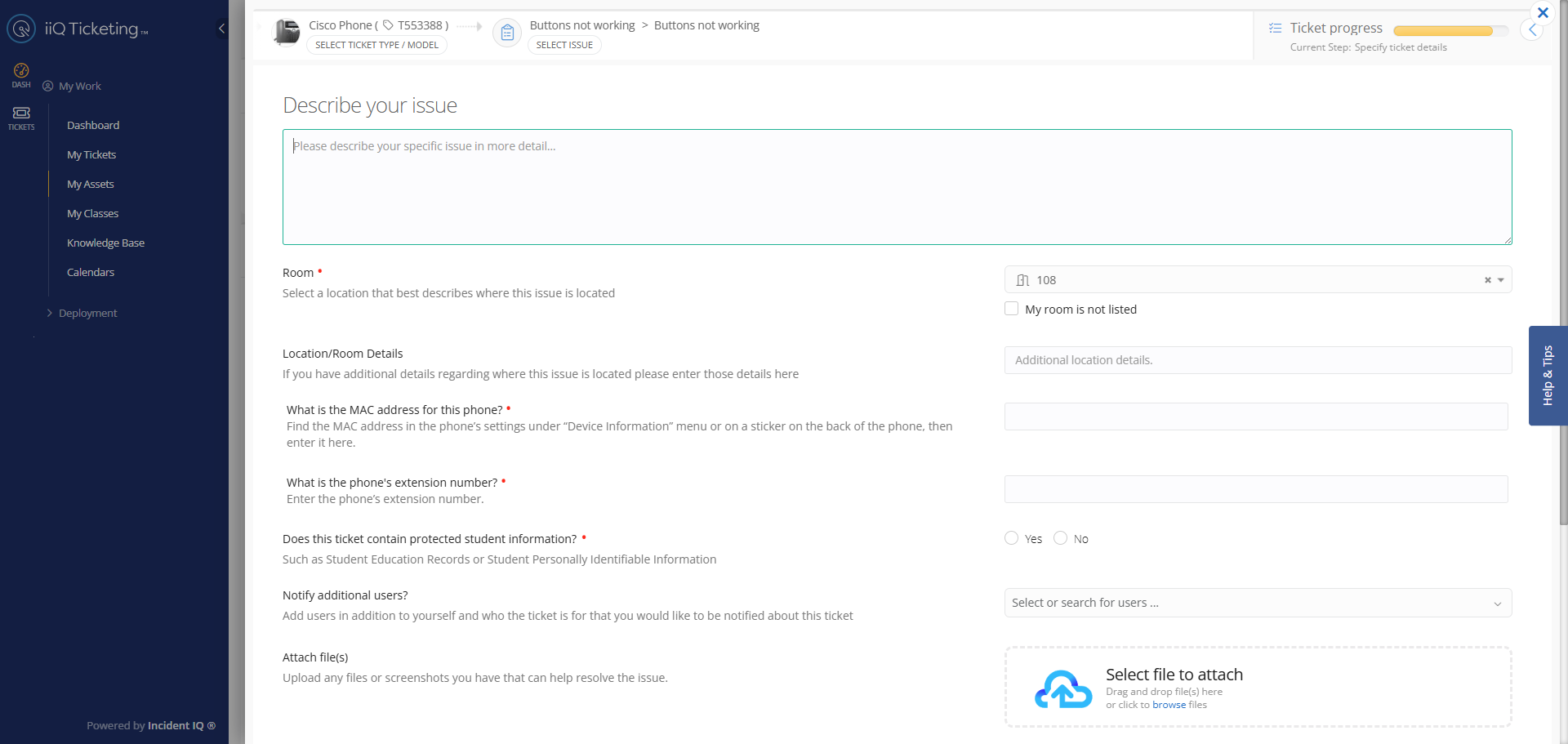
5. Add Detailed Information
-
Provide specifics about the issue or the asset’s location in the room.
-
Optionally, attach images, audio, or video to support your ticket.
-
You can also notify other users (team members or supervisor) if needed.
-
Complete all required fields marked with a red asterisk (*) before submitting.

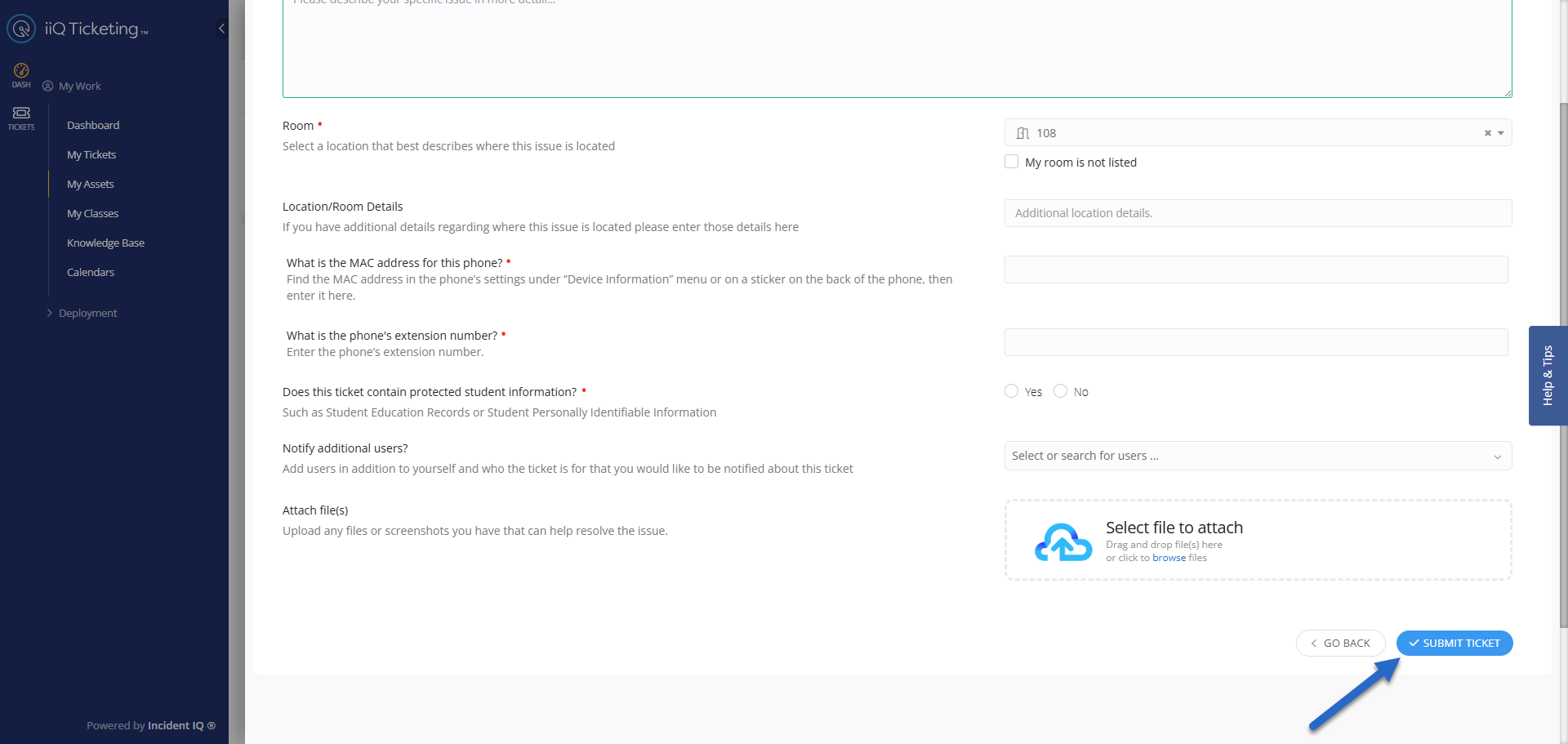
6. Review and Submit
-
Verify all information and click Submit Ticket.
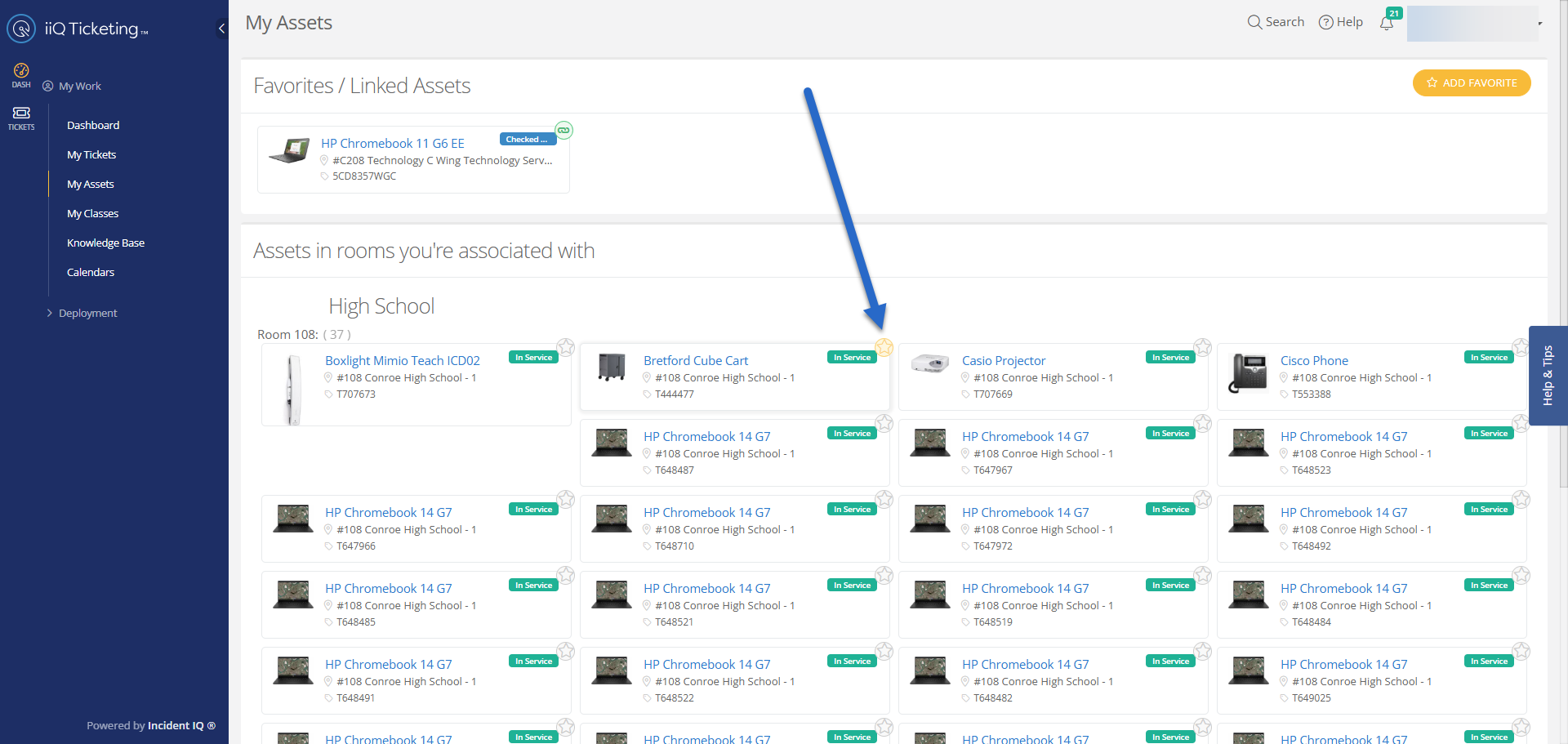
Recommended Tip: Favorite Your Assets
-
After submitting tickets, you can favorite your frequently used devices.
-
Favorited assets appear on your Dashboard for quick access, making future ticket submissions faster and easier — especially for devices you use daily, like PCs, iPads, or phones.
If you need assistance with software, applications, or other non-device-related issues, please continue to the linked instructions below on submitting a Software or Non-Device/Non-Asset Ticket. Click here to continue: How to Submit a Non-Device/ Non-Asset Ticket
Still have questions? Visit the Additional Help section for further assistance.