
This guide shows you how to view your assets in Incident IQ after you have claimed your room and how to submit a ticket for those assets. Following this workflow ensures that all devices in your room are properly tracked and any issues can be quickly reported.
Tip: Favoriting frequently used assets (like your PC, iPad, or phone) allows them to appear on your Dashboard, making ticket submission even faster.
Steps
1. View Your Room’s Assets
-
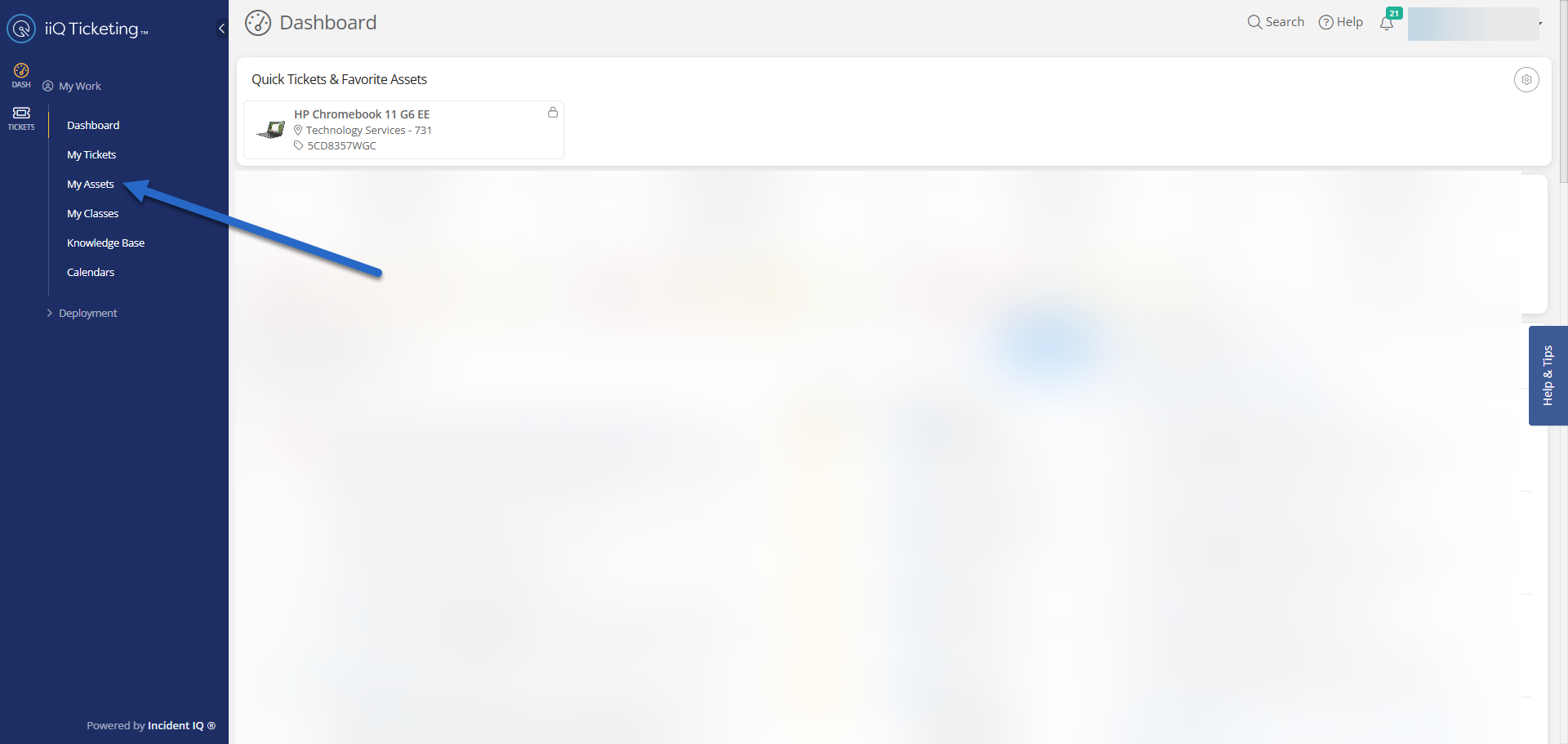
From the left-hand menu, click My Assets.
-
This will show all assets assigned to your claimed room.
2. Open Asset Details
-
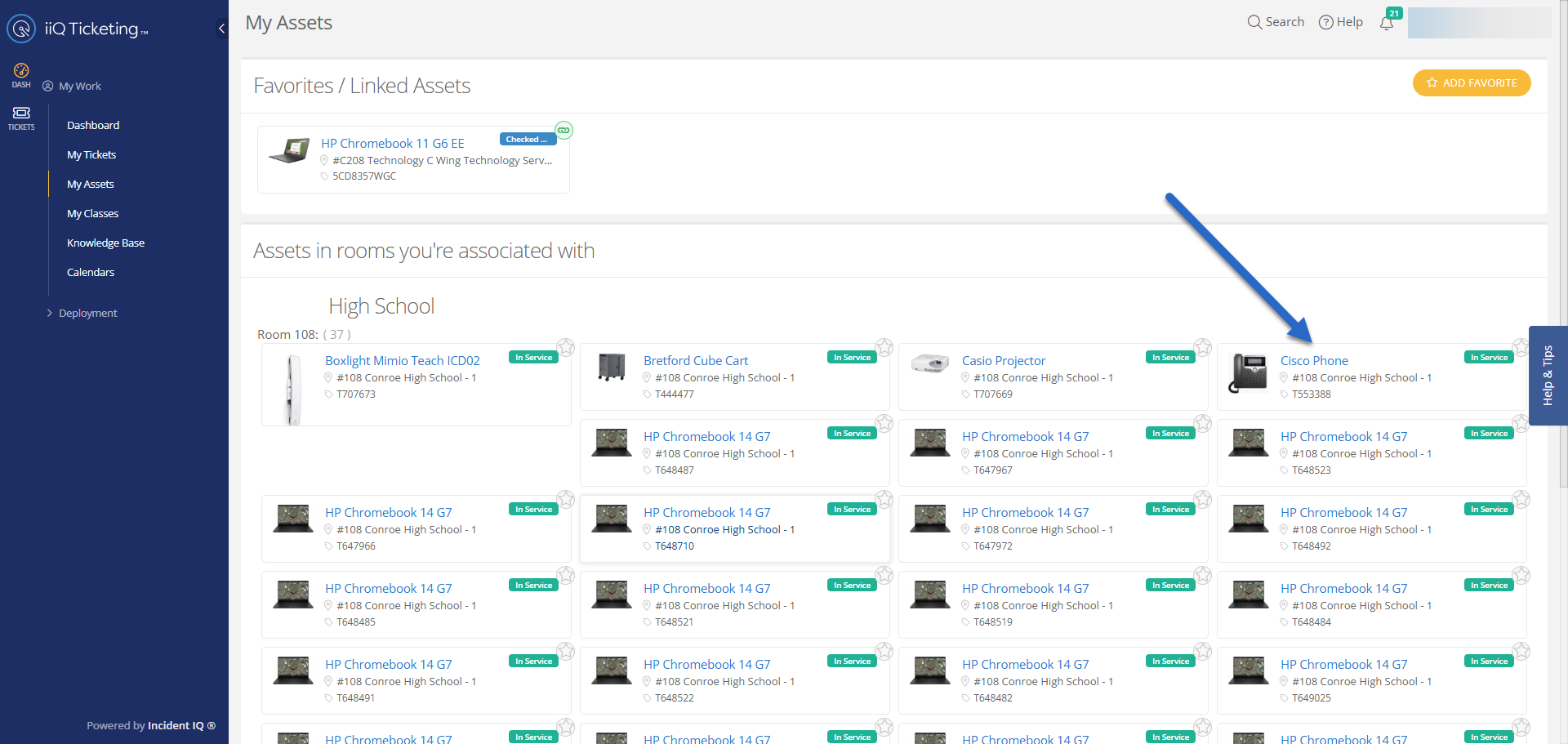
Click the name of the asset you want to submit a ticket for.
-
Example: a Cisco phone or Chromebook.
3. Submit a Ticket
-
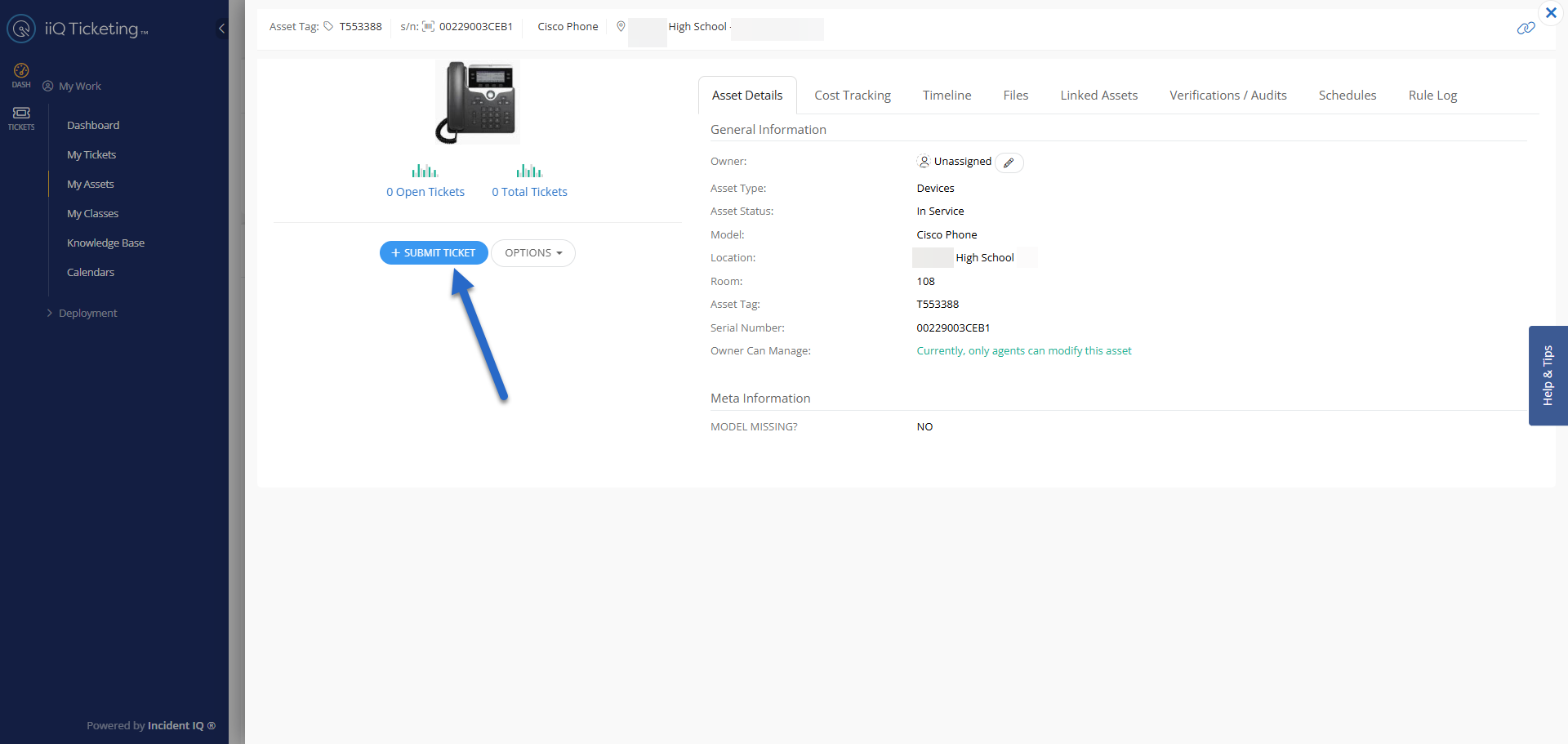
On the asset details page, click Submit Ticket.
4. Select the Issue Category
-
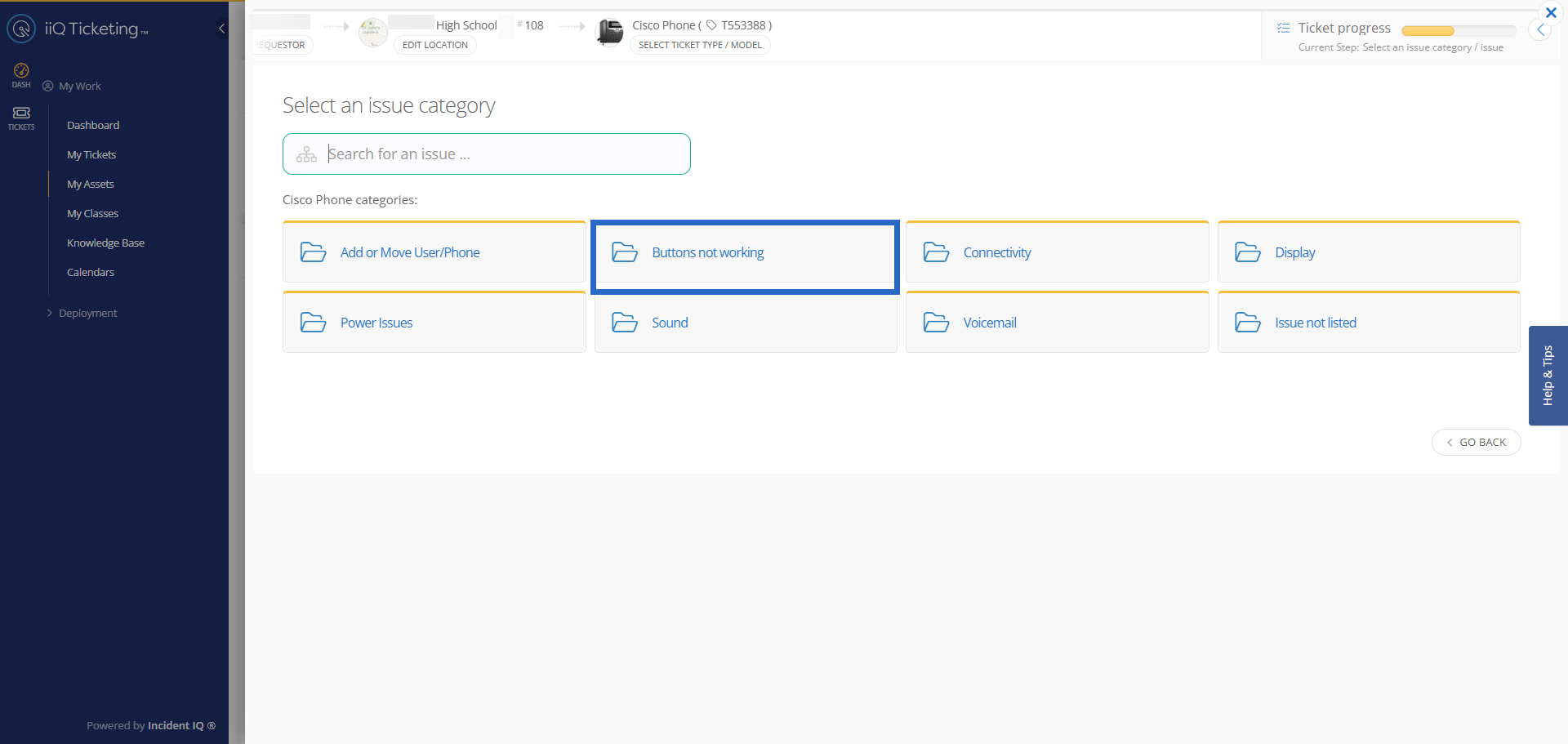
Choose the issue category that most closely matches the problem you are experiencing.
-
If no listed option applies, select Issue Not Listed option.
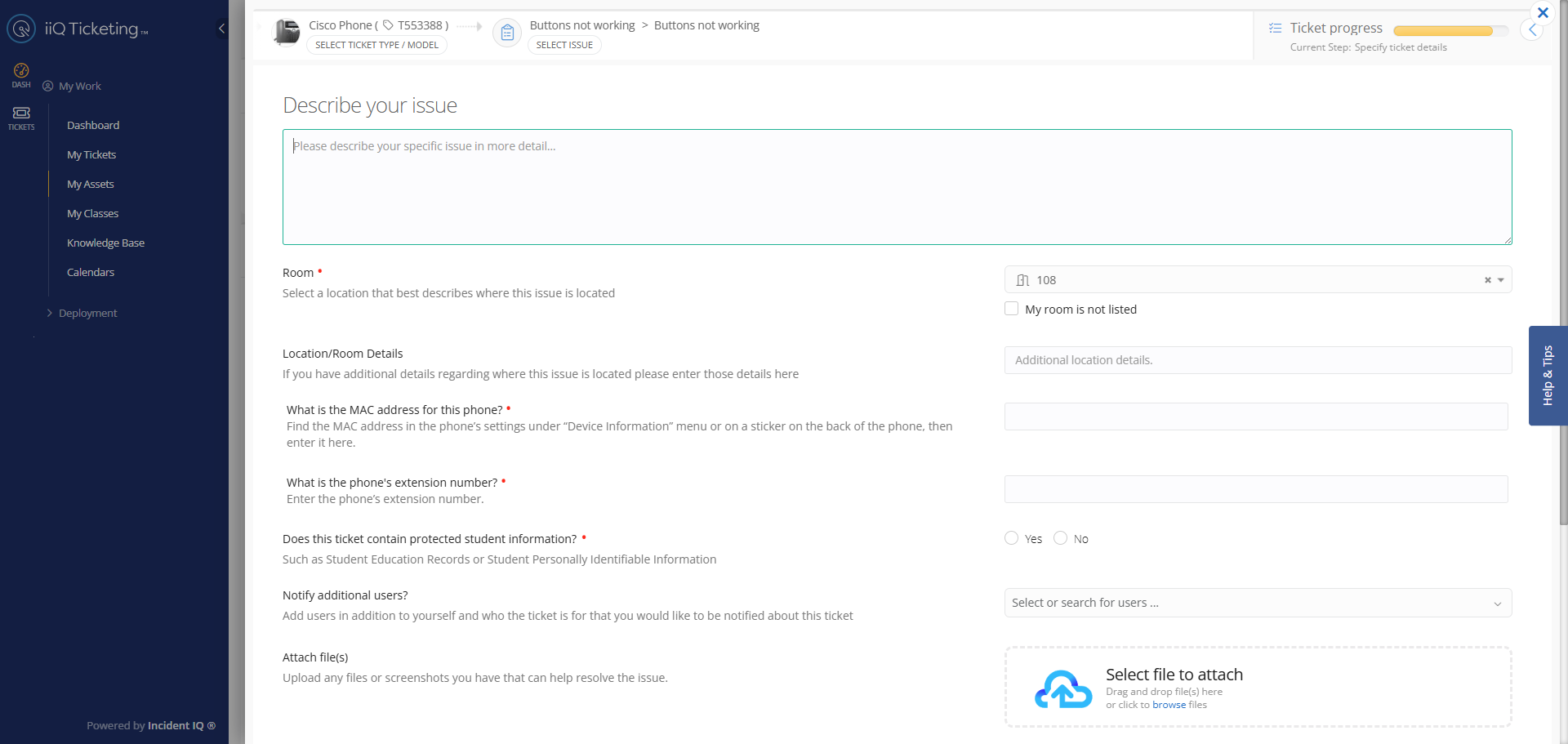
5. Add Detailed Information
-
Provide specifics about the issue or the asset’s location in the room.
-
Optionally, attach images, audio, or video to support your ticket.
-
You can also notify other users (team members or supervisor) if needed.
-
Complete all required fields marked with a red asterisk (*) before submitting.

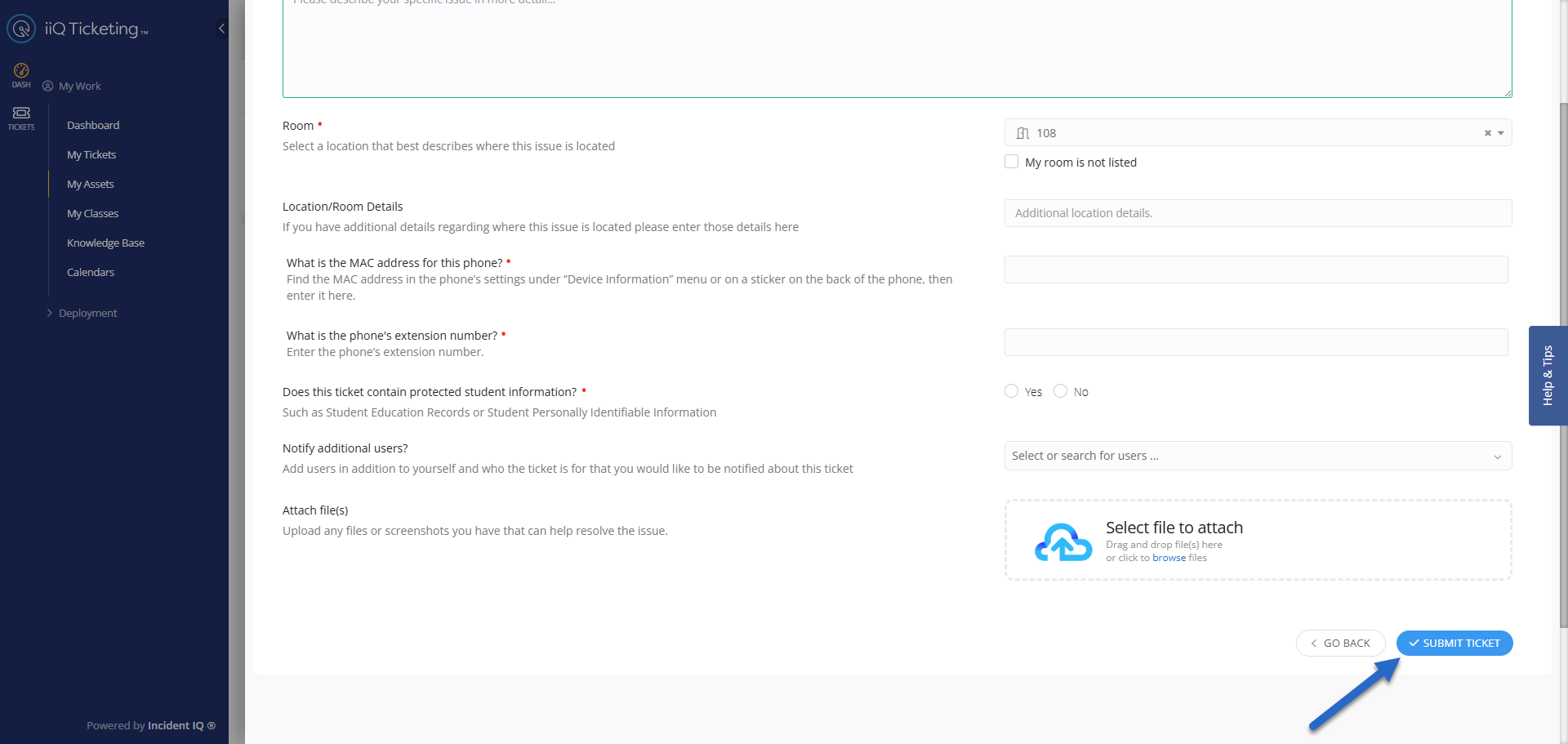
6. Review and Submit
-
Verify all information and click Submit Ticket.
Recommended Tip: Favorite Your Assets
-
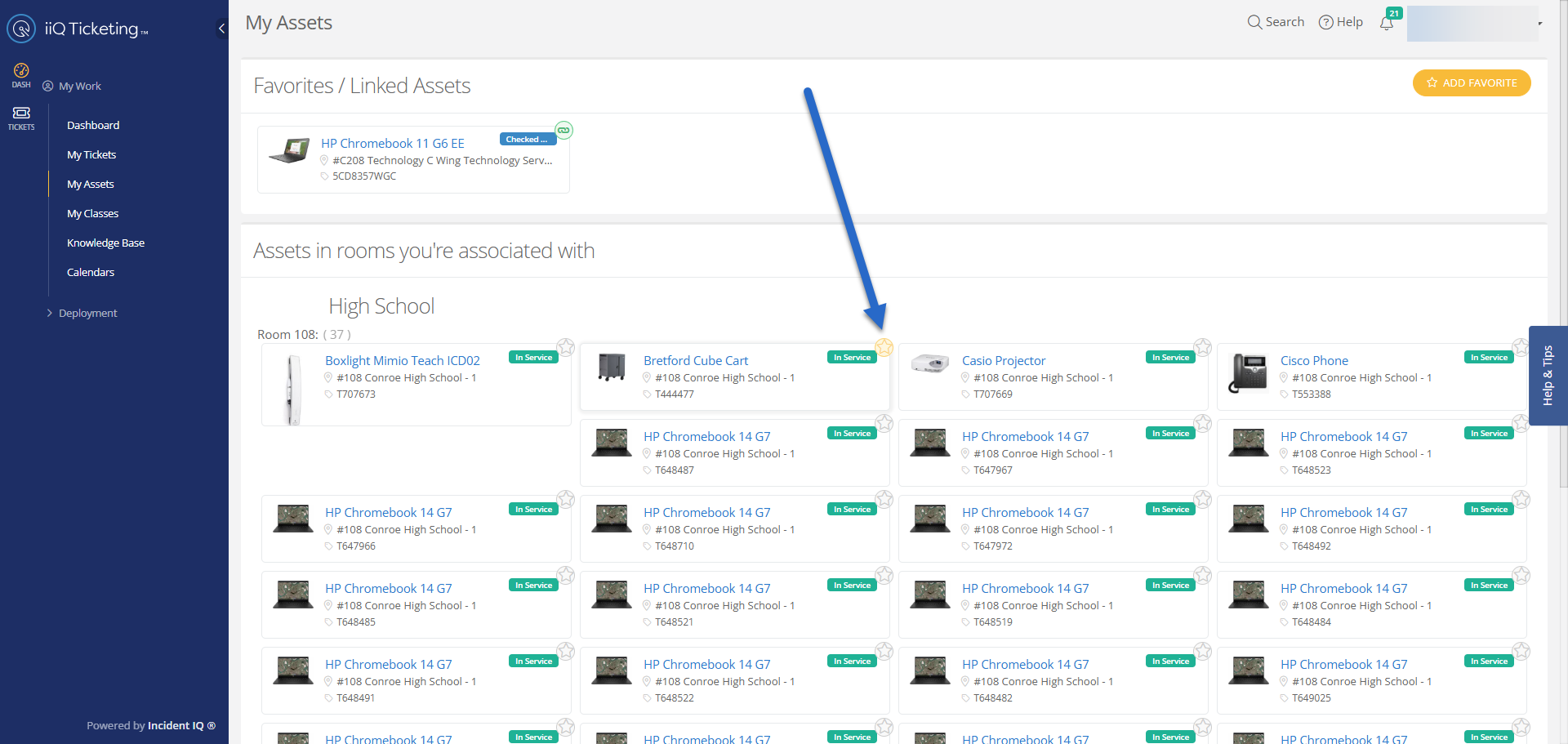
After submitting tickets, you can favorite your frequently used devices.
-
Favorited assets appear on your Dashboard for quick access, making future ticket submissions faster and easier — especially for devices you use daily, like PCs, iPads, or phones.
Click here to go to the next page: How to Submit a Non-Device/ Non-Asset Ticket
Still have questions? Visit the Additional Help section for further assistance.