
This guide will walk you through how to submit a ticket for a device or asset in Incident IQ if you are on a campus that did not get audited this summer.
Steps to Submit a Ticket
Step 1: Start a New Ticket
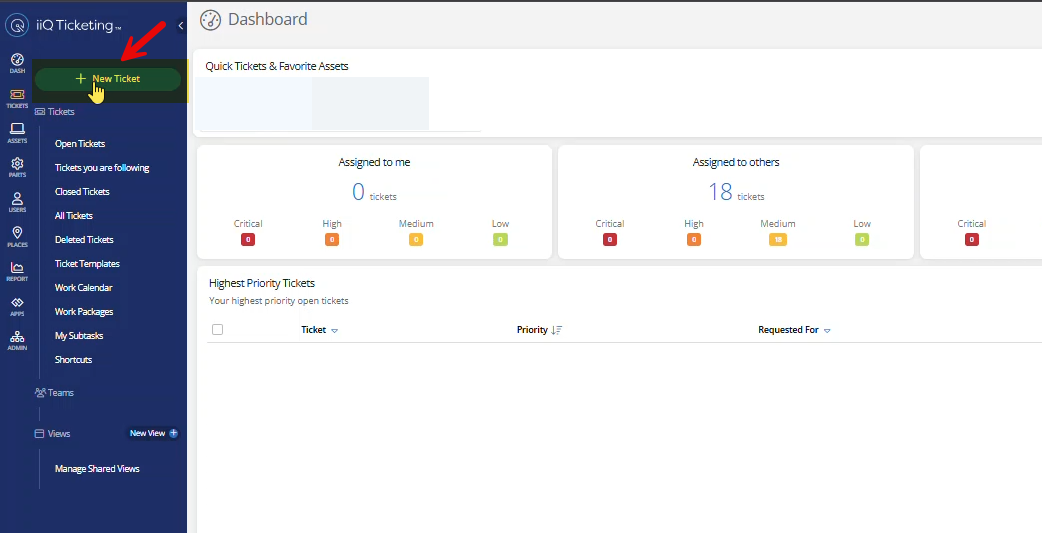
Click on + New Ticket from the IIQ Dashboard.
Step 2: Select the Main Category
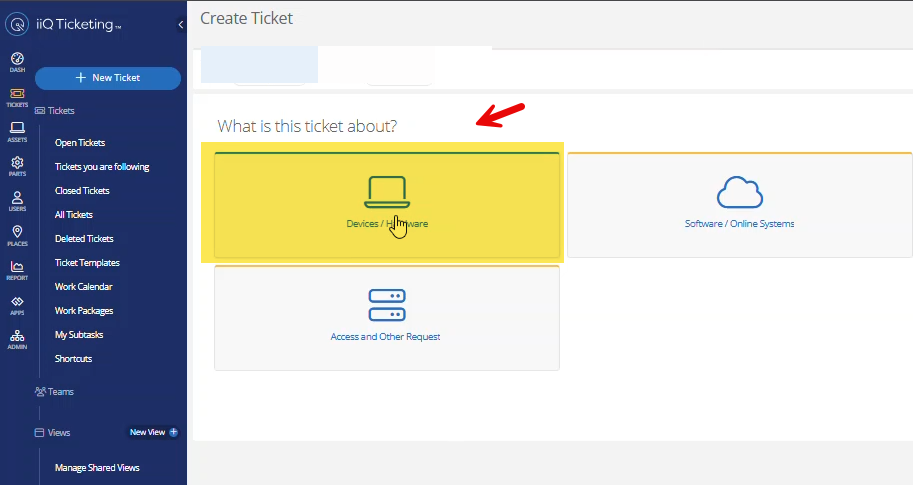
Choose the Devices / Hardware category.
Step 3: Choose Your Device Category
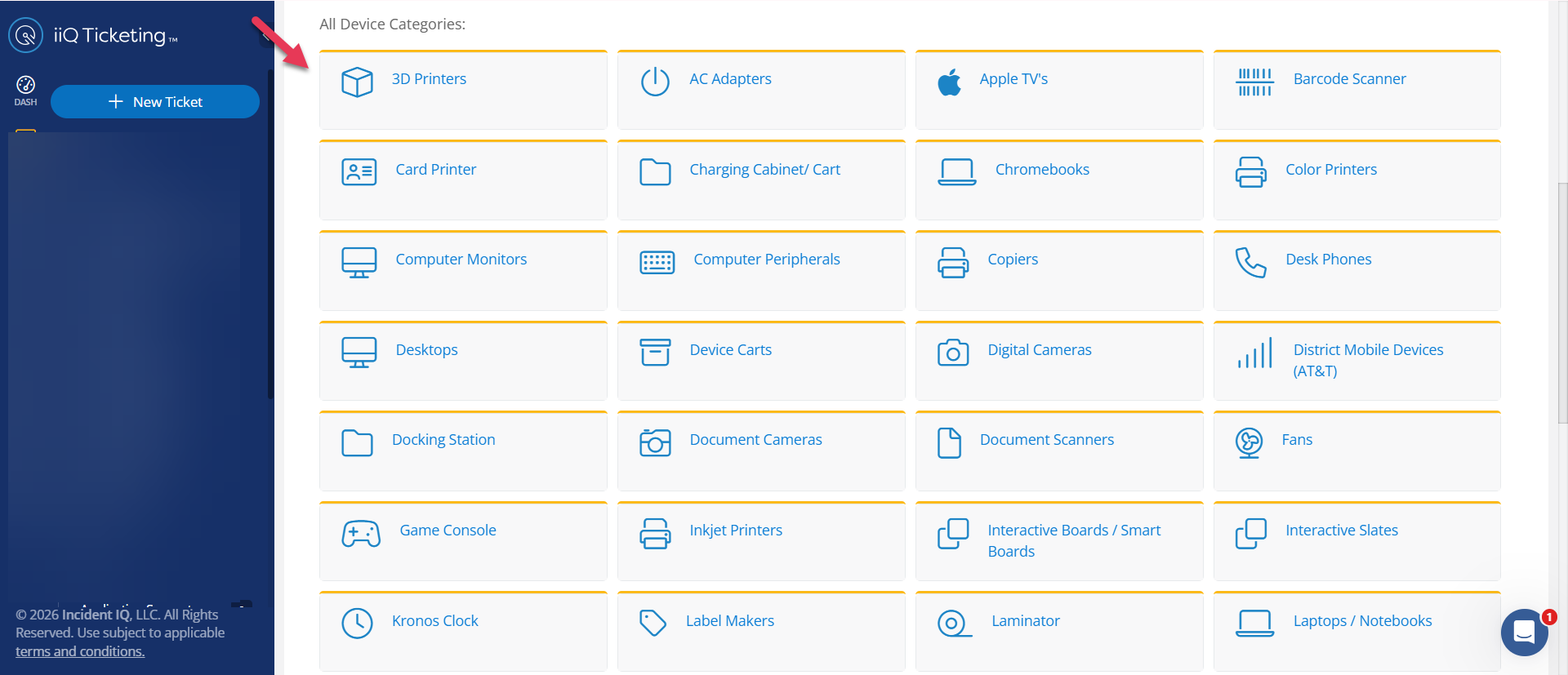
Under "All device categories," select the type of device you are reporting (for example, a desktop/laptop).
-
Search Tip: You can use Ctrl + F (or Cmd + F on a Mac) on your keyboard to quickly search the page for the specific word or device you are looking for.
Step 4: Select Your Device Model
Choose your specific model from the provided list.
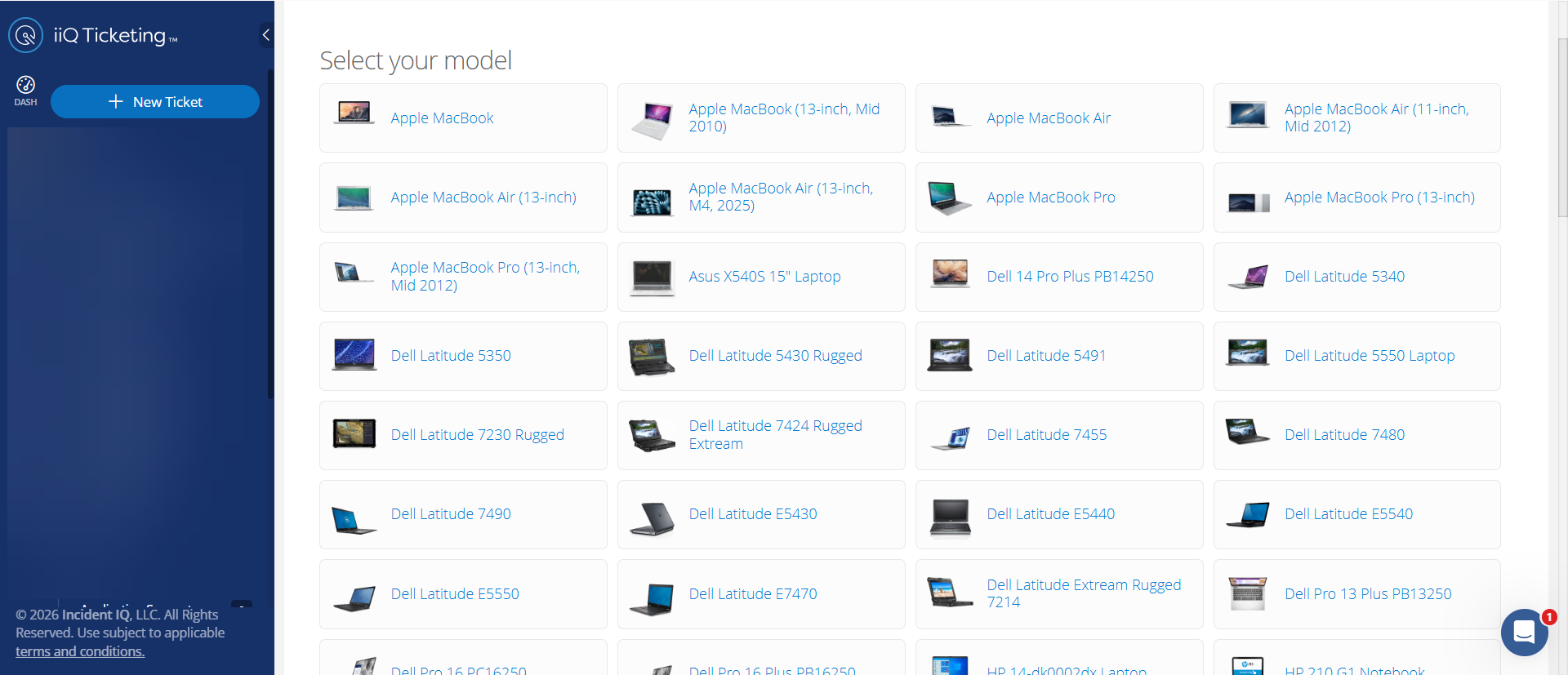
Not sure? If you are unsure of your exact model, scroll to the very bottom of the list and select "I don't know the model."

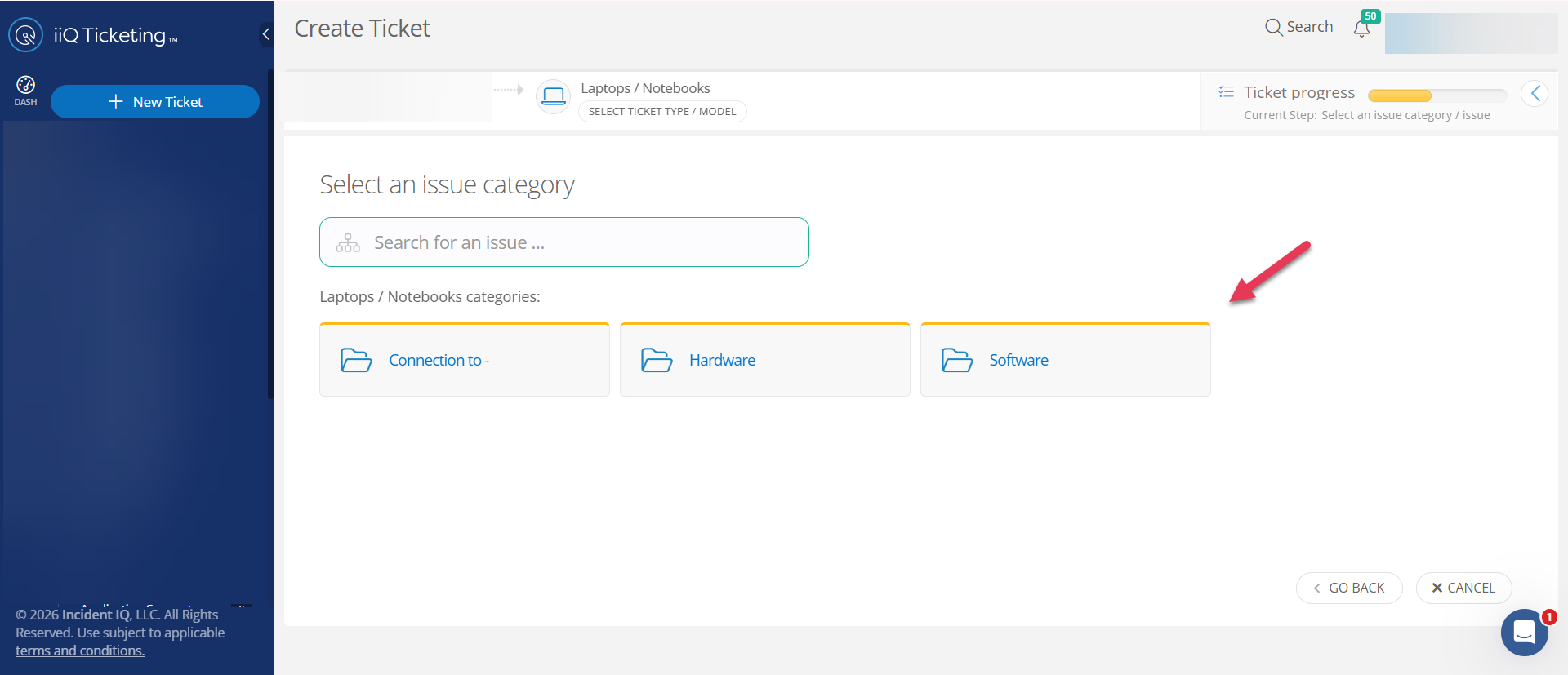
Step 5: Categorize the Issue
Select the Issue Category, and then choose your specific issue from the drop-down menu.
-
If you do not see your exact problem listed, choose Issue not listed (if available).
Step 6: Complete the Ticket Details
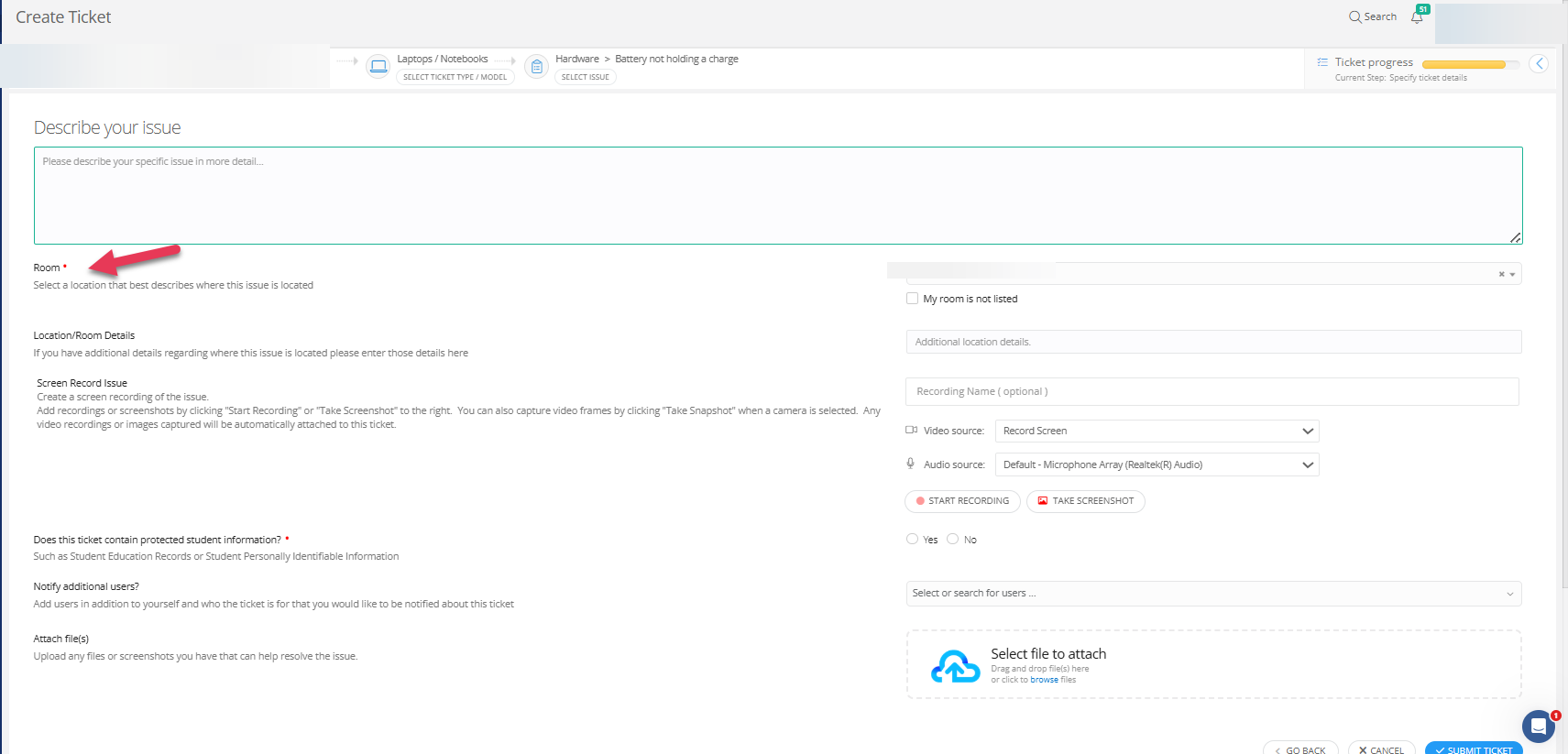
Provide a detailed description of the problem you are experiencing, making sure to fill out any required information indicated by a red asterisk (*).
While on this page, please also complete the following:
-
Verify Your Location: Confirm that the room where you need assistance is listed correctly.
-
Screen Record the Issue (Highly Recommended): If it is a visual glitch or specific error process, recording your screen helps our team replicate and fix the issue much faster.
-
Flag Protected Information: You must indicate if the ticket contains student IDs, names, or any other Personally Identifiable Information (PII).
-
Add Attachments & Notifications: Attach any relevant files or screenshots, and add additional users if a co-worker or administrator needs to track the ticket's status.
Step 7: Submit
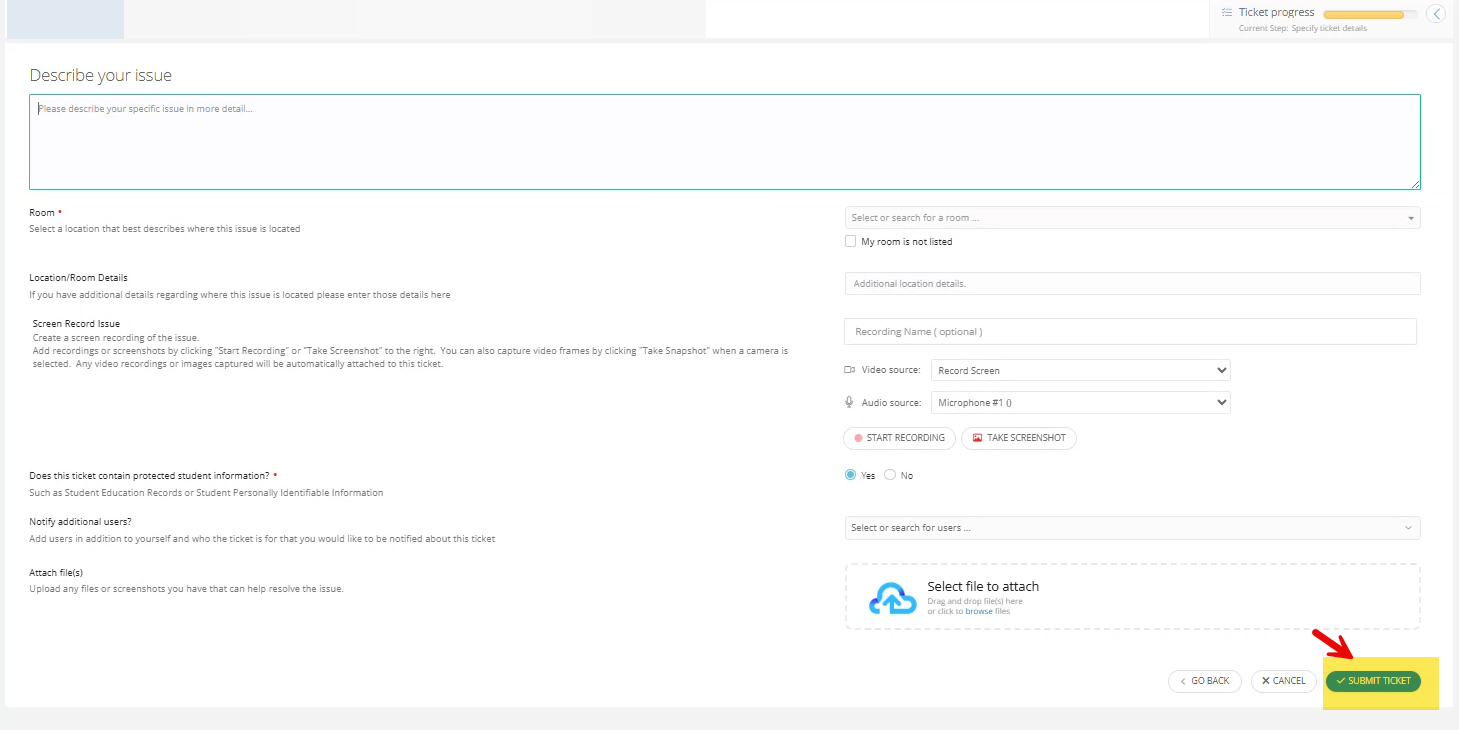
Review your information and click the Submit Ticket button to finalize and create your ticket.
Still have questions? Visit the Additional Help section for further assistance.