
You can excuse the same assignment for multiple students by exporting your gradebook, marking the assignment in the export, and re-importing it. This can save time compared to excusing each student individually. However, because this changes grades in Canvas, it’s important to be very careful when using this method.
-
Only excuse students who should have the assignment excused.
-
This process changes grades in Canvas, so mistakes can impact student records and grade calculations. Double-check your selections carefully before re-importing.
-
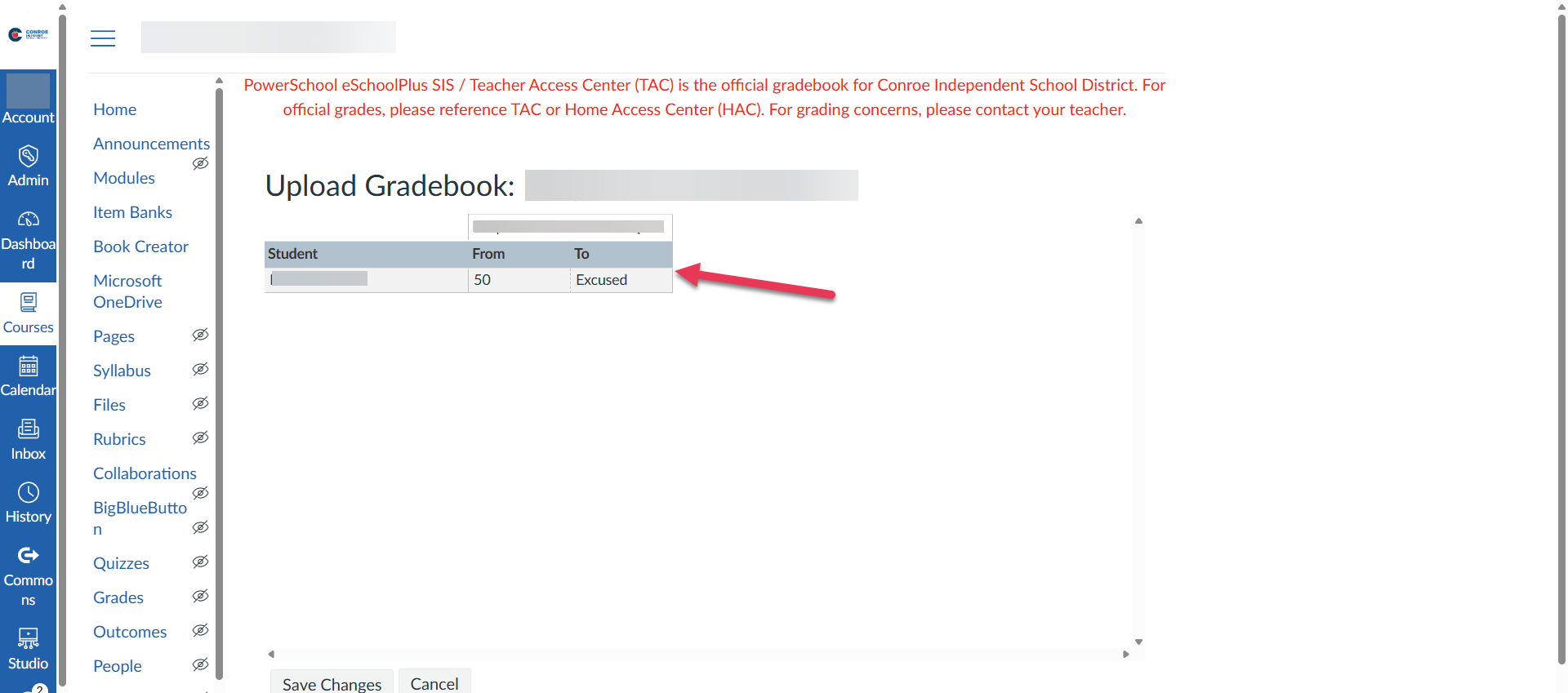
When re-importing, Canvas will show what grades are being changed. Always review these changes carefully and verify they are correct before confirming.
-
For a small number of students or high-stakes assignments, it may be safer to excuse individually or use the standard “Ex” in the gradebook.
How to Excuse Multiple Assignments
-
Export your gradebook using these instructions.
-
In the exported file, locate the assignment you want to excuse.
-
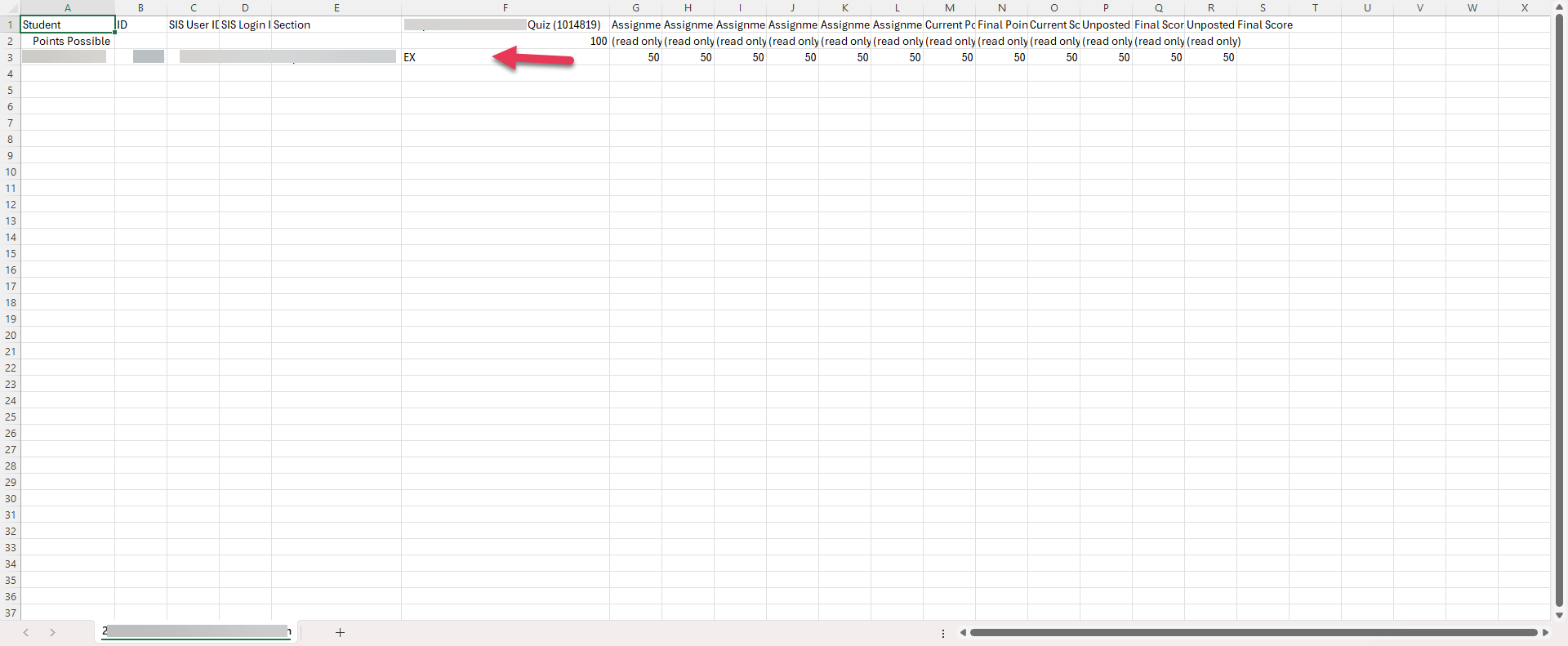
For each student who should have the assignment excused, type EX in the corresponding cell.
-
Save the edited file as a new file and include today’s date in the file name. This keeps a record of when the changes were made and preserves the original export in case you need it later.
-
Re-import the gradebook into Canvas using these instructions.
-
Review the confirmation screen carefully, it will show what grades are being changed from and to.
-
Click Save Changes to apply the excused status to all selected students.
Still have questions? Visit the Additional Help section for further assistance.