
The Canvas Accessibility Checker ensures that your digital course materials are clear and navigable for all students. There are now two primary ways to check your content: Scanning an entire course via the navigation menu or checking a single page while editing in the Rich Content Editor (RCE).
Note: The checker focuses on "high-impact" rules that most frequently affect users, testing against WCAG 2.2 Level A, AA, and AAA criteria.
Method 1: Scanning an Entire Course
This method is best for a "birds-eye view" of your course health. It allows you to find and fix issues across multiple Pages and Assignments from one central dashboard.
-
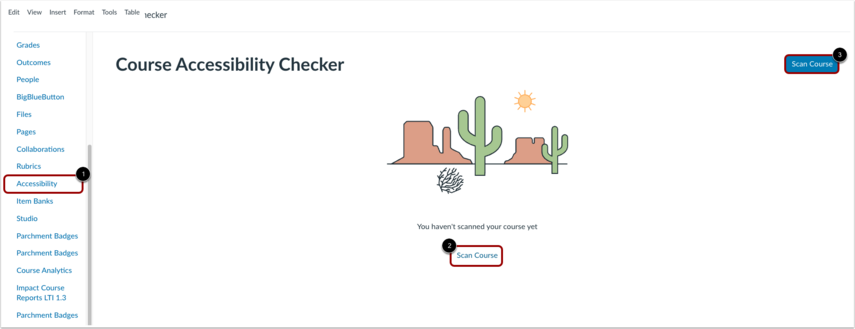
Open Accessibility: In your Course Navigation menu, click the Accessibility link.
-
Scan Course: Click the Scan Course button.
-
Note: Large courses (up to 1,000 items) may take a few minutes to complete.
-
-
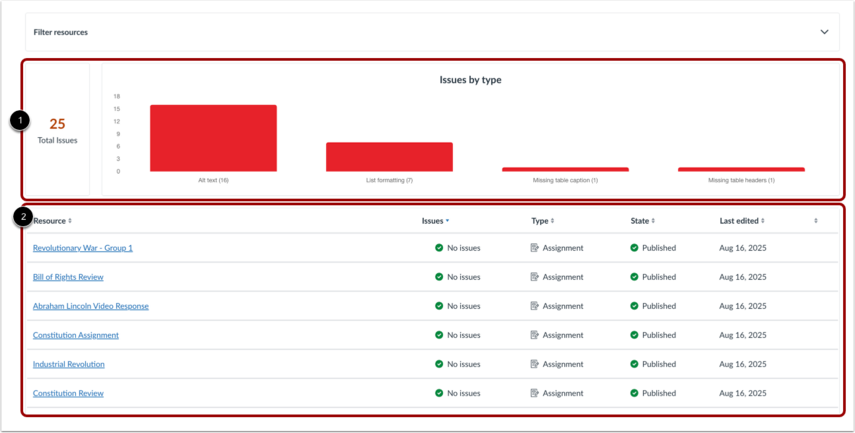
View Issues: The dashboard will display a bar chart of issue types and a list of specific resources with errors.
-
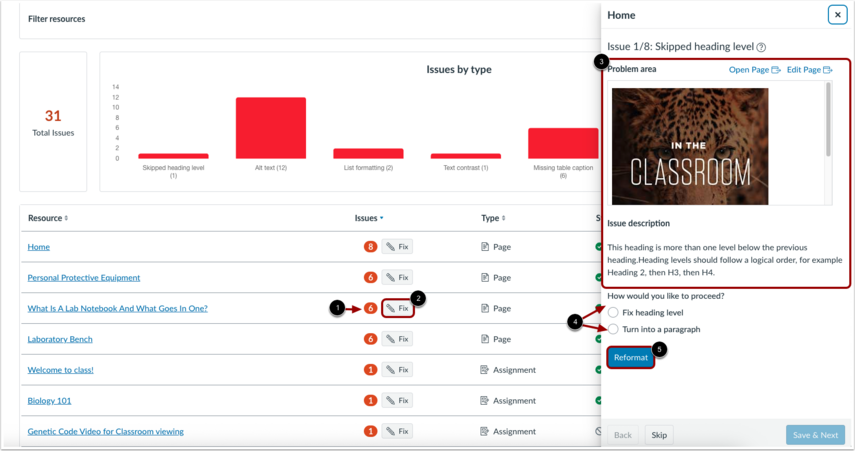
Fix Issues: Click the Fix button next to any resource. A tray will slide out to guide you through the remediation wizard.
-
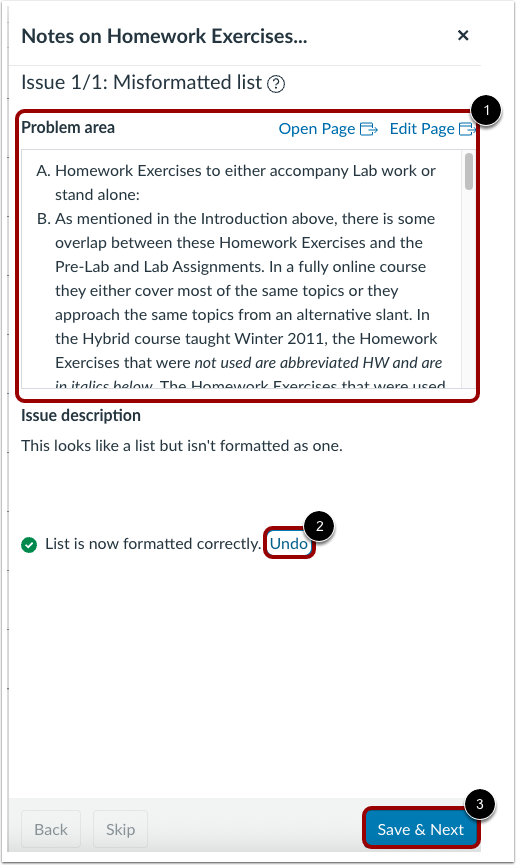
Apply & Next: Follow the prompts to fix the issue and click Save & Next to move to the next item.
Method 2: Checking an Individual Page (RCE)
This method is best for checking content in "real-time" as you are creating or editing a specific item.
-
Open Editor: Click Edit on any Page, Assignment, Discussion, or Quiz.
-
Launch Checker: Locate the Accessibility Checker icon (a person in a circle) at the bottom right of the text editor.
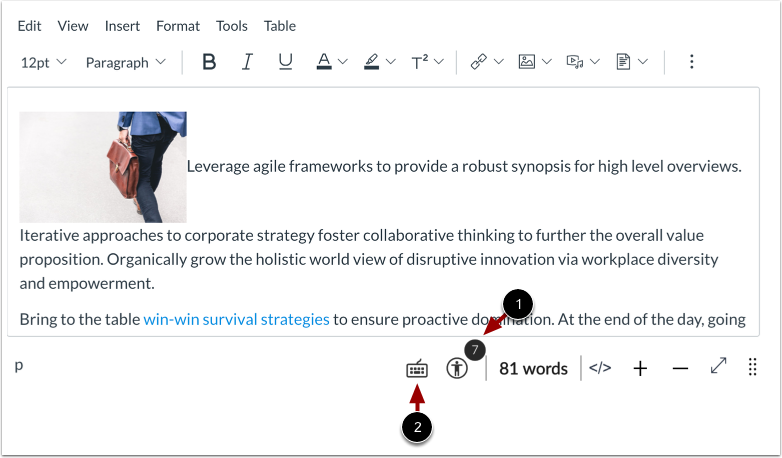
-
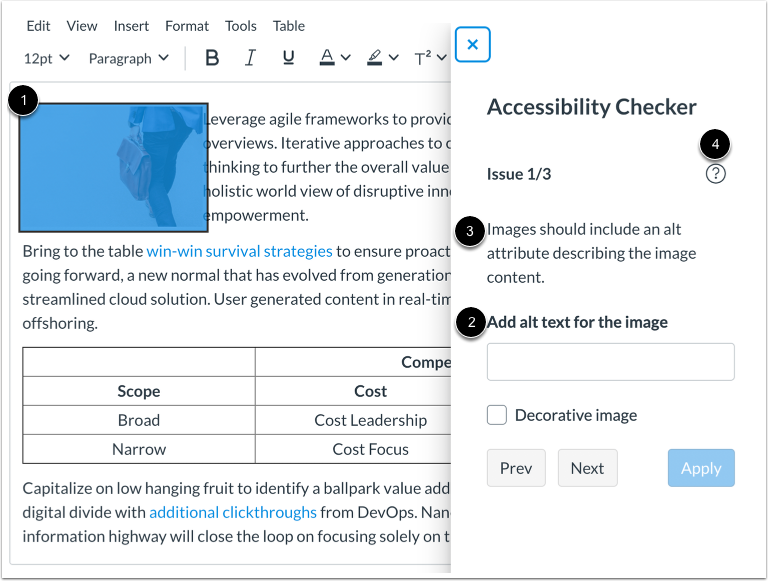
Follow the Wizard: A sidebar will open on the right. Highlighted areas in your editor will correspond to the issues listed in the sidebar.
-
Apply Fix: Enter the required information (like Alt Text) and click Apply.
What the Checker Identifies
The tool scans for common accessibility barriers in your text, images, and tables:
|
Category |
Specific Issues Detected |
|
Images |
Missing Alt Text, alt text too long (>200 chars), or using the filename as alt text. |
|
Links |
Duplicate links or broken links containing extra spaces. |
|
Text/Heads |
Skipped heading levels (e.g., H2 to H4), headings over 120 chars, or use of H1 within page content. |
|
Contrast |
Small or large text that does not meet WCAG 2.2 Level AA contrast requirements. |
|
Tables |
Missing headers, missing captions, or improper header scope. |
Important Notes
-
Scope: The checker does not scan files (PDFs, PowerPoints) or content created in external LTI tools.
-
Limitations: The Course-Level scan is currently limited to courses with fewer than 1,000 total pages and assignments.
-
Version History: If you roll a page back to a previous version, any previous accessibility fixes will be lost and must be re-applied.
-
Decorative Images: If an image does not add instructional value (like a divider line), always check the "This image is decorative" box so screen readers skip it.
Still have questions? Visit the Additional Help section for further assistance.